
Migrating Sites With Presto Player
Moving your site to a new host, domain, or server? This guide walks you through everything you need to do to keep Presto Player working correctly after a migration – including Bunny Stream reconnection, license transfer, and the common errors that trip people up.
Before You Migrate
A few minutes of prep before the move will save you troubleshooting time afterward.
- Note your Presto Player license key. You’ll need it to re-activate on the new domain. Find it in your Presto Player account under My Account > Orders. See How To Install Presto Player Pro for a walkthrough of the license activation process.
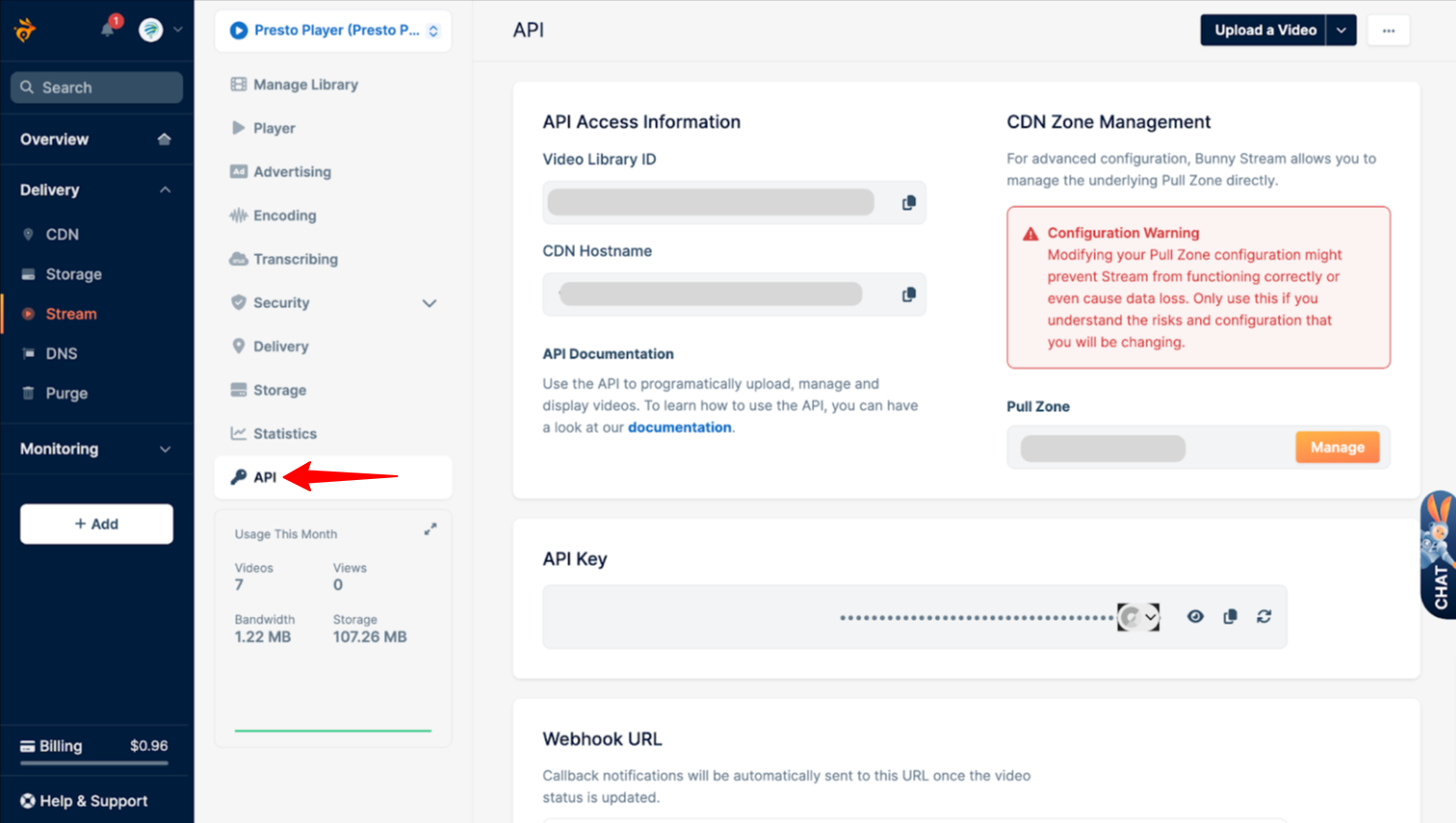
- Write down your Bunny Stream settings. Your Library ID, API key, and CDN hostname are all found in the API tab of your Bunny Stream library. See Bunny.net Video Library Integration for where to find these. Also note whether Token Authentication (signed URLs) is enabled.
- Update your Bunny Stream domain whitelist. If the destination site has a different domain, add it to Bunny Stream’s allowed domains now so videos aren’t blocked the moment the site goes live. Steps are covered in Step 3 below.
Step 1 – Migrate Your Site
Use your preferred migration method. Presto Player is compatible with all major migration plugins and workflows.
Using Duplicator or a migration plugin
- Create a full-site package (files + database) as you normally would.
- Deploy to the new host and run the installer.
- Once the site loads, proceed to Step 2 before testing any videos.
Pushing staging to live (same host)
- Use your host’s push-to-live tool or manually copy files and perform a search-replace on the database for the staging domain → live domain.
- If your Bunny Stream CDN hostname was already pointed at the live domain, no changes are needed in Bunny. If it was pointed at staging, update it now (see Step 3).
Note: The exact steps for your migration will depend on your hosting setup and the tools you’re using. If you need help with the migration itself, reach out to your host or developer – most hosts offer migration support.
Step 2 – Re-Activate Your License
Presto Player Pro licenses are domain-specific. After a migration to a new domain, deactivate the license on the old site first, then re-activate on the new one.
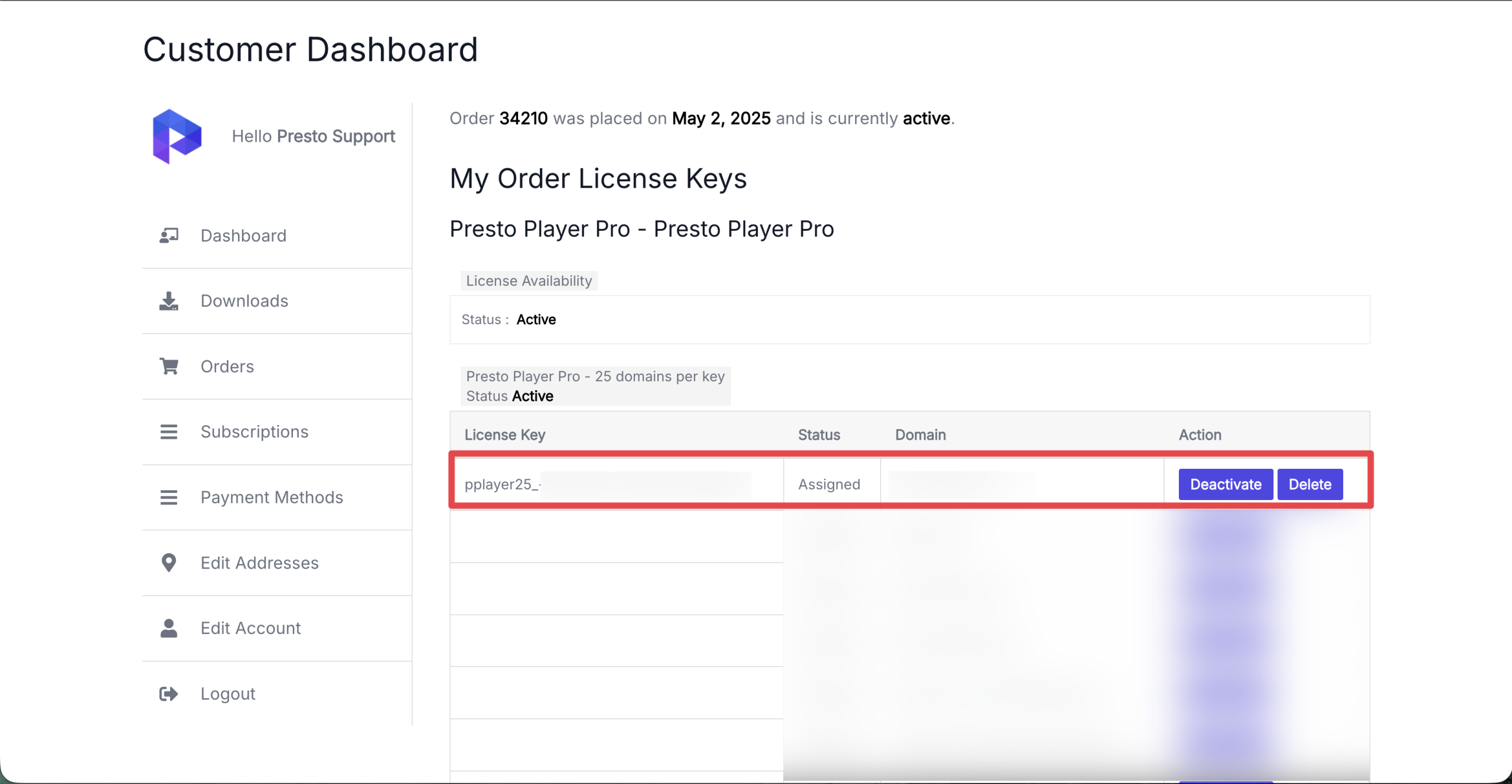
Step 1 – Log in to the Presto Player Store and go to My Account > Orders.
Step 2 – Open your order and copy your license key.
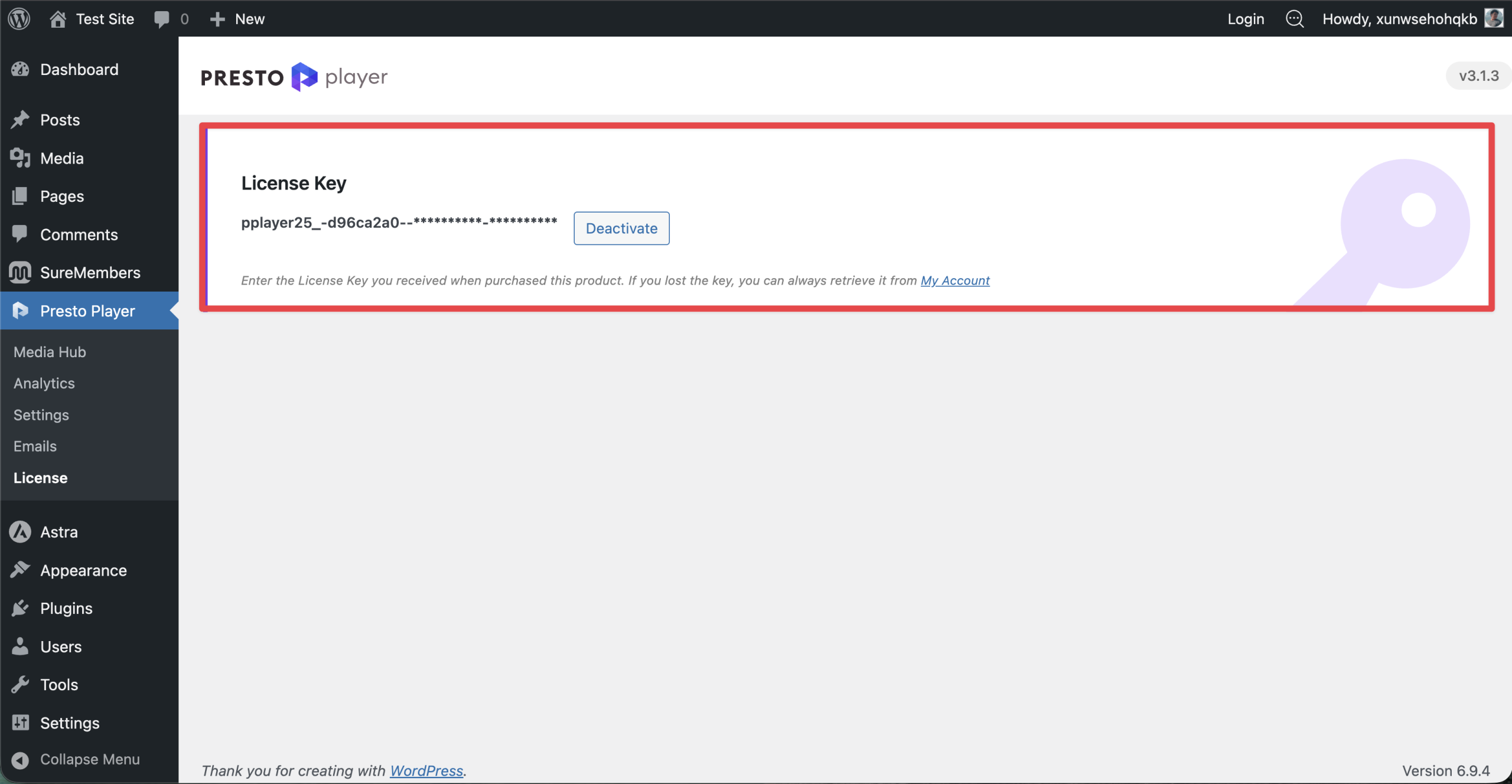
Step 3 – On the new site, go to Dashboard > Presto Player > License. Paste the key and click Save.
If the license is already in use on the old domain and activation fails, see the License won’t activate FAQ below.
Step 3 – Reconnect Bunny Stream
This is the step most commonly missed. Even if your Library ID and API key are still in the Presto Player settings, Bunny Stream needs to be re-verified after a domain change or host migration.
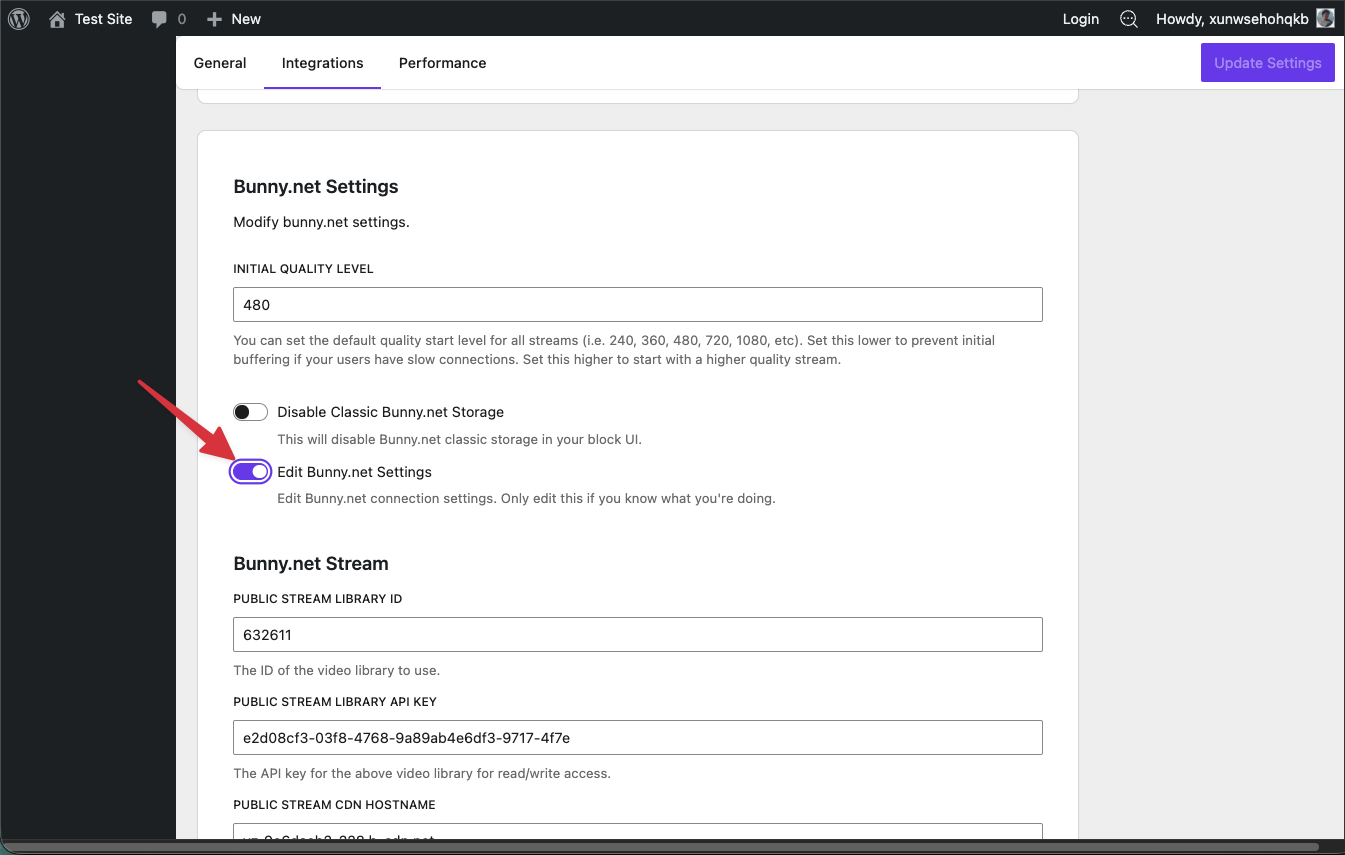
Step 1 – Go to Presto Player → Settings → Integrations → Bunny.net Settings.
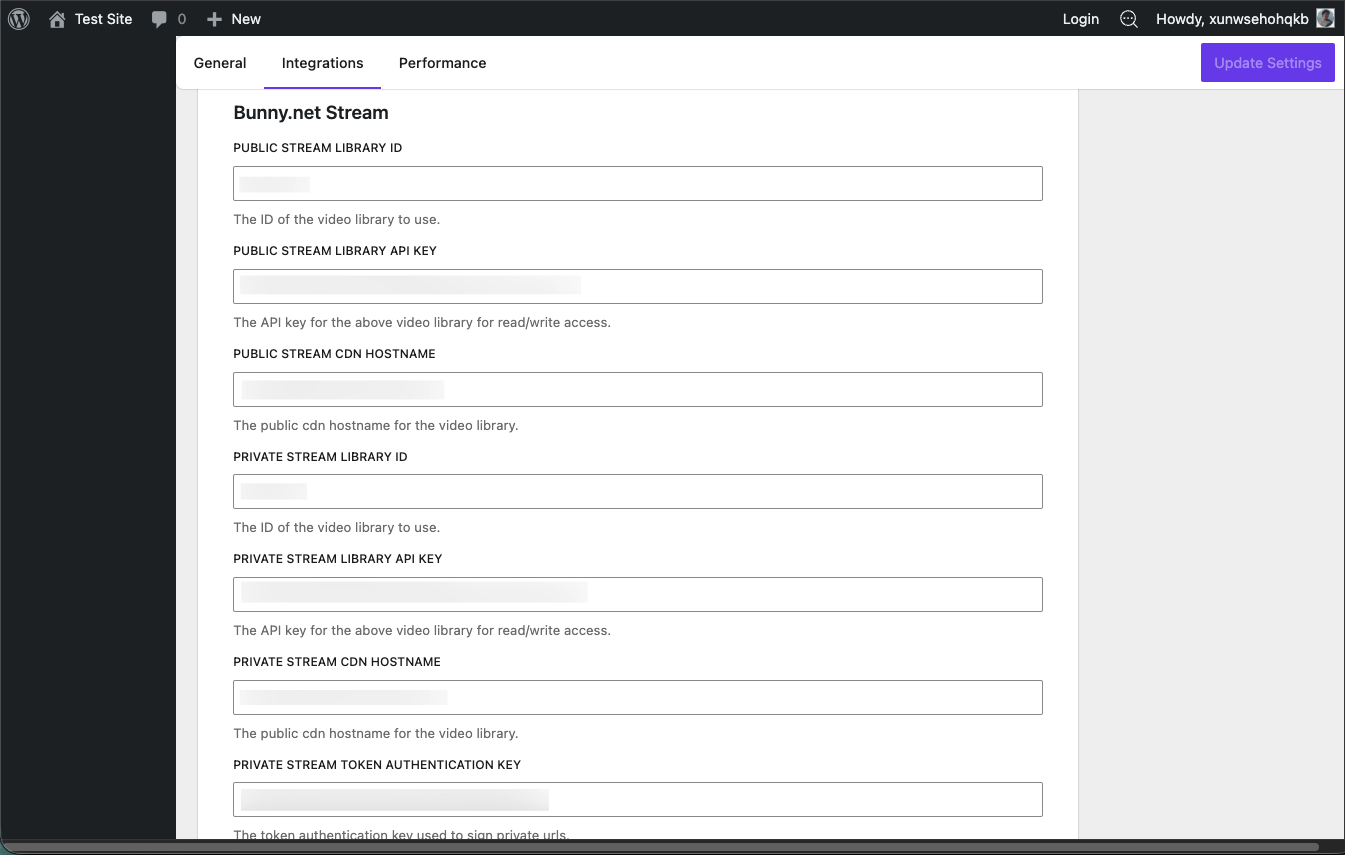
Step 2 – Toggle on Edit Bunny.net Settings, re-enter your API key, and click Save. Even if the key hasn’t changed, saving it forces Presto Player to re-establish the connection.
Step 3 – If your domain changed, update the CDN Hostname field to match your Bunny Pull Zone domain.
To find your CDN Hostname, log in to Bunny.net and go to Stream → [Your Library] → API tab. The CDN Hostname is listed there alongside your Library ID and API key. For a full walkthrough with screenshots, see Bunny.net Video Library Integration.
Update the allowed domains in Bunny.net
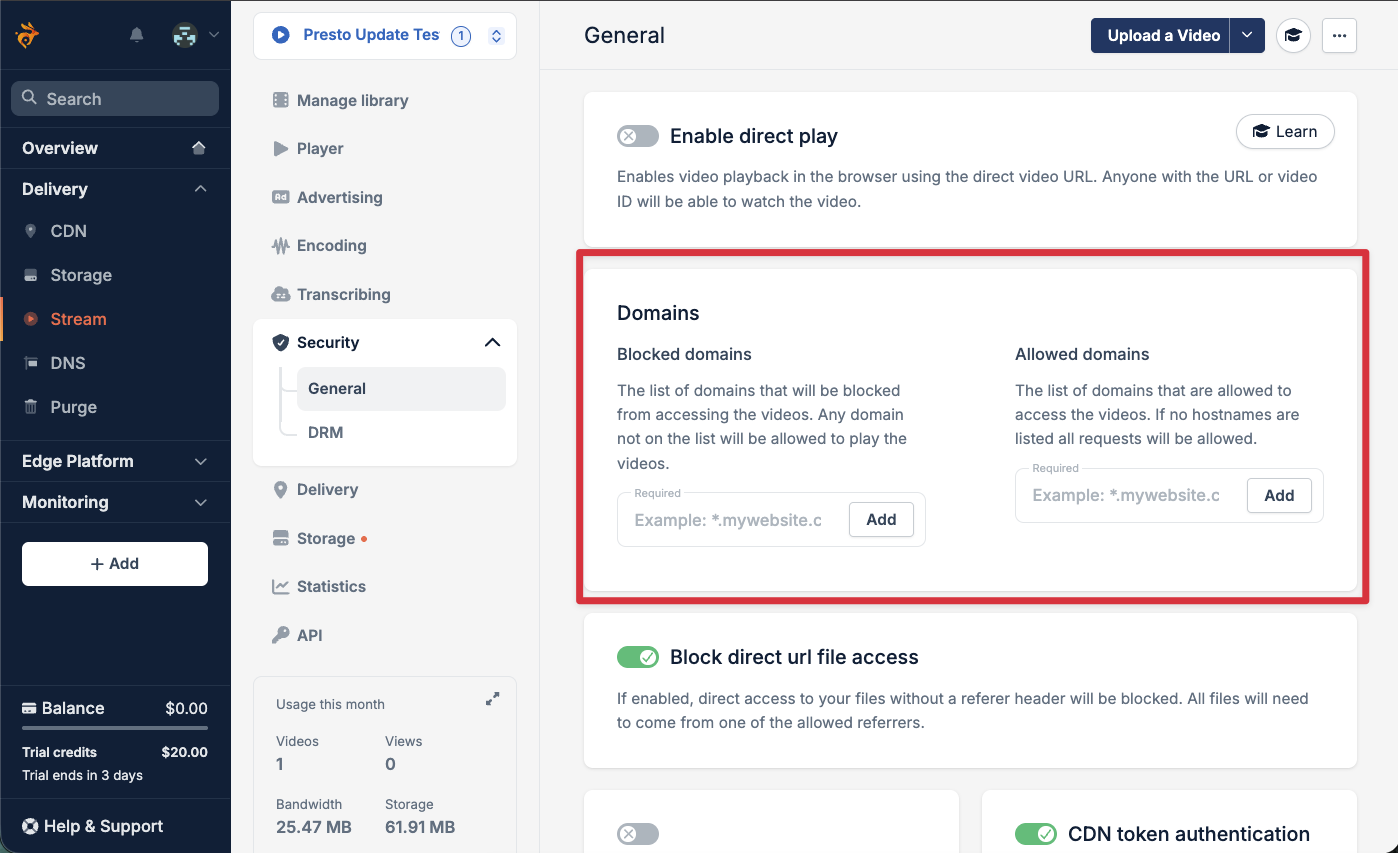
Bunny Stream can restrict video playback to specific domains. After a migration to a new domain, you’ll need to add it to the allowed domains list.
Step 1 – Log in to Bunny.net and go to Stream → [Your Library] → Security.
Step 2 – Under Allowed Domains, add your new domain (e.g. example.com). You can remove the old domain once you’re done.
Step 4 – Clear All Caches
Stale caches are a common cause of post-migration issues with Presto Player. Clear all of the following before testing.
- WordPress caching plugin – Clear all caches in your caching plugin (WP Rocket, W3 Total Cache, LiteSpeed Cache, etc.).
- Server or hosting cache – Many hosts (WP Engine, Kinsta, Flywheel, SiteGround, etc.) have a server-level cache separate from your plugin. Clear it from your hosting dashboard or ask your host if you’re not sure where to find it.
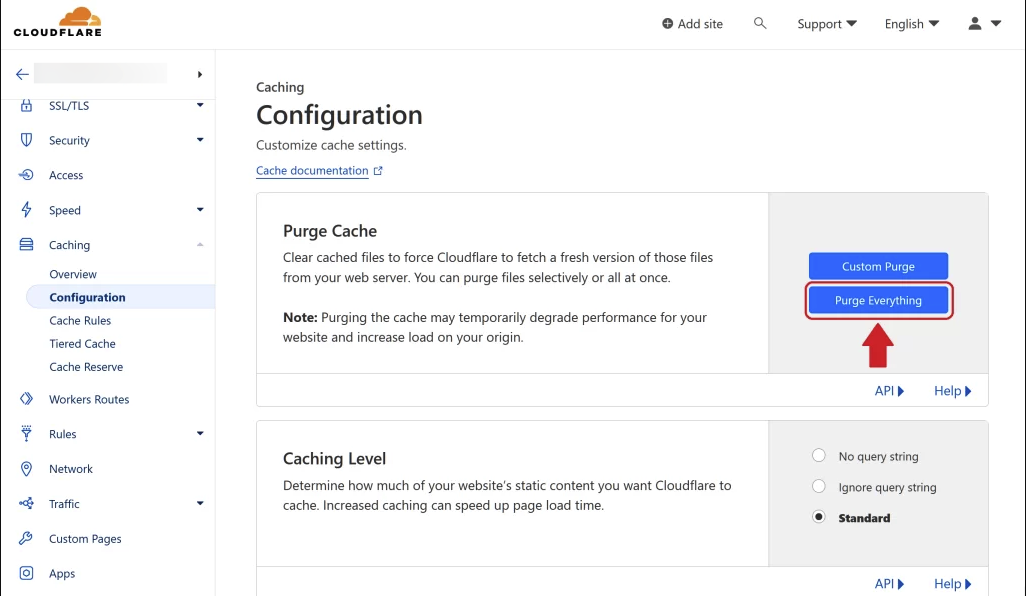
- Cloudflare or CDN cache – If you use Cloudflare, purge everything from the dashboard under Caching → Configuration → Purge Everything. Cloudflare aggressively caches REST API responses and can serve stale 404s even after a migration is complete.
- Browser cache – Open your new site in an incognito/private window to test with a clean slate.
Post-Migration Checklist
- License activated on new domain
- Bunny Stream API key re-saved in Presto Player settings
- CDN hostname updated (if domain changed)
- New domain added to Bunny Stream allowed domains
- Presto Player Pro updated to 3.1.3 or later (if using Bunny Stream)
- All caches cleared (server, WordPress plugin, Cloudflare, browser)
- Videos tested on front end in an incognito window
- Email capture and CTA overlays tested (if in use)
- Old domain deactivated from license (if domain changed)
Frequently Asked Questions
Videos show a 503 error on the new site
A 503 on Presto Player’s REST API endpoint (/wp-json/presto-player/v1/...) is almost always a server configuration issue, not a plugin problem. This happens when the new host’s server doesn’t pass the Authorization header to PHP, or when the REST API is being blocked by a firewall rule.
- Check with your host that the REST API is enabled and that
Authorizationheaders are being passed through (sometimes blocked by LiteSpeed or Apache.htaccessrules). - If you’re on Nginx, make sure
fastcgi_pass_header Authorization;is set in your server block. - Try deactivating all other plugins temporarily to rule out a conflict.
Bunny Stream videos return a 403 error
A 403 from Bunny Stream usually means one of three things:
- Domain not in allowed domains – Your new domain isn’t in the Bunny Stream allowed domains list. See Step 3 above.
- Token Authentication enabled but misconfigured – If you use signed URLs, the token signing key may need to be reset. Go to Presto Player → Settings → Integrations → Bunny.net Settings, re-enter your API key, and save.
- Double-slash bug (Presto Player Pro < 3.1.1) – Older versions had a bug where signed URL token paths were generated as
//GUID/instead of/GUID/, causing all signed requests to 403. Update to Presto Player Pro 3.1.1 or later to resolve this. See Presto Player Pro Not Updating if you’re having trouble getting the update.
Presto Player → Settings → Integrations → Bunny.net Settings with Token Authentication / Signed URLs toggle visible
Videos work in the WordPress admin but not on the front end
This is typically a CORS issue. Presto Player Pro 3.1.3 added a CORS preflight fix for this exact scenario. Update to 3.1.3 or later, then clear all caches as described in Step 4.
License won’t activate on the new domain
If activation fails, the most common cause is that the old domain is still occupying a license seat. Log in to the Presto Player Store, go to My Account > Orders, open your order, and deactivate the old site. Then try activating again on the new site.
If you’re still stuck, contact support with your order number and we can reset the activation manually.
Presto Player settings are missing after migration
Presto Player stores its settings in the WordPress database. If your migration tool performed a search-replace on the database, confirm that serialized option values were not corrupted. Tools like Search Replace DB handle serialized data correctly. If you used a plain SQL find-and-replace, serialized data may have been broken and you may need to re-enter your Bunny Stream credentials manually.
Conclusion
That’s all it takes to migrate a site running Presto Player. The most important steps are re-saving your Bunny Stream API key, updating your domain in Bunny’s allowed referrers, and clearing all caches before testing. If you run into any issues, feel free to reach out to our support team. We’re happy to help.
We don't respond to the article feedback, we use it to improve our support content.