
Bunny.net Setup
Presto Player integrates directly with Bunny.net CDN, letting you upload and serve video files through your Bunny.net account. This guide walks you through the setup process.
Add a Presto Player Block
Step 1: On the page or post where you want to add the video, add a Presto Player block and select Bunny.net as the video source.
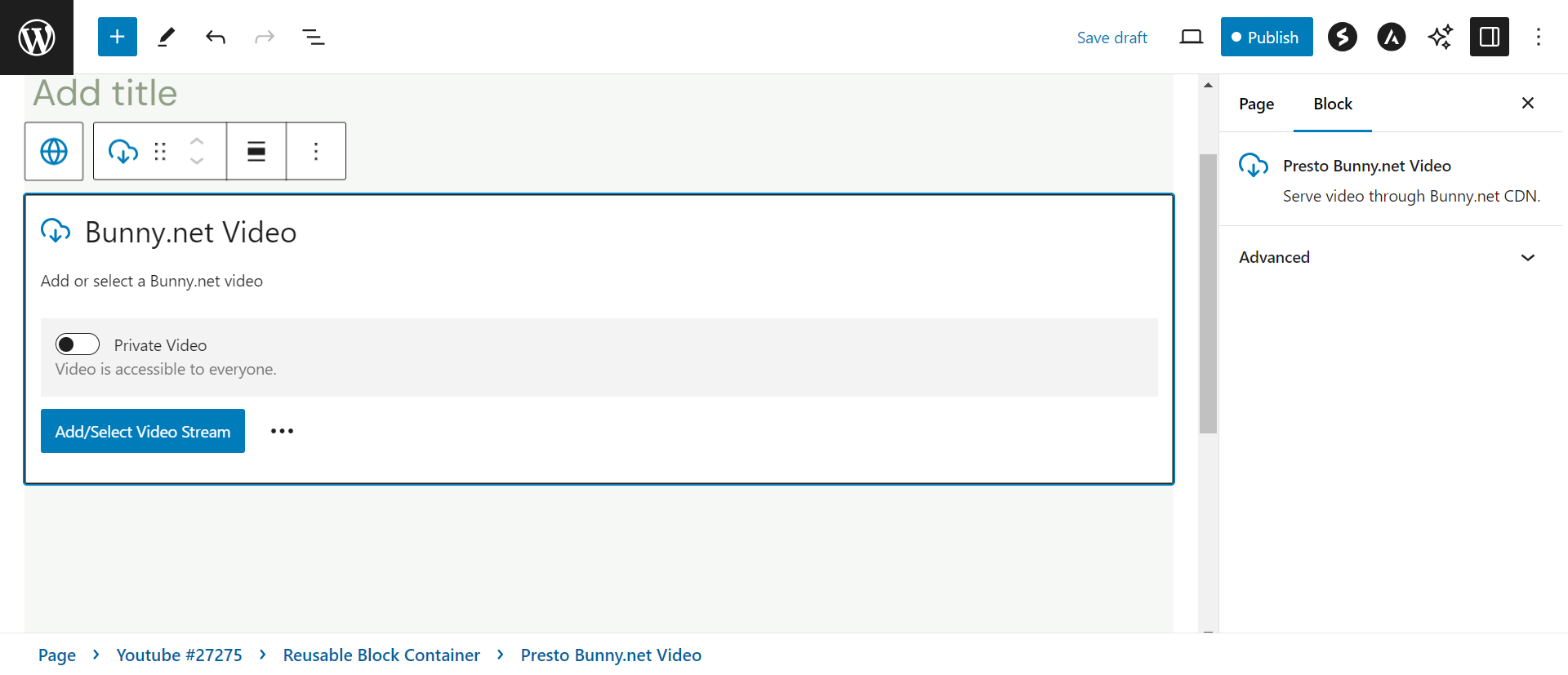
Enter Your Bunny.net API Key
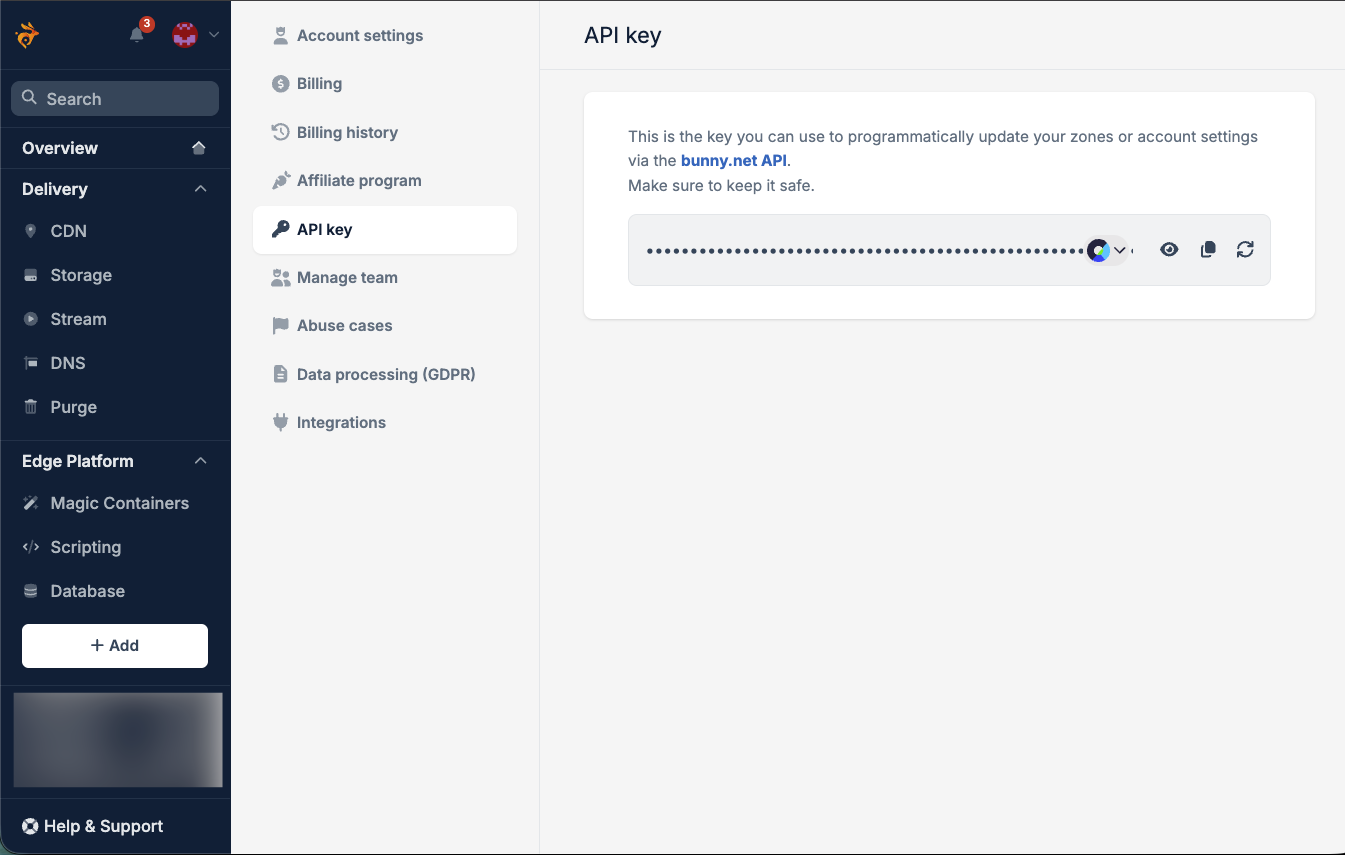
Step 2: Enter your Bunny.net API key. You can find this on your Account page in the Bunny.net dashboard.
Upload Your Video
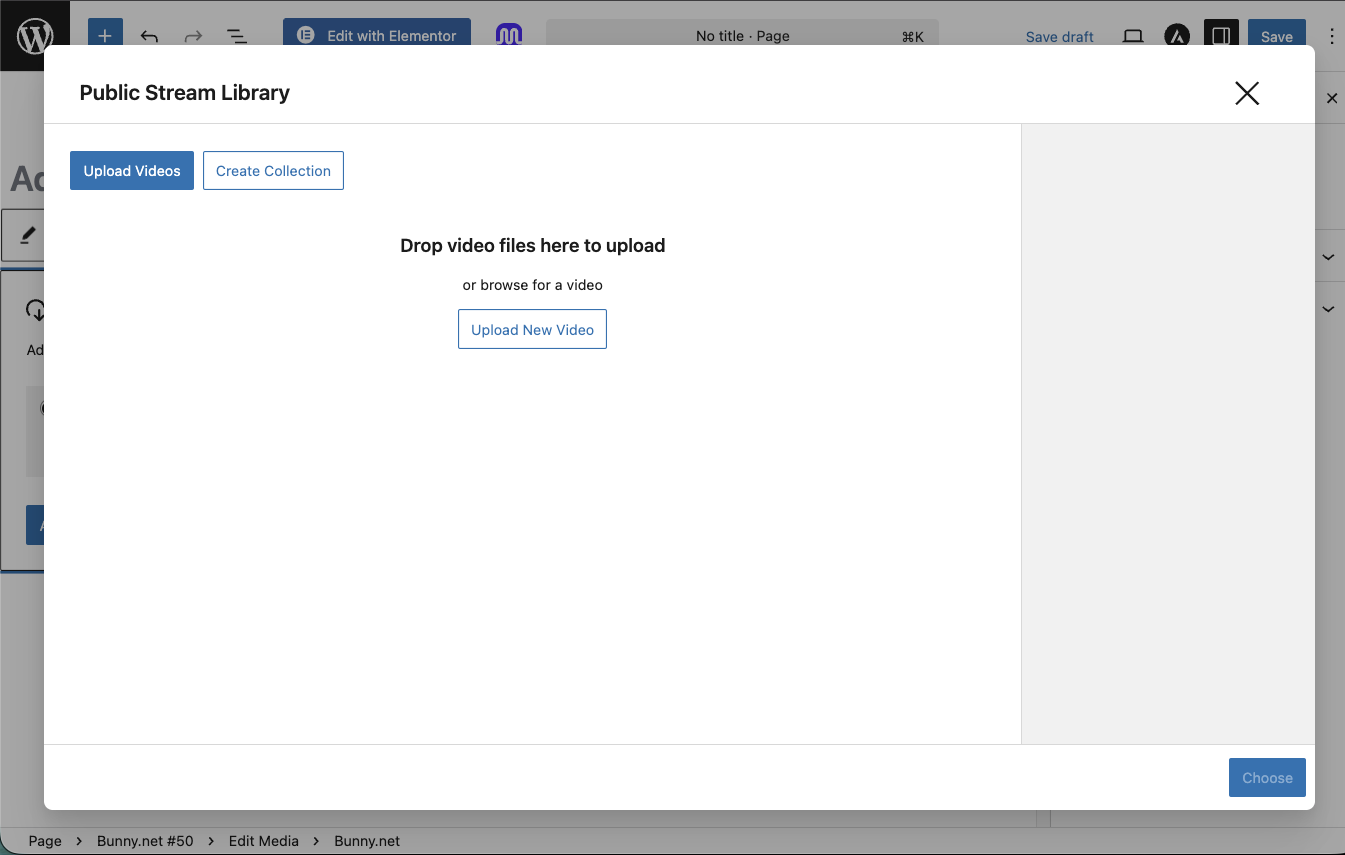
Step 3: Choose Public or Private from the block options. Then drag your video file into the upload area. The video will upload and be stored directly on Bunny.net.
For best results, run your video through a tool like Handbrake before uploading. Encoding at 720p and optimizing for web delivery is recommended.
Enable Optimize for Video Delivery (Optional)
To improve video scrubbing performance, enable the Optimize for Video Delivery setting in your Bunny.net Pull Zone.
Step 4: In the Bunny.net dashboard, go to Pull Zones > (Your Pull Zone) > Caching > General and turn on Optimize for Video Delivery.
Conclusion
That’s all it takes to upload and serve videos through Bunny.net using Presto Player. If you run into any issues, feel free to reach out to our support team. We’re happy to help.
We don't respond to the article feedback, we use it to improve our support content.