
How To Create Video Captions
Captions make videos easier to follow and more accessible.
To use captions in Presto Player, you need a caption file in VTT format. You can create this file yourself or use a captioning service to create it for you.
Once your VTT file is ready, you can add it to your video.
Which Videos This Applies To
This option is best for videos where you are adding the caption file directly in Presto Player, such as:
- self-hosted videos
- Bunny.net videos
- videos added with a direct video URL
For YouTube and Vimeo videos, captions are usually managed on the video platform instead of being added in Presto Player.
Add Captions to a Video
Follow these steps to add captions to a video.
Step 1 – Edit the page or post that contains your video.
Step 2 – Select the Presto Player block.
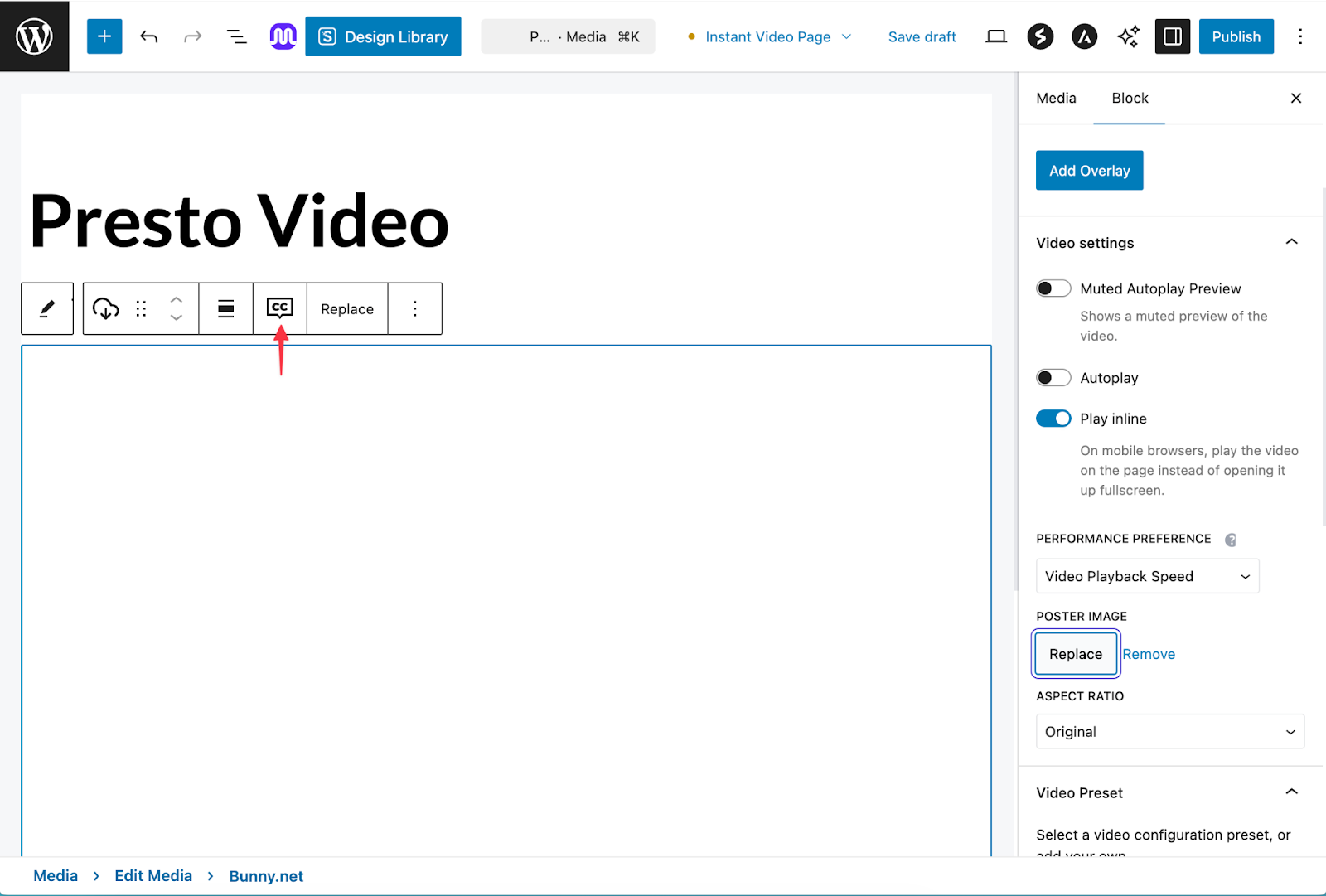
Step 3 – Click the CC button in the block toolbar.
Step 4 – Click Upload.
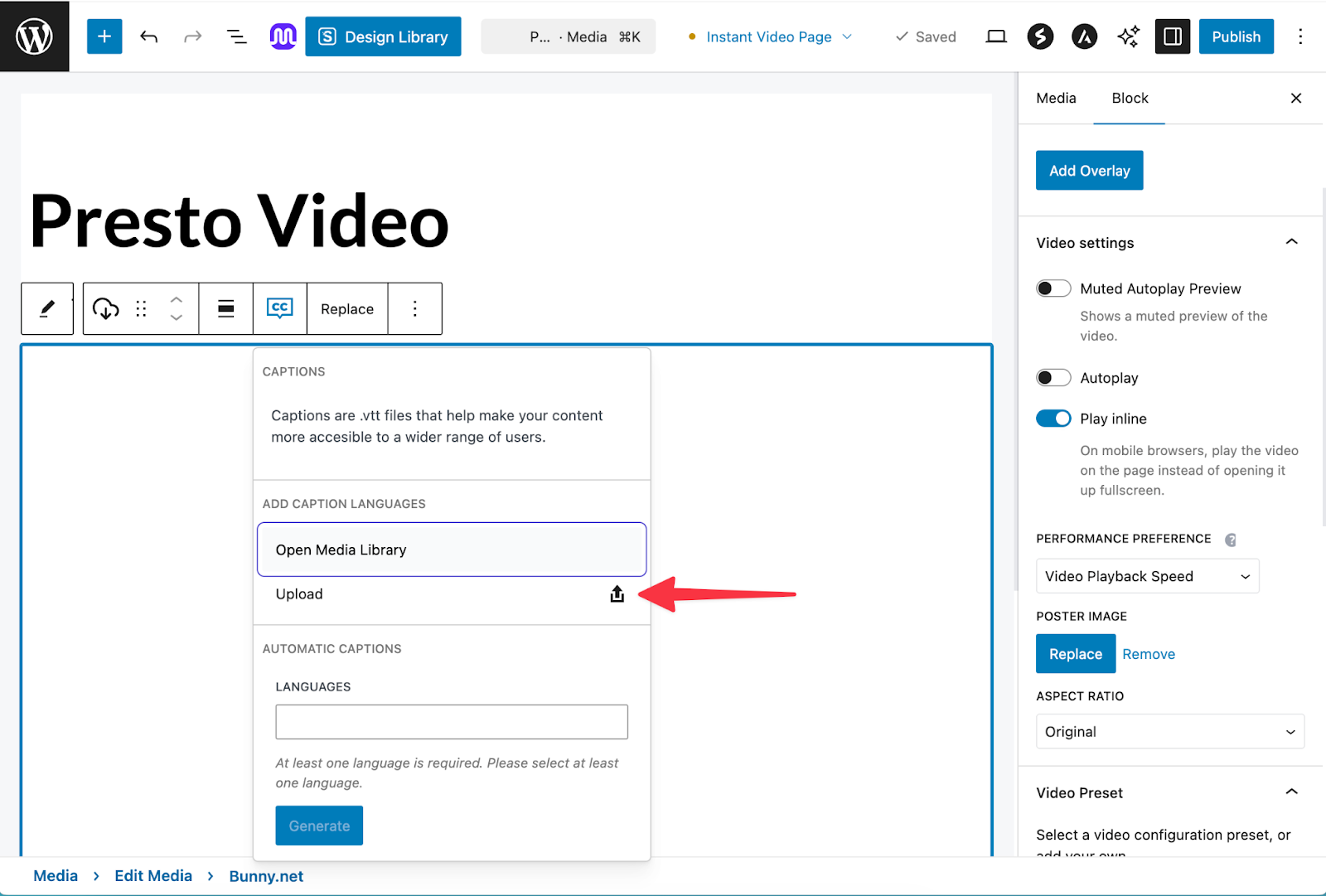
Step 5 – Choose your .vtt caption file.
Step 6 – Enter a Label, usually the language name.
Step 7 – Enter the Source Language using a two-letter language code, such as “en” for English.
Step 8 – Click Close to save.
Your captions will now appear in the list for that video.
Add More Than One Caption Language
You can repeat the same steps to upload more caption files.
When a video has more than one caption track, viewers can switch between them in the player controls.
Use Captions With Muted Autoplay Preview
If you use Muted Autoplay Preview, you can also show captions during the preview.
Step 1 – Open the block settings in the right sidebar.
Step 2 – Under “Video Settings”, enable Muted Autoplay Preview.
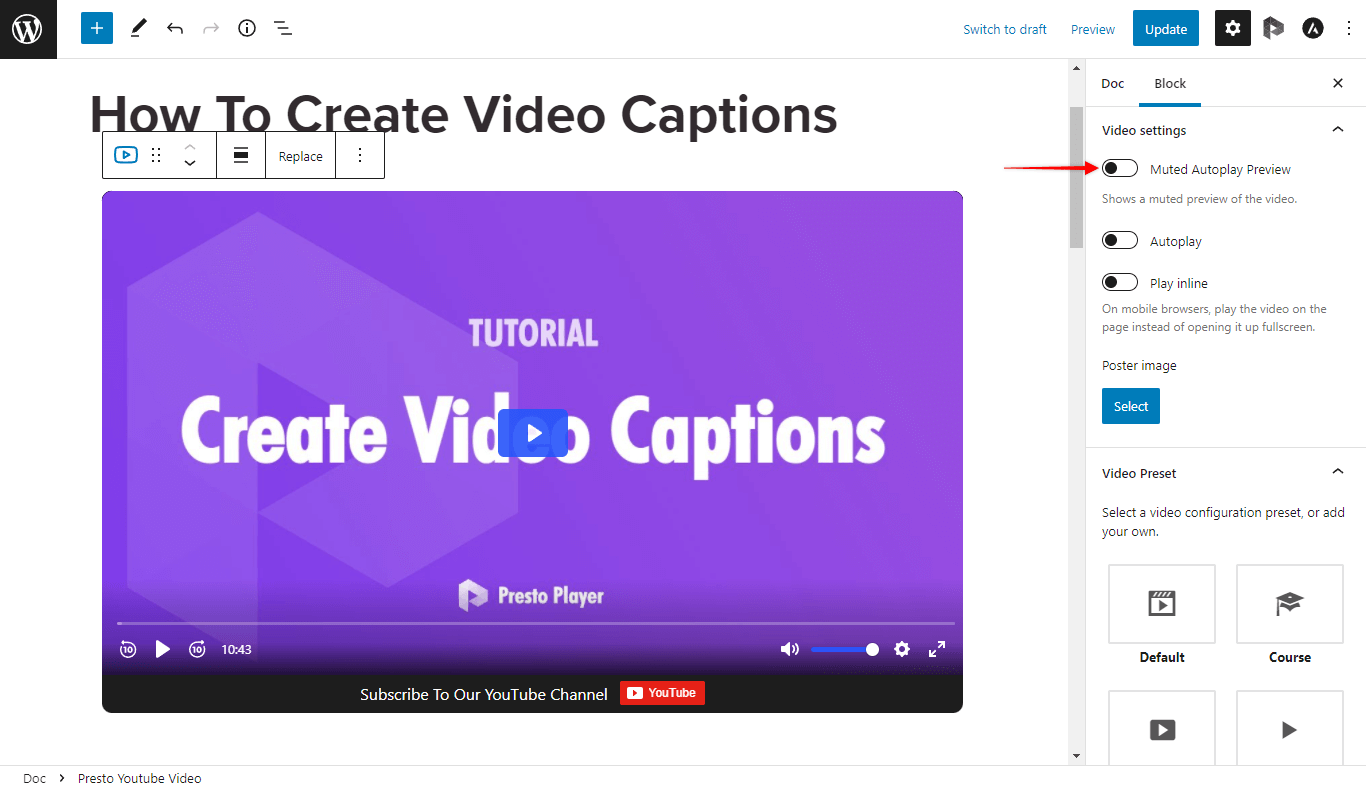
Step 3 – Enable Muted Preview Captions.
This lets captions appear while the video plays silently on page load. Once playback starts, captions will still be available in the player.
Use Automatic Captions for Bunny.net Videos
If you use Bunny.net videos, you may also be able to create captions automatically instead of uploading a VTT file yourself.
Use this option if you want a faster way to create captions for Bunny.net videos.
If you need full steps for that setup, see the separate automatic captions doc.
Important Notes
- Caption files must be in VTT format.
- You can upload more than one caption language.
- Muted preview captions work with Muted Autoplay Preview.
- This setup is best for self-hosted videos, Bunny.net videos, and direct video URLs.
- For YouTube and Vimeo, captions are usually added on the video platform.
In Summary
To add captions in Presto Player, upload a VTT file from the CC menu on the video block.
This works best when you are managing the video directly in Presto Player.
If you use Bunny.net, you may also have the option to create captions automatically.
We don't respond to the article feedback, we use it to improve our support content.