
Using Presto Player With Elementor
Presto Player includes a dedicated Elementor widget, making it easy to add video from your Media Hub to any Elementor page. This guide walks you through the full process.
Add Your Video to the Media Hub
Step 1: In your WordPress dashboard, go to Presto Player > Media Hub and click Add New. Give your video a name.
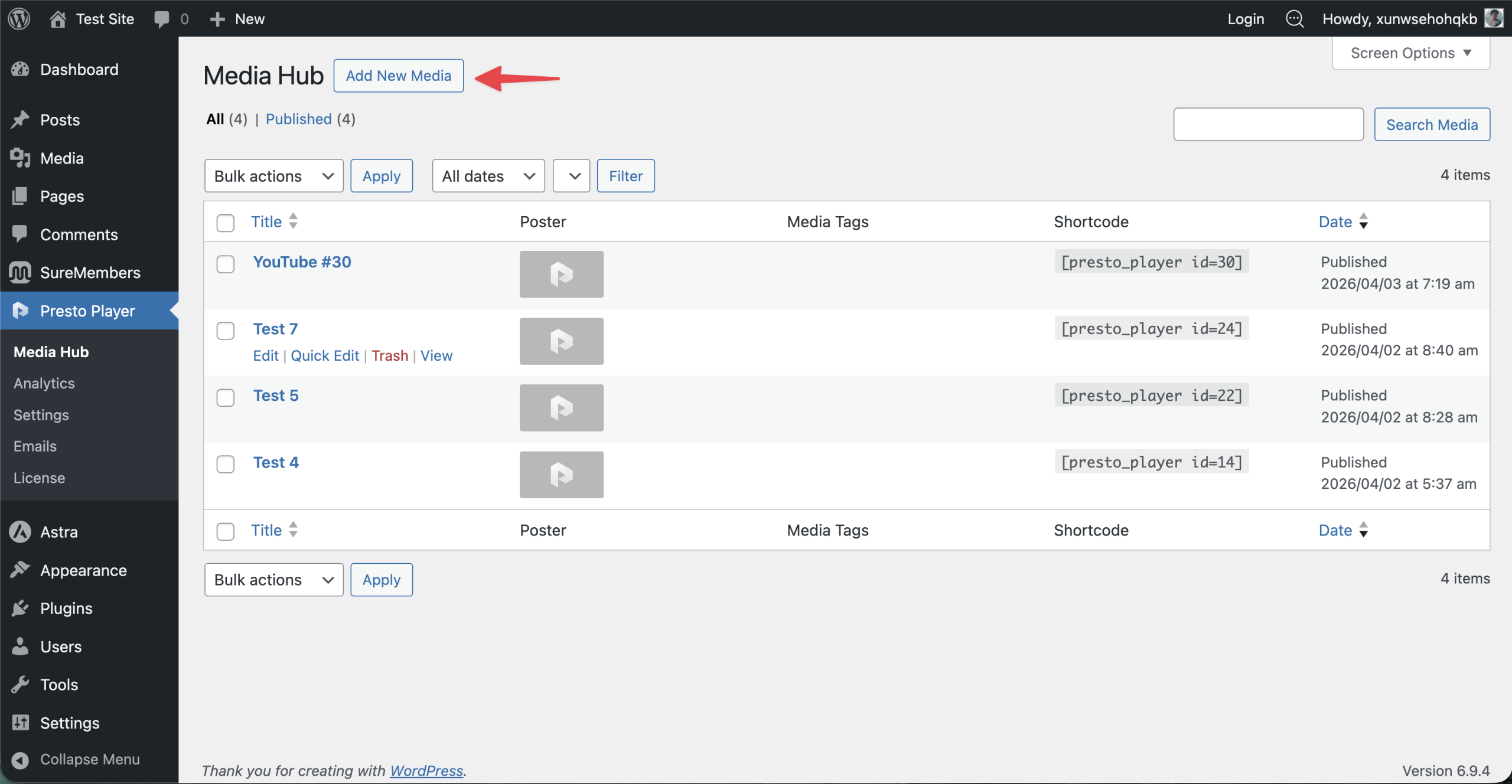
Step 2: Select your video source. You can choose from self-hosted Video, YouTube, Vimeo, or Bunny.net (Pro).
Step 3: Enter the video URL and click Add Video.
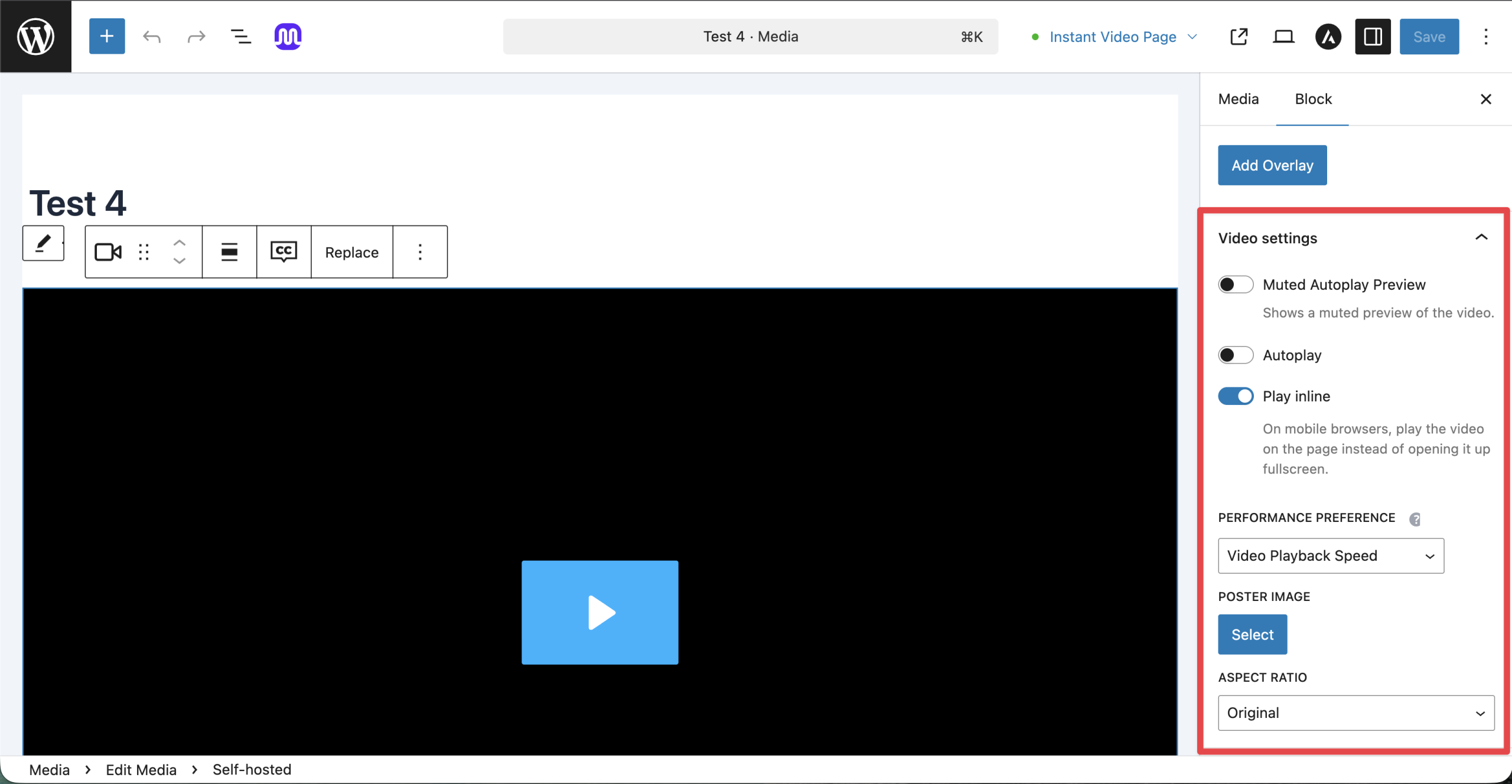
Step 4: Once the video loads, adjust any settings you need, such as presets, chapters, or branding. Click Publish to save.
Add the Video to Elementor
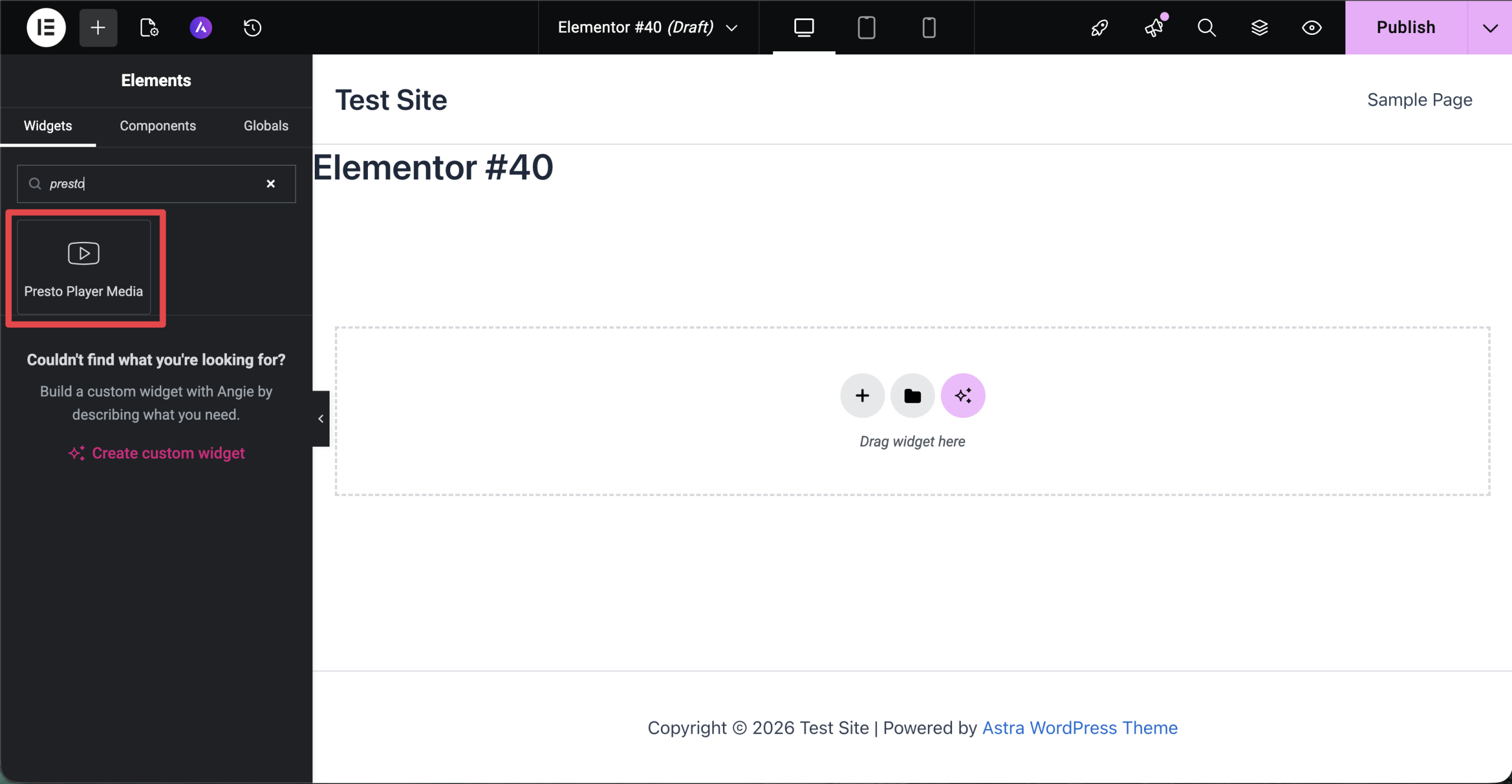
Step 5: Open your page in Elementor. Search for the Presto Player widget and drag it into your layout.
Step 6: In the widget panel, use the dropdown to select the video you just saved.
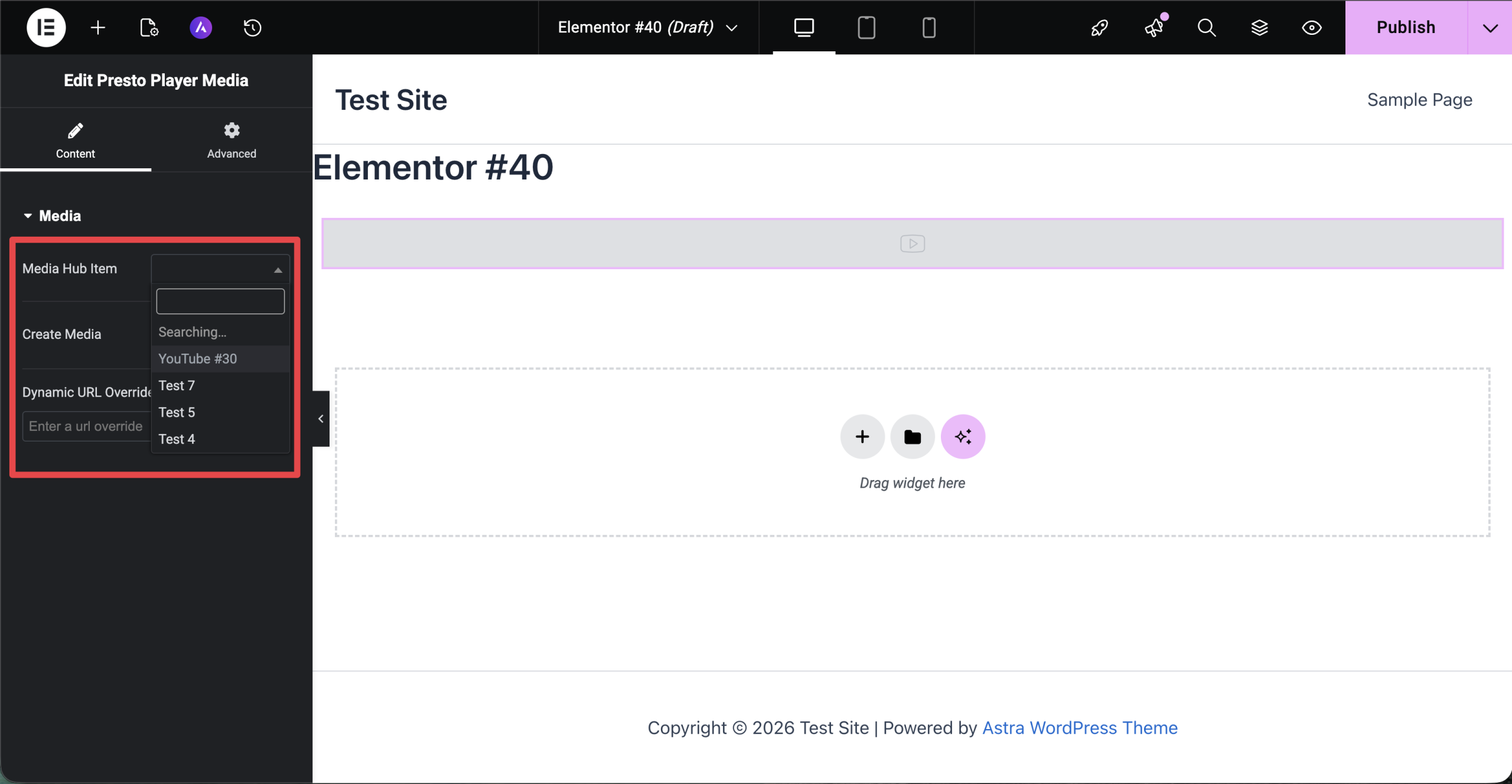
Step 7: Click Edit Video to open the video in the Media Hub and adjust its settings, or click Create Video to add a new one.
Step 8: If you use Elementor’s dynamic content features, you can also set a Dynamic URL to pull the video source from a custom field automatically.
Conclusion
That’s all it takes to add Presto Player video to an Elementor page. If you run into any issues, feel free to reach out to our support team. We’re happy to help.
We don't respond to the article feedback, we use it to improve our support content.