
How To Install Presto Player Pro
Presto Player Pro unlocks additional features including Bunny.net integration, dynamic watermarks, custom presets, and more. To use them, you need to install the Pro plugin and activate your license.
This guide walks you through both steps.
Install the Plugin
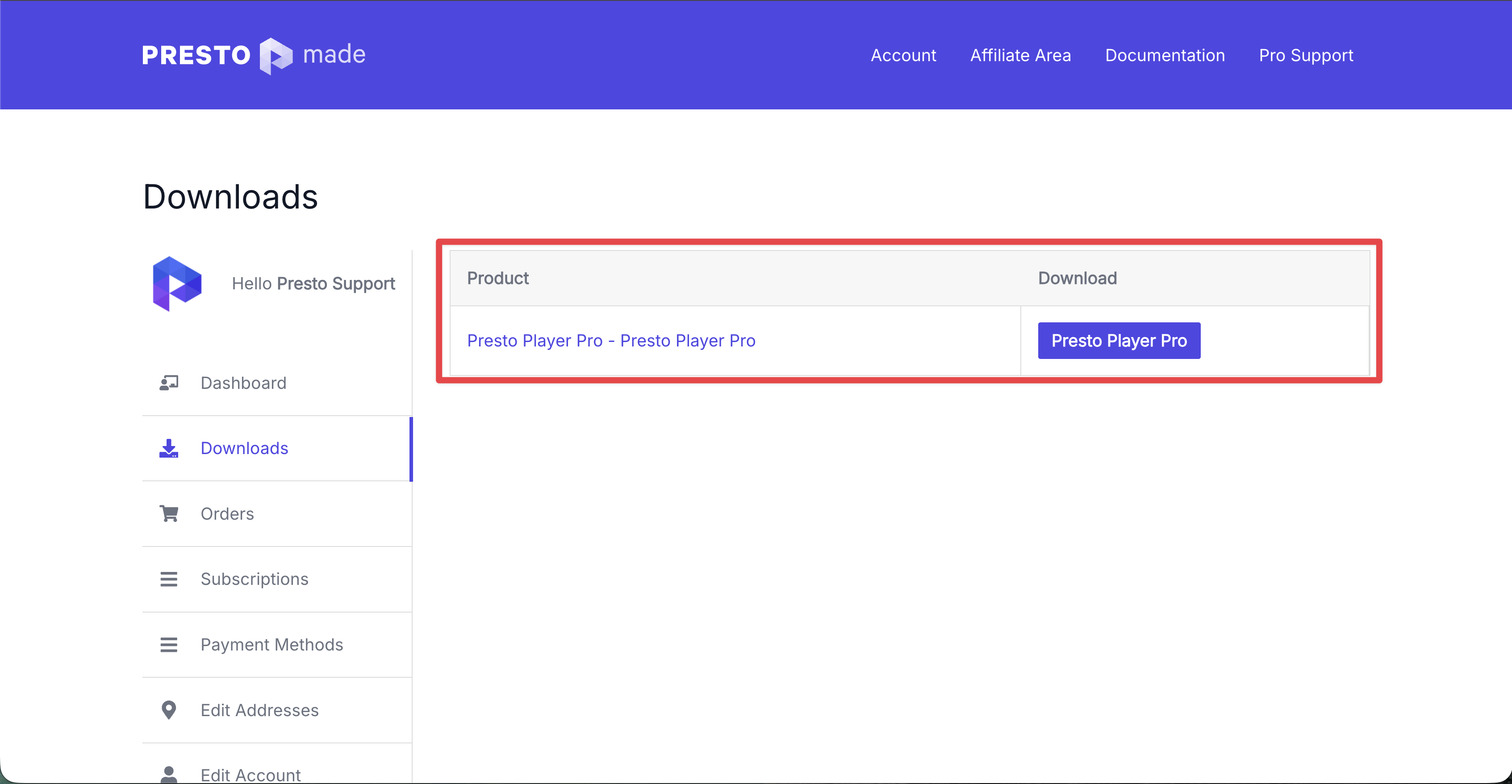
Step 1: Log in to the Presto Player Store and go to Downloads.
Step 2: Download the Presto Player Pro zip file.
Step 3: In your WordPress dashboard, go to Plugins > Add New > Upload Plugin.
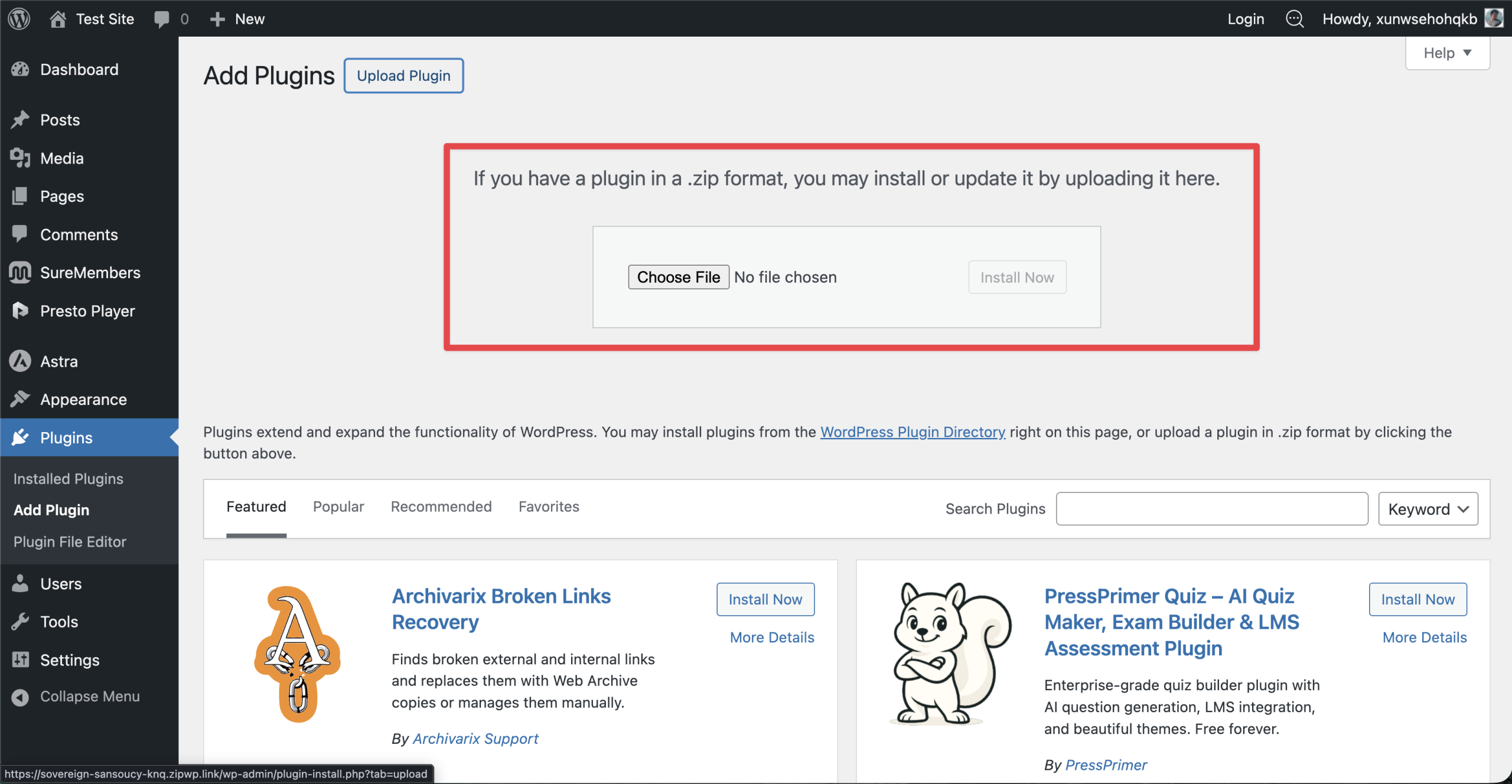
Step 4: Choose the zip file you downloaded and click Install Now. Once installed, click Activate Plugin.
Note: Presto Player Pro requires the free Presto Player core plugin. If it is not already installed, it will be installed automatically alongside the Pro plugin.
Activate Your License
Step 5: Go back to the Presto Player Store and navigate to My Account > Orders.
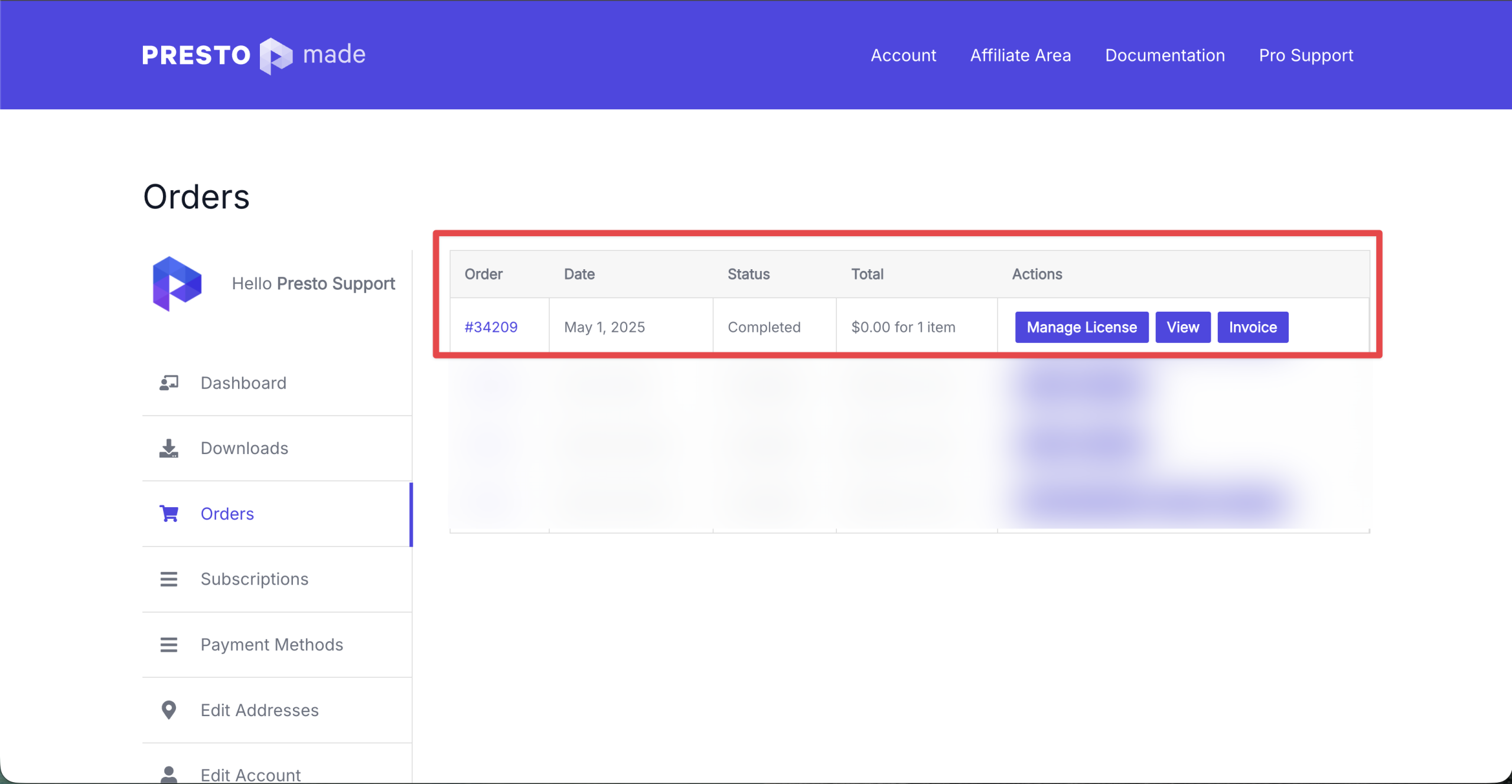
Step 6: Open your order and copy your license key.
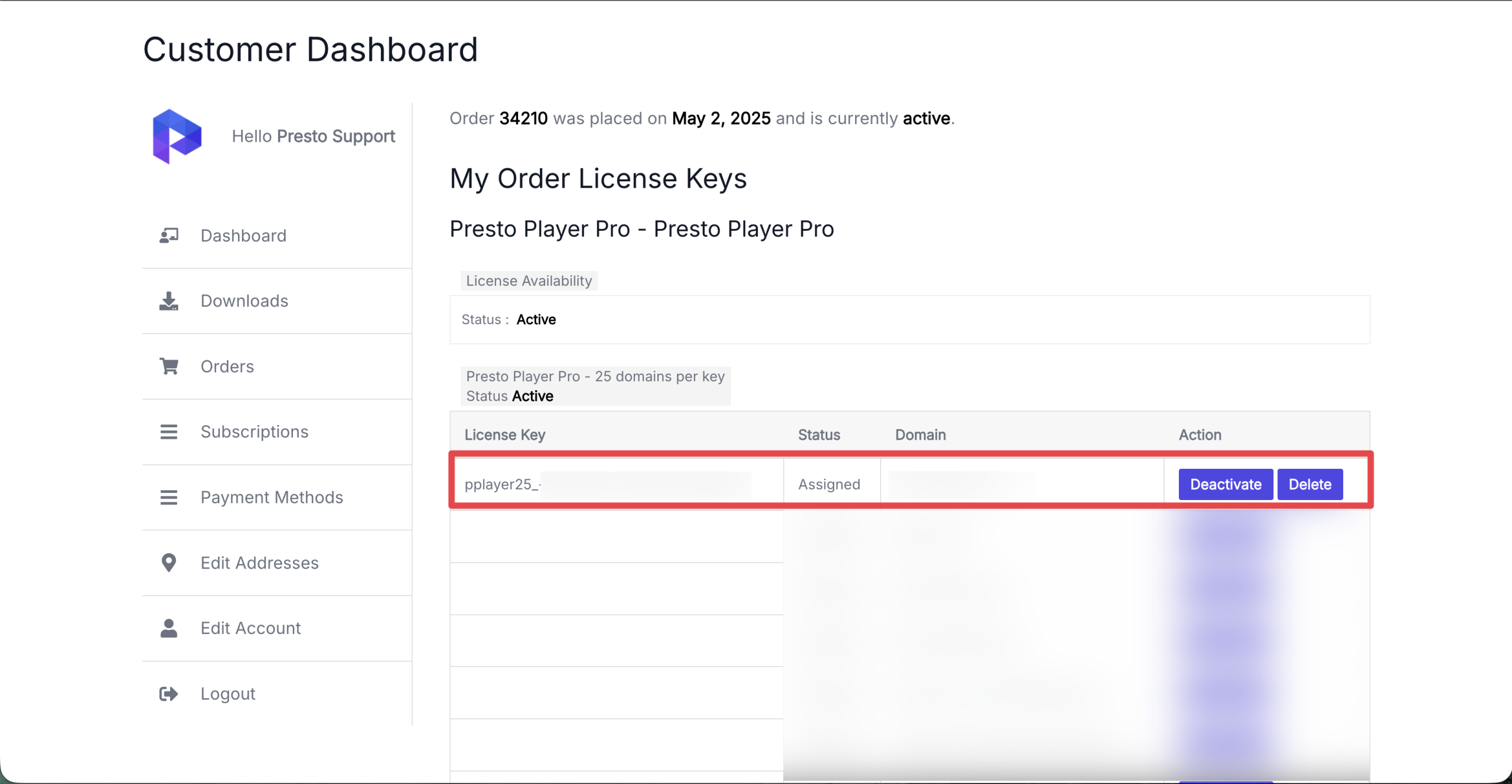
Step 7: In your WordPress dashboard, go to Dashboard > Presto Player > License. Paste the license key and click Save.
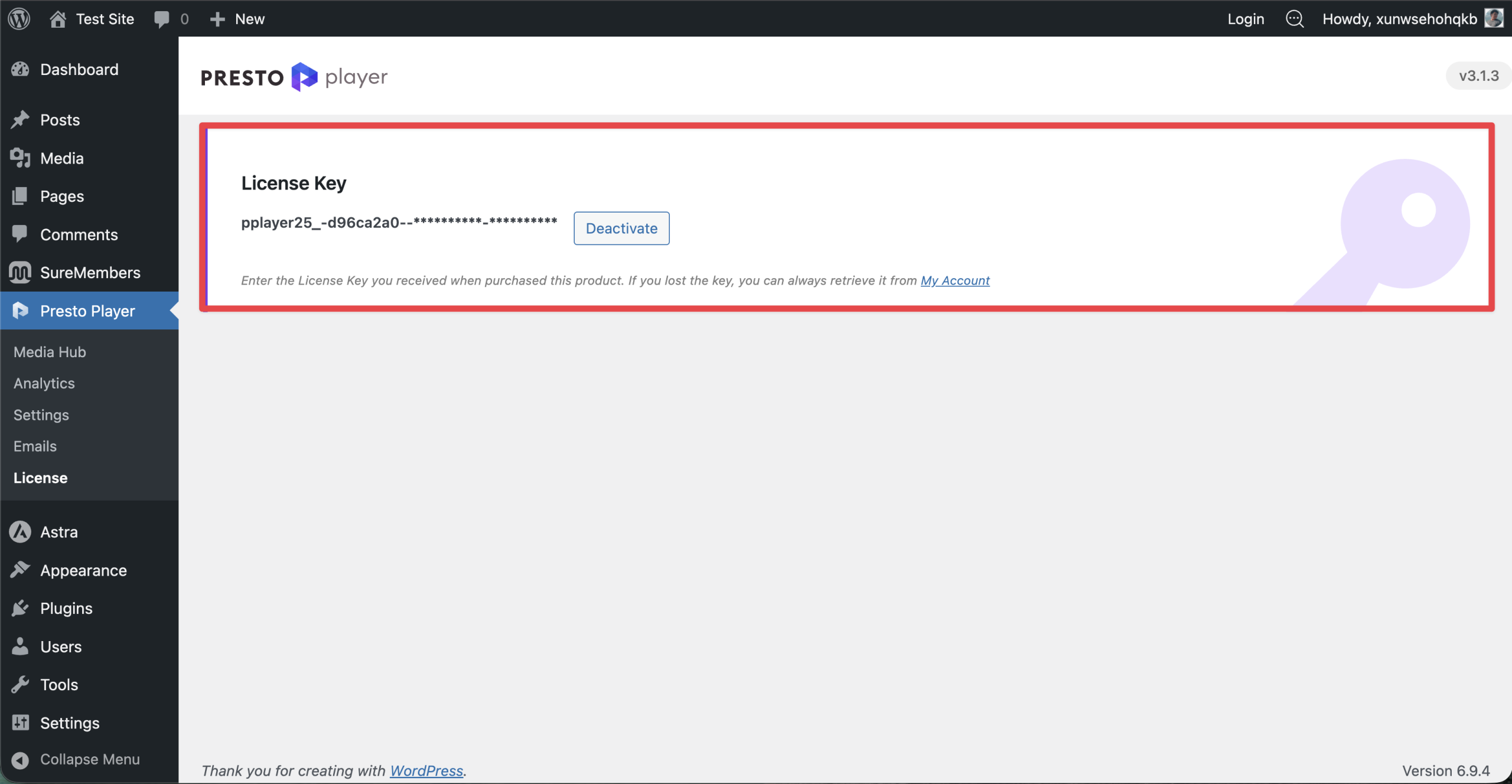
Your Presto Player Pro license is now active and all Pro features are available on your site.
Conclusion
Once the plugin is installed and your license is active, Presto Player Pro features will be ready to use right away. If you run into any issues during setup, feel free to reach out to our support team. We’re happy to help.
We don't respond to the article feedback, we use it to improve our support content.