
Bunny.net Video Library Integration With Presto Player
If you host your videos with Bunny.net Stream, you can connect your video library directly to Presto Player. Once connected, you can browse and add videos from your Bunny.net library without leaving WordPress.
This guide walks you through the full setup: connecting the integration in Presto Player, finding your API details in Bunny.net, and adding a video to a page.
Connect Bunny.net in Presto Player Settings
Step 1: In your WordPress dashboard, go to Presto Player > Settings.
Step 2: Click the Integrations tab.
Step 3: Scroll down to the Bunny.net Settings section.
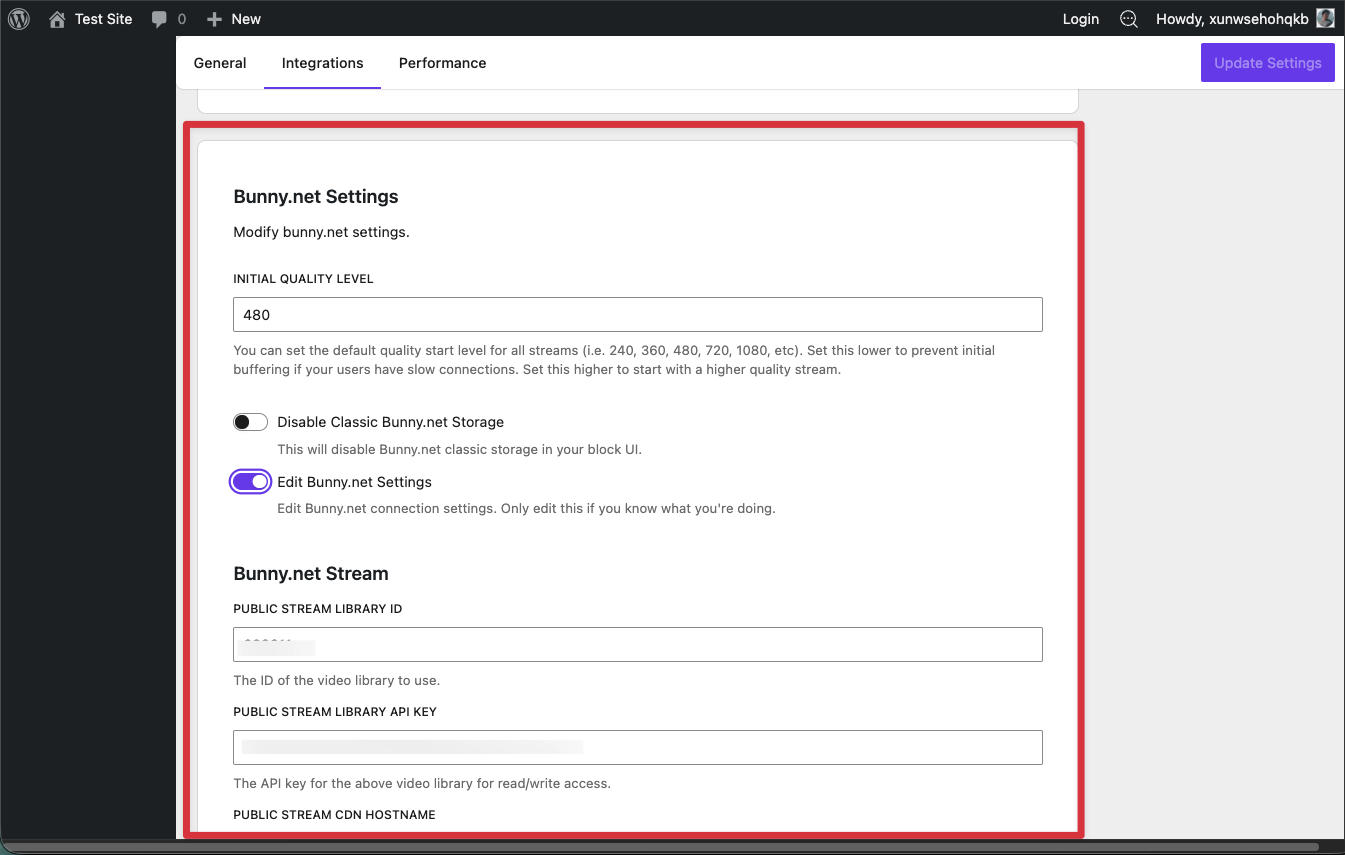
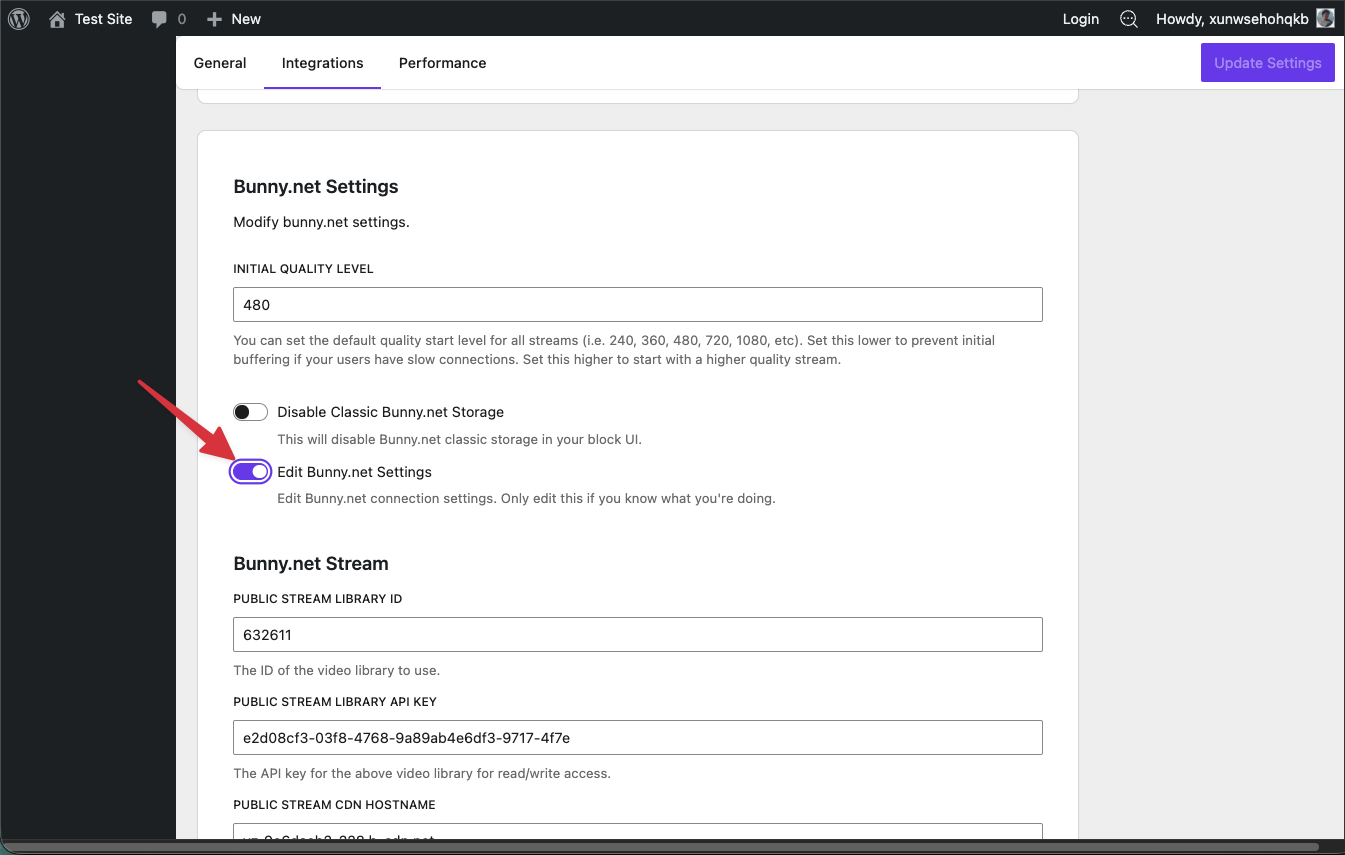
Step 4: Toggle on Edit Bunny.net Settings.
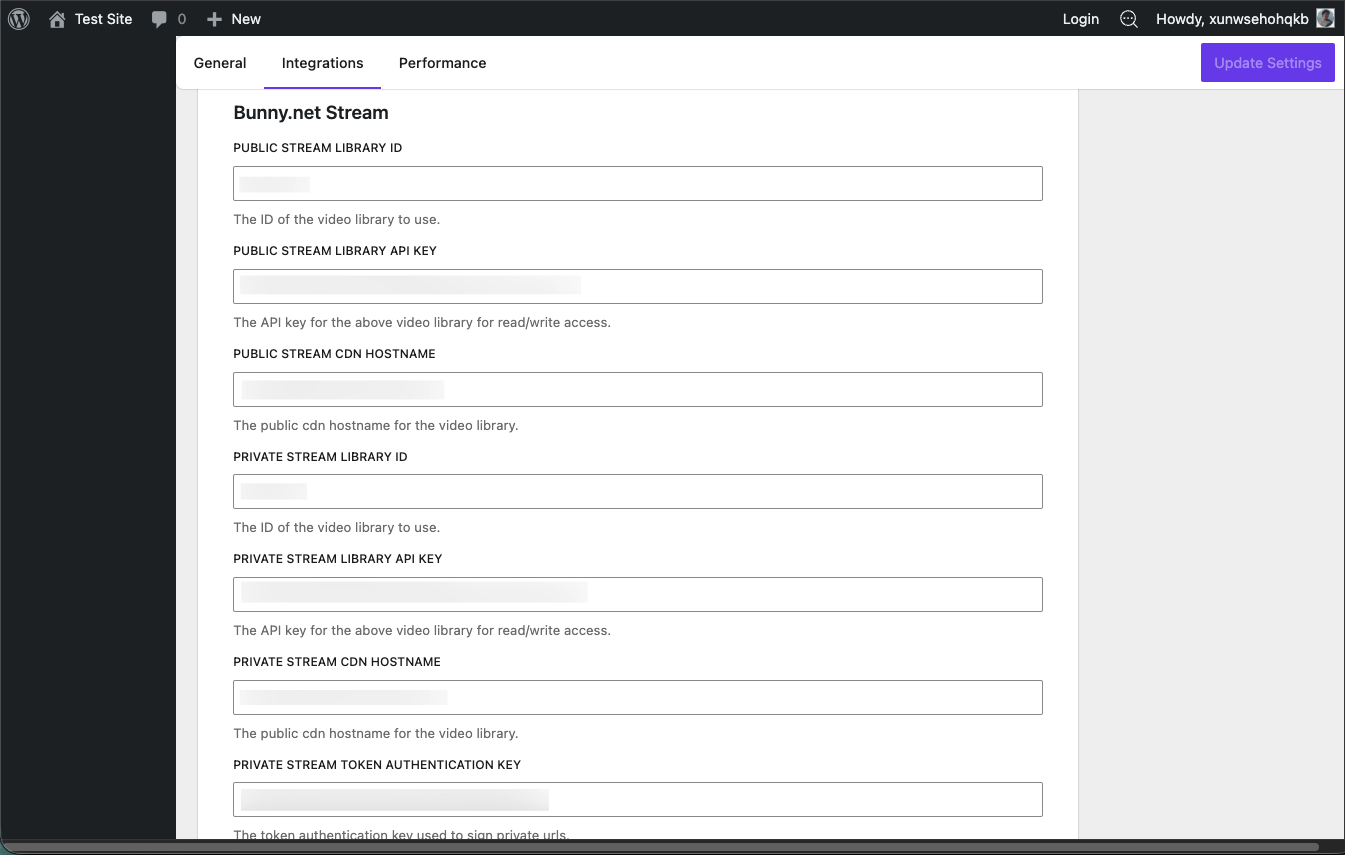
Step 5: You will see fields for your Bunny.net Stream API details. Leave this open — you will fill these in after getting your credentials from Bunny.net in the next section.
Get Your API Details from Bunny.net
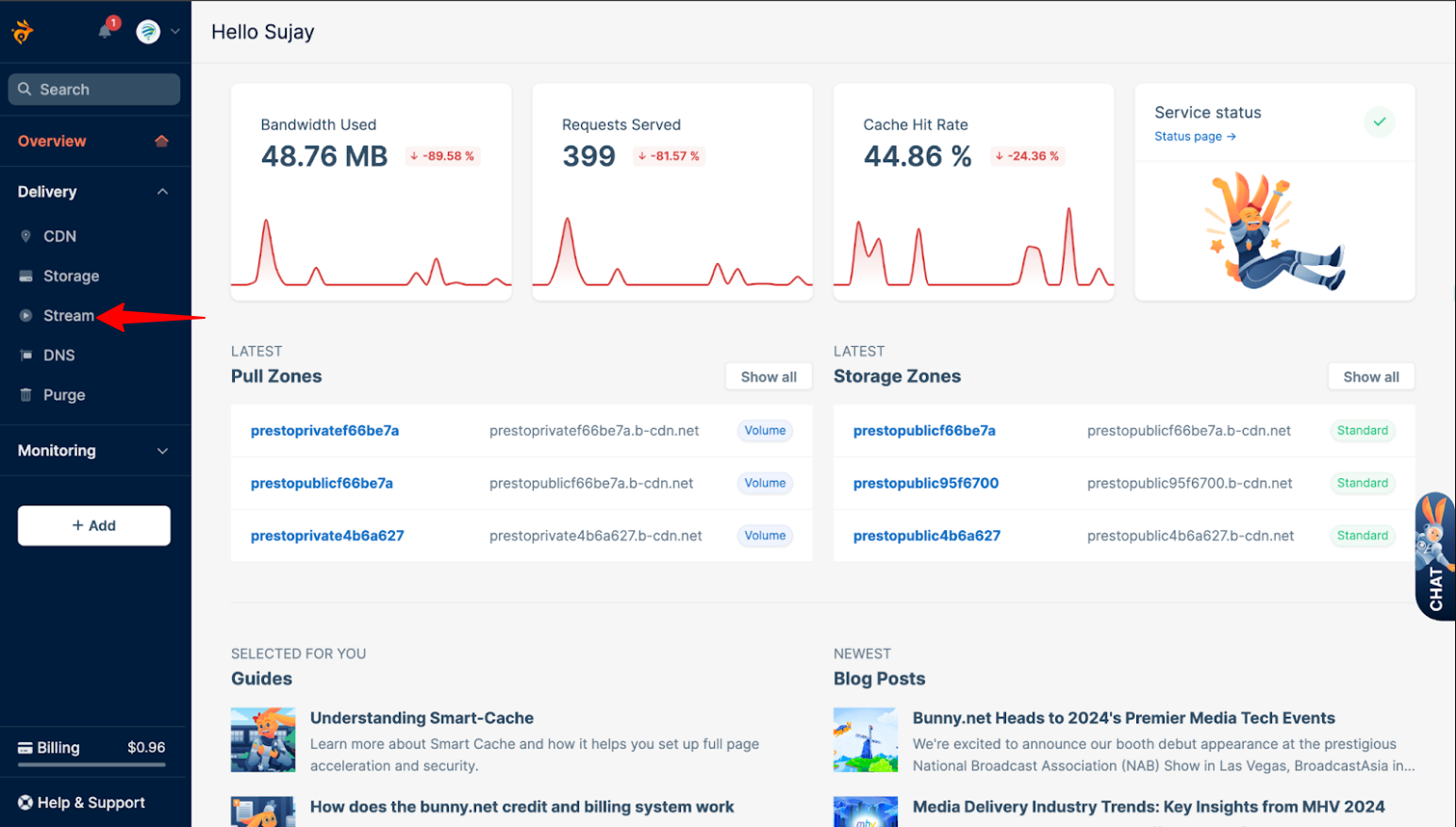
Step 1: Log in to your Bunny.net account and click Stream in the left sidebar.
Step 2: Click on the video library you want to connect.
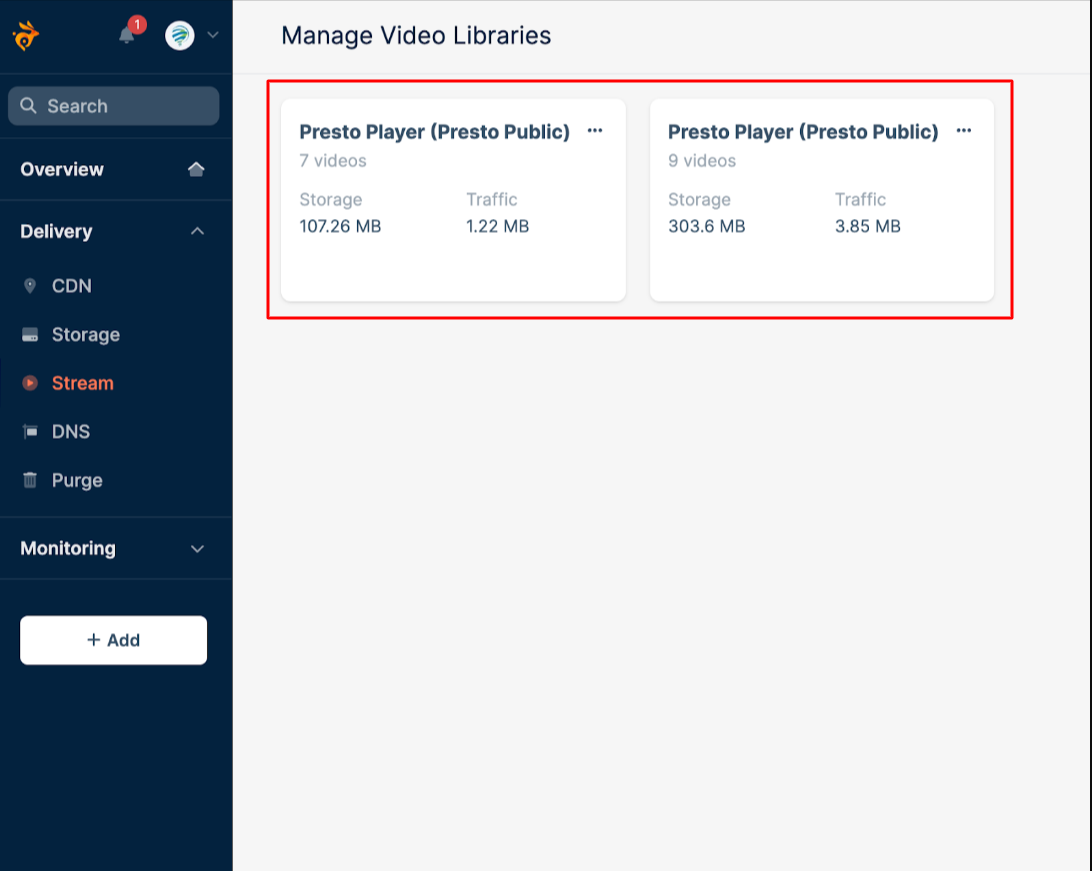
Step 3: You will be taken to the Stream > Manage Library page.
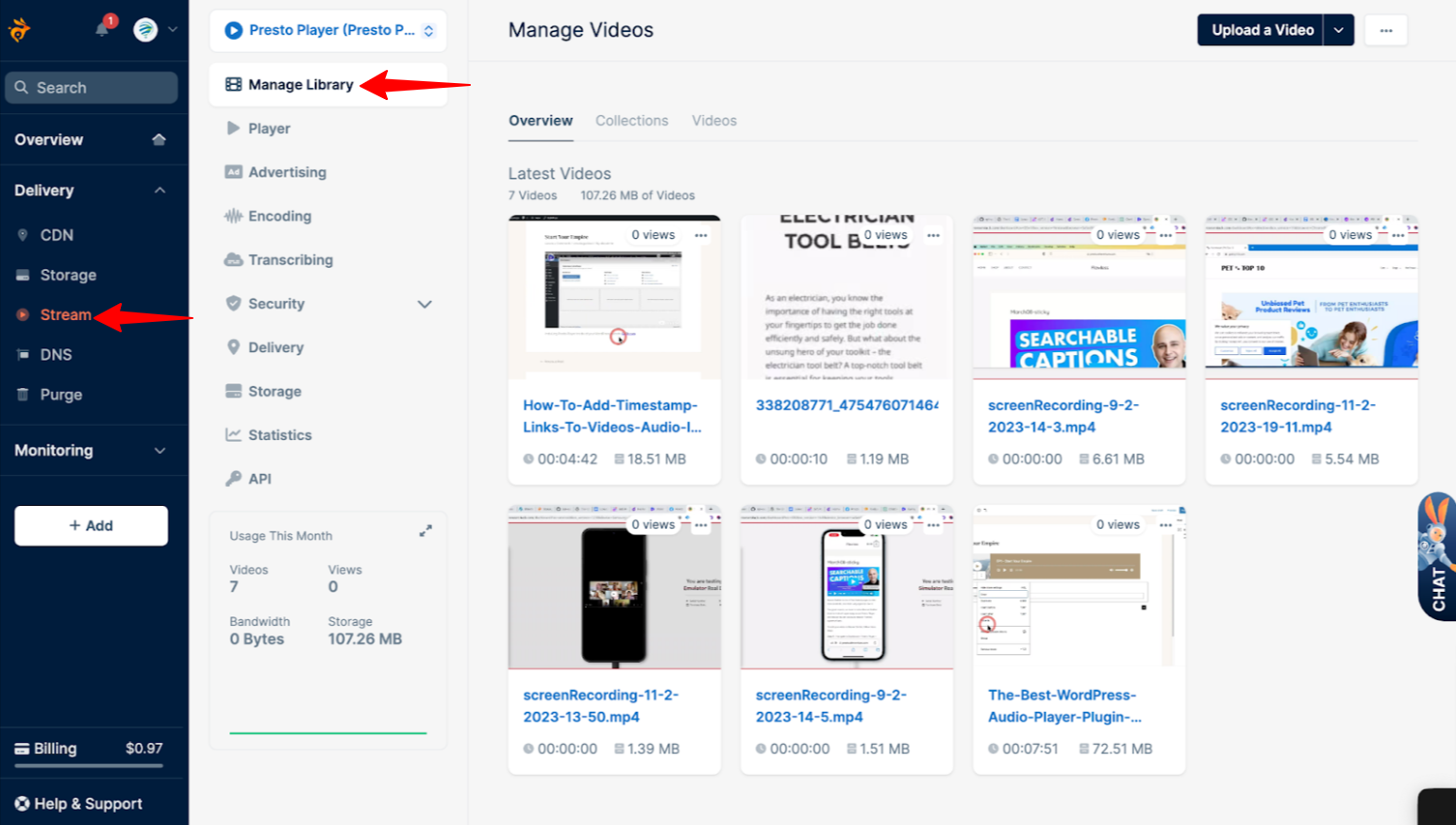
Step 4: Click the API tab to view your API Access Information.
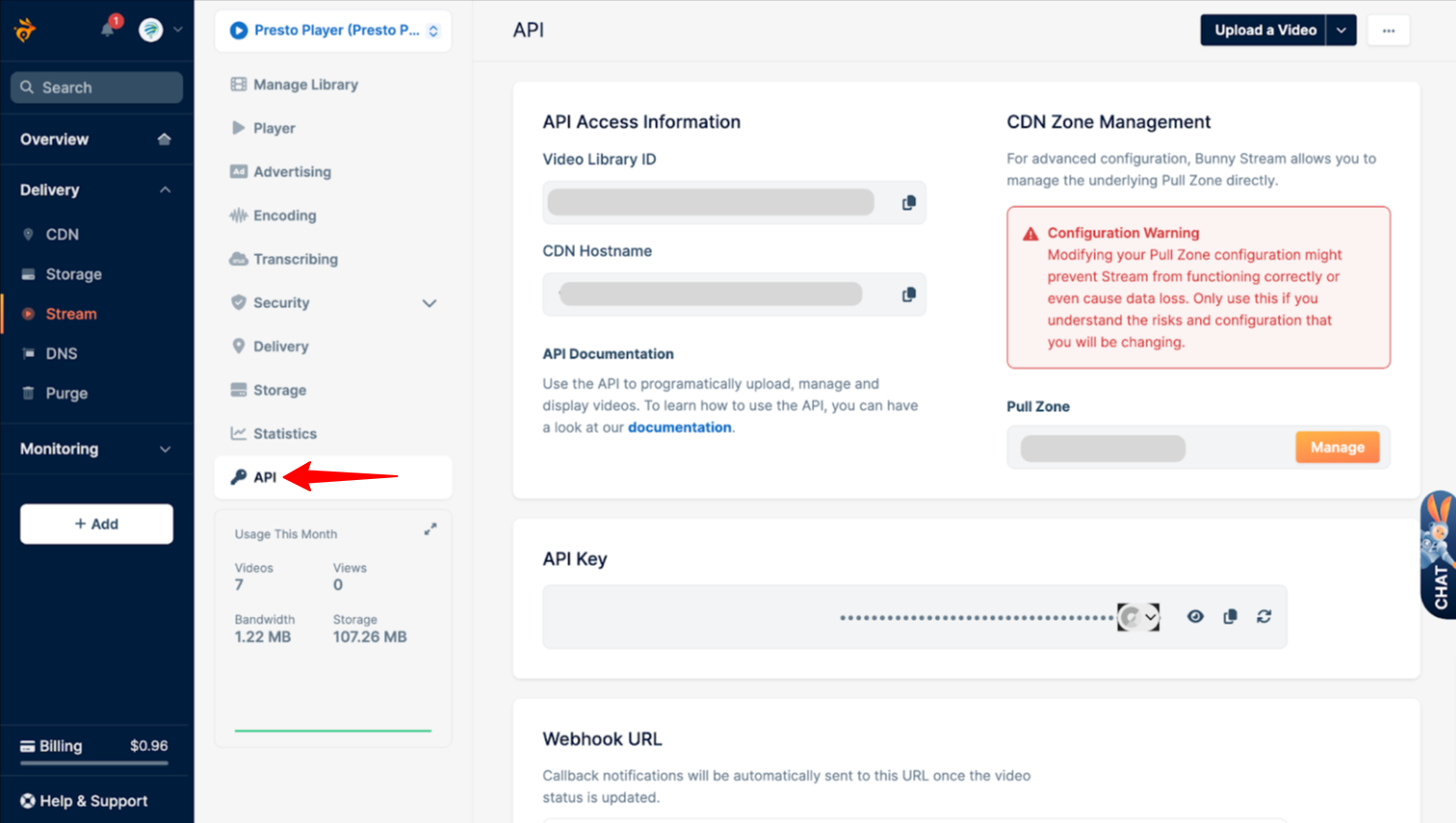
You will need the following details for the next step:
- Video Library ID
- CDN Hostname
- API Key
Copy these values before moving on.
Enter Your API Details in Presto Player
Step 1: Go back to your WordPress dashboard and return to Presto Player > Settings > Integrations > Bunny.net Settings.
Step 2: Enter your Video Library ID in the corresponding fields (both public and private). Do the same for the CDN Hostname.
Step 3: Enter your API Key in the Token Authentication Key fields (both public and private). Click Save.
Add a Bunny.net Video to a Page
Once the integration is set up, you can add videos from your Bunny.net library to any page.
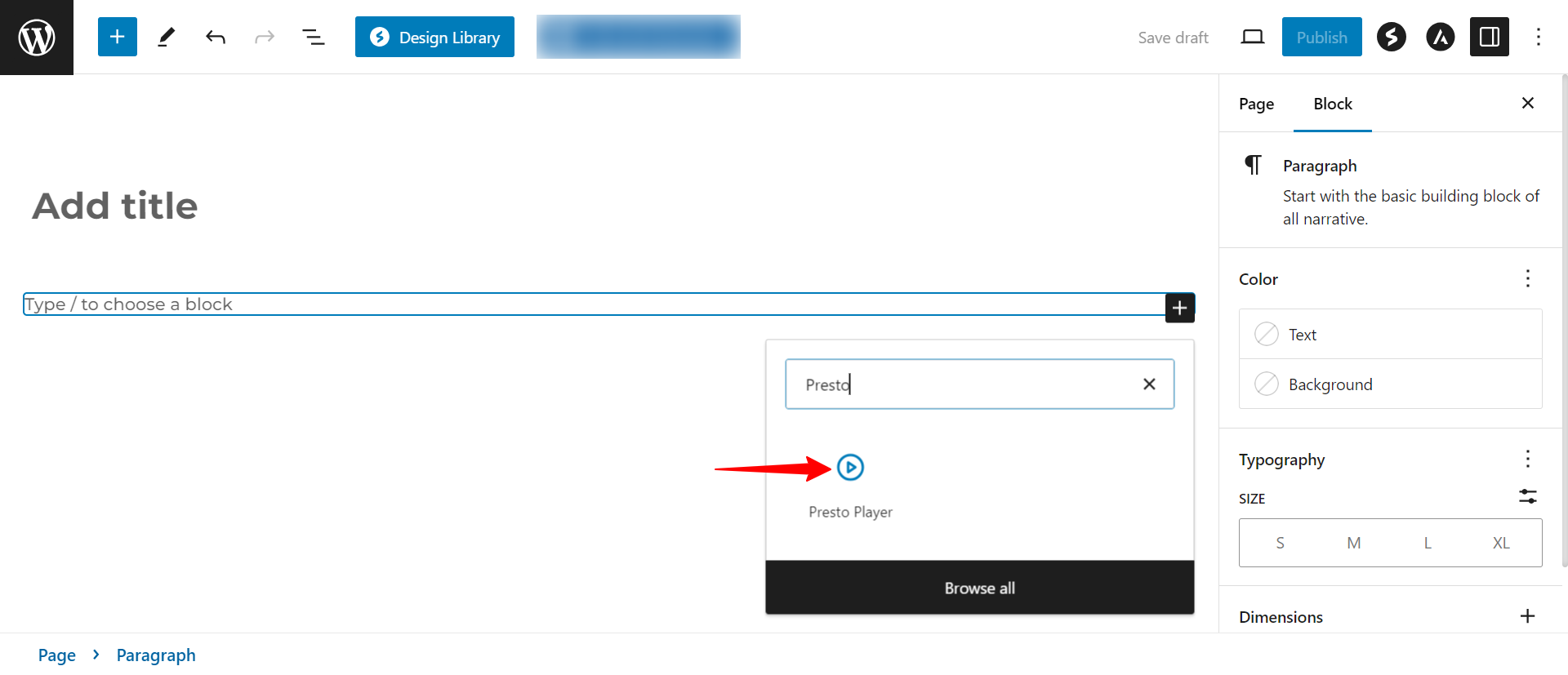
Step 1: Open a page or post in the block editor and search for the Presto Player block.
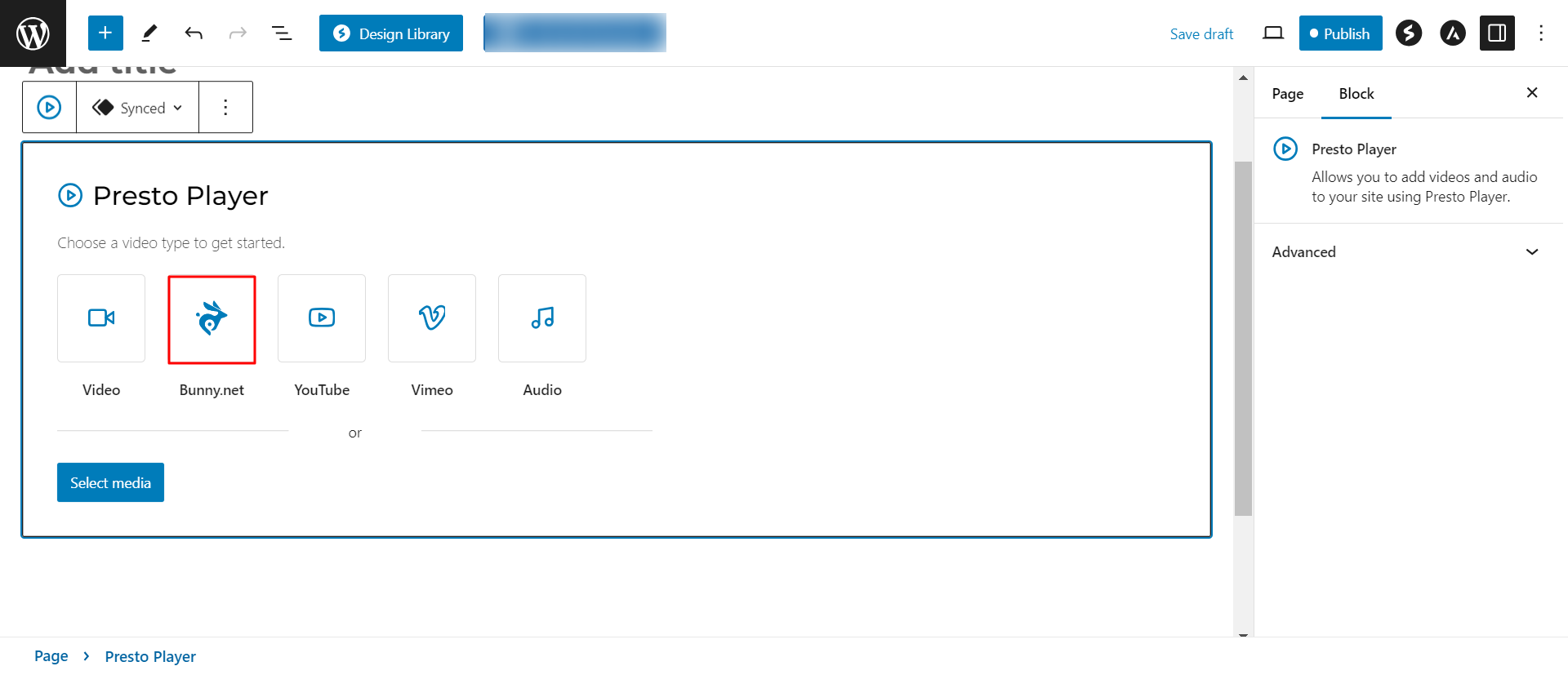
Step 2: Click Bunny.net Stream as the video source.
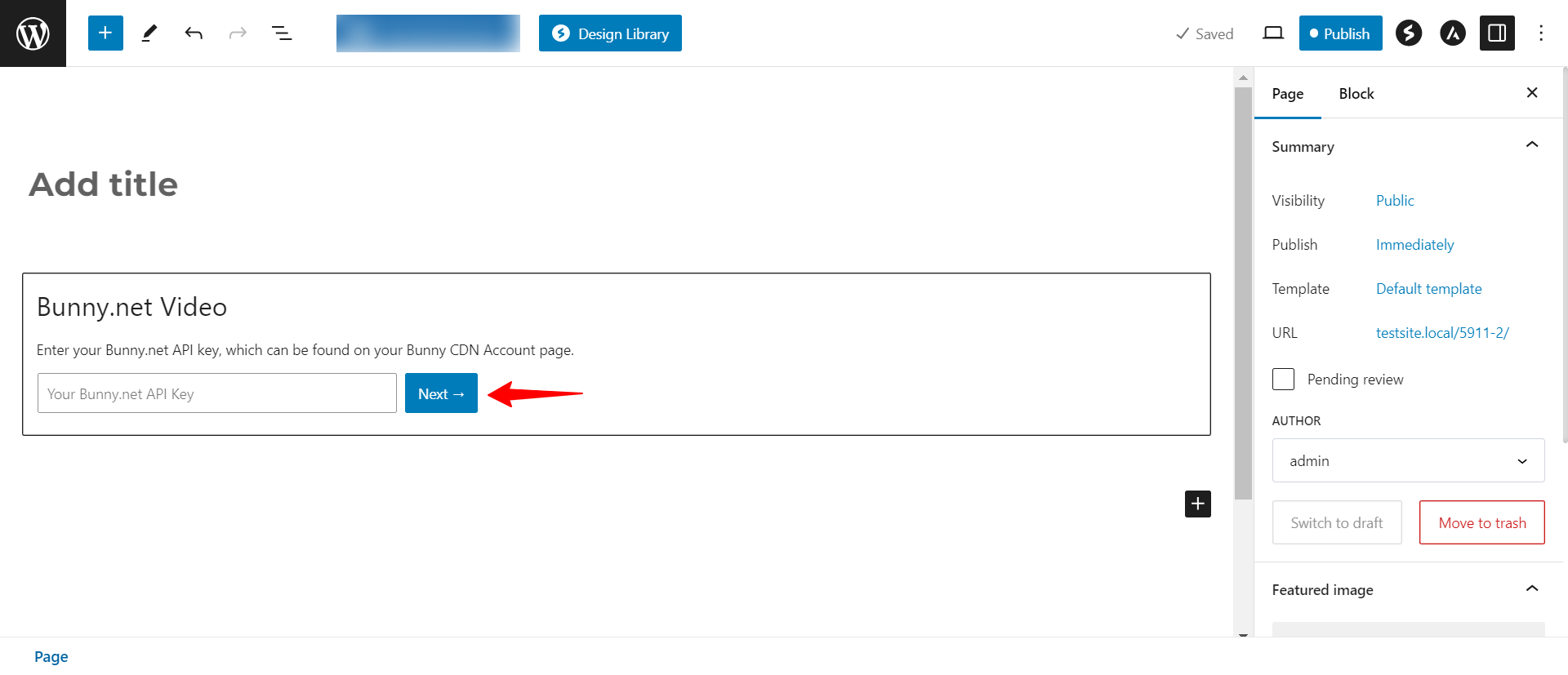
Step 3: Enter your Bunny.net API key and click Next.
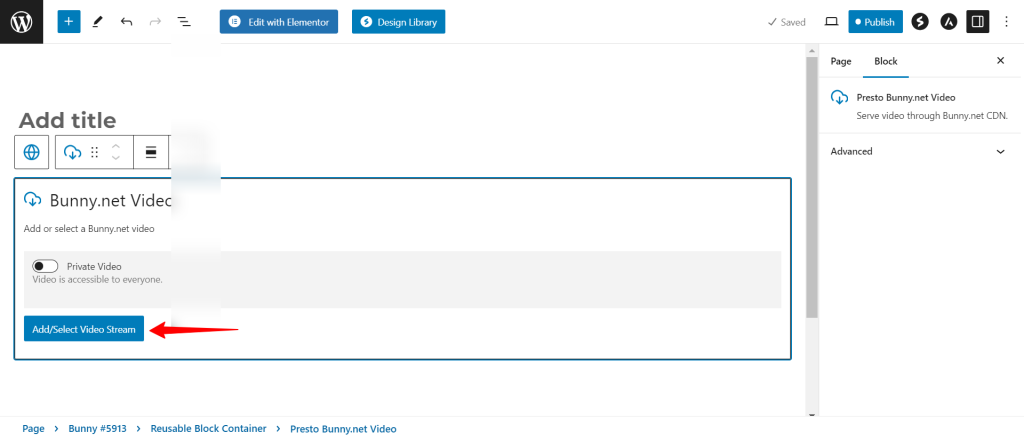
Step 4: Select the video you want to add from your library.
Adjust Video Settings
Step 5: With the video added, you can apply Presto Player settings such as presets, chapters, and branding from the block’s settings panel.
- Learn more about video settings in this article
- Customize how your video looks by using Presets
Step 6: Click Publish (or Update) to save your changes.
Conclusion
That’s all it takes to connect your Bunny.net video library to Presto Player. Once set up, you can browse and add videos from your library without leaving WordPress. If you run into any issues, feel free to reach out to our support team. We’re happy to help.
We don't respond to the article feedback, we use it to improve our support content.