
- How to Get Started with Presto Capture
- Why Presto Capture Needs HTTPS
- Presto Capture Block Settings
- Presto Capture Shortcode Reference
- How to Choose Where Recordings Are Saved in Presto Capture
- How to Control Who Can Record in Presto Capture
- How to Brand the Recorder in Presto Capture
- Understanding the Presto Capture Admin Panel
- How to Manage Recordings in Presto Capture
- How to Activate Your Presto Capture Licence
Presto Player AI Abilities Connect AI Clients to Your Video Library
Overview
Presto Player AI Abilities lets AI tools like Claude, ChatGPT, Cursor, and Windsurf work directly with your Presto Player video library. Instead of clicking through the WordPress dashboard, you describe what you want in plain language, “add this YouTube video to the Media Hub” or “show me the drop-off curve for video 12”, and the assistant carries it out.
It works through two open standards:
- WP Abilities API (WordPress 6.9+): a registry of named, schema-validated actions your site can perform.
- MCP (Model Context Protocol): the protocol AI clients use to discover and call those actions over a secure connection.
Access is protected by OAuth 2.1, so a connected assistant only ever gets the permissions an administrator explicitly approves.
Applies to: Presto Player 4.4.0 and above.
Key Benefits
- Removes repetitive admin clicks from routine video management
- Adds videos and generates chapters in seconds from a plain-language request
- Puts analytics, top videos, top viewers, retention curves, one question away (Pro)
- Automates Bunny Stream uploads and caption translation (Pro)
- Lets less WordPress-savvy team members manage the video library safely
Prerequisites
- WordPress 6.9 or later (required for the WP Abilities API)
- Presto Player 4.4.0 or later
- Presto Player Pro 3.3.0 or later, only if you want the Pro abilities
- MCP Adapter plugin installed and active (Presto Player can install it for you in one click)
- An Administrator account with the
manage_optionscapability - An MCP-compatible AI client: Claude, ChatGPT, Cursor, Windsurf, or any other MCP client
Note: Presto Player itself runs on WordPress 6.5+, but AI Abilities specifically need 6.9. On older versions, the toggle is disabled, and the settings screen shows: “AI access requires WordPress 6.9 or later. Please update WordPress to enable this feature.”
Setup Instructions
Step 1: Find the settings and enable AI access
In your WordPress dashboard, go to Presto Player > Settings. In the left-hand settings menu, open the Integrations section and choose AI Abilities & MCP.
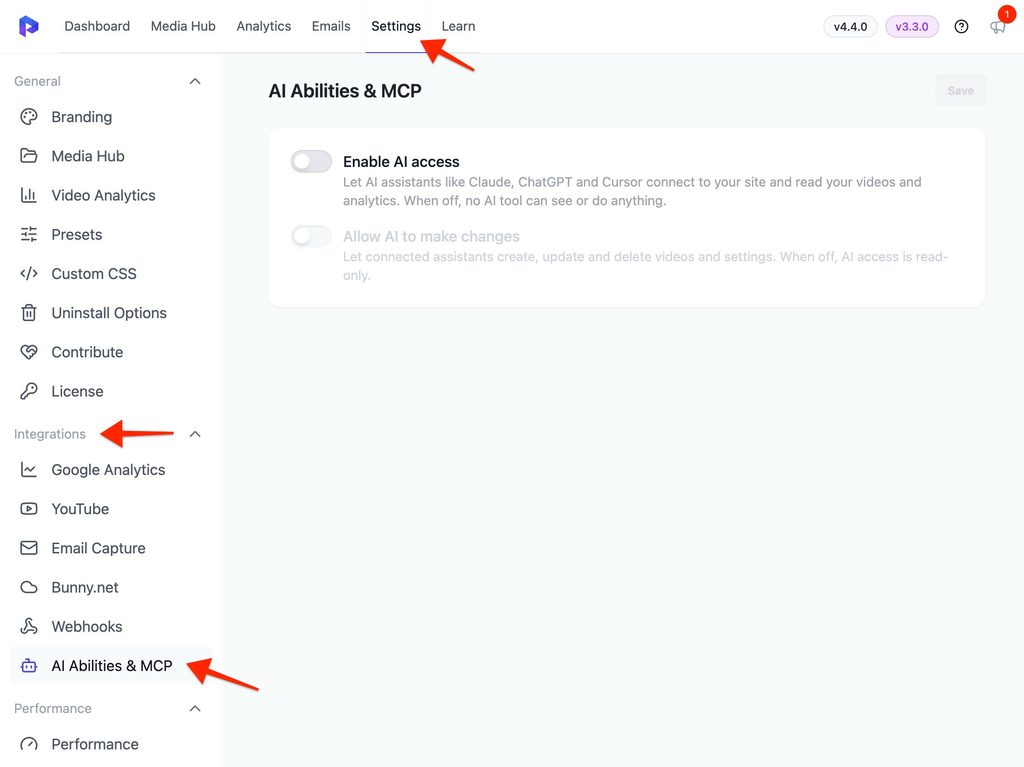
There are two switches on this screen, and both require administrator access:
- Enable AI access: “Let AI assistants like Claude, ChatGPT, and Cursor connect to your site and read your videos and analytics. When off, no AI tool can see or do anything.” This is the master switch. With it on and the second switch off, connected assistants get read-only access.
- Allow AI to make changes: “Let connected assistants create, update, and delete videos and settings. When off, AI access is read-only.” Turn this on only when you want the assistant to actually edit your content.
Both are off by default. Turning the master switch off automatically turns off “Allow AI to make changes” as well.
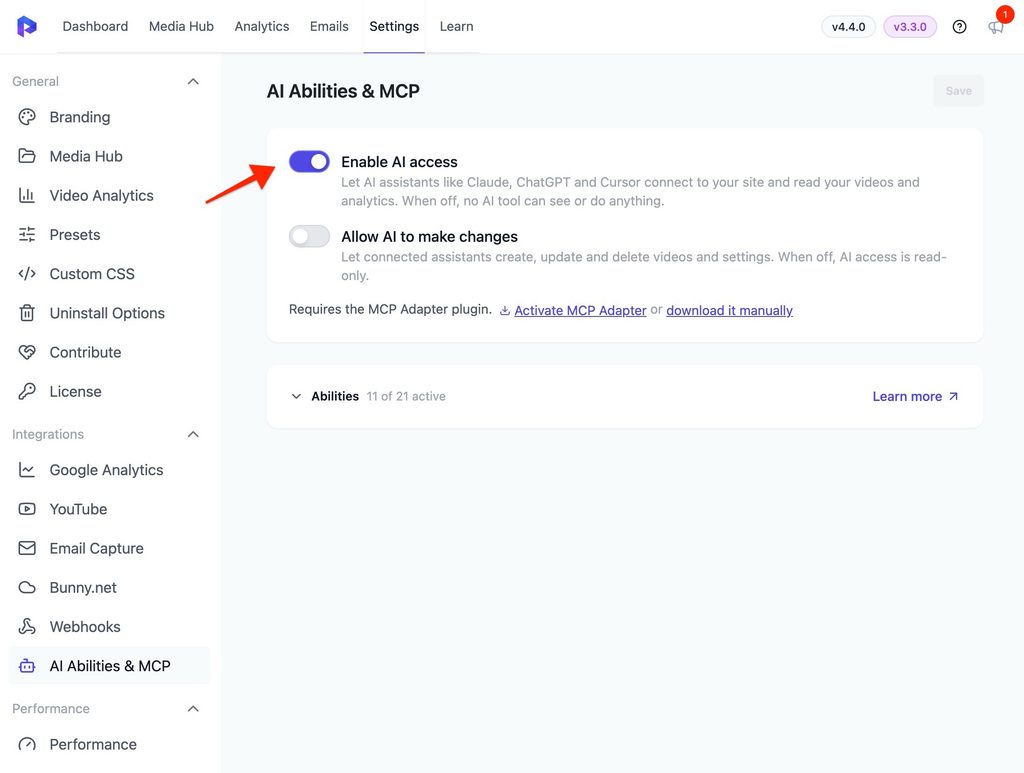
The Abilities counter at the bottom of the screen tells you exactly where you stand. In the read-only configuration above, it reads 11 of 21 active, the 11 abilities that only read data. Switch on “Allow AI to make changes” and it becomes 21 of 21 active.
Step 2: Install the MCP Adapter
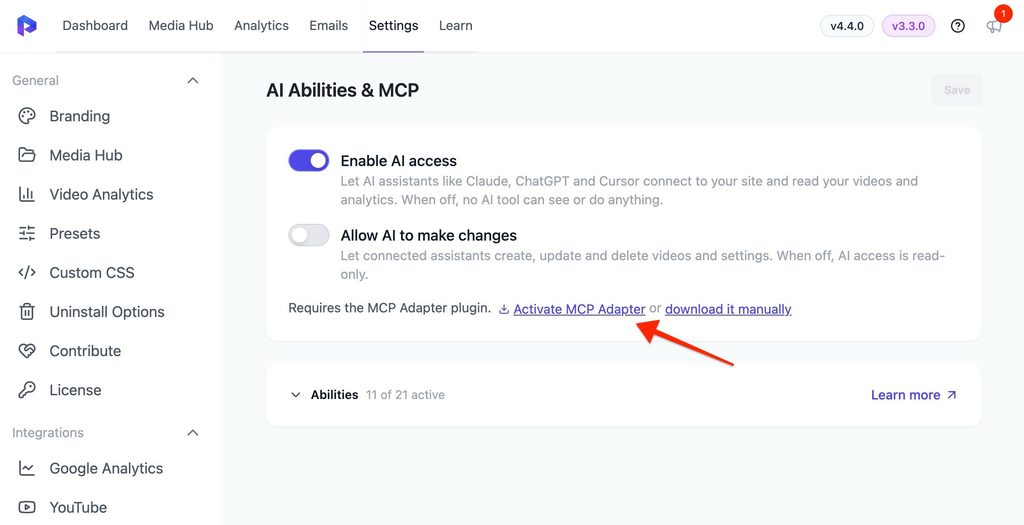
The connection itself is powered by the MCP Adapter plugin from the official WordPress organization. When you switch AI access on without it, an inline note appears:
Requires the MCP Adapter plugin. Install MCP Adapter or download it manually
Click Install MCP Adapter, and Presto Player downloads and activates it for you. (If the plugin is already on disk but switched off, the link reads Activate MCP Adapter instead.) Presto Player pins a specific tagged release (v0.5.0) and verifies its checksum before installing, so you always get a known-good build. If the one-click install fails on a locked-down host, use “download it manually” and upload the zip through Plugins > Add New > Upload Plugin.
Step 3: Copy your MCP endpoint
Once AI access is on and the adapter is active, the MCP / Connector panel appears with your endpoint:
https://your-site.com/wp-json/presto-player/v1/mcpClick Copy URL. This is the only thing most clients need, no keys to paste, no config files to edit.
Connecting Your AI Client
Presto Player uses OAuth 2.1 with Dynamic Client Registration, so modern clients connect with just the endpoint URL.
Claude (recommended)
- Copy the endpoint URL from the settings screen.
- In Claude, open Settings > Connectors > Add custom connector and paste it.
- Approve the connection. Presto Player’s tools appear automatically.
The settings screen includes a “Connect with Claude” link that takes you straight to claude.ai/settings/connectors.
ChatGPT Expand “Other clients” on the settings screen. Copy the endpoint URL, then open Settings > Connectors > Add custom connector in ChatGPT and paste it.
Cursor Expand “Other clients” on the settings screen and click Add to Cursor. This is a one-click deep link that registers the server for you, no manual JSON needed.
What you’ll see when approving
When a client connects, WordPress shows a consent screen:
- Authorize [App Name]: the client’s name, and a note that “This is a third-party application that has not been verified. Only continue if you trust it.”
- This will allow the app to: followed by the exact scopes being requested
- Signed in as: followed by your WordPress account’s email address
- Deny / Allow buttons
You must be logged in as an administrator to approve destructive or settings-level scopes. To cut off a connection later, turn off Enable AI access in Presto Player settings. This stops every connection at once.
Developer / advanced: Application Password fallback
If your client cannot connect over OAuth, expand “Developer / advanced” on the settings screen and use an Application Password with the stdio bridge instead.
Pick your client from the AI Client dropdown. Presto Player then generates the exact config for it, including the file path it belongs in. For Claude Desktop, the steps are:
- Generate an Application Password. Click Open Application Passwords to jump straight to your WordPress profile.
- Copy the JSON config into
~/Library/Application Support/Claude/claude_desktop_config.json(macOS) or%APPDATA%\Claude\claude_desktop_config.json(Windows). - Replace
"your-application-password"with the password from step 1, then restart the client.
json
{
  "mcpServers": {
    "presto-player": {
      "command": "npx",
      "args": [
        "-y",
        "@automattic/mcp-wordpress-remote@latest"
      ],
      "env": {
        "WP_API_URL": "https://your-site.com/wp-json/presto-player/v1/mcp",
        "WP_API_USERNAME": "your-username",
        "WP_API_PASSWORD": "your-application-password"
      }
    }
  }
}
The three environment variables are:
WP_API_URL: your site’s MCP endpointWP_API_USERNAME: your WordPress usernameWP_API_PASSWORD: the Application Password you generated
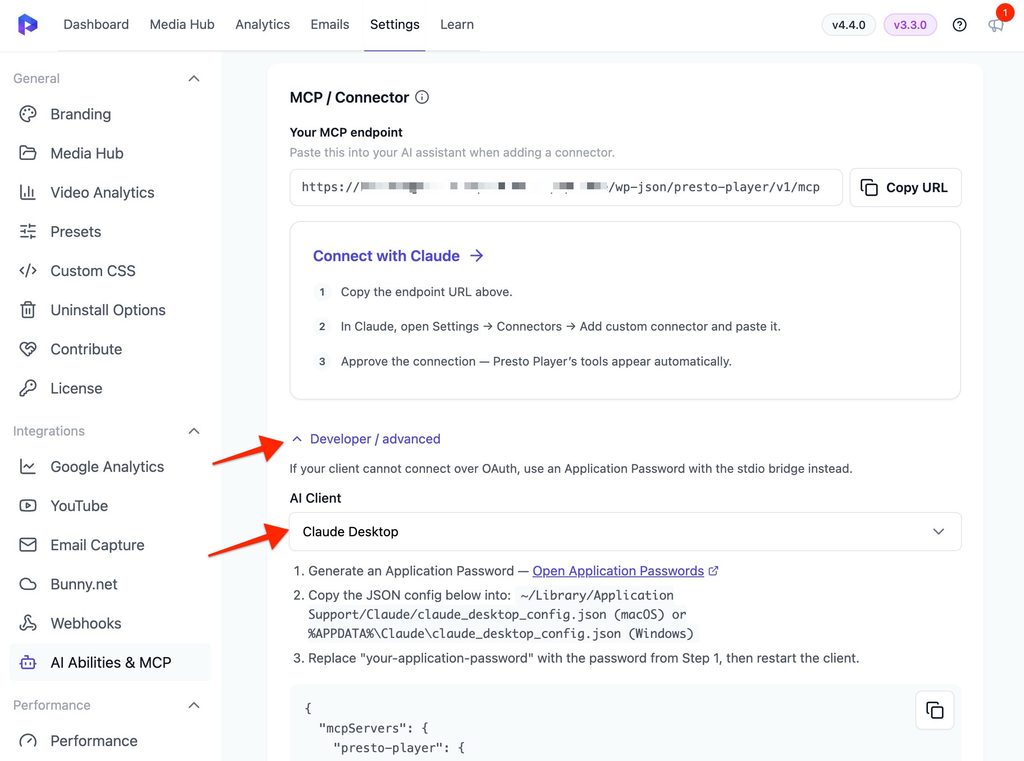
Copy the config from the settings screen rather than from here. It is generated for your site, so the endpoint URL and your username are already filled in. Only the password needs replacing. This path runs the bridge through npx, so the machine running the client needs Node.js installed.
Understanding Scopes
A scope is the level of access a connection is granted. Presto Player defines four, and the consent screen spells out what each one means:
| Scope | What the app can do | Who can approve it |
|---|---|---|
presto:read | View videos, analytics, and settings | Any user with edit_posts |
presto:write | Create and edit videos and captions | Any user with edit_posts |
presto:destructive | Delete videos and other content | Administrators only (manage_options) |
presto:admin | Modify plugin settings and license | Administrators only (manage_options) |
Scopes nest, so a client does not need to request all four:
presto:admin        ->  grants everything
presto:destructive  ->  presto:write  ->  presto:read
A client that registers without a scope is treated as presto:read only.
Two independent safety layers always apply:
- Your two admin toggles decide which abilities exist at all. Read-only abilities register whenever AI access is on; write and destructive abilities only register once “Allow AI to make changes” is on.
- The token’s scope and the WordPress user’s own capabilities decide what a specific connection may actually do. Everything is deny-by-default.
Note that analytics abilities require presto:admin, even though they only read data, view counts and viewer identities are treated as privileged.
Core Abilities (13 total, free)
Here is what the free plugin can do, grouped by what each ability is for:
Videos (8): Add a YouTube, Vimeo, or self-hosted video to the Media Hub (one ability per source); get, list, update, and trash video records; fetch the shortcode for embedding.
Chapters (3): List the chapters on a video. Generate a chapter list from a WebVTT caption track using silence-gap detection (fully deterministic, no AI involved, and it only returns markers without saving them). Save a generated chapter list to the video, this writes data, so it needs the “Allow AI to make changes” toggle turned on.
Settings (2): Read or update global Presto Player settings. Both require the presto:admin scope.
The abilities panel on the settings screen will be recaptured for 4.4.0, so the exact on-screen group labels may look slightly different from the breakdown above. The totals will match: 13 free, 8 Pro.
Presto Player Pro Abilities (8 additional)
Analytics (4): Top videos and top viewers by view count over a date range; total views for a single video; and a drop-off curve showing how many viewers were still watching at each point in the timeline.
Bunny Stream (3): List Bunny Stream collections, upload a video to Bunny Stream, and add an existing Bunny video by GUID to the Media Hub.
Captions & Translation (1): Translate an existing transcript into one or more languages.
Pro abilities appear in the list even when Pro is inactive, marked with a lock icon. Hovering one shows “Requires Presto Player Pro.” They are not registered or exposed to any AI client until Pro is active.
Requirements: Bunny abilities need a configured Bunny Stream library ID. Translation works on an existing transcript, so the video needs a transcript already attached.
Coming Soon
A few abilities that were part of earlier planning are not in 4.4.0 yet. They will get their own release notes when they ship:
- Preset abilities (list, read, create, update, delete)
- Video tags and video attributes
- LearnDash lesson and topic linking
- Smart playlists
- Course creation from a Bunny collection
- Additional caption abilities: list, upload, bulk upload, auto-transcribe, and bulk translate
If you ask a connected assistant to do any of the above today, it will tell you the ability isn’t available yet.
Recommended Permission Configurations
| Mode | Toggles | Best for |
|---|---|---|
| Off | Both off | The default. No AI tool can see or do anything. |
| Read-only | Enable AI access on, Allow changes off | Safe exploration: browsing videos, pulling analytics, drafting chapter lists. Nothing on your site can be modified. |
| Full access | Both on | Daily operations where the assistant creates and edits content. Deletions become possible, so grant this only to clients you trust. |
Start read-only. Turn on “Allow AI to make changes” only when you have a specific editing task, and consider switching it back off afterward.
Security Considerations
- Off by default. Nothing is exposed until an administrator turns it on.
- Both toggles require
manage_options. Only administrators can enable AI access or allow changes. - Deny-by-default at every layer. An ability must be registered, covered by the token’s scope, and permitted by the user’s own WordPress capabilities.
- Privileged scopes need an admin approver.
presto:destructiveandpresto:admincan only be consented to by a user withmanage_options, so an Editor cannot approve a client into deleting content or changing settings. - Short-lived tokens. Access tokens expire after 1 hour. Authorization codes expire after 10 minutes.
- Rotating refresh tokens with a hard cap. Refresh tokens last 30 days and rotate on use. A rotation chain is refused once it passes 90 days from the original authorization, so a client that keeps refreshing cannot hold a grant forever.
- PKCE required. The authorization flow uses PKCE with S256.
- Automatic cleanup. A daily job purges expired tokens, used or expired authorization codes, and clients that registered but were never used.
- Instant kill switch. Turning off Enable AI access immediately stops exposing abilities and pauses the OAuth surface. There is currently no per-client revoke list, so this is also how you cut off a single client: turn access off, then reconnect only the ones you trust.
- Per-ability capability checks. Individual abilities still enforce granular WordPress capabilities such as
edit_post,upload_files, anddelete_others_postson top of everything above.
Example Prompts
Videos
- “Add this YouTube video to my Media Hub and title it Onboarding Demo.”
- “List my Presto Player videos with ‘demo’ in the title, newest first.”
- “Update video 12’s title to Onboarding v2 and give me its shortcode.”
Analytics (Pro)
- “Top 10 most-viewed videos this month, and who were my top viewers in June?”
- “How many views did video 12 get last week, and show me its drop-off curve.”
Bunny Stream and captions (Pro)
- “List my Bunny Stream collections, then add Bunny video abc-123 to the Media Hub.”
- “Translate the transcript on Bunny video abc-123 into Spanish and German.”
Chained prompts (multi-step) This is where AI Abilities save the most time, one message instead of several manual steps:
- “Add this Vimeo video to my Media Hub, generate chapters from its captions, and save them once I approve the list.”
- “Show me last week’s views and drop-off curve for video 12, then update its title to Onboarding v2.”
- “List my Bunny Stream collections, add the demo video by GUID abc-123 to the Media Hub, then translate its transcript into Spanish.”
Tip: The shortcode and chapter-listing abilities accept either identifier, the Media Hub video_id returned when you create a video, or the pp_video_block post ID. Pass whichever you have; if an assistant looks unsure, just tell it which one you gave it. The deterministic chapter generator needs neither, it only takes raw WebVTT caption text.
Troubleshooting
The AI access toggle is greyed out. You’re on WordPress 6.8 or earlier. The WP Abilities API arrived in 6.9, update WordPress and the toggle becomes available.
“Requires the MCP Adapter plugin” won’t go away. The one-click install may have been blocked by file permissions or a security plugin. Use “download it manually”, then upload the zip via Plugins > Add New > Upload Plugin and activate it.
The MCP / Connector panel says the REST API URL couldn’t be determined. The panel reads: “We could not determine your site’s REST API URL, so the connection details are unavailable. Please reload the page or check your site address settings.” Reload the settings page first. If it persists, check Settings > General, the WordPress Address and Site Address both need to be valid http:// or https:// URLs for the endpoint to be built.
The client connects but sees no tools. Confirm Enable AI access is on and the MCP Adapter is active. If the client only sees read abilities, that’s expected, turn on “Allow AI to make changes” to expose create, update, and delete.
Pro abilities are missing or marked “requires Pro”. Presto Player Pro isn’t active. Activate it and reload the settings page; the Pro chips stop showing the lock.
The assistant says it isn’t allowed to do something. Either the token’s scope doesn’t cover it, or the WordPress user behind the connection lacks the capability. Analytics and settings abilities need presto:admin; deletions need presto:destructive. Both can only be approved by an administrator, reconnect the client while logged in as one.
Bunny abilities fail. Check that a Bunny Stream library ID is configured in Presto Player Pro.
A connection stopped working after a while. Access tokens last an hour and refresh automatically, but a refresh chain is hard-capped at 90 days from the original authorization. Reconnect the client to start a fresh grant.
You want to cut off a client immediately. Turn off Enable AI access. This stops every connection at once. To re-enable only trusted clients, turn it back on and reconnect them individually.
Technical Reference
For developers integrating directly:
| Item | Value |
|---|---|
| MCP endpoint | /wp-json/presto-player/v1/mcp |
| Server descriptor | /wp-json/presto-player/v1/mcp/info |
| Authorization server metadata (RFC 8414) | /.well-known/oauth-authorization-server |
| Protected resource metadata (RFC 9728) | /.well-known/oauth-protected-resource |
| Authorization endpoint | /presto-player/oauth/authorize |
| Token endpoint | /wp-json/presto-player/v1/oauth/token |
| Client registration endpoint | /wp-json/presto-player/v1/oauth/register |
| Revocation endpoint | /wp-json/presto-player/v1/oauth/revoke |
| Grant types | authorization_code, refresh_token |
| PKCE | S256 (required) |
| Ability namespaces | presto-player/, presto-player-pro/ |
Third-party plugins can append their own abilities through the presto_player_abilities filter, and their own OAuth scope identifiers through the presto_player_oauth_scopes filter.
If you have any questions or need further help, feel free to reach out to our support team. We’re always happy to help!
We don't respond to the article feedback, we use it to improve our support content.