
Using Presto Player with Fluent CRM
Presto Player integrates with FluentCRM to capture email addresses directly from your videos. When a viewer reaches a set point in the video, a form appears asking them to enter their email before continuing. This guide walks you through the full setup.
Before you start, make sure the FluentCRM plugin is installed and activated on your site.
Set Up Email Capture
Step 1 – Create or Edit a Preset
Email capture is configured through a preset. Using a preset lets you apply the same email capture settings to multiple videos and update them all from one place.
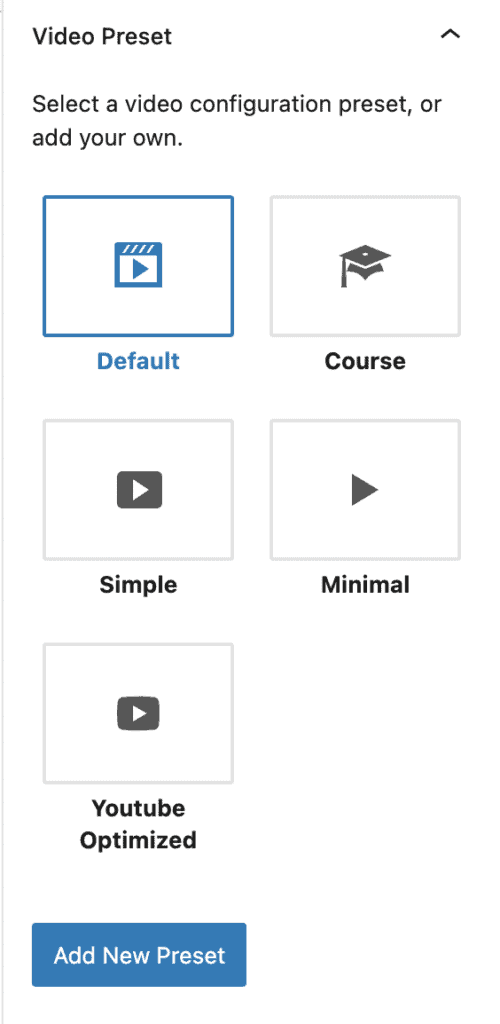
Add a Presto Player video to your page or open one in the Media Hub. In the inspector panel on the right, click Add New Preset or select an existing preset to edit.
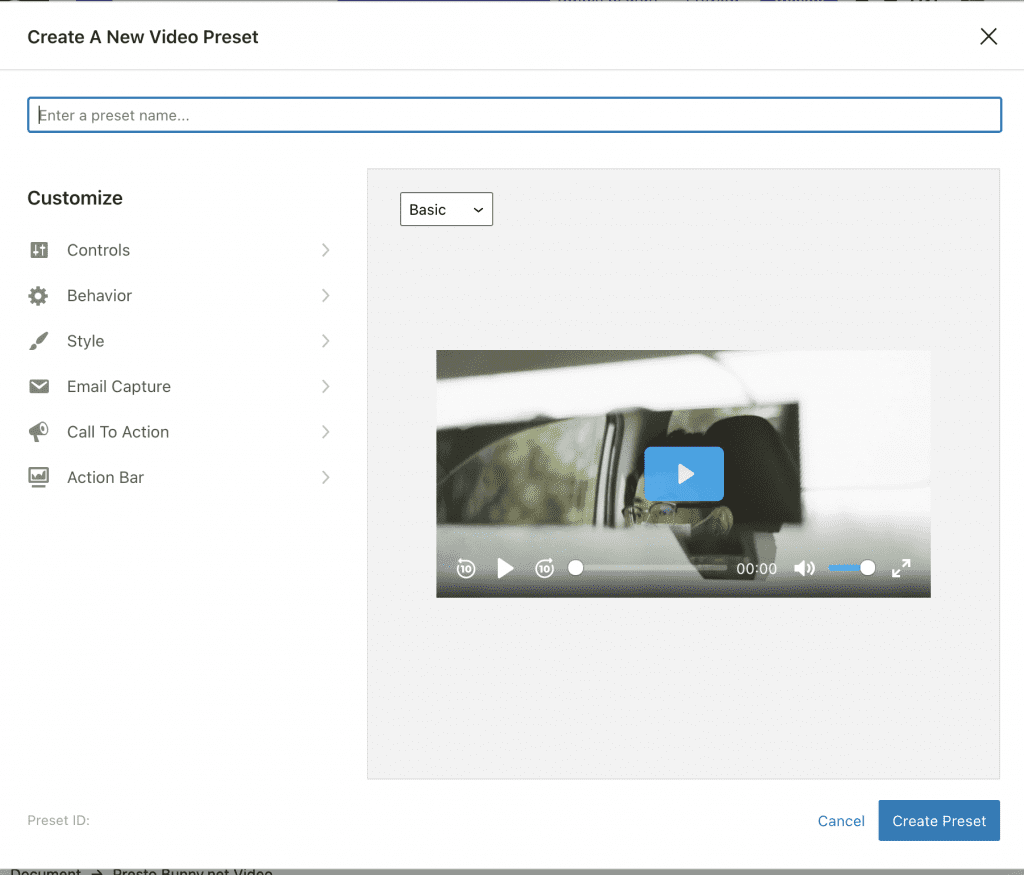
Give your preset a name, then click the Email Capture tab in the preset settings.
Step 2 – Enable Email Capture
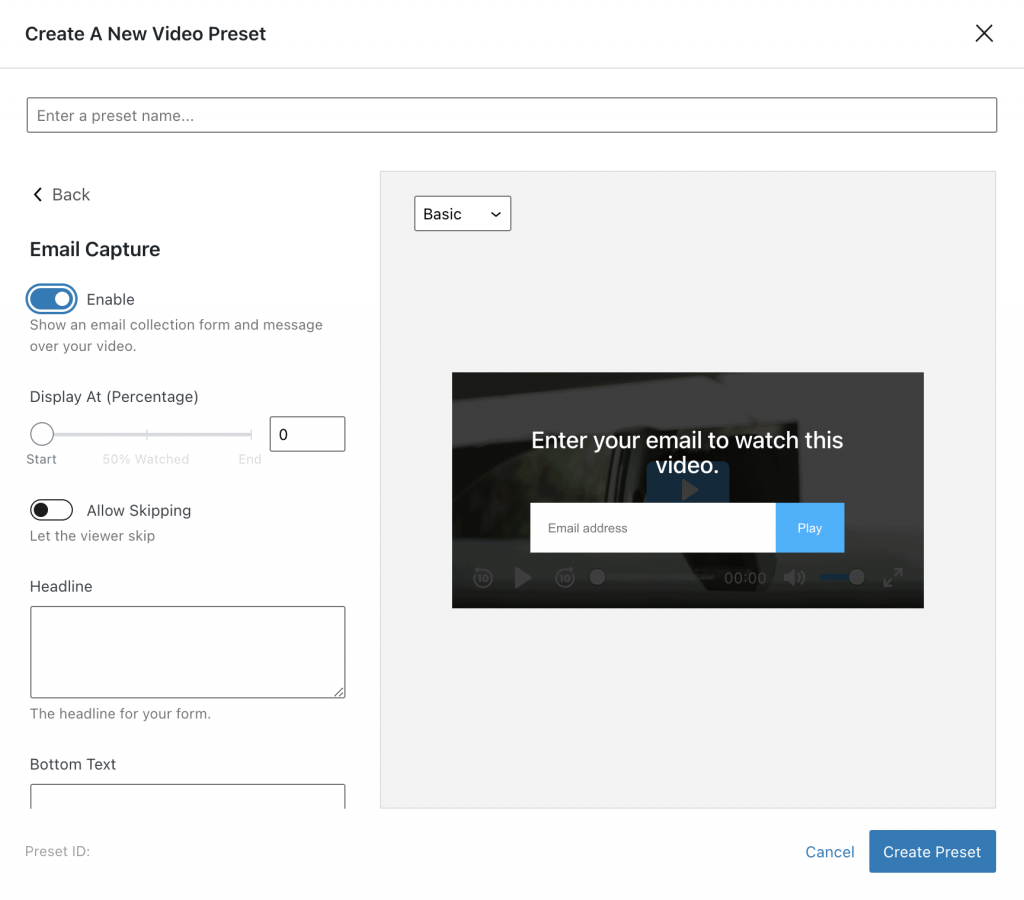
Click Enable next to the Email Capture toggle. Fill in the form fields to set the headline, button text, and styling to match your brand.
Step 3 – Select FluentCRM as Your Email Provider
Scroll down to the Integrate section. Select FluentCRM
We recommend selecting both a list and a tag. This unlocks powerful FluentCRM automation features like Email Sequencing and Contact Segmentation. Click Save on the preset and then save or publish your page. Because the email capture is attached to a preset, any video using that preset will automatically show the capture form. To update the form across all those videos at once, simply edit the preset. That’s all it takes to capture emails from your videos using FluentCRM. Because the settings live in a preset, any update you make applies to every video using that preset at once. If you run into any issues, feel free to reach out to our support team. We’re happy to help.
Save and Apply
Conclusion
We don't respond to the article feedback, we use it to improve our support content.