
Automatic Captions in Presto Player
Presto Player integrates directly with Bunny.net to automatically generate Automatic Captions for your videos. With just a few settings enabled, captions are created for your videos without uploading files or managing caption tracks manually.
Automatic Captions work with both public and private videos and appear automatically in the player when caption generation has been completed.
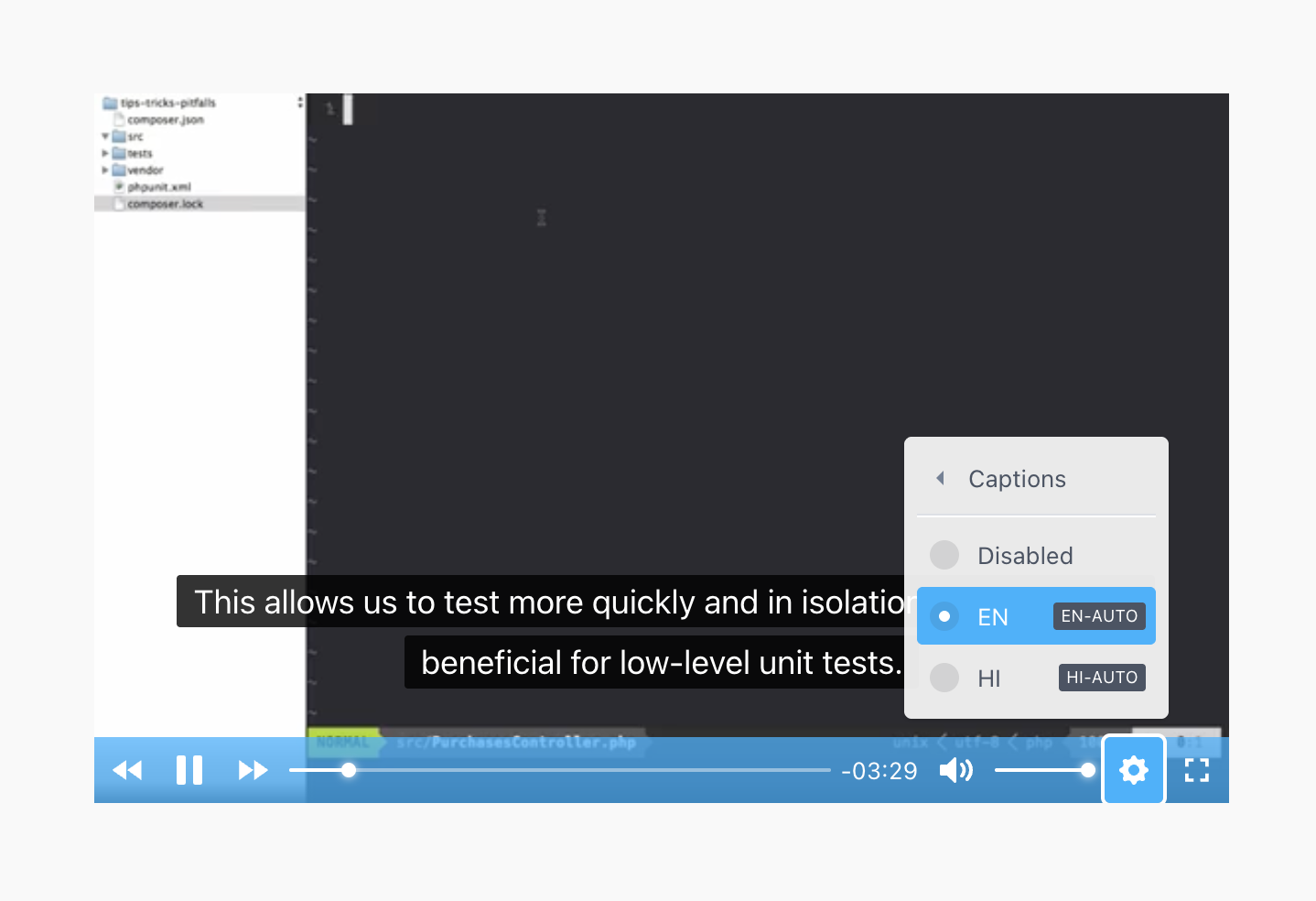
For the purposes of this documentation, transcriptions and captions are used interchangeably, but essentially refer to the same thing.
What Automatic Captions Do and How They Work
Presto Player makes adding captions simple and automatic.
You can generate captions in two easy ways:
- Automatically for all new video uploads.
- Manually for existing uploaded videos.
There’s no need to upload caption files or manage formats yourself. Once captions are generated, they appear automatically in Presto Player and are ready to use right away.
Where to Find the Settings
Step 1: Connect Bunny.net in Presto Player
Before Automatic Captions can be used, Presto Player must be connected to your Bunny.net Stream account. Follow this guide if you don’t have Streams created on Bunny.net yet, and Presto Player will create the default ones for you.
Go to:
- Presto Player → Settings → Bunny.net
- Enter your Bunny.net Stream API key
- Save your settings
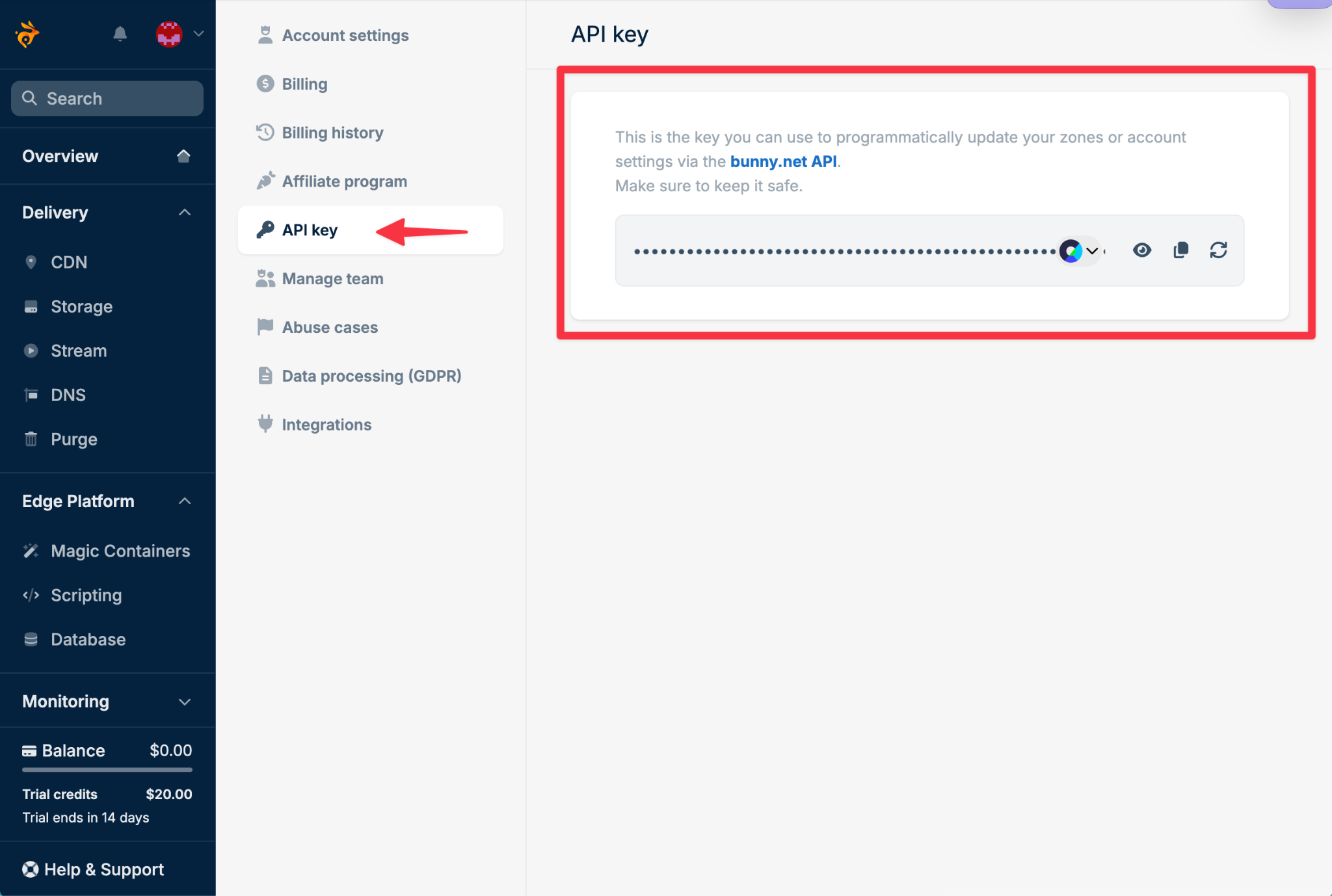
If you already have Stream Libraries on your Bunny.net account, follow these steps to connect them to Presto Player.
Step 2.1: Enable Automatic Captions
To enable Automatic Captions (Transcriptions), you can do this directly on the Presto Player settings page.
- Go to Presto Player → Settings
- Click Integrations
- Scroll down to Bunny.net settings and Enable Transcribing
- Confirm the pricing notice.
- Once enabled, select the language you want your videos to be transcribed to.
- Click Update Settings
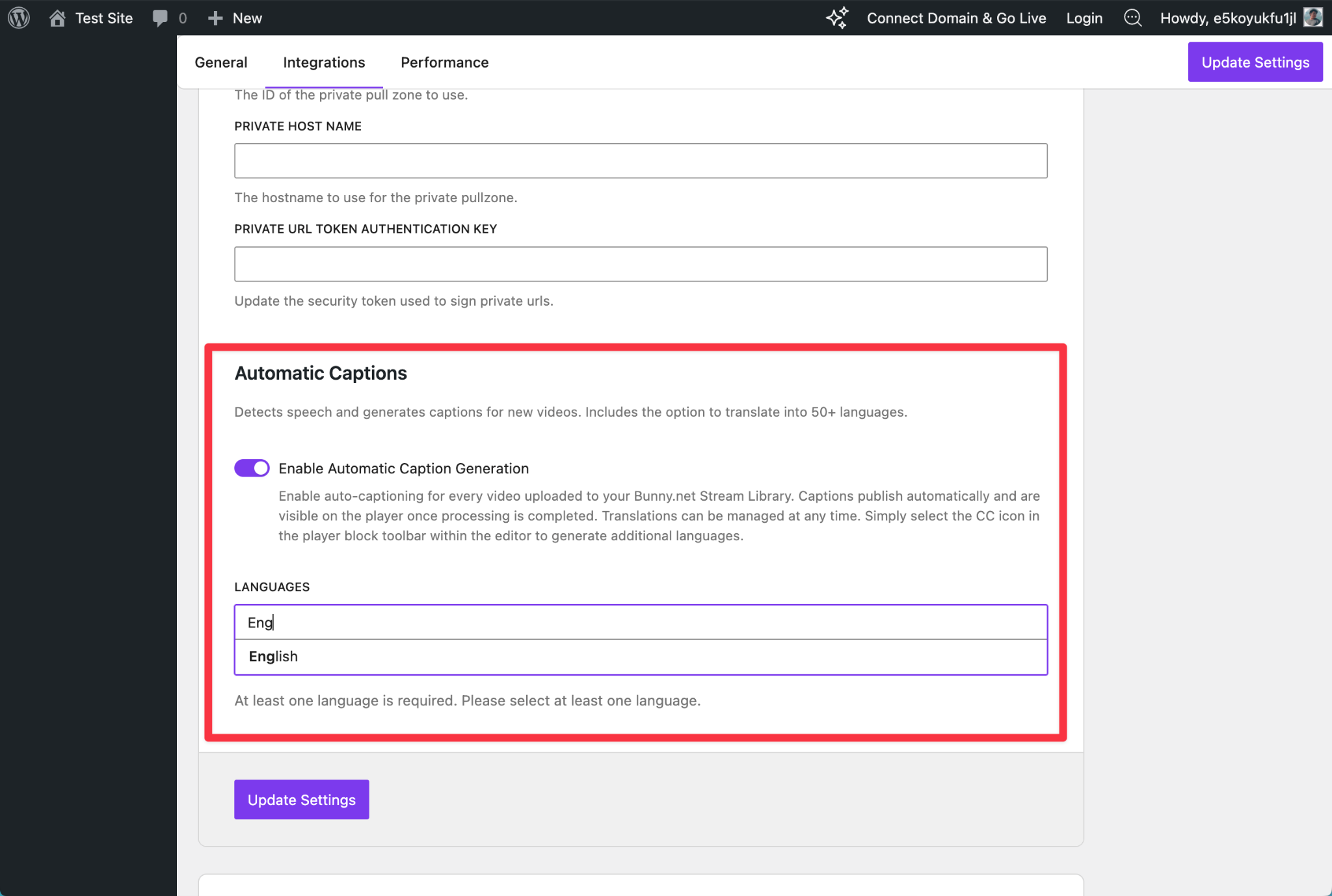
Once enabled, all new videos uploaded to Bunny.net Stream will receive Automatic Captions automatically.
Step 3.2: Generate Automatic Captions for a Video Manually
For existing videos:
- Open the video in the Media Hub
- Make sure the video block is selected
- Click the CC button
- From the dropdown, add the Language you wish to transcribe the video to
- Click Generate
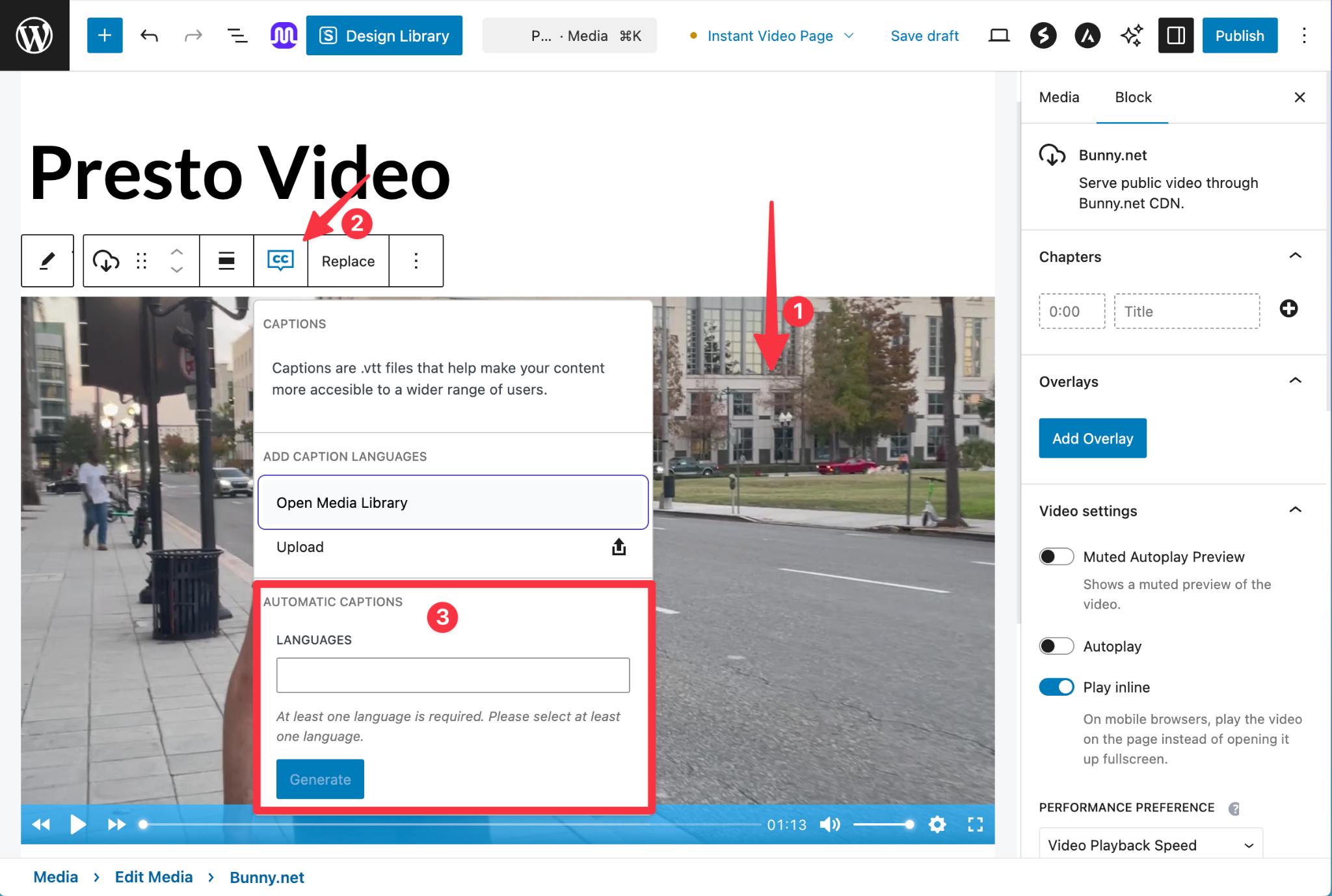
- Confirm the pricing prompt, and wait for the transcription to finish
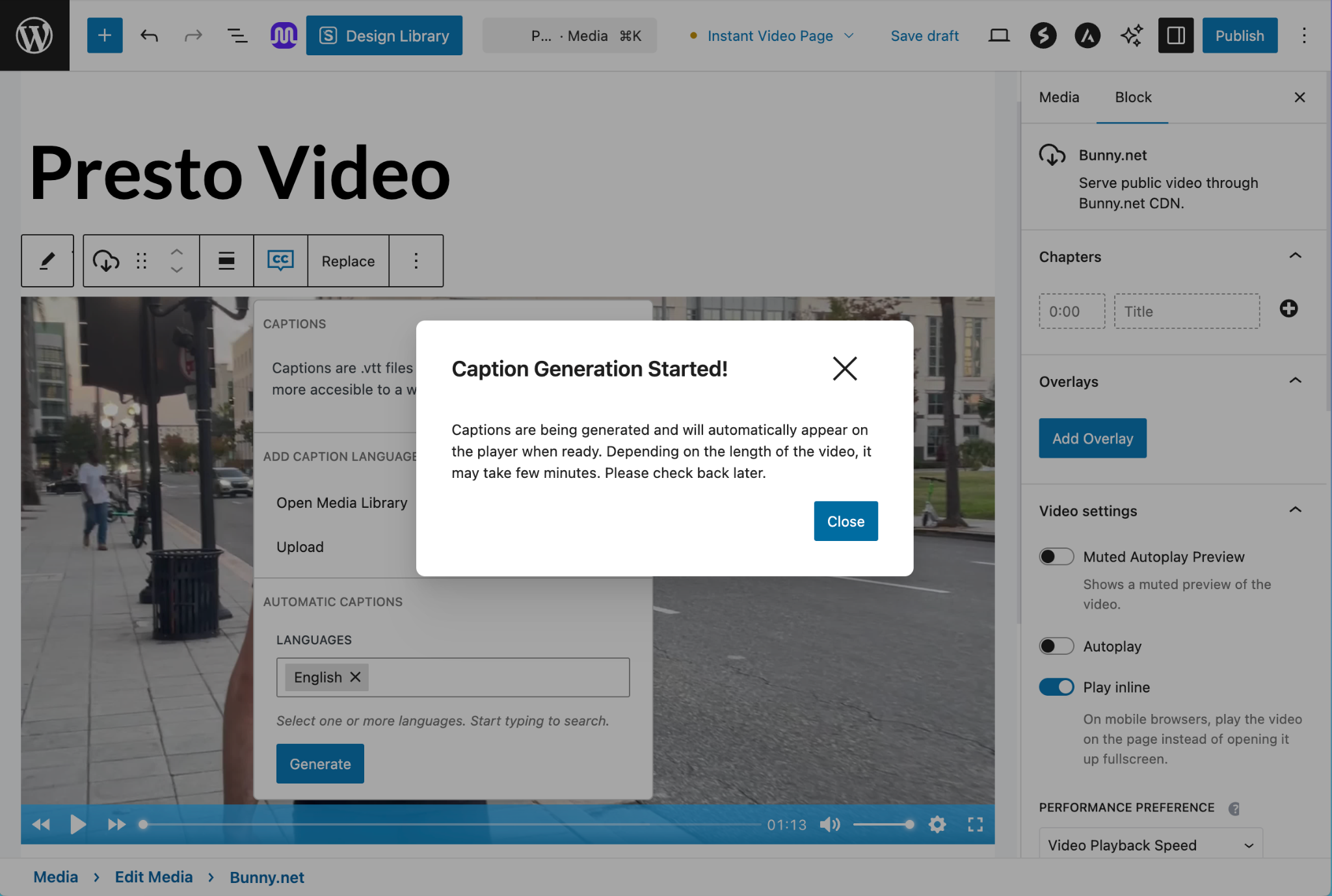
Once done, the automatically generated captions should appear under the Captions list.
If your existing video within Presto Player Media Hub already includes caption tracks:
- Automatic Captions are added as additional caption options
- Existing captions are not replaced or removed
- Manual captions and Automatic Captions can be used together
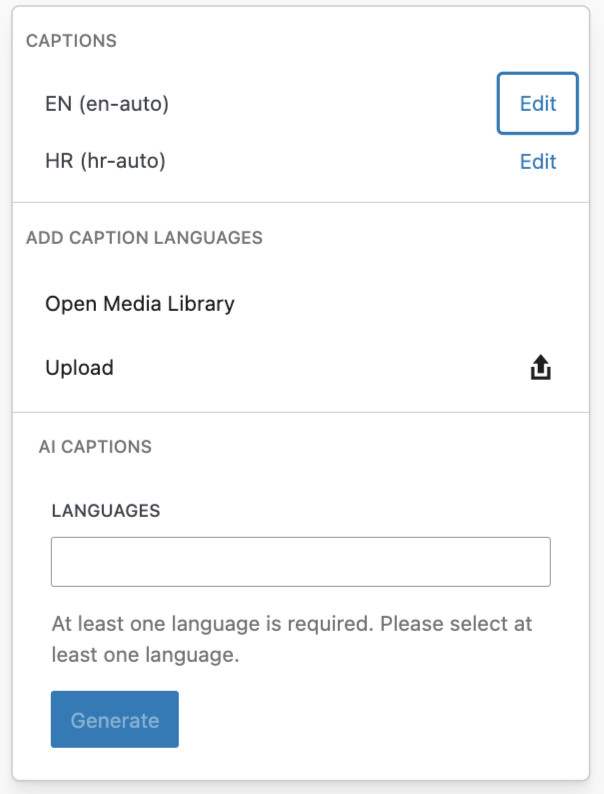
You can delete AI-generated captions at any time from the caption editor. This removes them from both Presto Player and Bunny.net.
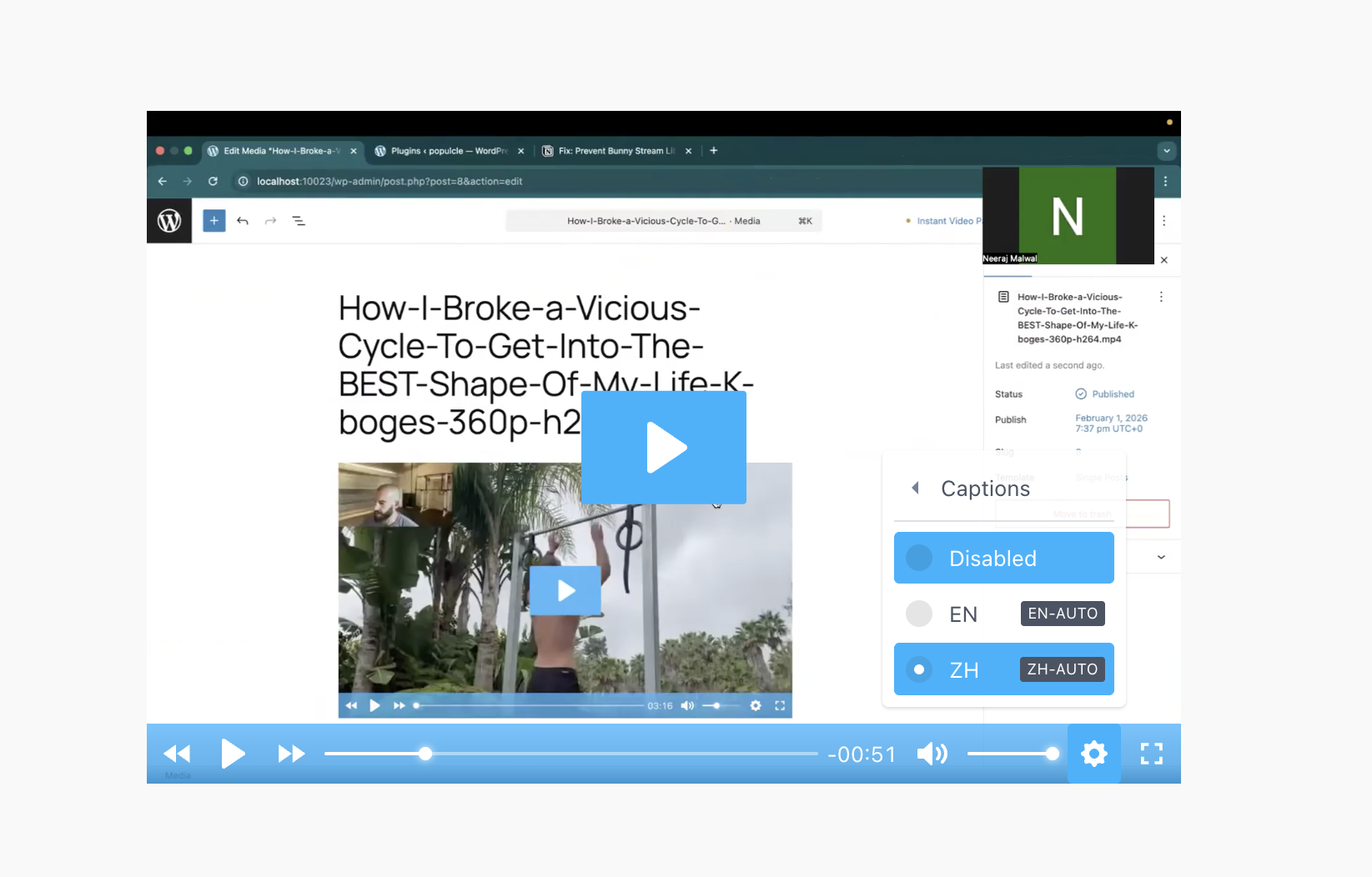
They will appear automatically on the player once available and can be toggled from the Caption control setting.
Pricing and Billing
Automatic Captions are billed directly by Bunny.net. Please refer to their pricing page on the costs for transcriptions. Make sure your Bunny.net account has enough balance before generating Automatic Captions.
Common Questions and Troubleshooting
Automatic Captions are not appearing
Check the following:
- The video has finished processing in Bunny.net
- The video contains audio
- Your Bunny.net Stream API key is correct
- Your Bunny.net account has sufficient balance
Automatic caption generation failed
If you see an error message:
- Try generating Automatic Captions again
- Re-upload the video if it was uploaded before v4.1.0
- Re-add the videos on Presto Player Media Hub
- Open your browser’s developer console to check for errors and report to our Support for further assistance.
Automatic Captions Generated but Not Updating
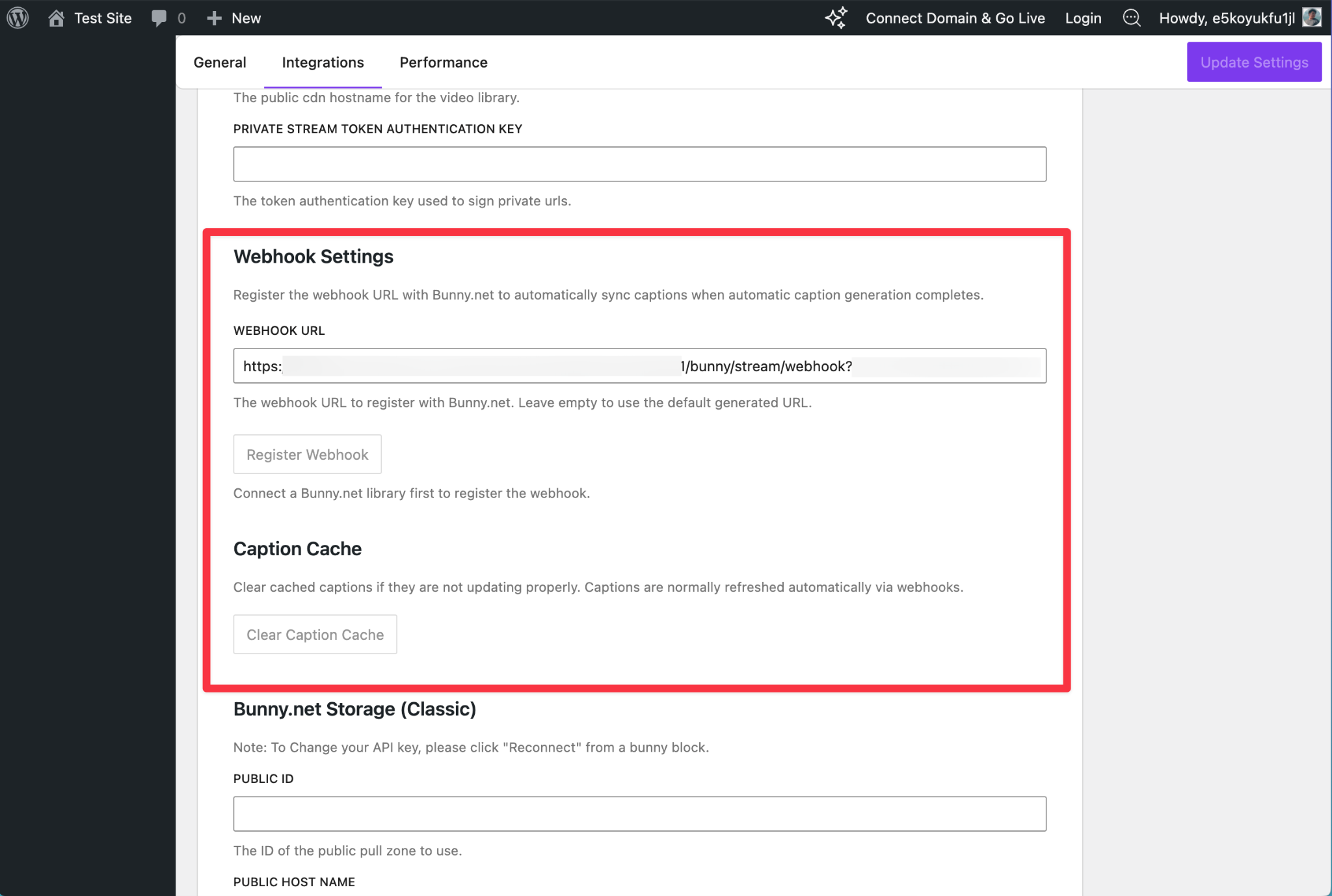
Captions are cached for performance reasons. If you notice that captions are not updating, you can refresh them manually.
To refresh captions:
- Go to Presto Player → Settings → Bunny.net → Edit Bunny.net settings
- Click Clear Captions Cache
- Reload the page
If captions still do not update, you can manually register the Bunny.net webhook. This is useful if the automatic caption update or clearing process is not working as expected.
You can find the Register Webhook option in the same Bunny.net settings section, just below the Clear Captions Cache option. Use this to re-establish the connection and ensure caption updates are received correctly.
Will Automatic Captions affect site performance?
No. Captions are loaded asynchronously and cached for 24 hours. They do not block page loads or impact video playback.
Do Automatic Captions work with private videos?
Yes. Automatic Captions work with both public and private videos.
Supported Languages
Presto Player supports Automatic Captions in a wide range of languages. You can select multiple languages and generate captions for all of them at the same time.
Some of the most commonly used supported languages include:
- English
- Spanish
- French
- German
- Italian
- Portuguese
- Dutch
- Polish
- Turkish
- Arabic
- Hindi
- Japanese
- Korean
- Chinese
- Indonesian
Additional languages are also available, allowing you to cover most global audiences. The exact list may expand over time as caption support improves.
Conclusion
Automatic Captions make it easy to add captions to your Presto Player videos with minimal setup. By using clear, automatic caption generation instead of manual files, you can improve accessibility and reach while keeping your workflow simple and efficient.
We don't respond to the article feedback, we use it to improve our support content.