
Using Presto Player With The Classic Editor
The Classic Editor is the older WordPress editing experience that does not support Gutenberg blocks. Because Presto Player is block-based, its blocks are not available when the Classic Editor plugin is active.
However, you can still use Presto Player through the Media Hub, which works with non-block editors, including the Classic Editor. This guide shows how to add a video to the Media Hub and display it on a page using the Classic Editor.
Add a Video to the Media Hub
Follow these steps to create a video in the Media Hub.
Step 1: Go to Dashboard > Presto Player > Media Hub. Click Add New and give the video a name.
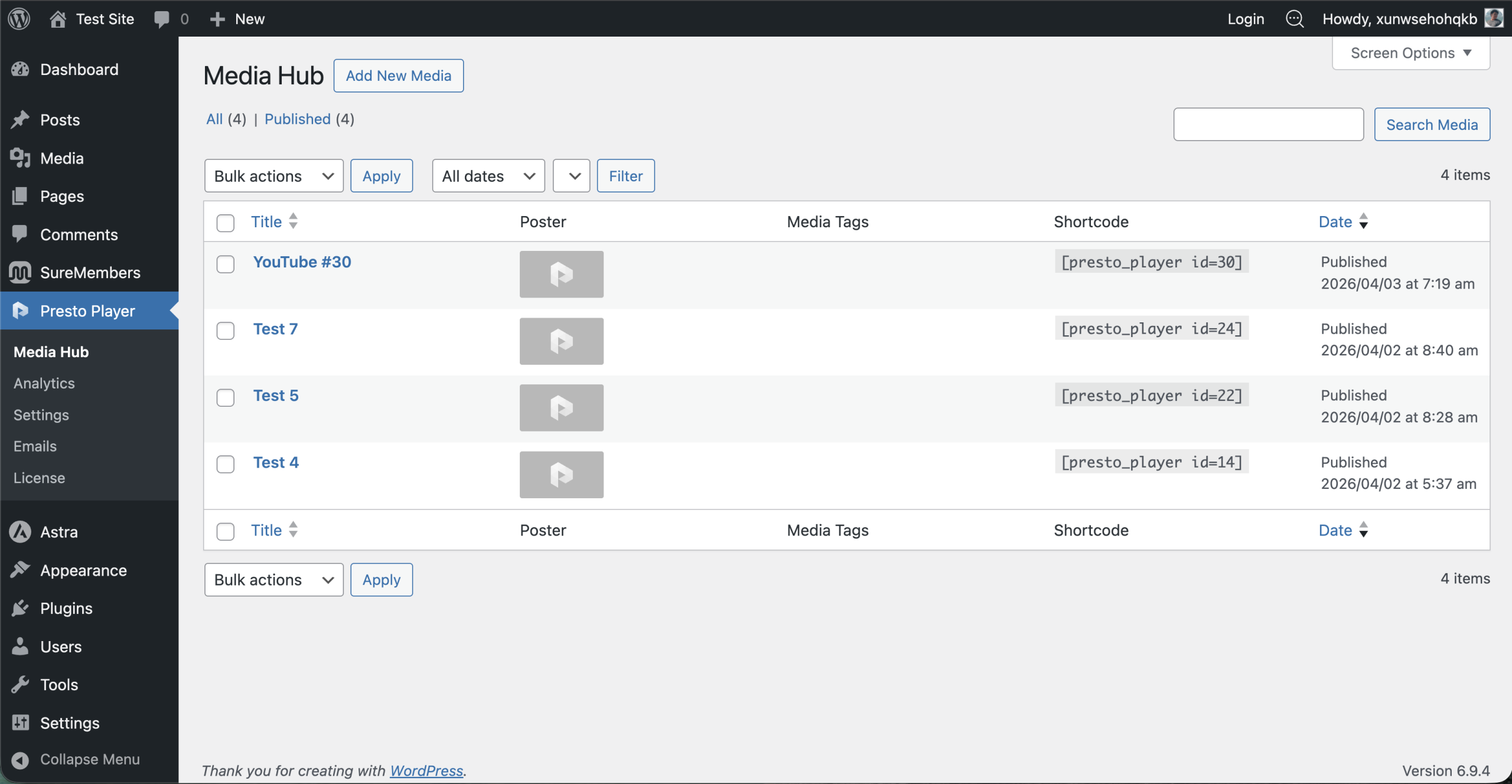
Step 2: Choose the video source:
- Self-hosted video
- YouTube
- Vimeo
- Bunny.net, available with Presto Player Pro
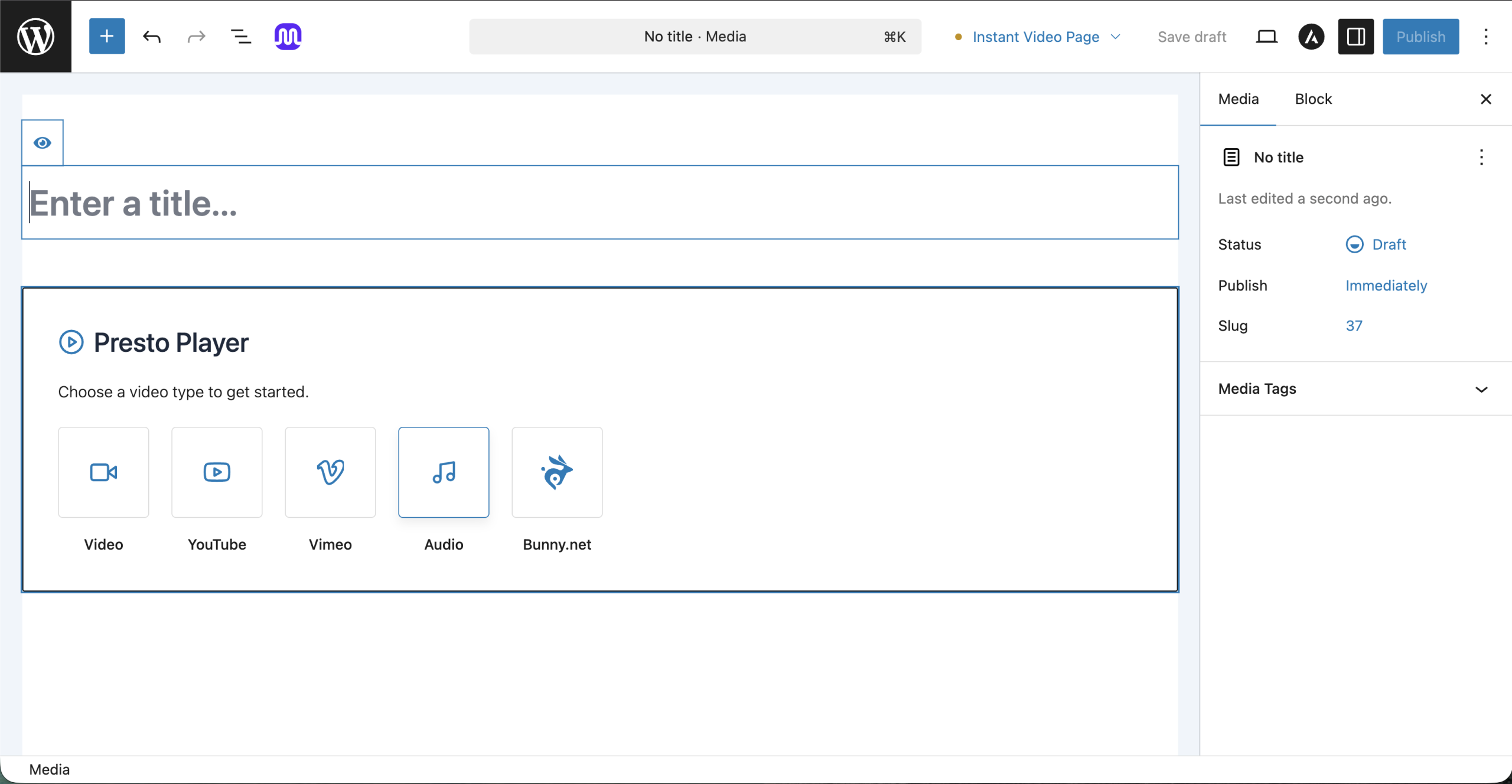
Step 3: Enter the video URL or upload the file.
Step 4: Adjust the video settings as needed.
Step 5: Click Publish to save the video. The video is now available in the Media Hub.
Add the Video to a Page or Post
Once the video is saved, you can embed it using a shortcode.
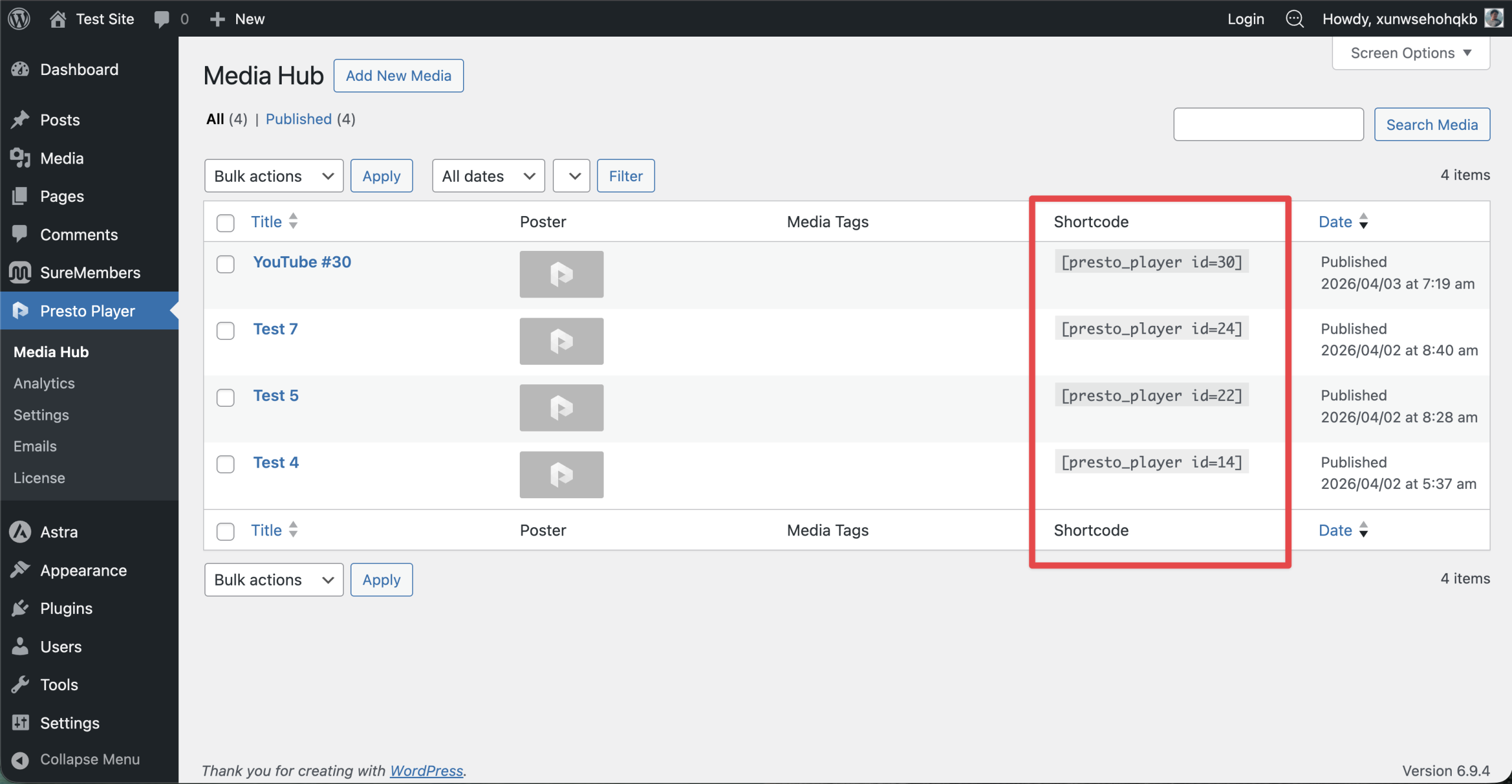
Step 6: In the Media Hub, locate the video you created. Copy the video shortcode.
Step 7: Open the page or post using the Classic Editor. Paste the shortcode where you want the video to appear.
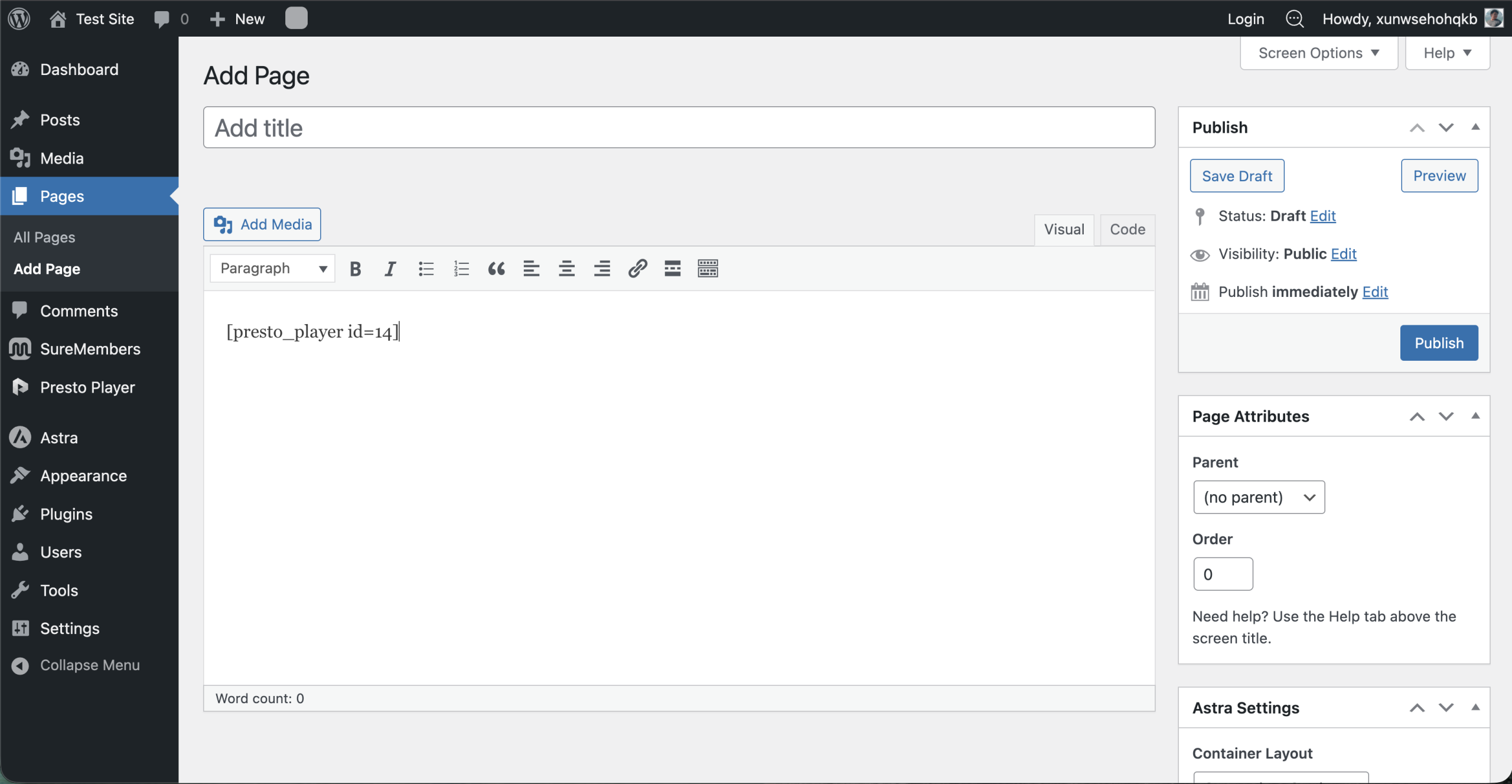
Step 8: Save or update the page. The video will load using Presto Player on the front end.
Editing the Video Later
If you need to change the video settings, return to the Media Hub and edit the video there.
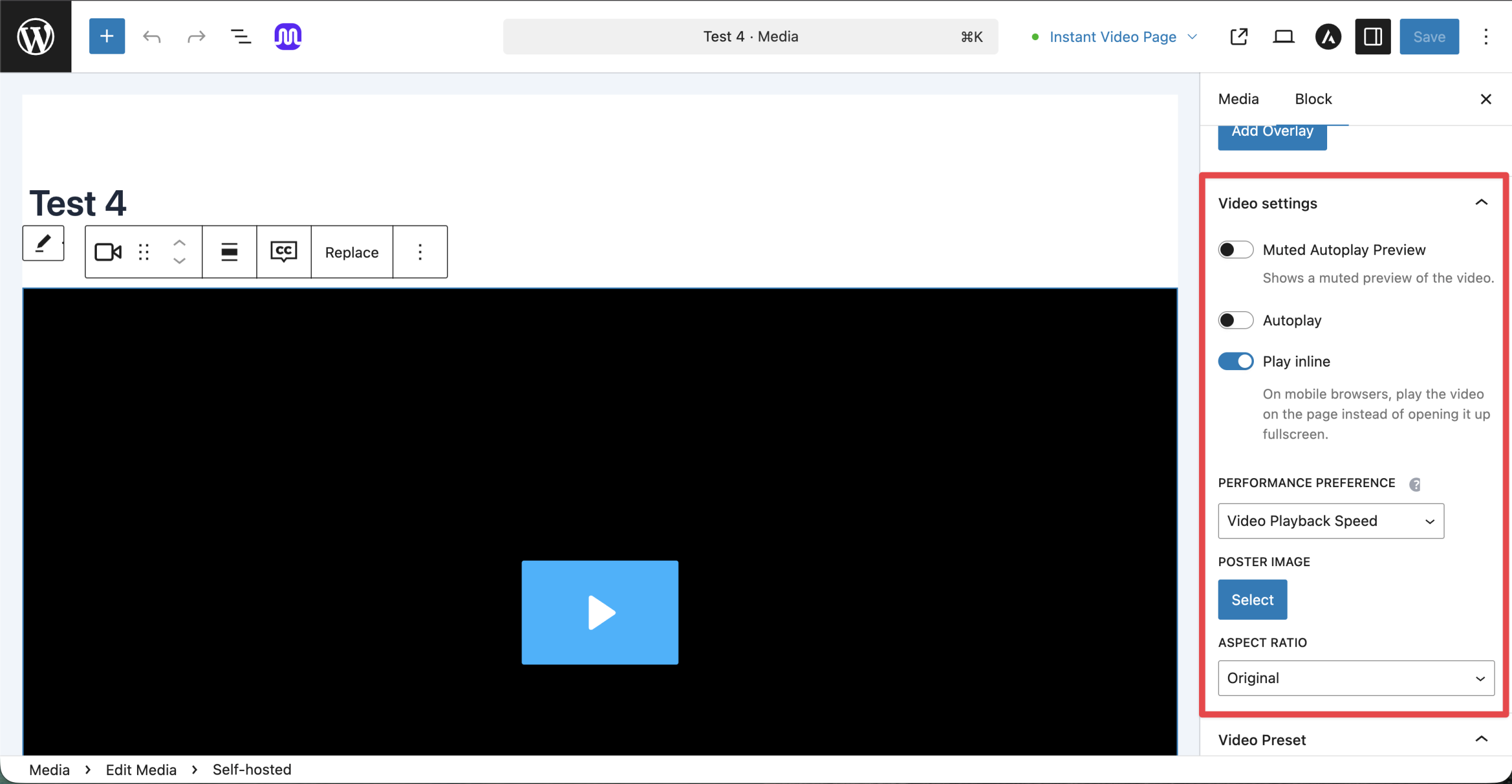
Any updates will apply everywhere the shortcode is used. This method also works with other non-block-based page builders.
Learn More About Video Shortcodes
If you want to customize how videos are embedded or control playback behavior using parameters, refer to the Video Shortcodes documentation for more details.
Conclusion
The Classic Editor does not support Gutenberg blocks, but that does not mean you have to give up Presto Player’s features. The Media Hub makes it simple to manage your videos in one place and embed them anywhere using a shortcode. If you have any questions, feel free to reach out to our support team. We’re happy to help.
We don't respond to the article feedback, we use it to improve our support content.