
- How to Create a Presto Popup
- Video Presets
- Video Security
- Performance Preferences
- Video Settings
- Shortcodes
- Capture Emails
- Audio
- Video / Audio Timestamps
- Playlists
- How to Use Instant Video Pages in Presto Player
- Automatic Video Syncing
- Dynamic Watermark
- Video Presets
- Automatic Captions in Presto Player
- How to Use Video Presets in Presto Player – Layouts and Behavior
- How to Customize Video Presets – Settings and Layout Options
- How to Use Shortcodes in Presto Player
- How to Use Advanced Shortcodes and Timestamps
How to Use Video Presets in Presto Player – Layouts and Behavior
What Are Video Presets?
Video Presets let you control how the Presto Player looks and behaves without setting up each video individually.
A preset is a reusable group of settings that defines things like:
- Player layout
- Visible controls
- Playback behavior
- Styling and branding
- Optional features like email capture or calls to action
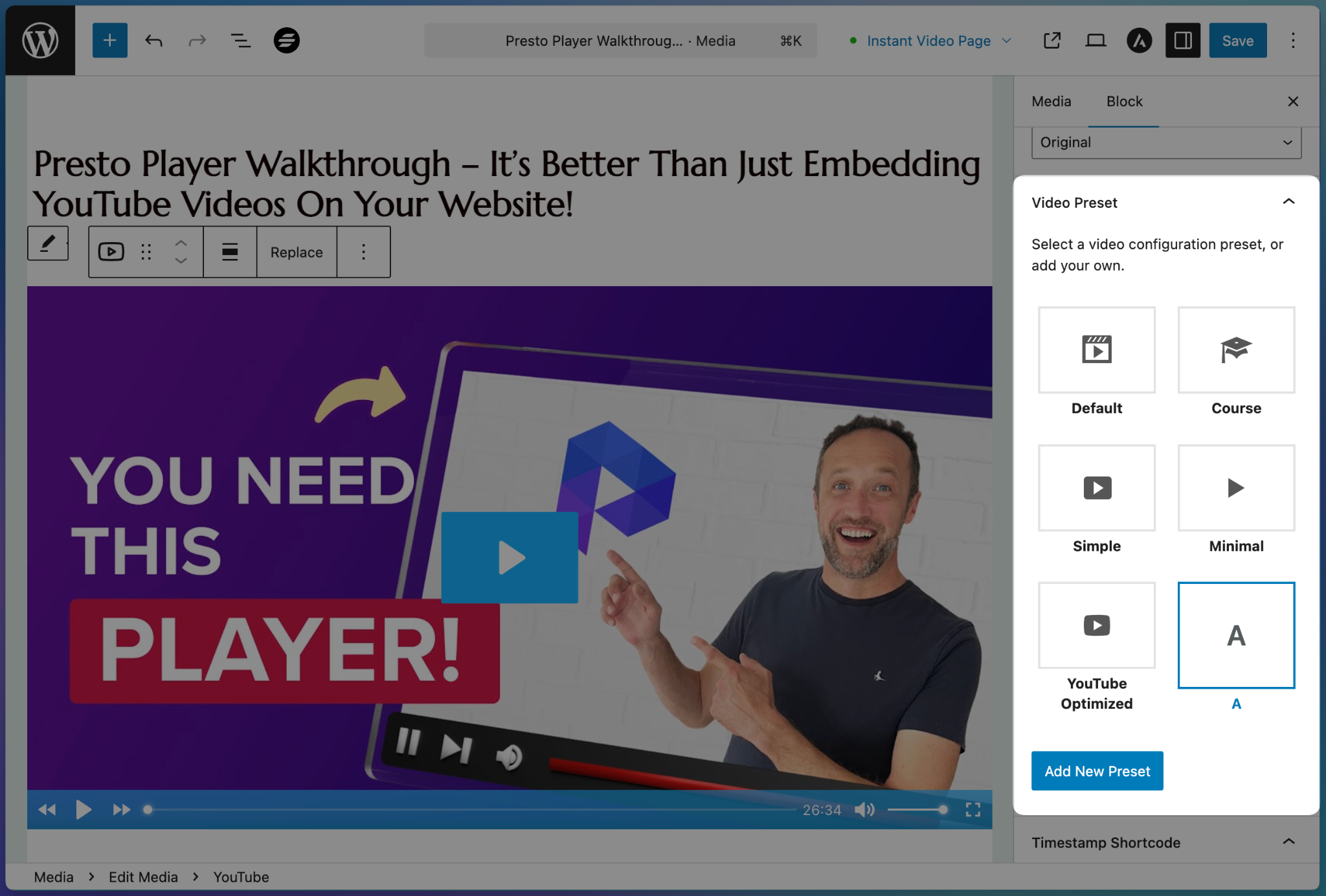
Presets are useful when you want the same player setup across multiple videos, such as courses, tutorials, or series pages.
Built-In Presets
The free version of Presto Player includes several ready-made presets for common use cases:
- Default
- Course
- Simple
- Minimal
- YouTube Optimized
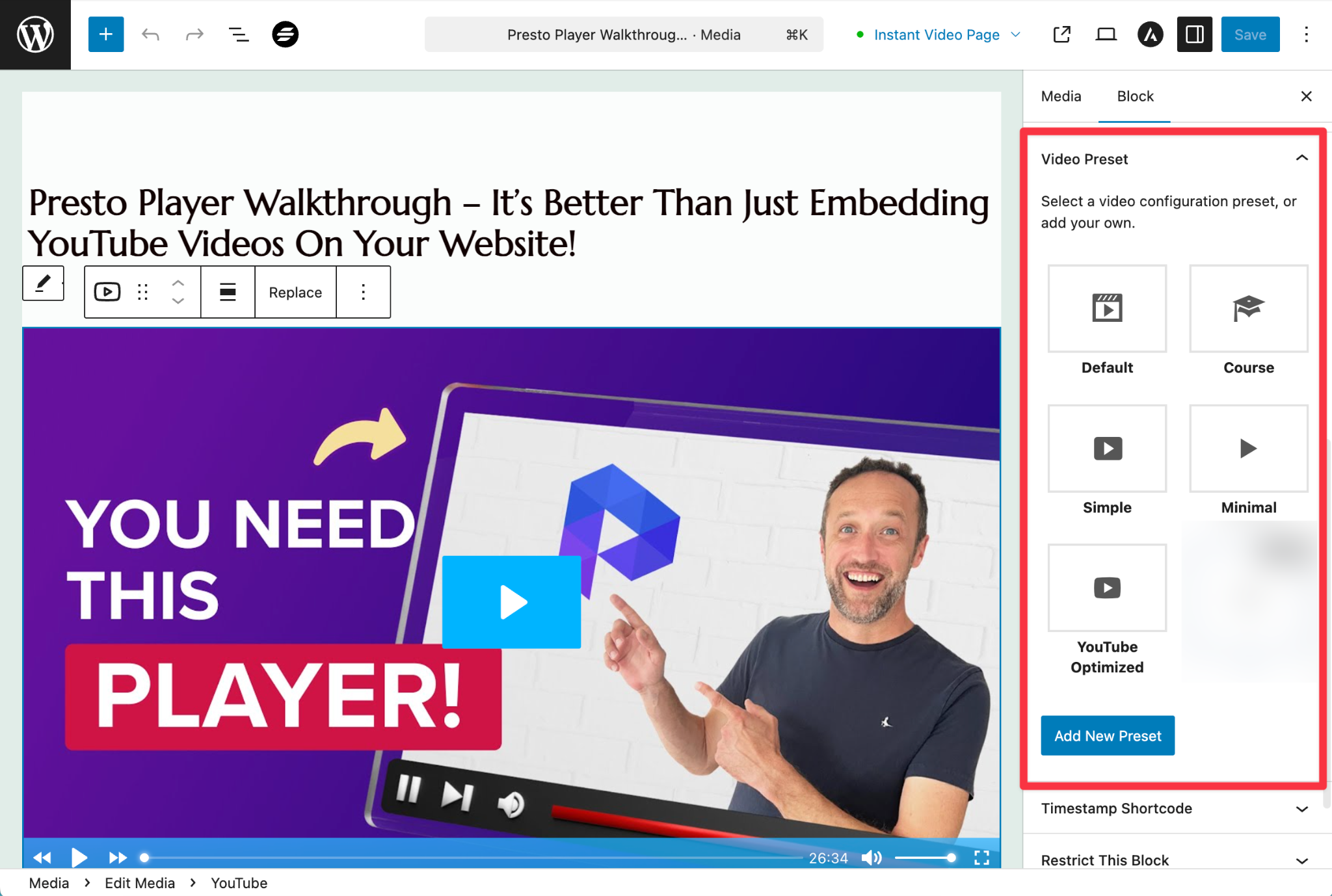
These presets can be applied directly to a video. Individual videos can still adjust settings if needed.
Custom Presets (Pro Only)
If Presto Player Pro is active, you can also create your own custom presets, aside from the ones added by default to avoid repeating the same configuration for every video.
How to Create a Custom Preset
- Go to Dashboard > Presto Player > Media Hub
- Open any video
- In the right-hand panel, select Add New Preset
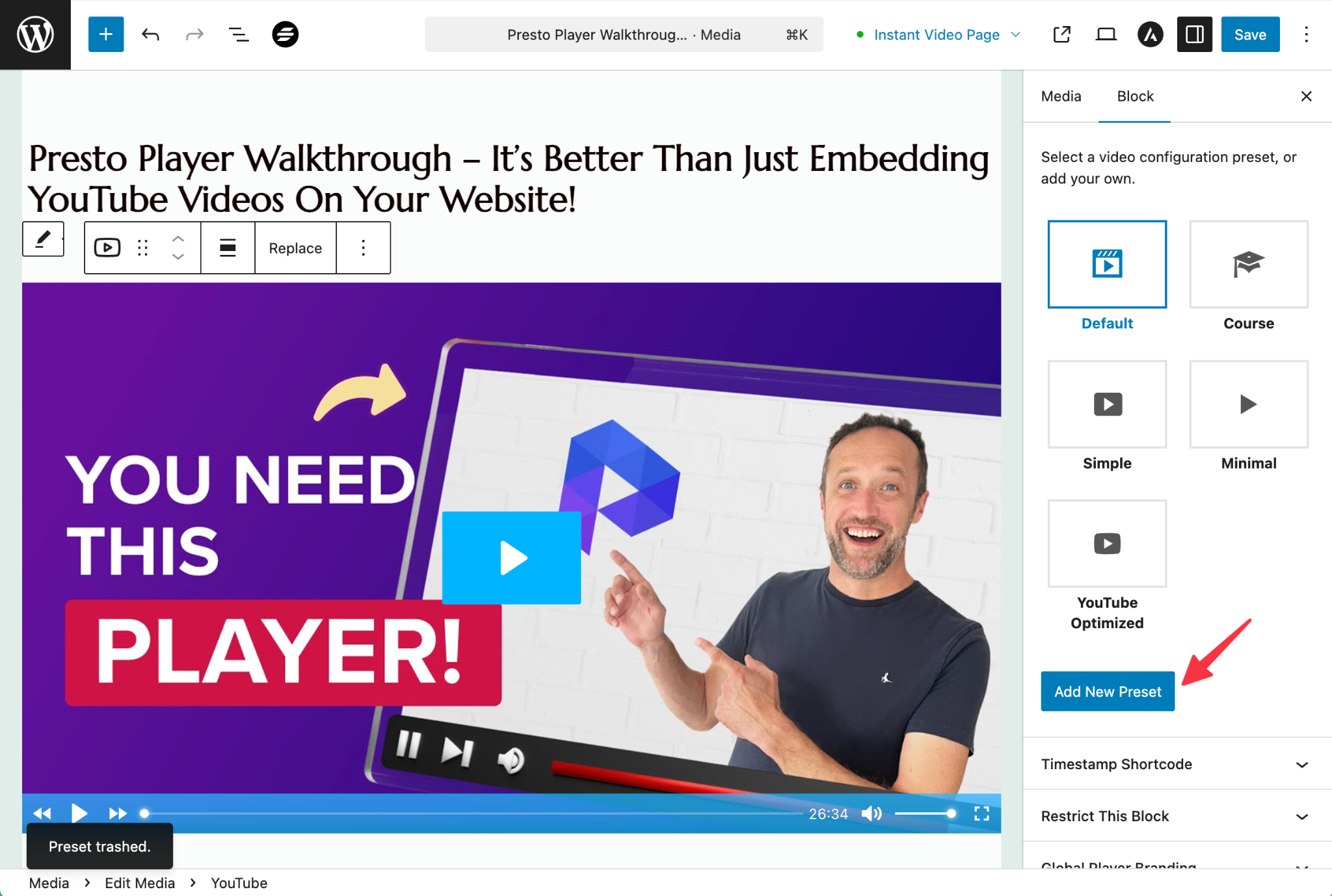
- Give the preset a name
- Configure the options you want
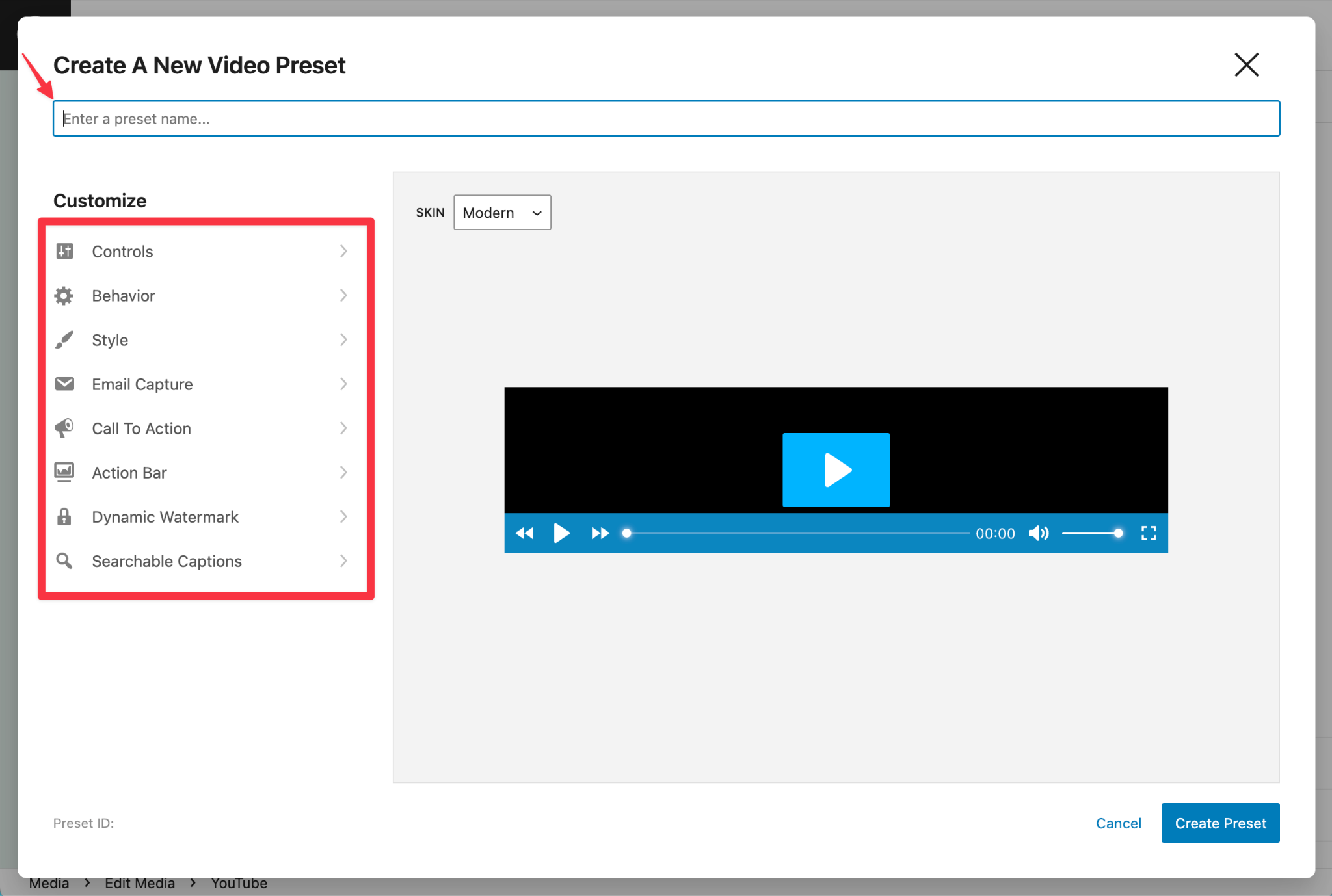
- Save the preset
Once saved, the preset is visible and can be reused on other videos. You can learn more about the preset settings here: {link}
Applying a Preset to a Video
Using the Presto Player Block
- Add or edit a video using the Presto Player block
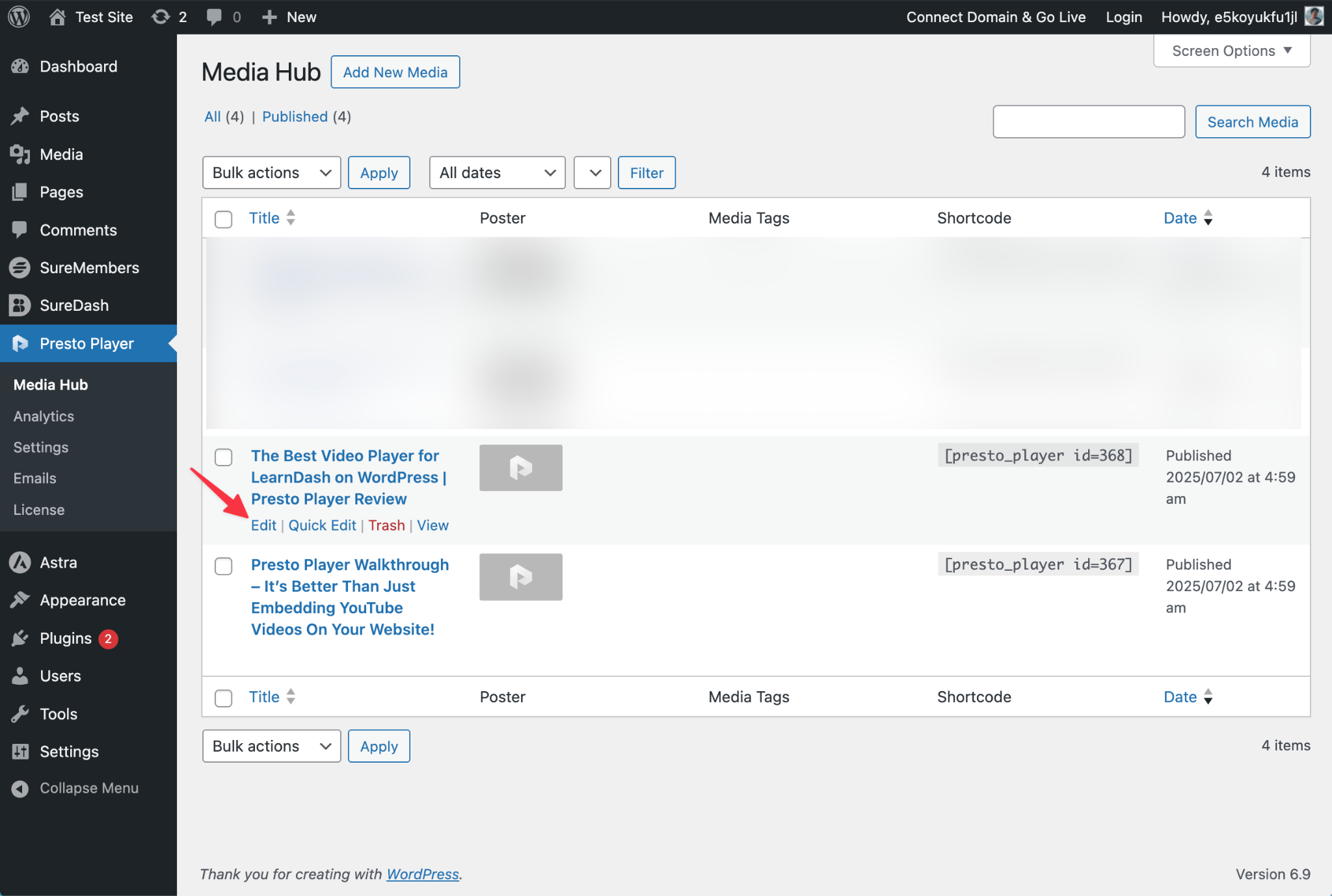
- Open the block settings in the right sidebar
- Scroll to Video Preset
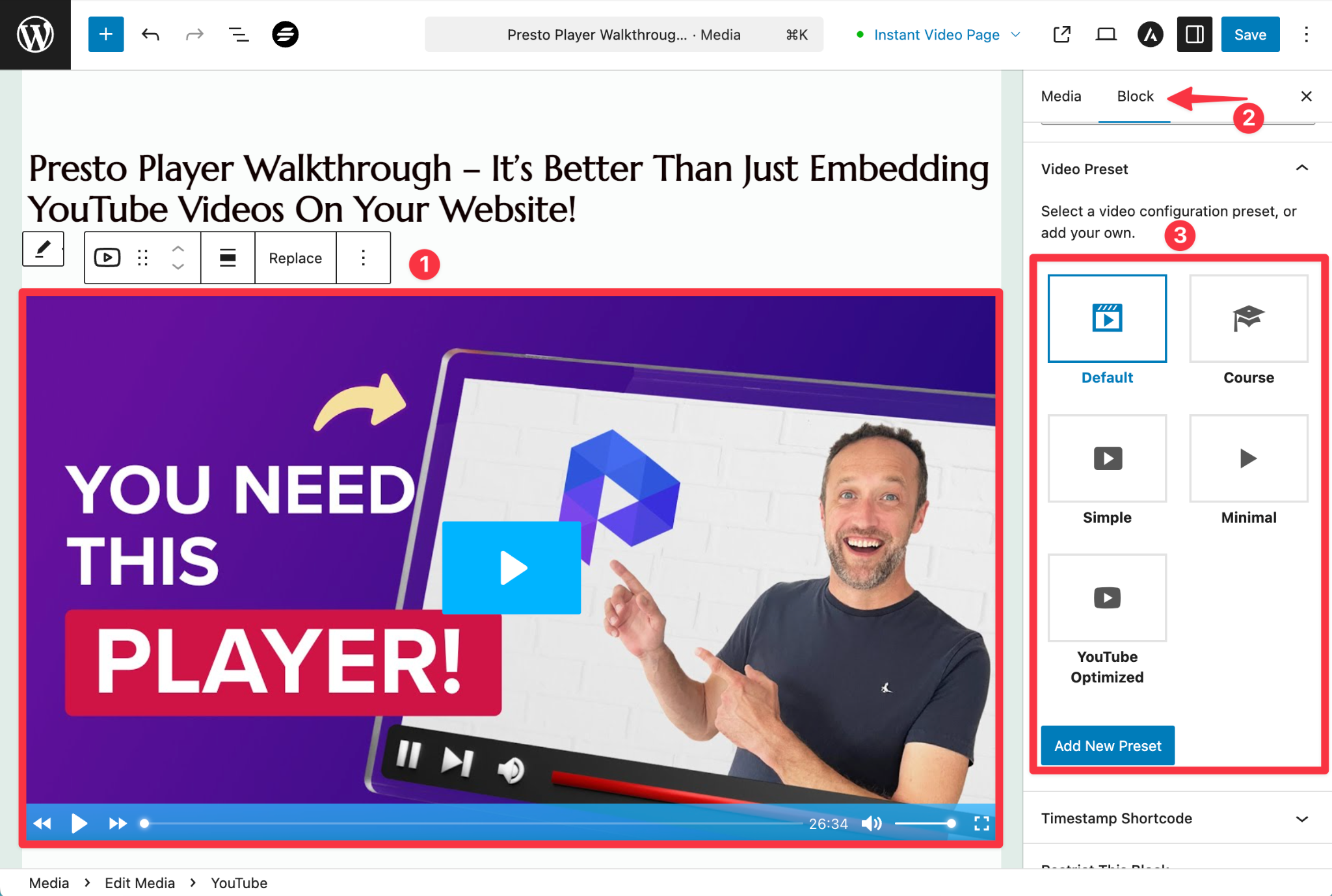
- Select an existing preset or create a new one
Using Shortcodes
Presets can also be applied using shortcodes by referencing the preset ID.
The preset ID appears at the bottom of the preset editor and can be used in shortcode-based embeds.
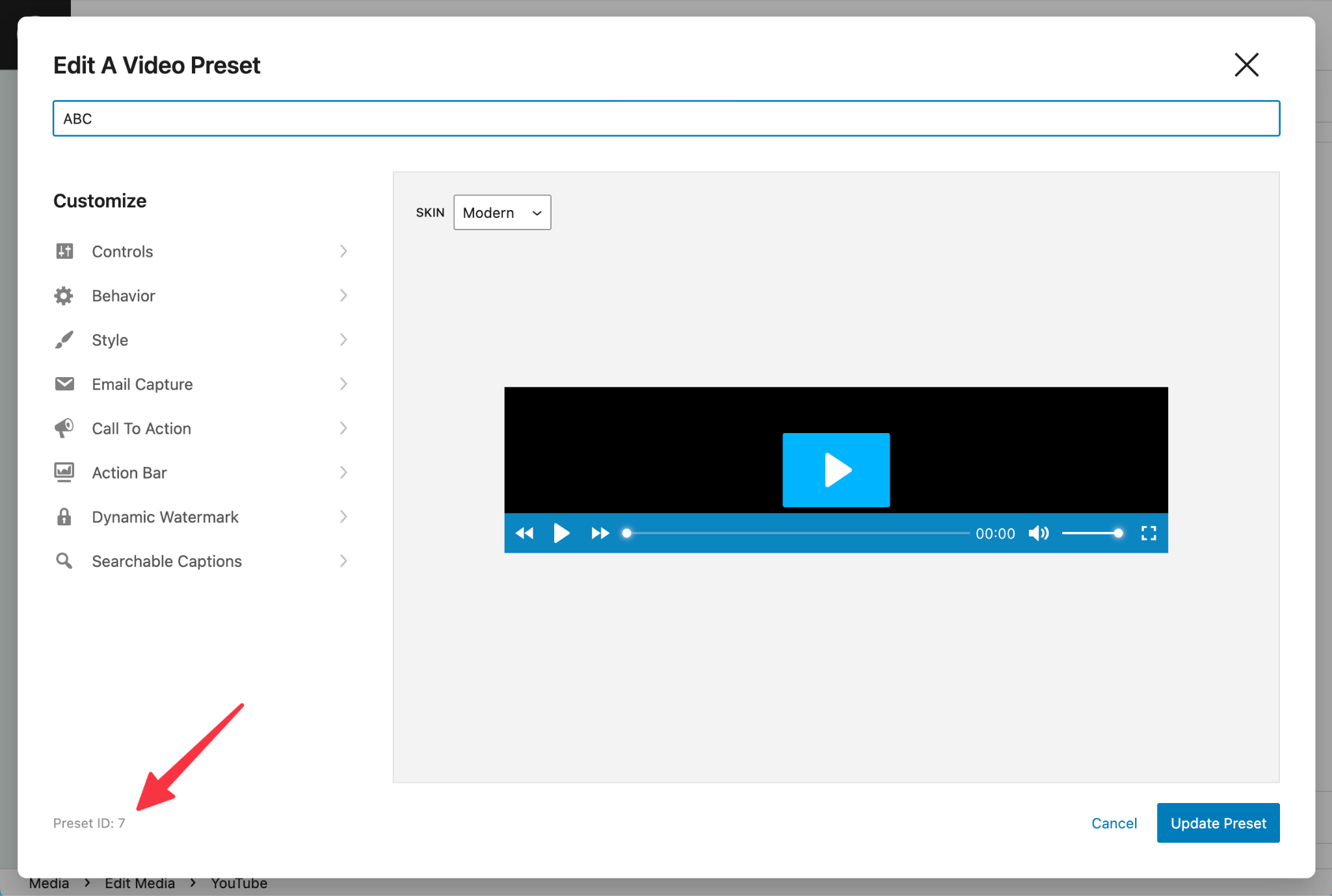
For more details, see the Presto Player Shortcodes documentation. {link}
Important Notes
- Changing a preset affects all videos using that preset
- Presets are shared between video and audio players where applicable
Conclusion
Video Presets make it easier to keep your player setup consistent across your site while still allowing flexibility when needed.
Be sure to check on the Preset Settings documentation to learn more about creating custom presets.
We don't respond to the article feedback, we use it to improve our support content.