
- How to Create a Presto Popup
- Video Presets
- Video Security
- Performance Preferences
- Video Settings
- Shortcodes
- Capture Emails
- Audio
- Video / Audio Timestamps
- Playlists
- How to Use Instant Video Pages in Presto Player
- Automatic Video Syncing
- Dynamic Watermark
- Video Presets
- Automatic Captions in Presto Player
- How to Use Video Presets in Presto Player – Layouts and Behavior
- How to Customize Video Presets – Settings and Layout Options
- How to Use Shortcodes in Presto Player
- How to Use Advanced Shortcodes and Timestamps
How to Use Advanced Shortcodes and Timestamps
This page covers advanced shortcode features for Presto Player. These options are intended for users who need more control over playback behavior, media sources, or interactive elements.
Embedding Media Using Original Shortcodes
Embed a Video or Audio by URL
You can embed media directly using a source URL.
[presto_player src="https://www.youtube.com/watch?v=dQw4w9WgXcQ"]
This is useful when media is hosted externally or not managed through the Media Hub.
Embed Media Using a Custom Field
You can load media dynamically from a custom field.
[presto_player custom_field="my_custom_field_id"]
This works well when each post, product, or page needs a different video or audio file.
Adding Chapters with Shortcodes
Chapters can be added directly inside the shortcode.
[presto_player src="https://site.com/video.mp4"]
[presto_player_chapter time="10" title="Ten Seconds"]
[presto_player_chapter time="00:10" title="Also Ten Seconds"]
[presto_player_chapter time="61:20" title="One hour, 1 minute and 20 seconds"]
[/presto_player]
Chapter times can be entered in seconds or time-based formats.
Adding Captions with Shortcodes
Caption tracks can be added for accessibility or multiple languages.
[presto_player src="https://site.com/video.mp4"]
[presto_player_track label="English" src="https://site.com/english.vtt" src_lang="en"]
[presto_player_track label="Spanish" src="https://site.com/spanish.vtt" src_lang="es"]
[/presto_player]
Multiple caption tracks can be included in the same player.
Common Shortcode Parameters
You can add parameters directly to the shortcode to control playback and appearance. Common options include:
- preset – applies a specific preset by ID
- autoplay – enables autoplay
- plays_inline – forces inline playback on supported devices
- class – adds a custom CSS class to the player
- poster – sets a custom poster image
- preload – controls how much media is loaded initially
- muted_autoplay_preview – enables muted autoplay preview
- muted_autoplay_caption_preview – shows captions during muted autoplay preview
These parameters can be combined as needed.
Finding a Preset ID
To apply a preset using a shortcode, you need the preset ID.
Step 1 – Open the video in the Media Hub
Step 2 – Click Edit and open Video Presets
Step 3 – Click the pencil icon on the preset
Step 4 – The preset ID appears in the preset popup
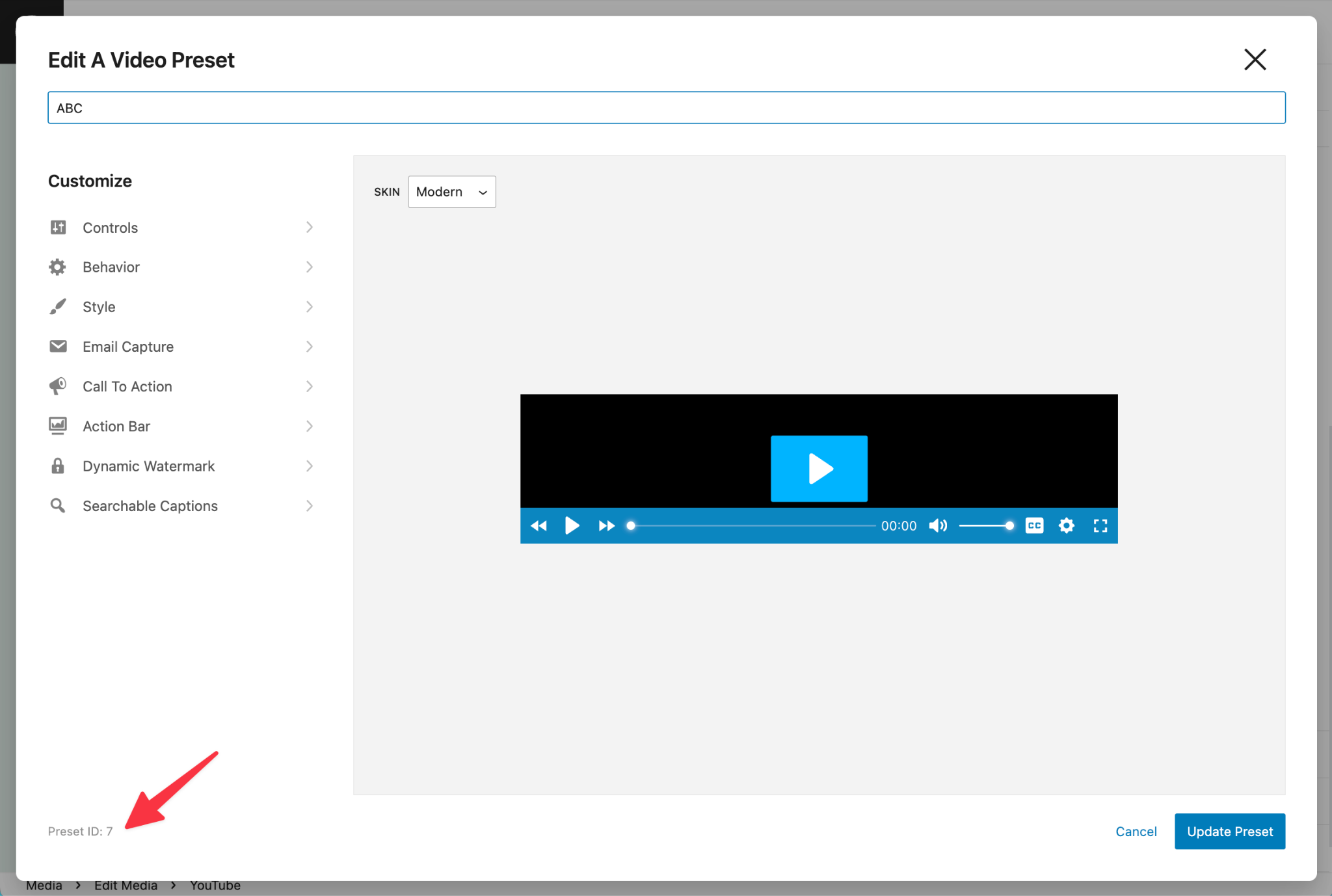
For more details, see the Presets documentation.
Timestamps in Presto Player
Timestamp shortcodes let you create links that jump to specific moments in a video or audio file.
How to Add Timestamps
Step 1 – Edit your post or page in Gutenberg
Step 2 – Add or select a Presto Player block
Step 3 – Locate the Timestamp Shortcode in the block settings
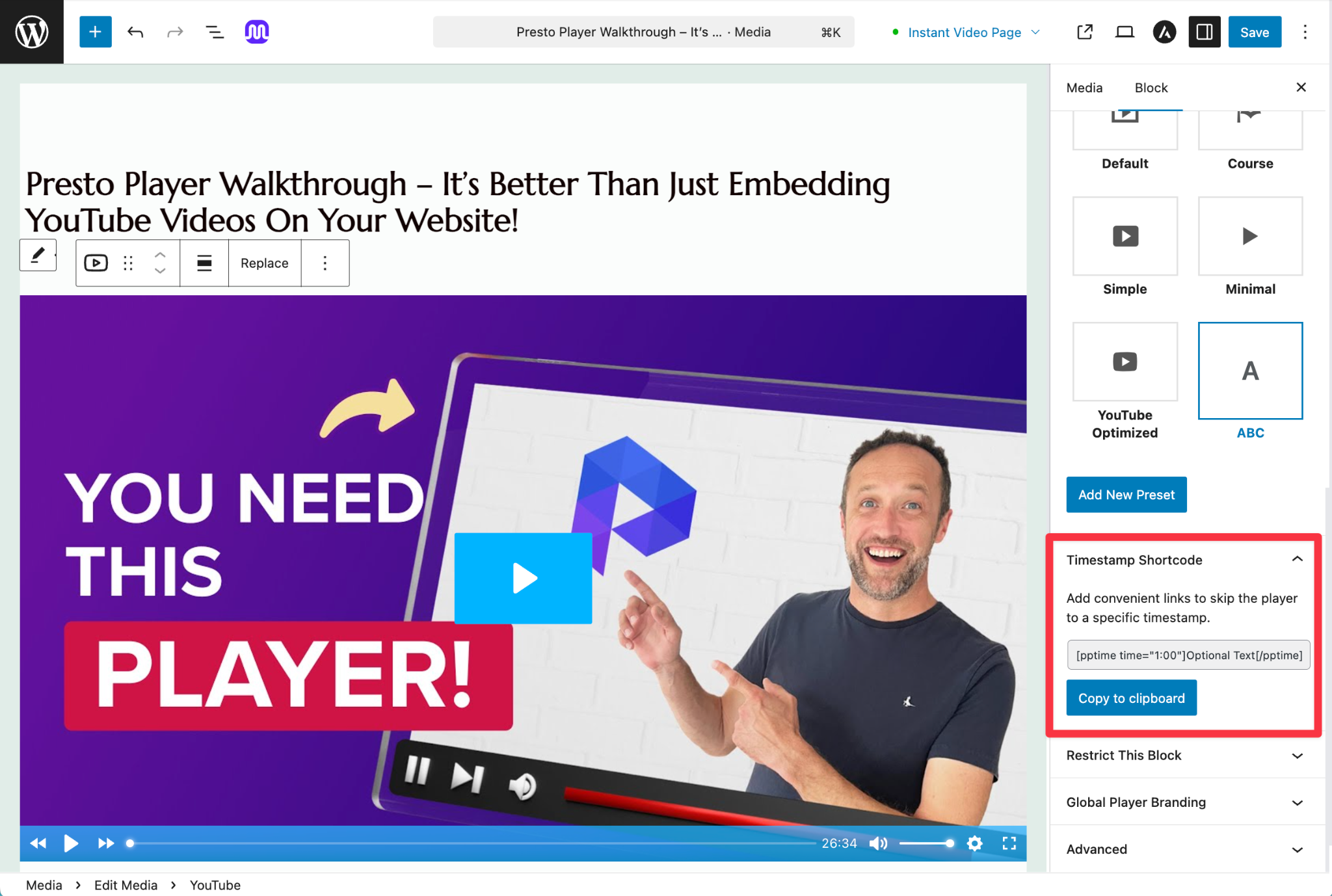
Step 4 – Copy the shortcode
Step 5 – Paste it into a Paragraph block
Step 6 – Replace the time value and link text as needed
Step 7 – Repeat for additional timestamps
Step 8 – Update or publish the page
Timestamps work best when there is only one Presto Player on the page.
Styling Timestamps
Timestamps behave like regular text links.
- They can be styled using Gutenberg blocks
- They also work inside page builder text elements, such as Elementor or Beaver Builder
Presto Popups and Shortcodes
Presto Popups also rely on shortcodes to trigger and display media. If you are working with popups, refer to the dedicated Presto Popups documentation for setup and usage details.
Conclusion
Advanced shortcodes give you deeper control over how media is loaded, displayed, and interacted with. They are useful for dynamic content, custom layouts, and more complex playback behavior. These features are best used when the block editor or standard shortcode options are not sufficient, or when you need precise control over chapters, captions, presets, or timestamps.
We don't respond to the article feedback, we use it to improve our support content.