
- How to Create a Presto Popup
- Video Presets
- Video Security
- Performance Preferences
- Video Settings
- Shortcodes
- Capture Emails
- Audio
- Video / Audio Timestamps
- Playlists
- How to Use Instant Video Pages in Presto Player
- Automatic Video Syncing
- Dynamic Watermark
- Video Presets
- Automatic Captions in Presto Player
- How to Use Video Presets in Presto Player – Layouts and Behavior
- How to Customize Video Presets – Settings and Layout Options
- How to Use Shortcodes in Presto Player
- How to Use Advanced Shortcodes and Timestamps
- How to Get Started with Presto Capture
- Why Presto Capture Needs HTTPS
- Presto Capture Block Settings
- Presto Capture Shortcode Reference
- How to Choose Where Recordings Are Saved in Presto Capture
- How to Control Who Can Record in Presto Capture
- How to Brand the Recorder in Presto Capture
- Understanding the Presto Capture Admin Panel
- How to Manage Recordings in Presto Capture
- How to Activate Your Presto Capture Licence
How to Customize Video Presets – Settings and Layout Options
These settings control how a custom preset looks, behaves, and interacts with viewers.
You do not need to use every section. Only enable the features that fit how you want your videos to work and be displayed.
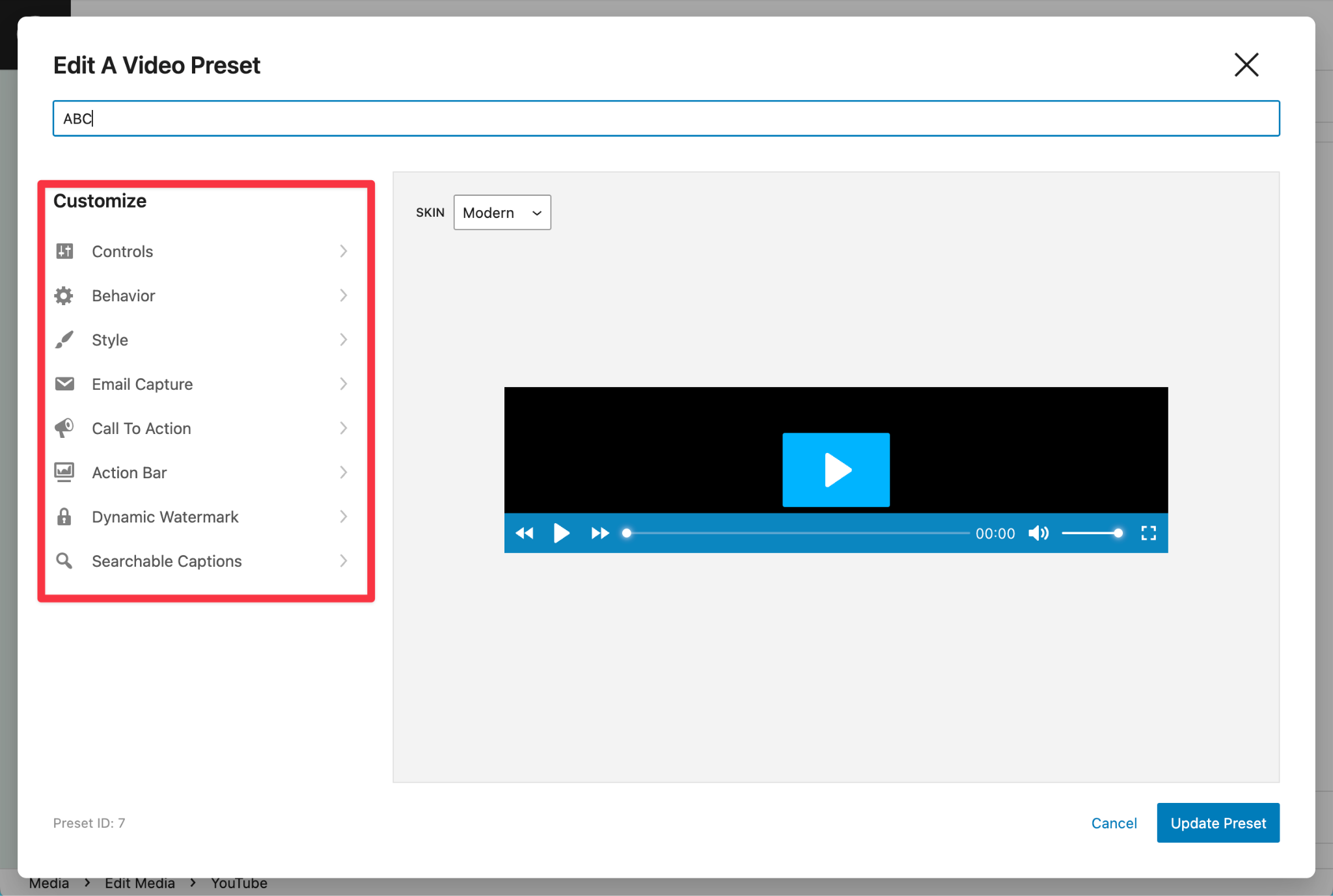
If you want to learn more about how presets work with Presto Player, check it out here. {link}
Preset Skins
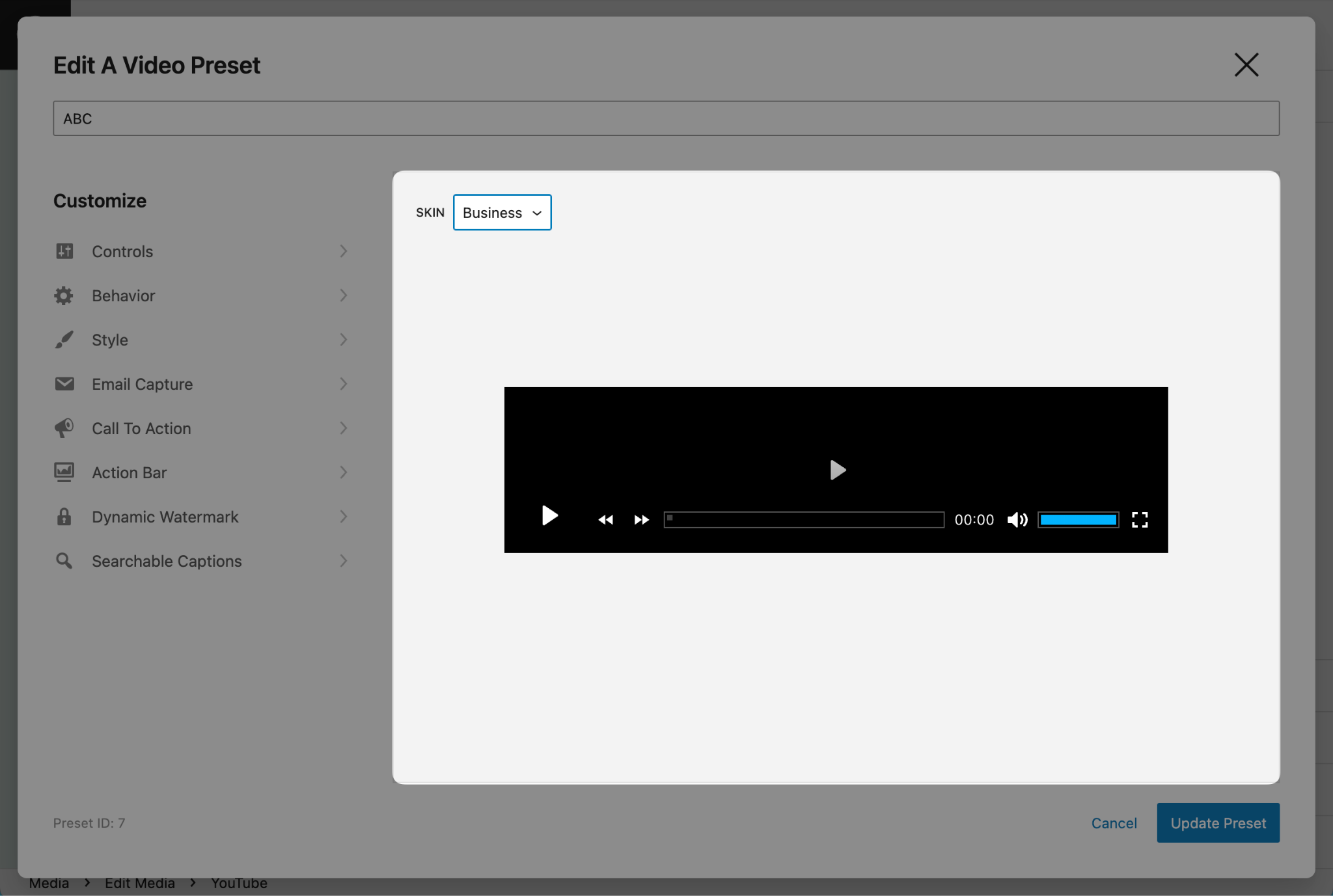
When creating a custom preset, you can choose a layout style, also called a skin.
Available skins include:
- Basic
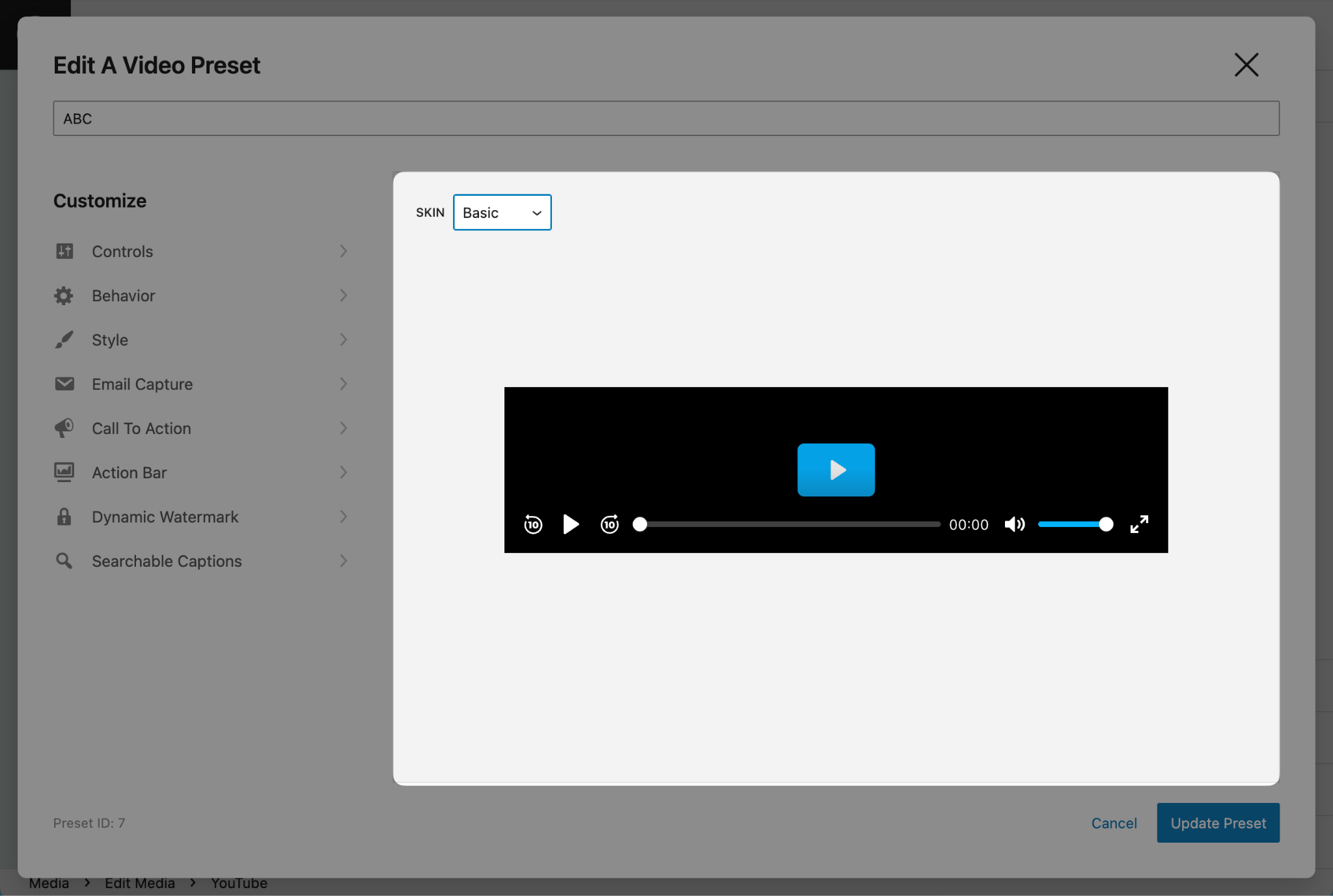
- Stacked
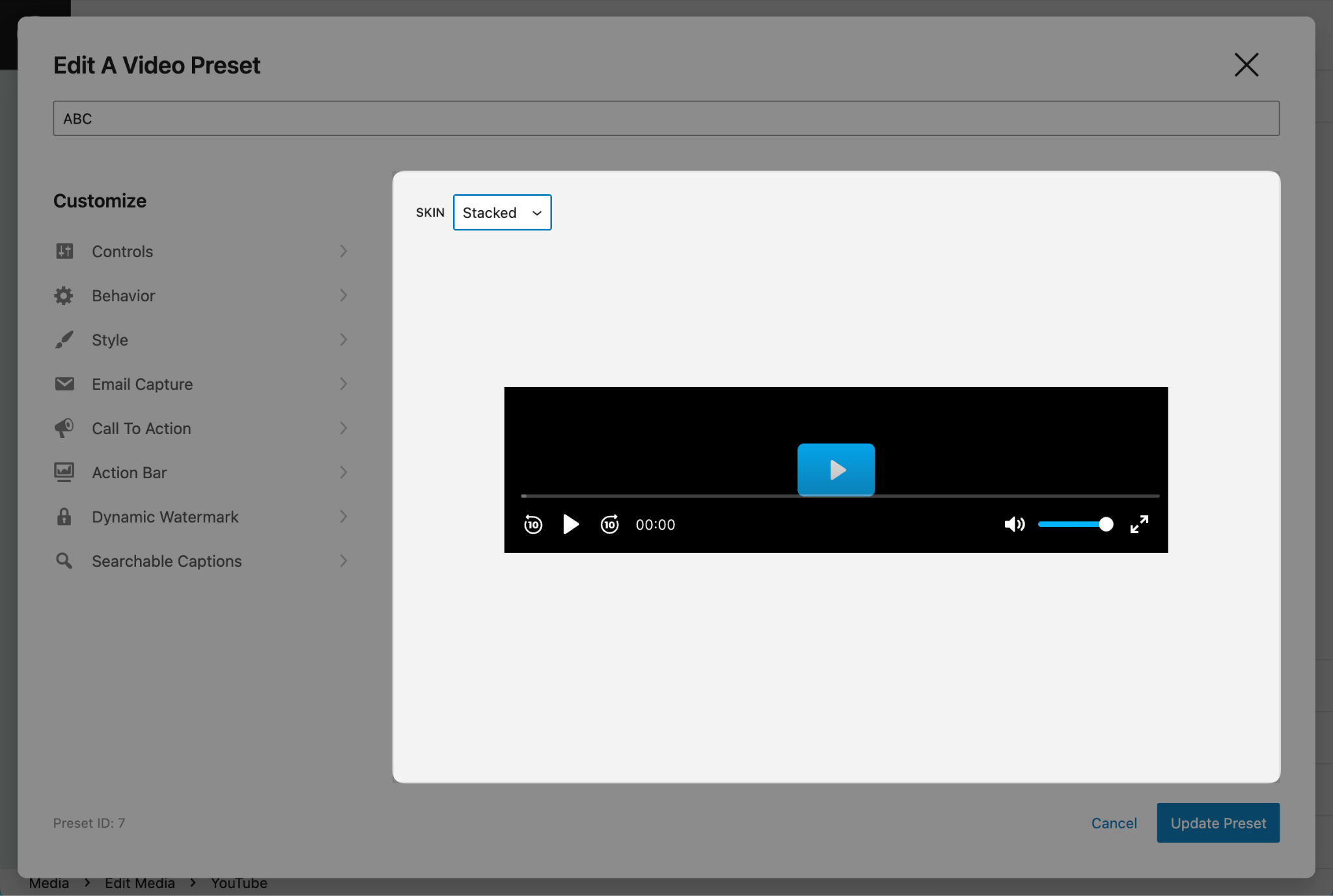
- Modern
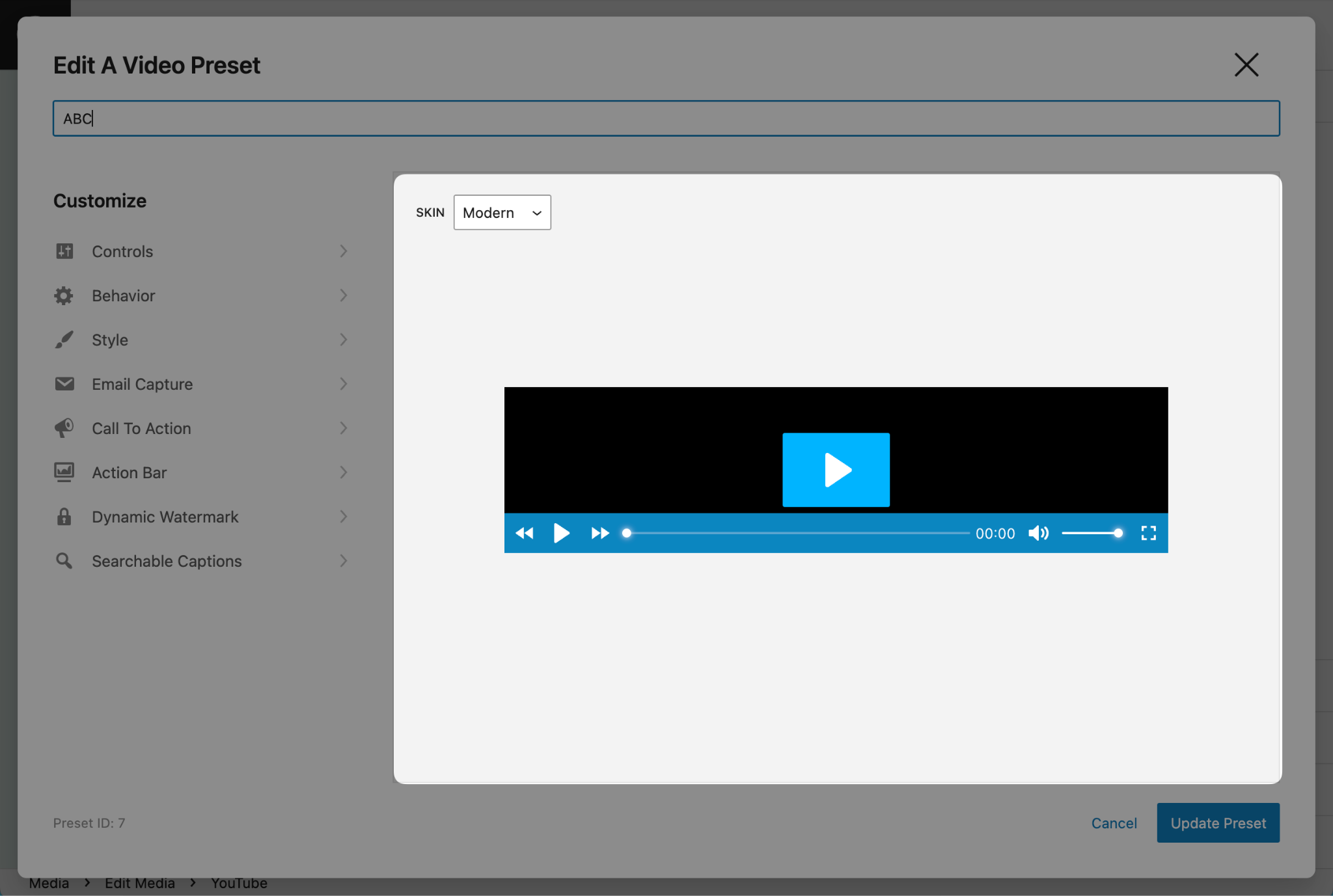
- Business
- Floating Pill [New]
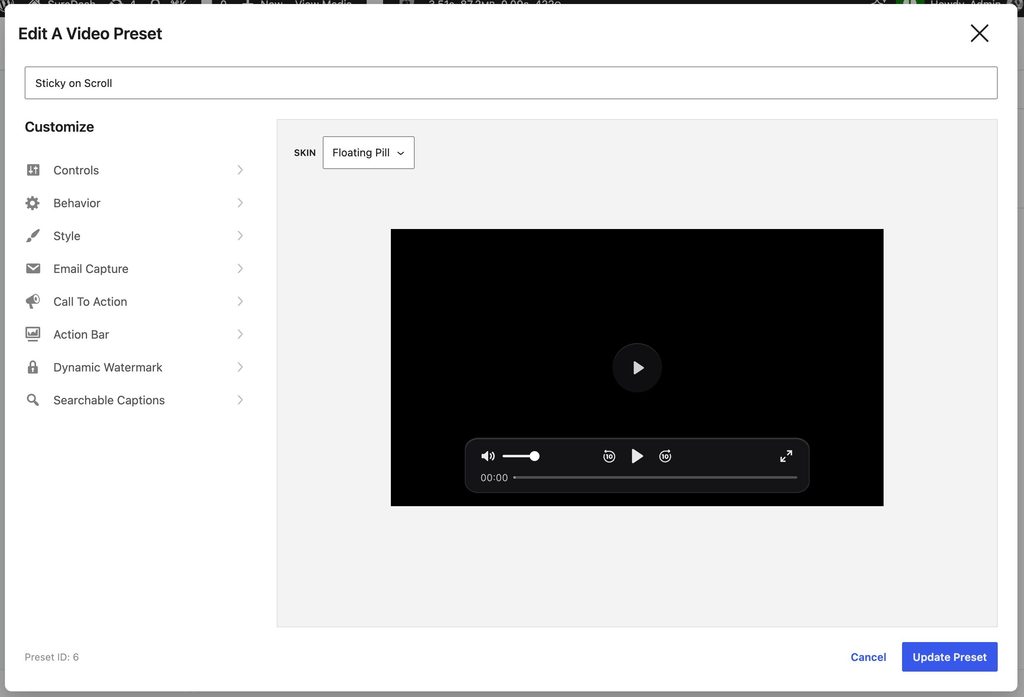
NOTE: The selected skin controls how player elements are arranged visually. It affects layout and spacing, not playback behavior.
Controls
Controls determine which buttons and indicators appear on the player.
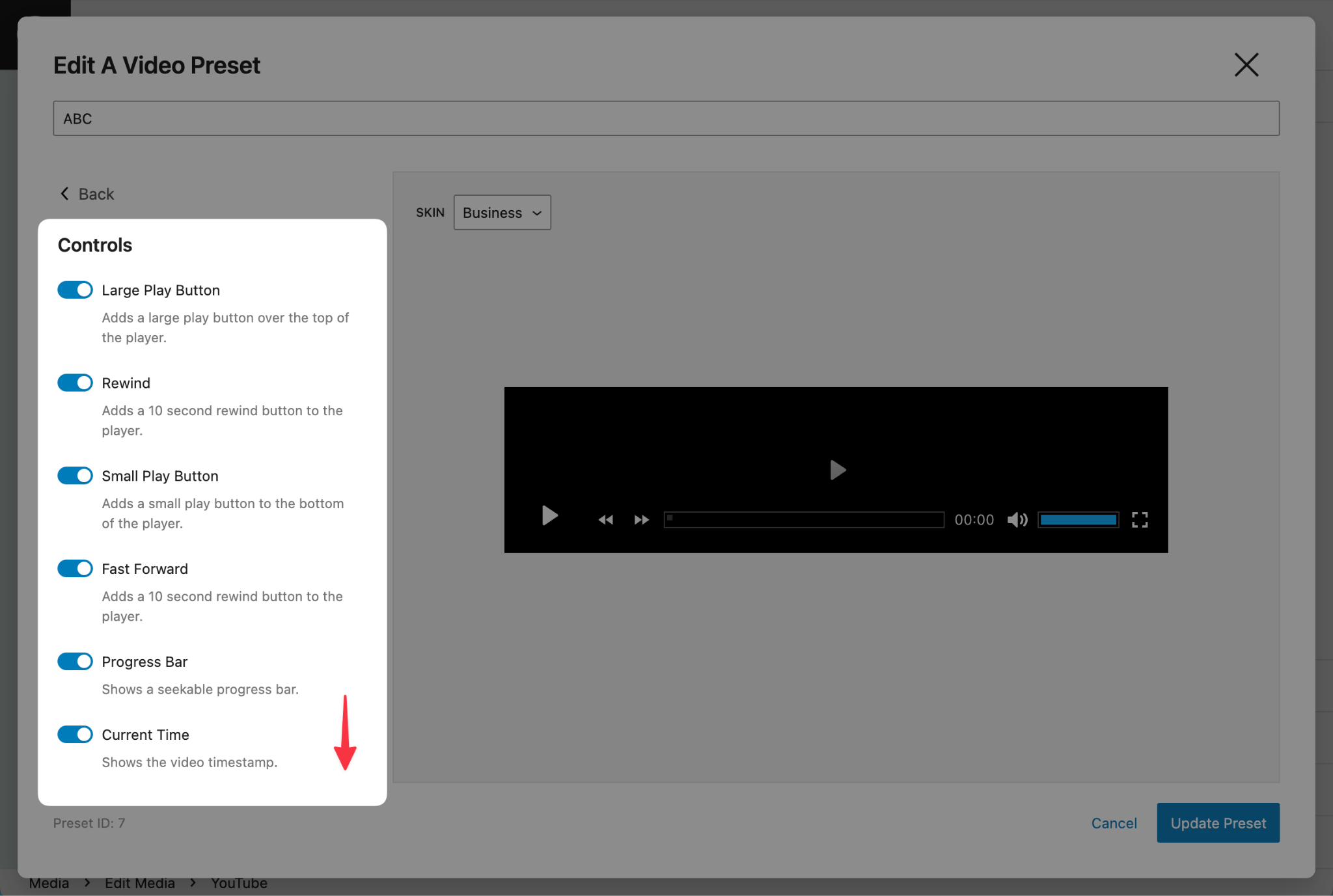
Available options include:
- Large play button
- Small play button
- Rewind 10 seconds
- Fast forward 10 seconds
- Progress bar
- Current time display
- Volume control
- Playback speed control
- Picture-in-picture (HTML5 only)
- Fullscreen toggle
- Captions toggle
Use these options to balance simplicity, accessibility, and viewer control.
Behavior
Behavior settings control how the player responds to users’ interactions.
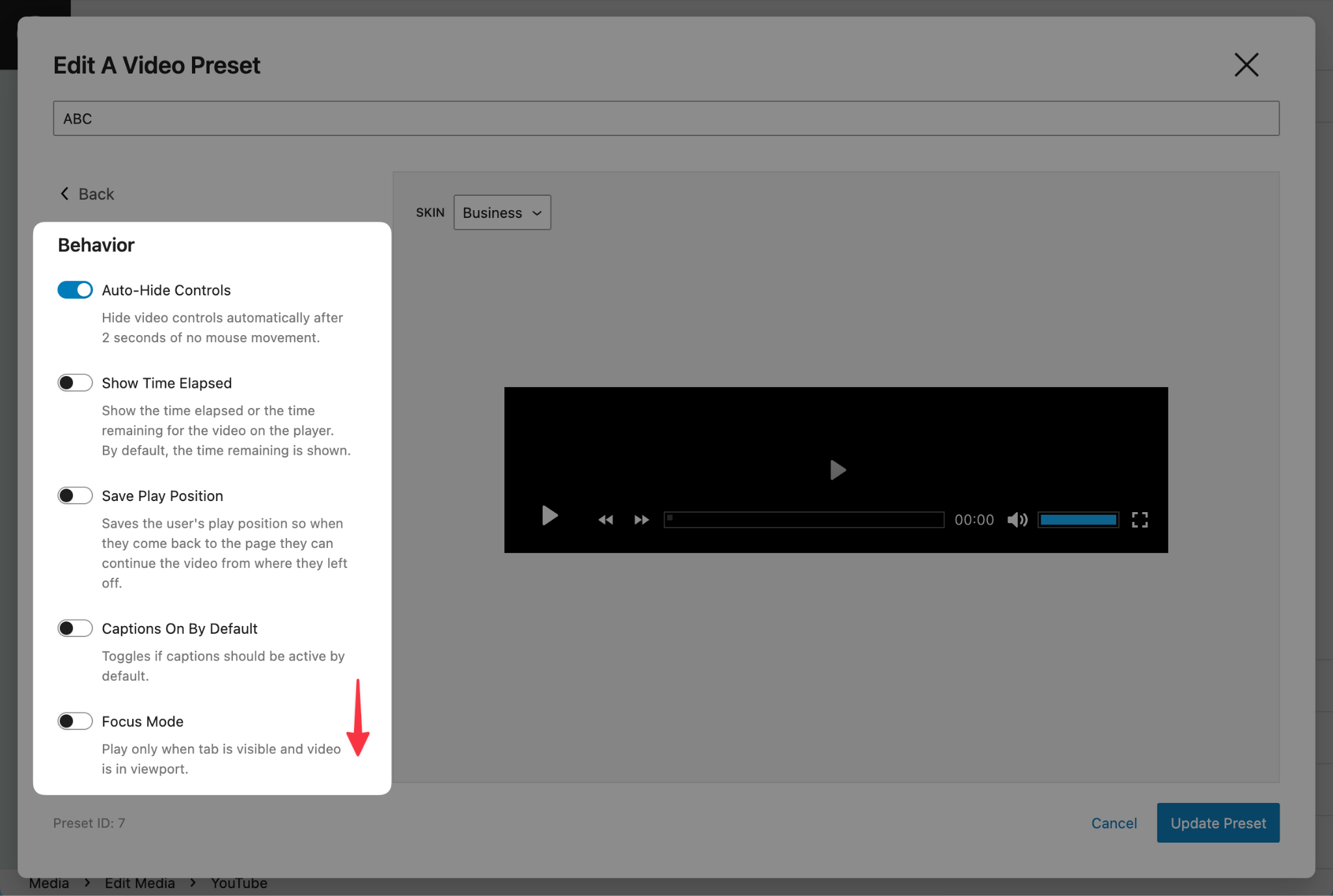
Common options include:
- Auto-hide controls after inactivity
- Show time elapsed or time remaining
- Save play position
- Enable captions by default
- Focus mode, playback only when visible
- Sticky video while scrolling
- End-of-video behavior, loop or restart
- Hide YouTube UI (experimental)
- Lazy load videos to improve page load speed
These settings are especially useful for structured content like courses.
Style
Style options control the visual appearance of the player.
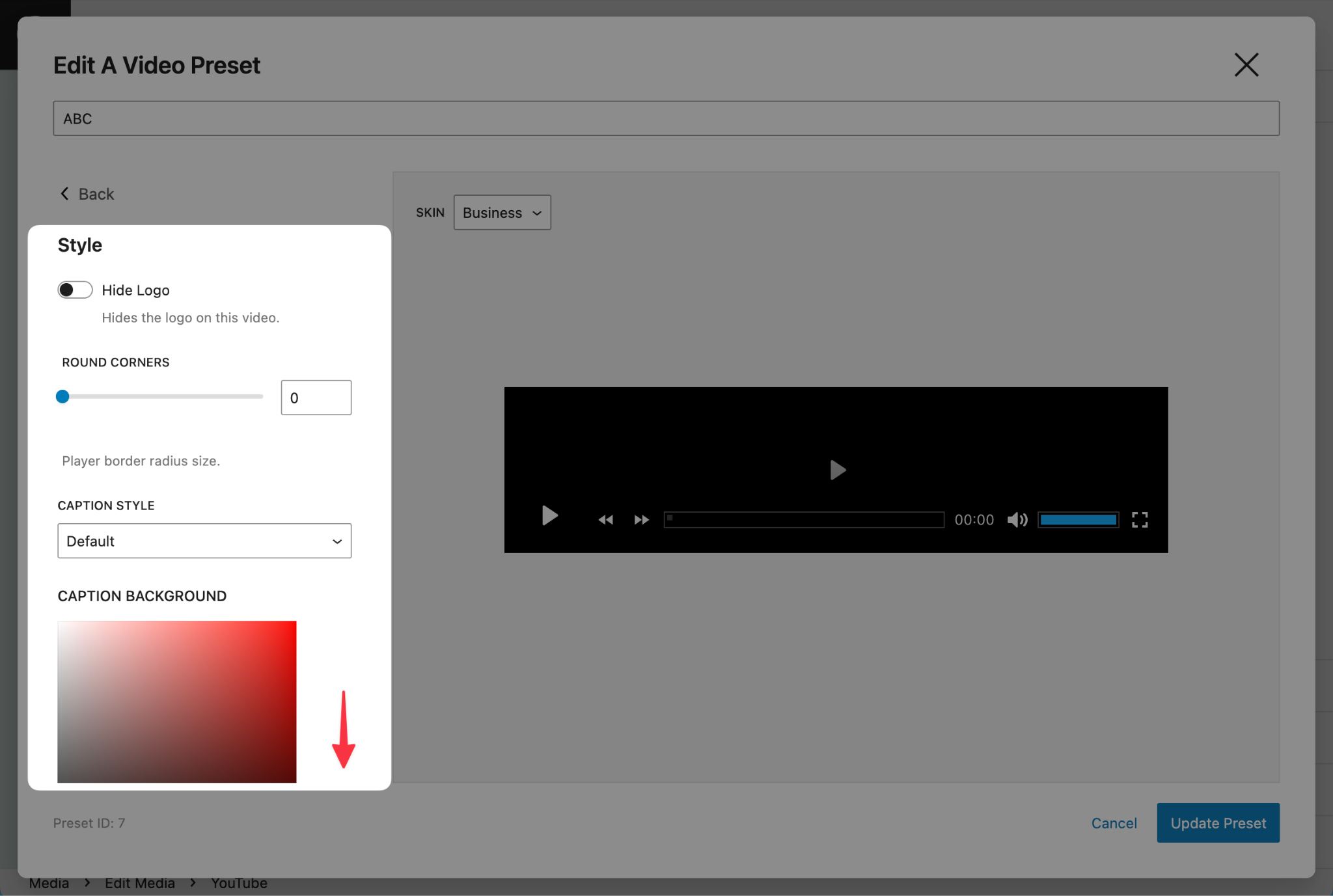
Available options include:
- Hide player logo
- Rounded corners with adjustable radius
- Caption style selection
- Caption background color using HEX values
Use these settings to match your site design.
Email Capture
Email Capture displays an email form over the video during playback.
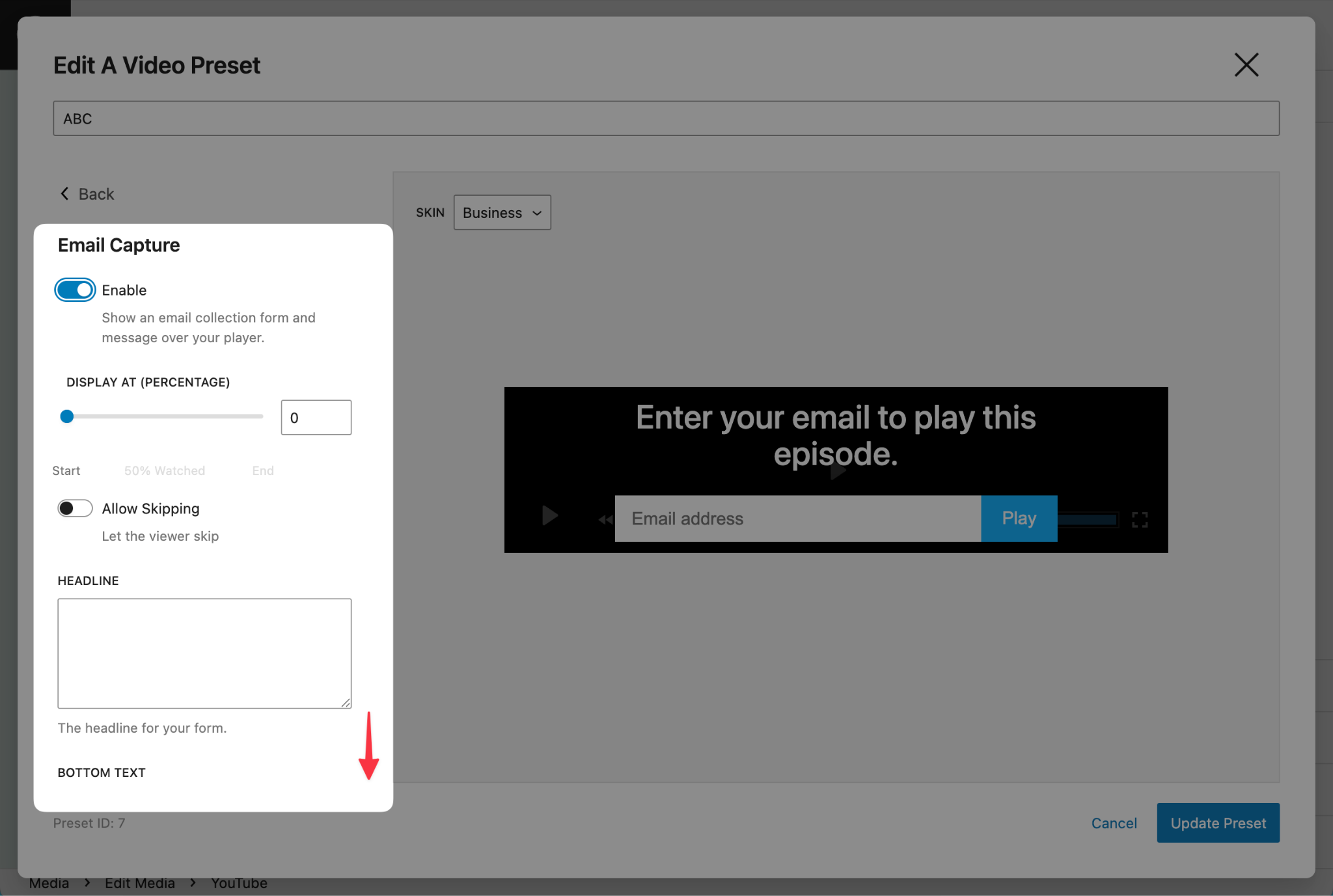
Key options include:
- When the form appears during the video
- Whether viewers can skip it
- Headline and supporting text
- Button text and colors
- Email provider integration
- Rounded corners for form elements
This feature is typically used for lead generation from videos.
Call to Action
Call to Action adds a custom overlay with a message and an optional button.
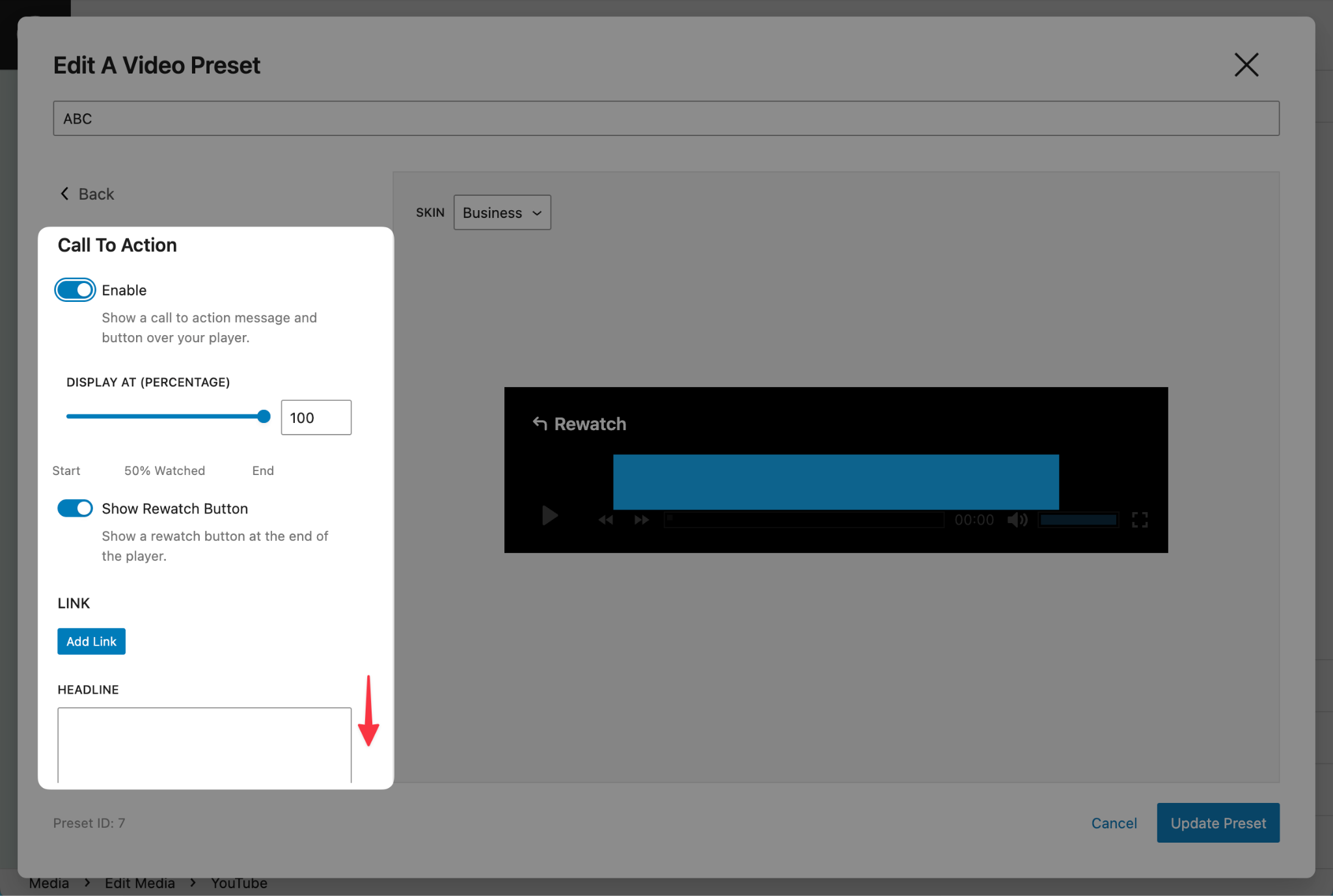
You can control:
- When the call to action appears
- Headline and supporting text
- Button visibility and text
- Link destination
- Button colors and rounded corners
- Background overlay opacity
Calls to action are often shown at the end of a video.
Action Bar
The Action Bar displays a banner below the player during playback.
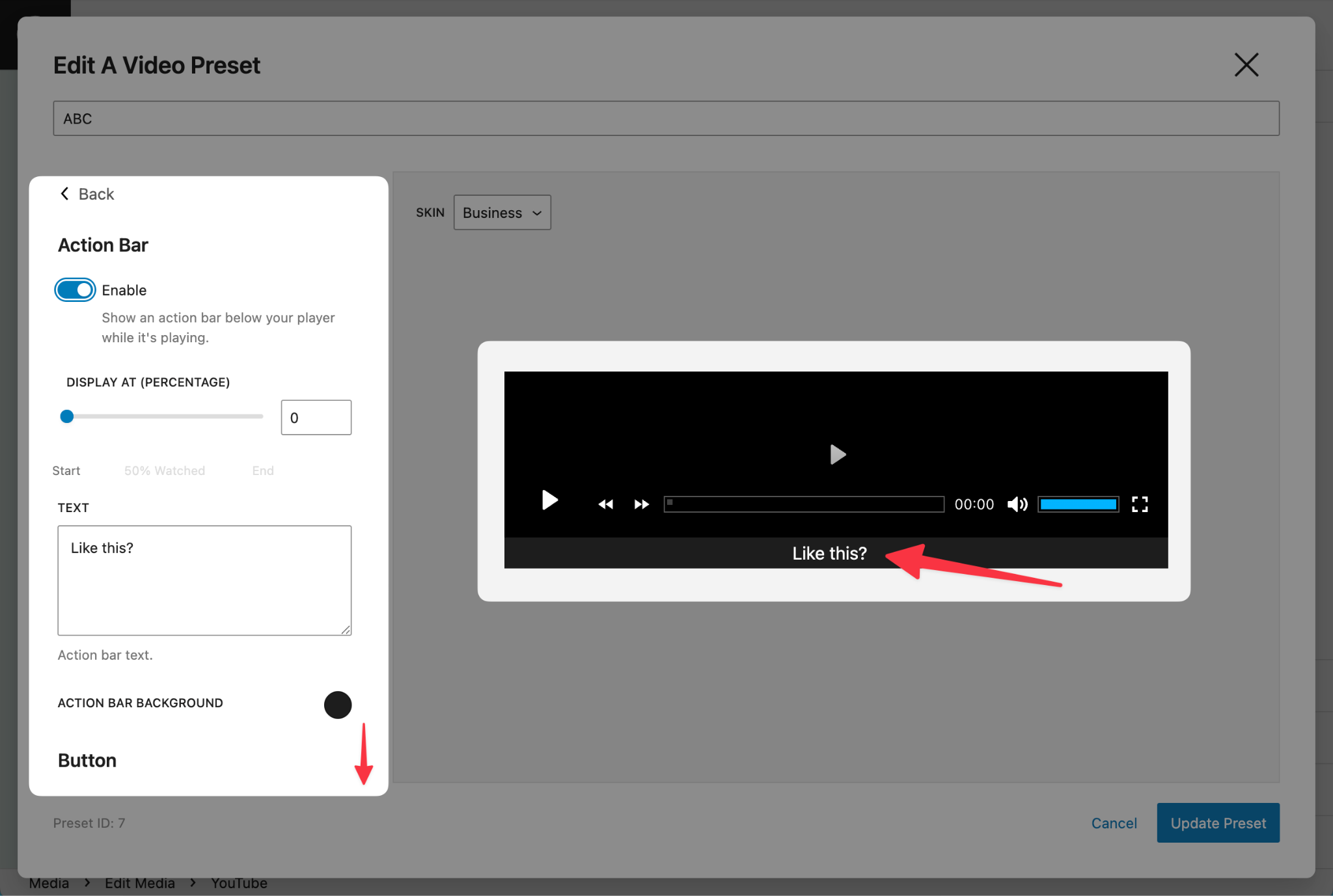
Options include:
- When the bar appears
- Display text
- Background color
- Optional button with link
- Button styling options
This is useful for persistent prompts while the video plays.
Dynamic Watermark
Dynamic Watermark adds a simulated watermark over the video that can serve as screen recording security for videos.
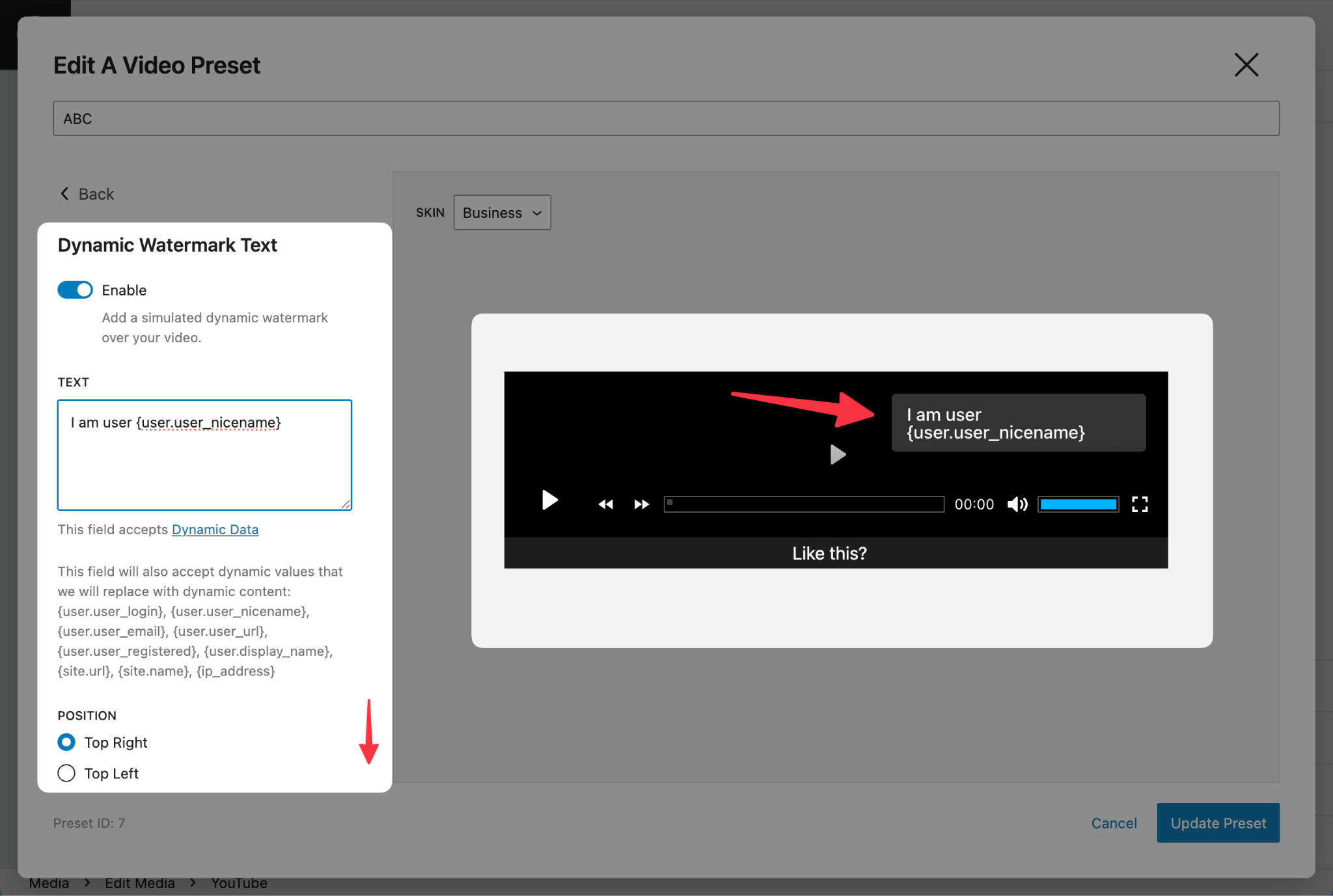
Available options include:
- Watermark text with dynamic data support
- Position on the video
- Automatic position changes
- Text and background color
- Opacity level
This feature is commonly used for branding or deterrence.
Searchable Captions
Searchable Captions add a search bar to the player for subtitle/caption text.
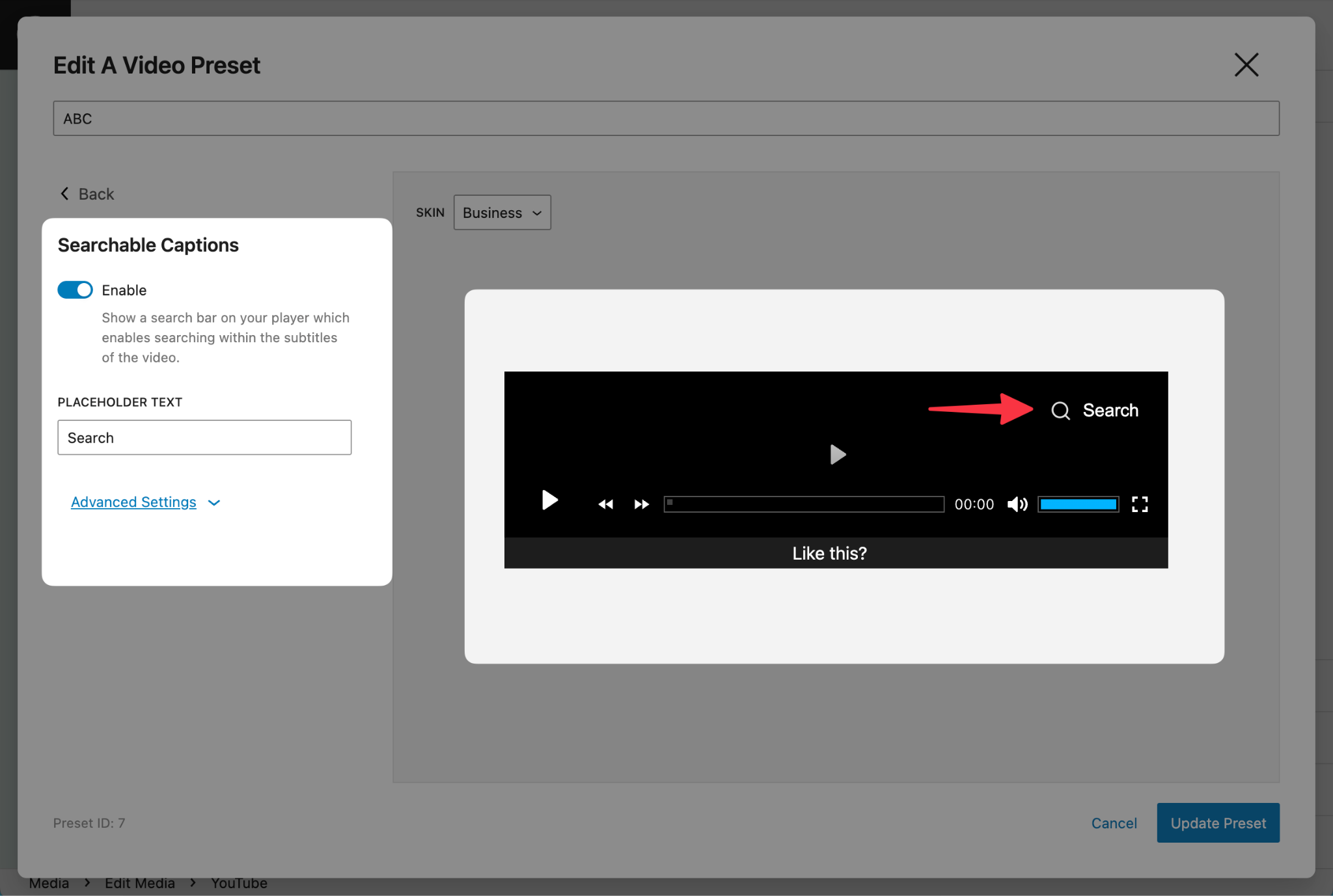
Options include:
- Placeholder text
- Minimum character length for matches
- Match sensitivity threshold
This helps viewers find specific moments in longer videos.
Conclusion
Preset configuration options let you fine-tune how your player looks, behaves, and interacts with viewers, while keeping your setup reusable and consistent.
We don't respond to the article feedback, we use it to improve our support content.