
Presto Player Pro Not Updating
If the automatic update is not working for Presto Player or Presto Player Pro, you can update it manually by downloading the latest version and uploading it directly to your site.
Download the Free Version
Step 1 – Go to the Presto Player page on WordPress.org.
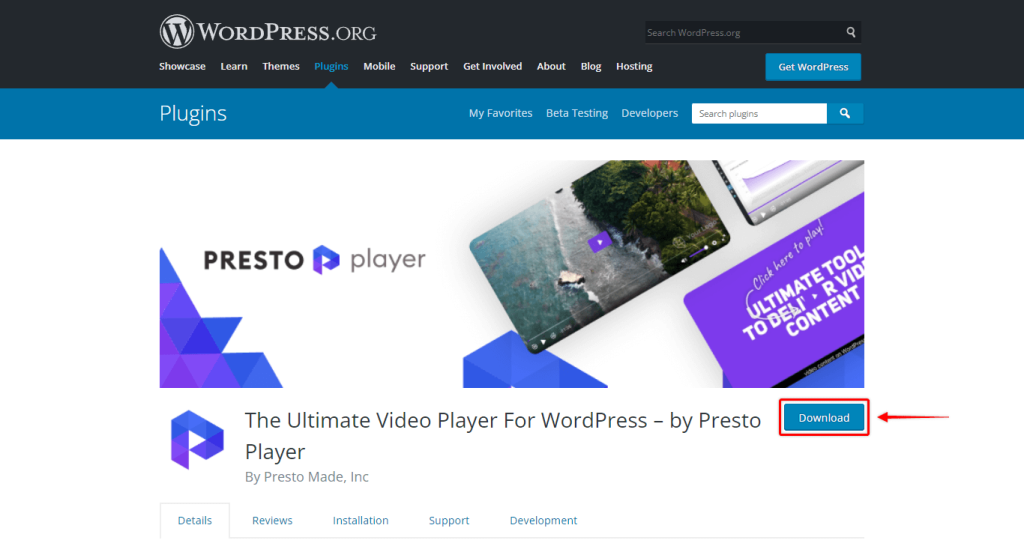
Step 2 – Click the Download button to save the plugin .zip file to your computer.
Download Presto Player Pro
Step 1 – Log in to the Presto Player Store.
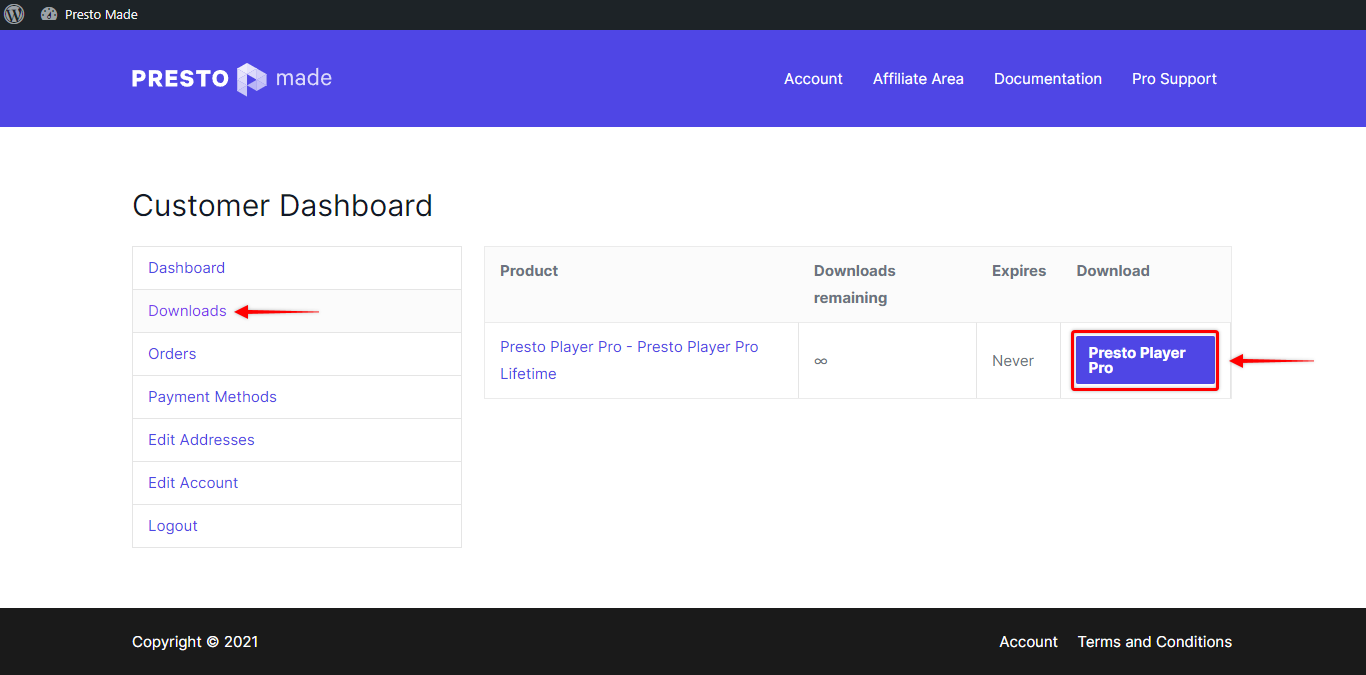
Step 2 – Go to Downloads and download the latest version of Presto Player Pro.
Install the Plugin Manually
Step 1 – Log in to your WordPress dashboard and go to Plugins > Installed Plugins. Find Presto Player or Presto Player Pro in the list.
Step 2 – Deactivate and delete the plugin. Your settings and data will not be affected.
Step 3 – Go to Plugins > Add New and click Upload Plugin.
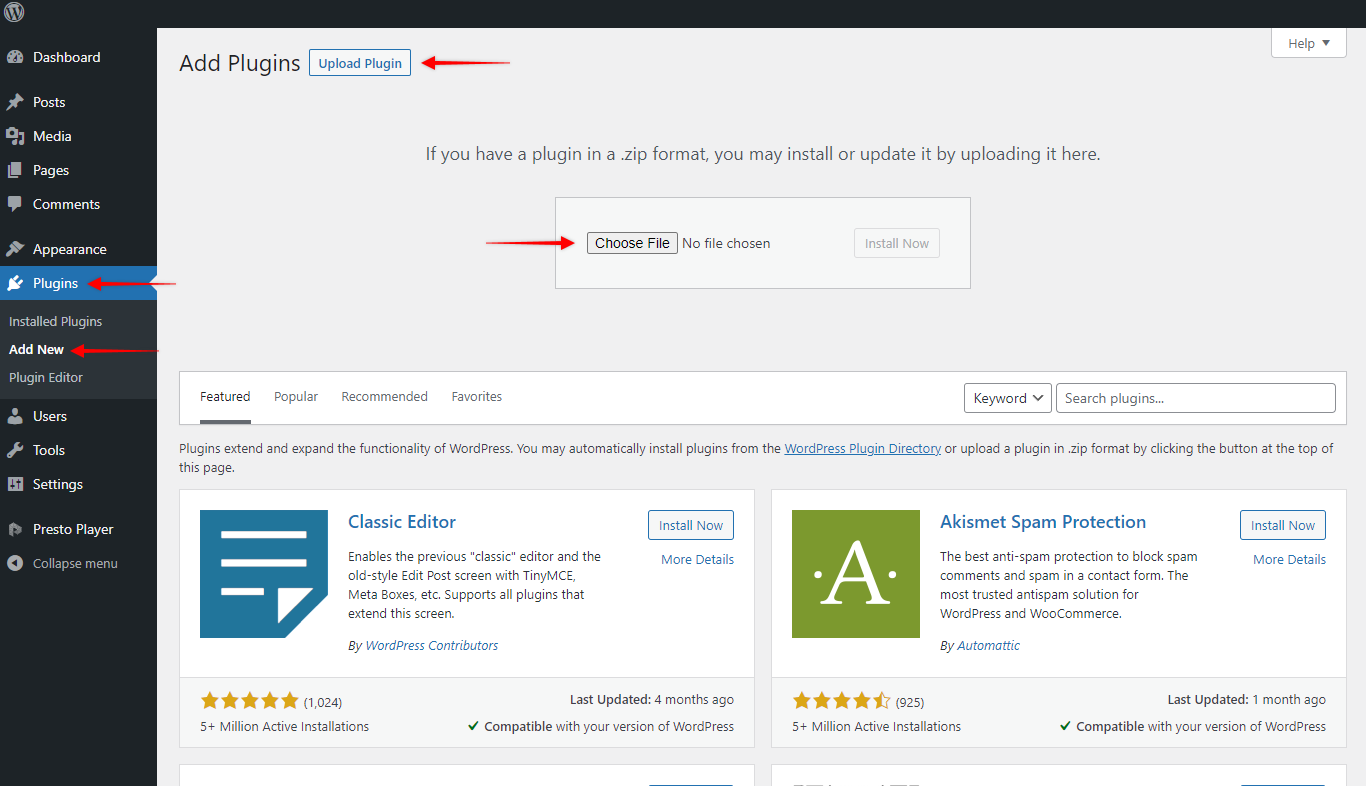
Step 4 – Select the .zip file you downloaded and click Install Now. Once installed, activate the plugin.
Conclusion
Your plugin is now up to date and all your settings and data are preserved. Manual installation is a reliable fallback whenever the automatic update does not work. If you continue to have issues, please contact our support team and we will help you get it sorted.
We don't respond to the article feedback, we use it to improve our support content.