
- How to Get Started with Presto Capture
- Why Presto Capture Needs HTTPS
- Presto Capture Block Settings
- Presto Capture Shortcode Reference
- How to Choose Where Recordings Are Saved in Presto Capture
- How to Control Who Can Record in Presto Capture
- How to Brand the Recorder in Presto Capture
- Understanding the Presto Capture Admin Panel
- How to Manage Recordings in Presto Capture
- How to Activate Your Presto Capture Licence
- Troubleshooting Presto Capture
- Privacy and Recordings in Presto Capture
- Presto Capture FAQ
- How to Add a Recording Field to SureForms with Presto Capture
- How to Add Video Replies to SureDash Discussions
- How to Collect Video Reviews in WooCommerce with Presto Capture
- Presto Capture for Developers: REST API and PHP Filters
- How to Allow Camera, Microphone, and Screen Access in Presto Capture
- How to Collect Video Reviews in SureCart with Presto Capture
How to Manage Recordings in Presto Capture
Every video your visitors record becomes a Presto Player Media Hub item the moment it saves. That means you can rename it, tag it, make it private, or embed it anywhere Presto Player plays. Here’s how to keep your recordings organised.
Applies to: Presto Capture 1.0.0 and above.
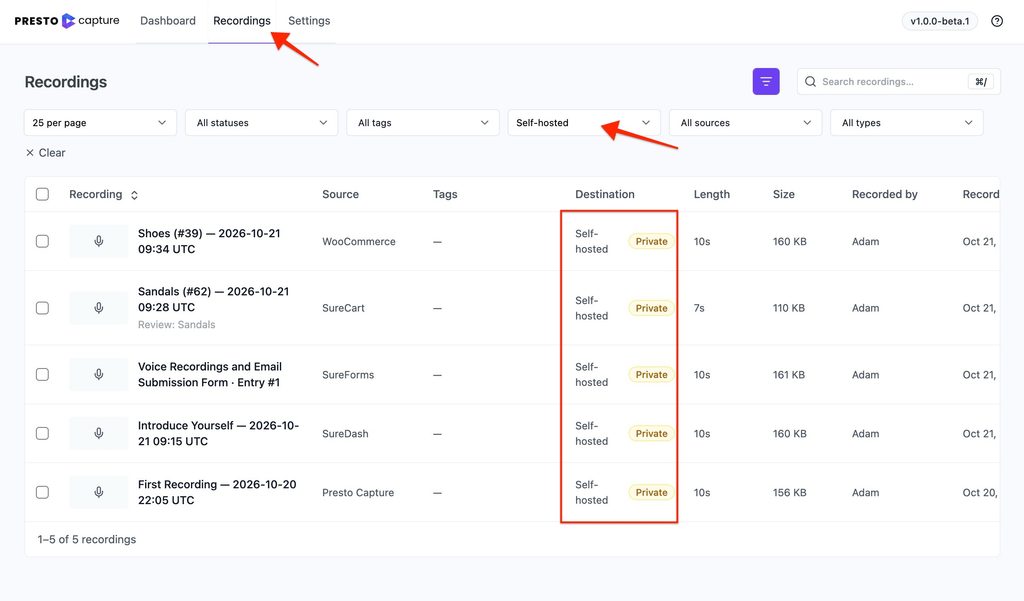
How to Find a Recording
- Go to Presto Capture > Recordings.
- Search by name, or use the filters for status, tag or destination.
- Click Preview to watch it.
How to Rename or Retag a Recording
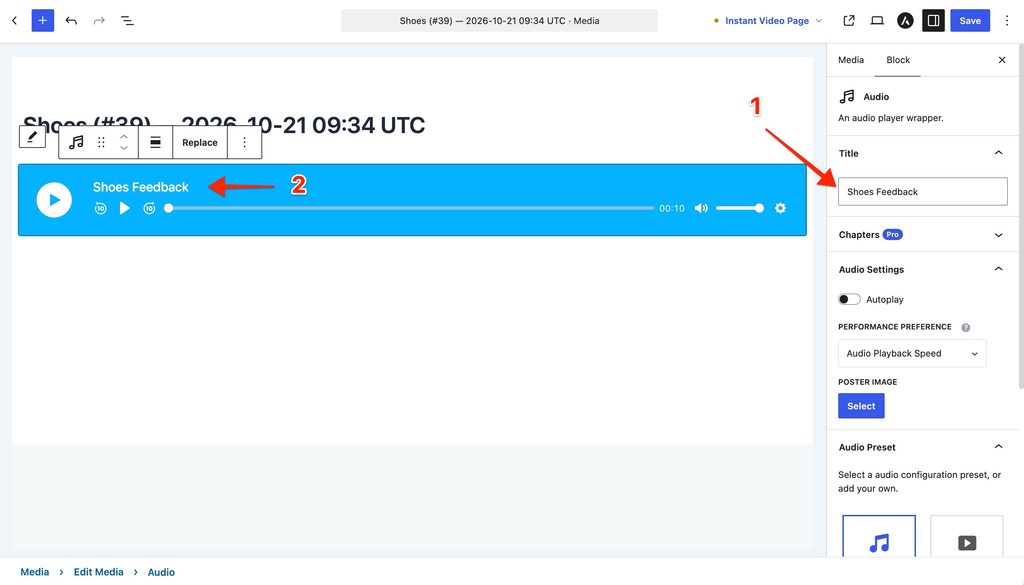
- Go to Presto Capture > Recordings.
- Click the recording title. It opens in the Presto Player Media Hub editor.
- Change the title or the media tags.
- Click Update.
How to Change Who Can Watch a Recording
- Open the recording in the Presto Player Media Hub.
- Change its visibility to Public or Private.
- Click Update.
How to Tag Recordings Automatically
Auto-tagging adds tags to every new recording, so your library sorts itself.
- Go to Presto Capture > Settings.
- Choose your default media tags.
- Turn on the auto-tag switch.
- Click Save.
Tip: You can also set tags per block. For example, tag testimonials, coaching videos, and support clips differently.
How to Embed a Recording
- Go to Presto Capture > Recordings.
- Click Copy shortcode next to the recording.
- Paste it into any page or post.
You can also use the Presto Player block and choose the recording from your Media Hub.
How to Delete a Recording
- Go to Presto Capture > Recordings.
- Click Delete next to the recording.
- Confirm the delete.
Note: Deleting a recording removes both the Media Hub item and the video file. This can’t be undone.
Where the Files Live
- Bunny.net Stream: In your own Bunny.net account, inside the collection you chose.
- WordPress Media Library: On your own server. Private recordings sit in Presto Player’s protected folder.
If you have any questions or need further help, feel free to reach out to our support team. We’re always happy to help!
We don't respond to the article feedback, we use it to improve our support content.