
- How to Set Rate Limits and Upload Security in Presto Capture
- How to Get Started with Presto Capture
- Why Presto Capture Needs HTTPS
- Presto Capture Block Settings
- Presto Capture Shortcode Reference
- How to Choose Where Recordings Are Saved in Presto Capture
- How to Control Who Can Record in Presto Capture
- How to Brand the Recorder in Presto Capture
- Understanding the Presto Capture Admin Panel
- How to Manage Recordings in Presto Capture
- How to Activate Your Presto Capture Licence
- Troubleshooting Presto Capture
- Privacy and Recordings in Presto Capture
- Presto Capture FAQ
- How to Add a Recording Field to SureForms with Presto Capture
- How to Add Video Replies to SureDash Discussions
- How to Collect Video Reviews in WooCommerce with Presto Capture
- Presto Capture for Developers: REST API and PHP Filters
- How to Allow Camera, Microphone, and Screen Access in Presto Capture
- How to Collect Video Reviews in SureCart with Presto Capture
- Understanding Trust Tiers in Presto Capture
- How to Approve, Reject and Block Recordings in Presto Capture
- How to Clean Up Unused Recordings in Presto Capture
- How to Protect Private Recordings on NGINX in Presto Capture
- What Happens When You Uninstall Presto Capture
How to Set Rate Limits and Upload Security in Presto Capture
Rate limits cap how many recordings one person can save in an hour or a day. They stop a single visitor from flooding your Recordings screen, or running up your Bunny.net bill. The defaults suit most sites, and you can change them on the Security page.
Applies to: Presto Capture 1.0.0 and above.
Before You Begin
- You need to be an Administrator to change these settings.
Open the Security Settings
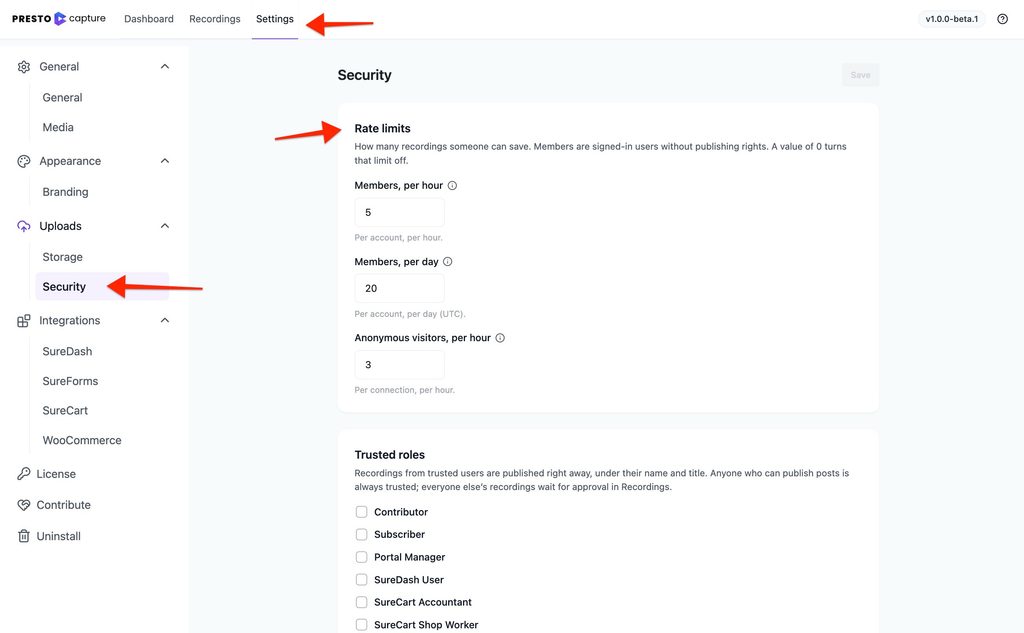
- Go to Presto Capture > Settings.
- Click Security under Uploads in the left menu.
Rate Limits
| Setting | What it limits | Default |
|---|---|---|
| Members, per hour | Recordings one member account can save in an hour | 5 |
| Members, per day | Recordings one member account can save in a day (UTC) | 20 |
| Anonymous visitors, per hour | Recordings one logged-out visitor can save in an hour, per connection | 3 |
Members are logged-in users who can’t publish posts. Trusted users have their own, higher limit of 30 per hour. See Understanding Trust Tiers in Presto Capture.
How to Change a Limit
- Enter a new number in the field.
- Click Save.
Note: Enter 0 to turn a limit off. Only do this if you trust everyone who can reach the recorder.
Tip: A form with several video questions counts each recording separately. If people hit the limit, raise Members, per hour a little rather than turning it off.
Upload Token Lifetime
Every recorder hands out a signed upload token when someone starts recording. The token proves the upload came from your recorder, and it expires after a set time.
- Find Upload token lifetime.
- Enter the number of minutes. The default is 120.
- Click Save.
Entering 0 turns off the expiry check. If a token runs out while someone is still recording, the recorder gets a fresh one on its own, so they don’t lose their take.
Built-In Protection You Don’t Need to Set
- 15-minute cap. No recording can be longer than 15 minutes.
- Server checks. Presto Capture checks every file on the server. A file larger or longer than the recorder could make is refused.
- Shared limit for throwaway accounts. If anyone can register on your site, all member accounts on one connection share 20 recordings per hour.
- Daily site-wide caps. A backstop on the total uploads from anonymous visitors and members each day, to protect your storage bill.
Developers can adjust these with filters. See Presto Capture for Developers: REST API and PHP Filters.
What Visitors See When They Hit a Limit
- A personal limit: “Too many recordings from here right now. Please try again later.” They can record again once the hour or day resets.
- A site-wide daily cap: “This site has reached its recording limit for today. Please try again tomorrow.”
Your recorders are now protected from floods of uploads, with limits that fit how your site is used.
If you have any questions or need further help, feel free to reach out to our support team. We’re always happy to help!
We don't respond to the article feedback, we use it to improve our support content.