
- How to Get Started with Presto Capture
- Why Presto Capture Needs HTTPS
- Presto Capture Block Settings
- Presto Capture Shortcode Reference
- How to Choose Where Recordings Are Saved in Presto Capture
- How to Control Who Can Record in Presto Capture
- How to Brand the Recorder in Presto Capture
- Understanding the Presto Capture Admin Panel
- How to Manage Recordings in Presto Capture
- How to Activate Your Presto Capture Licence
- Troubleshooting Presto Capture
- Privacy and Recordings in Presto Capture
- Presto Capture FAQ
- How to Add a Recording Field to SureForms with Presto Capture
- How to Add Video Replies to SureDash Discussions
- How to Collect Video Reviews in WooCommerce with Presto Capture
- Presto Capture for Developers: REST API and PHP Filters
- How to Allow Camera, Microphone, and Screen Access in Presto Capture
- How to Collect Video Reviews in SureCart with Presto Capture
Understanding the Presto Capture Admin Panel
The Presto Capture admin panel shows you everything happening with your recordings in one place. See how many videos come in, find any recording quickly, and set the defaults for new recorders. You’ll find it under the Presto Capture menu in your WordPress dashboard.
Applies to: Presto Capture 1.0.0 and above.
Who Can See What
| Screen | Editors | Administrators |
| Dashboard | Yes | Yes |
| Recordings | Yes | Yes |
| Settings | No | Yes |
Dashboard
Go to Presto Capture > Dashboard.
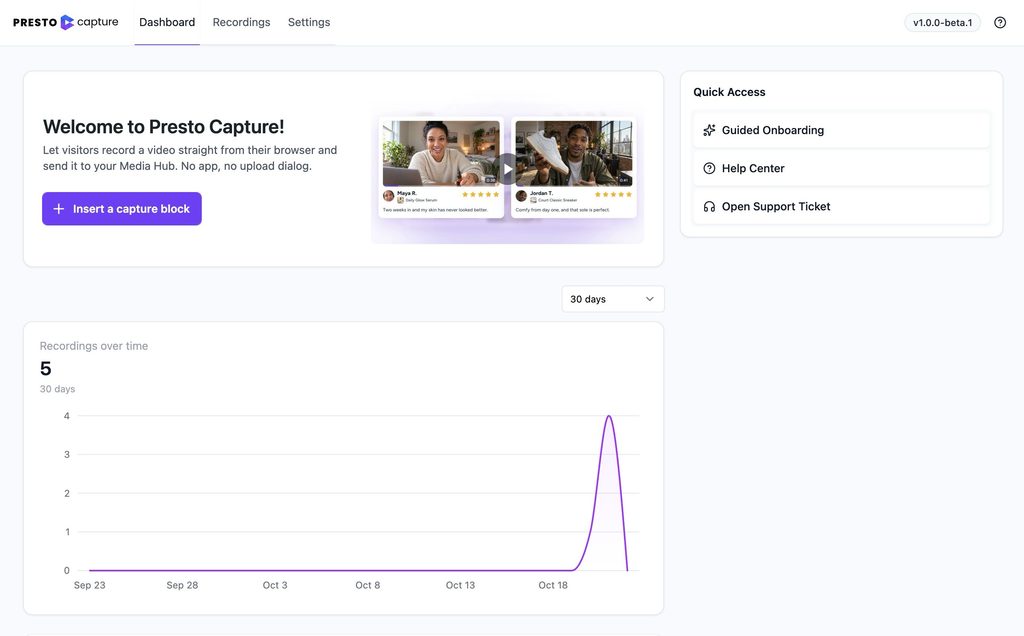
Here is what each part shows:
- Activity chart: Recordings, minutes captured and storage added. Switch between the last 7, 30 or 90 days.
- Stat cards: Totals for all time, the last 7 days and the last 30 days.
- Bunny vs self-hosted: How your recordings split between Bunny.net Stream and your Media Library.
- Members vs guests: How many recordings came from logged-in users and how many from guests.
- Where recordings live: Your total storage used, all time.
Tip: The Dashboard also offers a one-click install of OttoKit for future automations.
Recordings
Go to Presto Capture > Recordings.
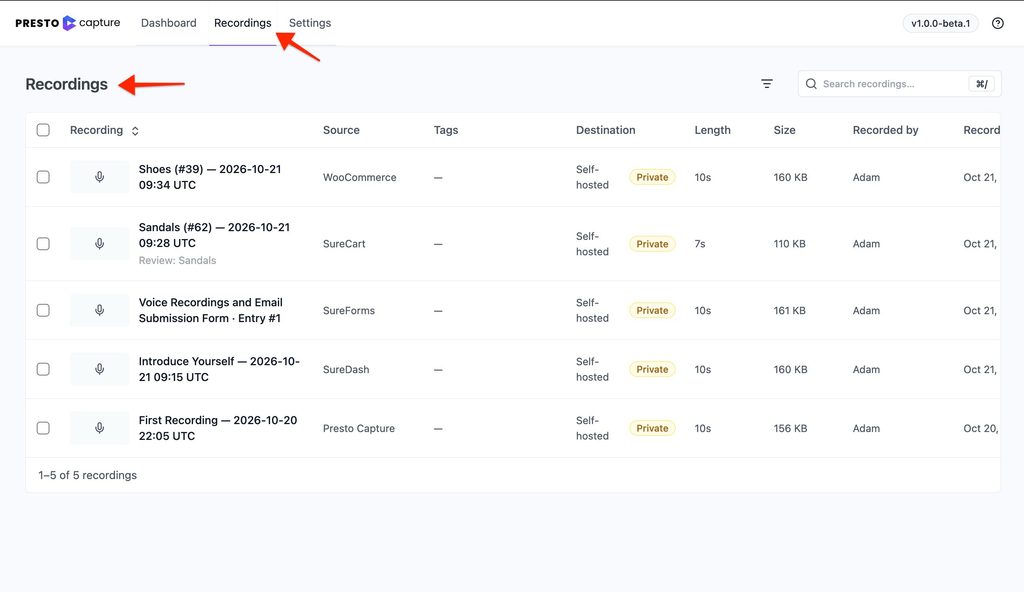
This screen lists every recording on your site. You can:
- Search for a recording.
- Filter by status, tag or destination.
- Sort the list.
- Preview a recording.
- Copy its shortcode to embed it on a page.
- Delete it.
- Click the title to open it in the Presto Player Media Hub, where you can rename or retag it.
Settings
Go to Presto Capture > Settings.
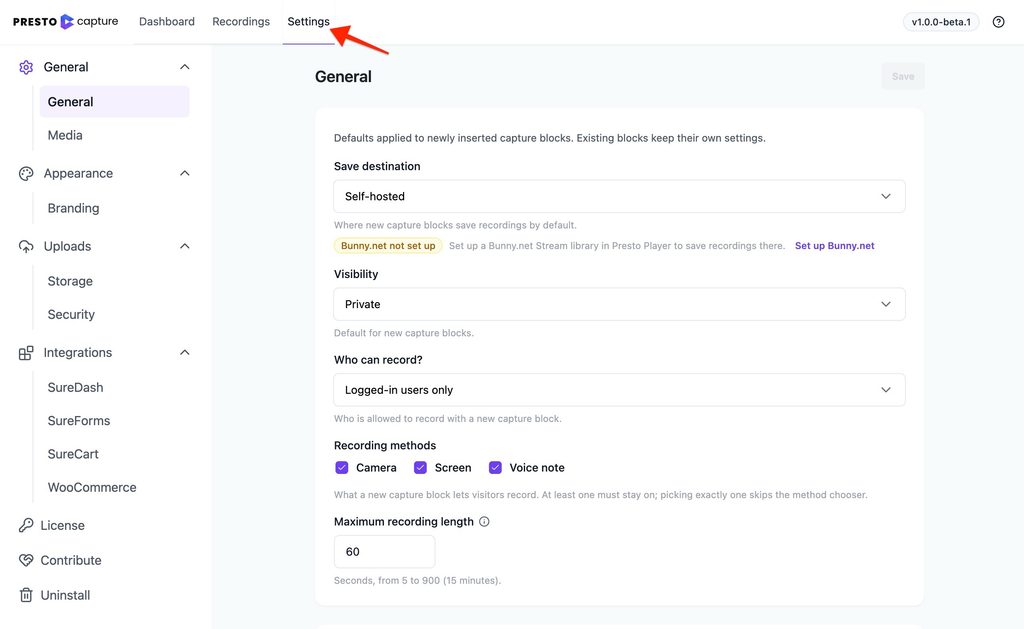
Settings hold the defaults for every new recorder:
- Destination, maximum length, who can record, privacy, and recording methods
- The self-hosted upload ceiling
- Default media tags, with a switch to tag recordings automatically
- Global branding
- Your licence key, on the License tab
Note: Settings only change new blocks. Blocks already on your pages keep their own settings.
If you have any questions or need further help, feel free to reach out to our support team. We’re always happy to help!
We don't respond to the article feedback, we use it to improve our support content.