
- How to Get Started with Presto Capture
- Why Presto Capture Needs HTTPS
- Presto Capture Block Settings
- Presto Capture Shortcode Reference
- How to Choose Where Recordings Are Saved in Presto Capture
- How to Control Who Can Record in Presto Capture
- How to Brand the Recorder in Presto Capture
- Understanding the Presto Capture Admin Panel
- How to Manage Recordings in Presto Capture
- How to Activate Your Presto Capture Licence
- Troubleshooting Presto Capture
- Privacy and Recordings in Presto Capture
- Presto Capture FAQ
- How to Add a Recording Field to SureForms with Presto Capture
- How to Add Video Replies to SureDash Discussions
- How to Collect Video Reviews in WooCommerce with Presto Capture
- Presto Capture for Developers: REST API and PHP Filters
- How to Allow Camera, Microphone, and Screen Access in Presto Capture
- How to Collect Video Reviews in SureCart with Presto Capture
How to Brand the Recorder in Presto Capture
The recorder panel can look like part of your own brand. Add your accent colour, logo, name, and font so visitors feel at home while they record. You can also change the button text and the thank-you message they see after saving.
Applies to: Presto Capture 1.0.0 and above.
What You Can Brand
- Accent colour: The main colour on buttons and highlights. The default is a neutral dark grey.
- Logo: Shown in the panel header.
- Product name: Shown next to the logo in the header.
- Font: The font family used in the panel.
- Brand header: Show it or hide it.
- Button label: The text on the record button. The default is Leave a Review.
- Saved screen text: The title and subtitle visitors see after their video saves.
How to Set Branding for Your Whole Site
- Go to Presto Capture > Settings.
- Find the branding options.
- Choose your accent colour.
- Upload your logo.
- Enter your product name.
- Choose your font.
- Click Save.
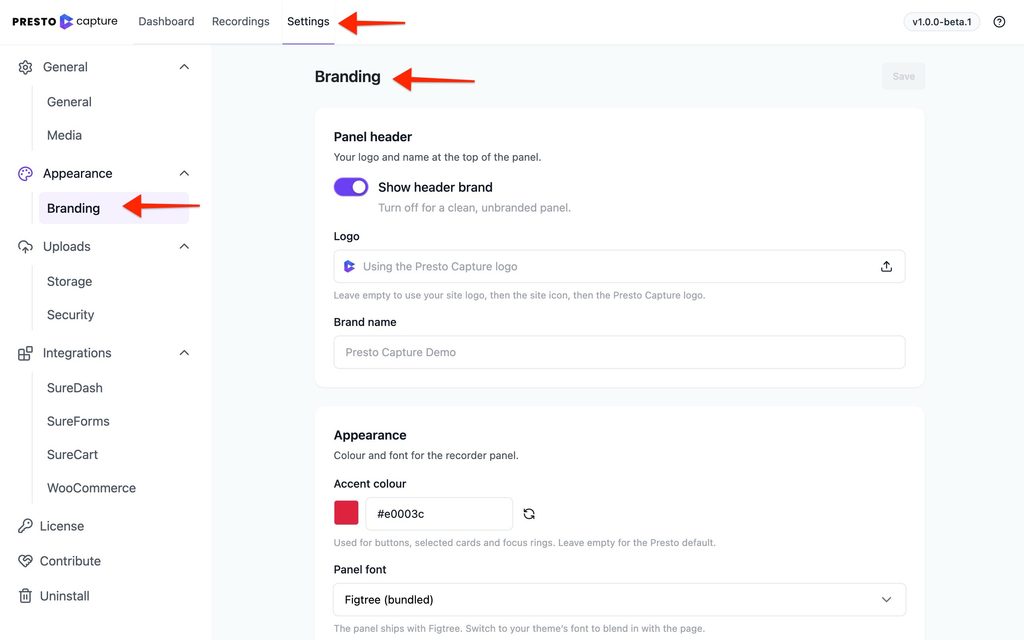
Note: Settings only apply to new blocks. Blocks already on your pages keep their current look.
How to Change Branding for One Recorder
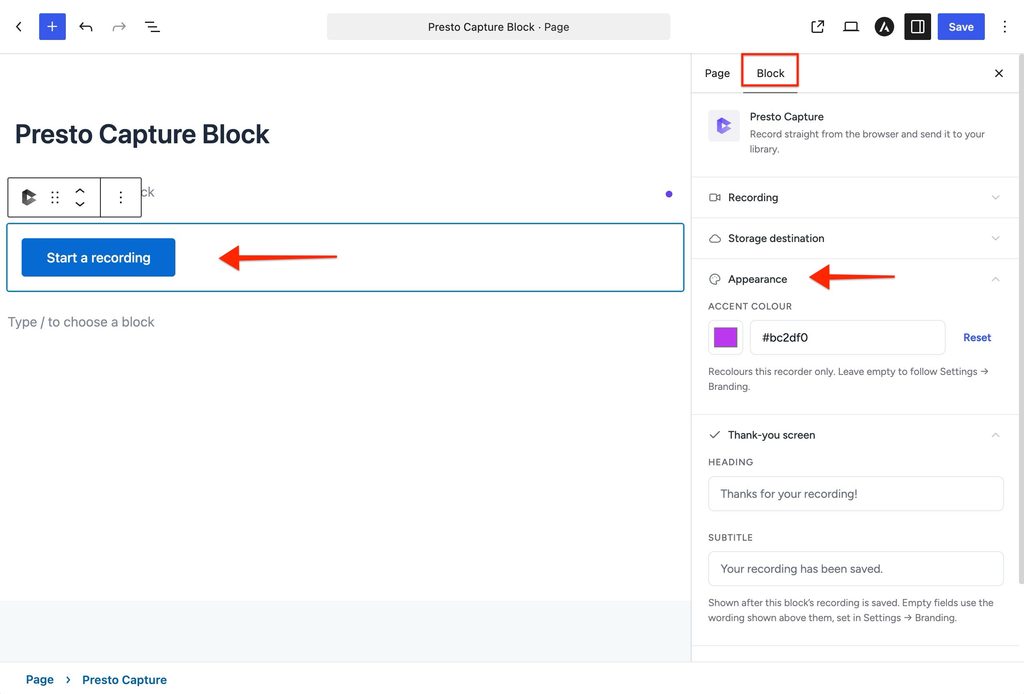
- Open the page with your Presto Capture block.
- Click the block to select it.
- Open the Appearance options in the block sidebar.
- Change any option you want for this recorder only.
- Click Save.
How to Hide the Brand Header
- Click your Presto Capture block to select it.
- Turn off the brand header option in the block sidebar.
- Click Save.
Using the shortcode? Add show_brand=”false”.
Branding with the Shortcode
You can set every branding option right in the shortcode:
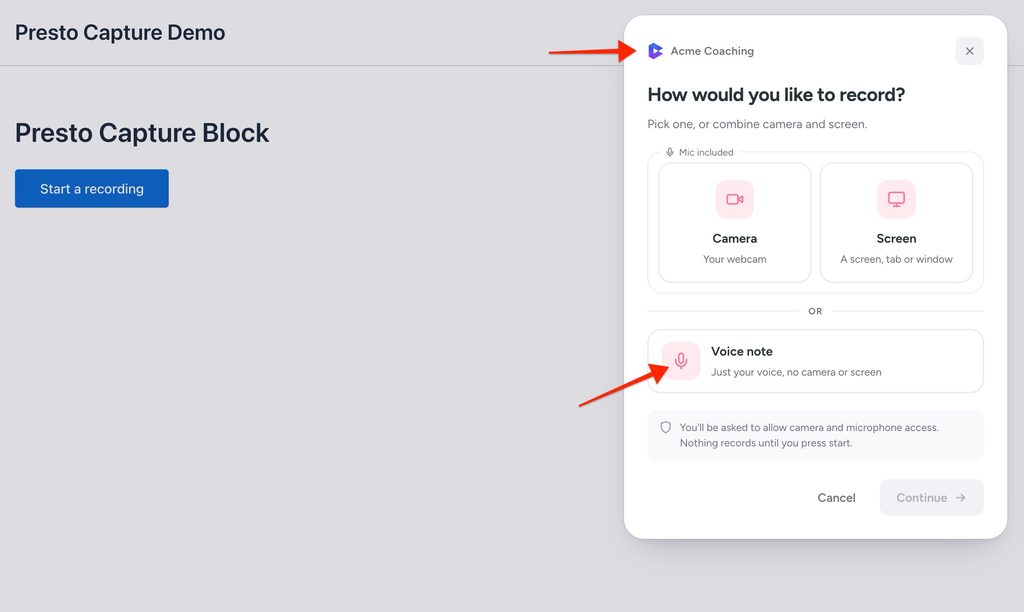
[presto_capture accent_color="#ff5280" brand_name="Acme Coaching" logo="123" font="Inter"]Here, logo is the attachment ID of your logo in the Media Library.
If you have any questions or need further help, feel free to reach out to our support team. We’re always happy to help!
Was this doc helpful?
What went wrong?
We don't respond to the article feedback, we use it to improve our support content.