
- How to Set Rate Limits and Upload Security in Presto Capture
- How to Get Started with Presto Capture
- Why Presto Capture Needs HTTPS
- Presto Capture Block Settings
- Presto Capture Shortcode Reference
- How to Choose Where Recordings Are Saved in Presto Capture
- How to Control Who Can Record in Presto Capture
- How to Brand the Recorder in Presto Capture
- Understanding the Presto Capture Admin Panel
- How to Manage Recordings in Presto Capture
- How to Activate Your Presto Capture Licence
- Troubleshooting Presto Capture
- Privacy and Recordings in Presto Capture
- Presto Capture FAQ
- How to Add a Recording Field to SureForms with Presto Capture
- How to Add Video Replies to SureDash Discussions
- How to Collect Video Reviews in WooCommerce with Presto Capture
- Presto Capture for Developers: REST API and PHP Filters
- How to Allow Camera, Microphone, and Screen Access in Presto Capture
- How to Collect Video Reviews in SureCart with Presto Capture
- Understanding Trust Tiers in Presto Capture
- How to Approve, Reject and Block Recordings in Presto Capture
- How to Clean Up Unused Recordings in Presto Capture
- How to Protect Private Recordings on NGINX in Presto Capture
- What Happens When You Uninstall Presto Capture
Understanding Trust Tiers in Presto Capture
Presto Capture sorts everyone who records into one of three trust tiers. The tier decides whether a recording goes live right away or waits for your approval, and how many recordings that person can save. Your regular team gets out of the way quickly, while strangers and new accounts are checked first.
Applies to: Presto Capture 1.0.0 and above.
The Three Tiers
| Tier | Who is in it | What happens to their recordings |
|---|---|---|
| Anonymous | Visitors who aren’t logged in | Wait for approval. Can only record to the Media Library. |
| Member | Logged-in users who can’t publish posts, such as subscribers, customers, students, and contributors | Wait for approval. Limited per hour and per day. |
| Trusted | Authors, Editors and Administrators, plus any roles you add under Trusted roles | Published right away, under their own name and title. Higher hourly limit. |
Note: Anyone who can publish posts is always trusted. They can already publish to your Media Hub, so holding their recordings would add nothing.
How to Add a Trusted Role
Maybe your coaches or support staff have a custom role that can’t publish posts. You can still trust them.
- Go to Presto Capture > Settings.
- Click Security under Uploads in the left menu.
- Find Trusted roles.
- Select the roles you want to trust.
- Click Save.
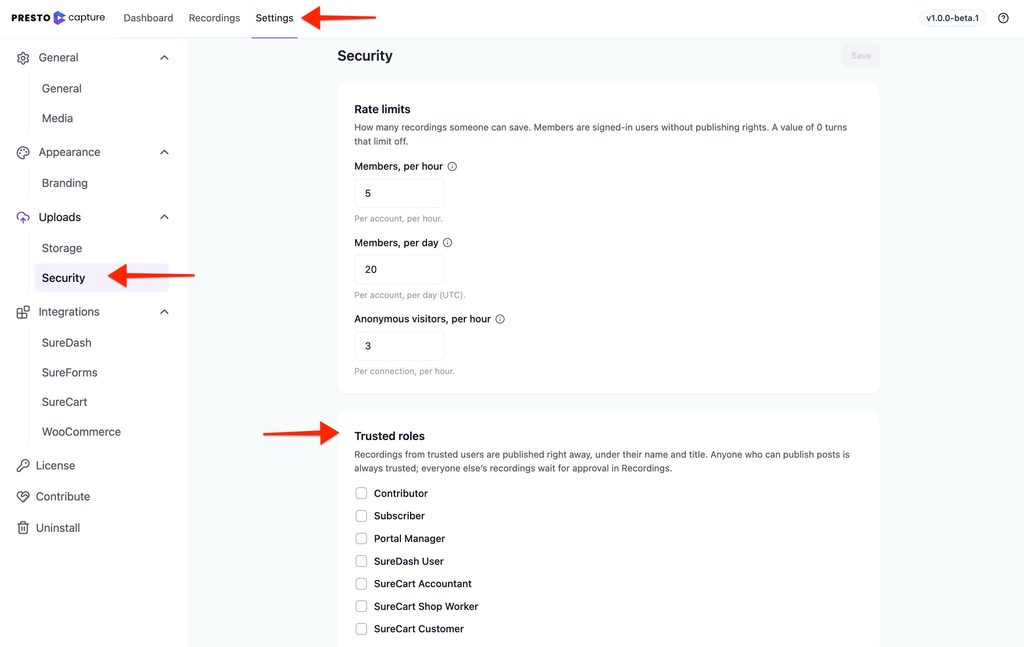
Recordings from these roles now skip the approval queue.
Tip: Only add roles you’d hand a publish button to. Trusted recordings go live without anyone checking them.
When Anyone Can Register on Your Site
If your site lets anyone create an account, a “member” might be a throwaway account. Presto Capture spots this and shows a notice on the Security page. It also does two things for you:
- Members’ recordings stay hidden until you approve them.
- All member accounts on the same connection share one hourly limit. Creating ten accounts doesn’t give someone ten times the uploads.
This kicks in when WordPress registration is open, when anyone can sign up on a multisite network, or when WooCommerce lets shoppers create an account on My Account.
Good to Know
- Tiers are checked every time. Change someone’s role and their next recording follows the new tier.
- Only members can get strikes. Anonymous visitors are never struck or blocked, because many people can share one connection. Rate limits keep them in check instead.
- Bunny.net needs a logged-in user. Anonymous visitors can only record to the Media Library.
Related Articles
- How to Approve, Reject and Block Recordings in Presto Capture
- How to Set Rate Limits and Upload Security in Presto Capture
Your trusted team can now record without waiting, and everyone else goes through a quick check.
If you have any questions or need further help, feel free to reach out to our support team. We’re always happy to help!
We don't respond to the article feedback, we use it to improve our support content.