
- How to Get Started with Presto Capture
- Why Presto Capture Needs HTTPS
- Presto Capture Block Settings
- Presto Capture Shortcode Reference
- How to Choose Where Recordings Are Saved in Presto Capture
- How to Control Who Can Record in Presto Capture
- How to Brand the Recorder in Presto Capture
- Understanding the Presto Capture Admin Panel
- How to Manage Recordings in Presto Capture
- How to Activate Your Presto Capture Licence
- Troubleshooting Presto Capture
- Privacy and Recordings in Presto Capture
- Presto Capture FAQ
- How to Add a Recording Field to SureForms with Presto Capture
- How to Add Video Replies to SureDash Discussions
- How to Collect Video Reviews in WooCommerce with Presto Capture
- Presto Capture for Developers: REST API and PHP Filters
- How to Allow Camera, Microphone, and Screen Access in Presto Capture
- How to Collect Video Reviews in SureCart with Presto Capture
How to Add a Recording Field to SureForms with Presto Capture
The Recording field lets people record a video or voice note right inside your SureForms form. They don’t leave the page or upload a file. The recording is saved with the rest of their answers, so you can watch it while reading their entry. Use it for job applications, support requests, testimonials or feedback forms.
Applies to: Presto Capture 1.0.0 and above.
Before You Begin
- Presto Capture active, with your licence key added.
- SureForms installed and active.
- Your site running on HTTPS.
Add the Recording Field to a Form
- Go to SureForms > All Forms.
- Open the form you want to edit, or create a new one.
- Click the + icon to add a field.
- Search for Recording.
- Click the Recording field to add it.
- Click Save.
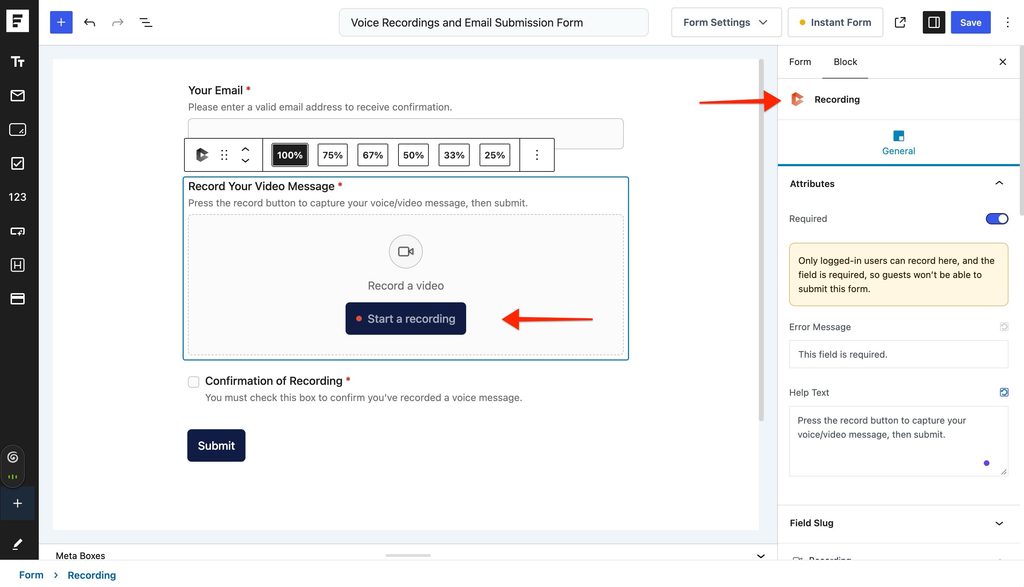
Field Settings
Click the Recording field to open its settings in the sidebar.
| Setting | What it does |
| Label | The question or title shown above the field. |
| Recording methods | Let people record with their camera, their screen, or audio only. |
| Maximum length | How long a recording can be. |
| Required | Stops the form from submitting until a recording is added. |
| Error message | The message shown when a required recording is missing. |
| Width | How wide the field is in your form layout. |
| Conditional logic | Show the field only when another answer matches a rule you set. |
[Screenshot: Recording field settings in the SureForms sidebar]
Tip: Conditional logic works well for support forms. For example, show the Recording field only when someone picks “Something is broken”.
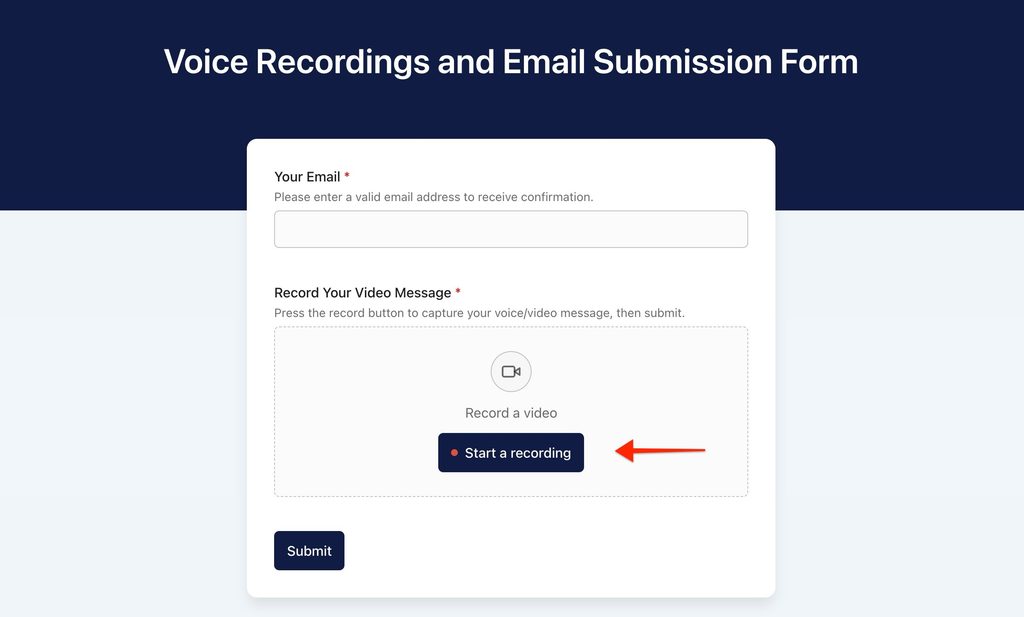
What Your Visitors See
The form shows a record button where you placed the field. Visitors record, watch it back, and save. Then they fill in the rest of the form and submit it as usual.
Watch Recordings in Your Entries
- Go to SureForms > Entries.
- Open an entry.
- Click play on the recording. It plays right inside the entry.
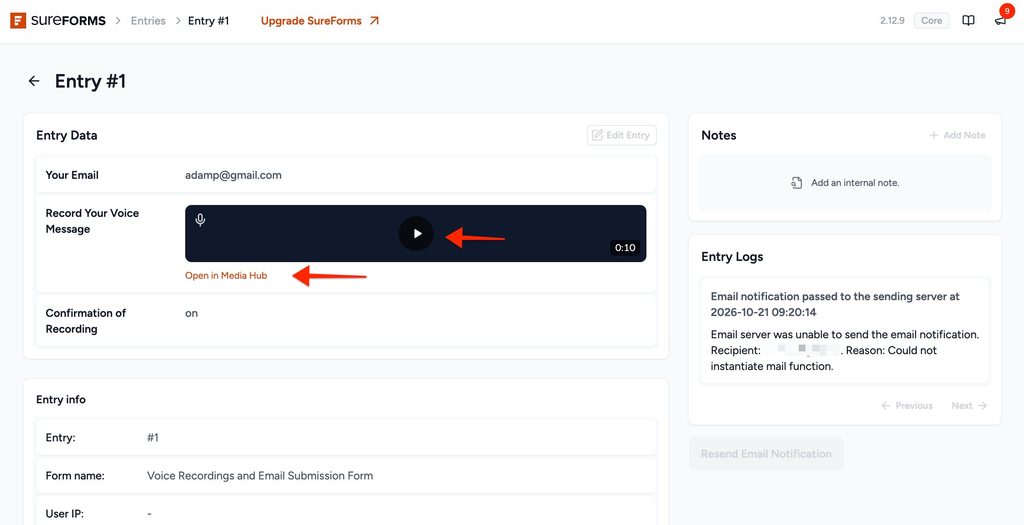
Your form notification emails also include a View recording link, so you can open the video straight from your inbox.
Good to Know
- Unsubmitted recordings are cleaned up for you. If someone records but never submits the form, Presto Capture removes that recording automatically.
- Deleting an entry keeps the video. To remove the video too, delete it from Presto Capture > Recordings.
- Several video questions in one form? Each upload counts toward the hourly upload limit. Logged-out visitors can upload 10 an hour.
- Phones can record with the camera or audio. Screen recording needs a computer.
Your form now collects recordings alongside every other answer. Open the next few entries to see how people use it.
If you have any questions or need further help, feel free to reach out to our support team. We’re always happy to help!
We don't respond to the article feedback, we use it to improve our support content.