
- How to Get Started with Presto Capture
- Why Presto Capture Needs HTTPS
- Presto Capture Block Settings
- Presto Capture Shortcode Reference
- How to Choose Where Recordings Are Saved in Presto Capture
- How to Control Who Can Record in Presto Capture
- How to Brand the Recorder in Presto Capture
- Understanding the Presto Capture Admin Panel
- How to Manage Recordings in Presto Capture
- How to Activate Your Presto Capture Licence
- Troubleshooting Presto Capture
- Privacy and Recordings in Presto Capture
- Presto Capture FAQ
- How to Add a Recording Field to SureForms with Presto Capture
- How to Add Video Replies to SureDash Discussions
- How to Collect Video Reviews in WooCommerce with Presto Capture
- Presto Capture for Developers: REST API and PHP Filters
- How to Allow Camera, Microphone, and Screen Access in Presto Capture
- How to Collect Video Reviews in SureCart with Presto Capture
How to Choose Where Recordings Are Saved in Presto Capture
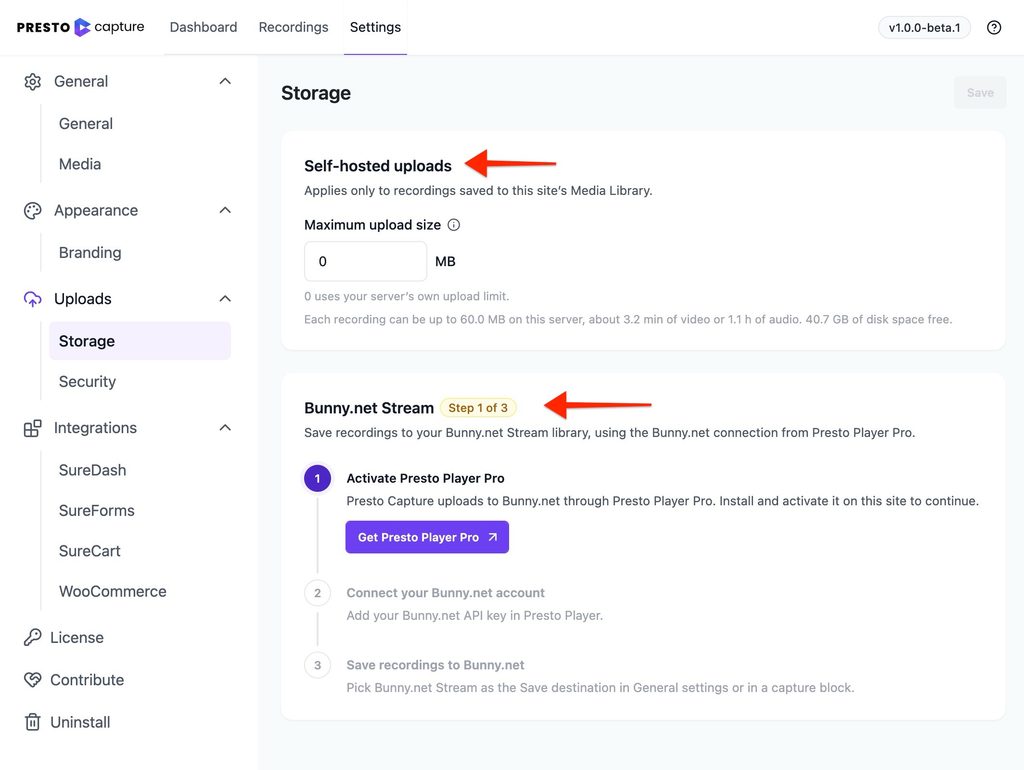
Presto Capture can save recordings in two places: Bunny.net Stream or your own WordPress Media Library. The right choice depends on how many videos you expect, how long they are, and whether you have Presto Player Pro.
Applies to: Presto Capture 1.0.0 and above.
Compare the Two Destinations
| Bunny.net Stream | WordPress Media Library | |
| Needs | Presto Player Pro with a Bunny.net Stream library connected | Presto Player (free) |
| Best for | Many or long recordings | A few short recordings |
| Storage cost | Billed to your own Bunny.net account | Uses your site’s disk space |
| Size limit | No server upload limit | Your server’s upload limit, or the ceiling you set in Settings |
| Collections | Send recordings to a chosen Bunny collection | Not available |
| Private videos | Signed playback links from Presto Player Pro | Saved in Presto Player’s protected folder |
Note: Your recordings never pass through Brainstorm Force servers. They go straight to your Bunny.net account or your own site.
How to Set the Default Destination
- Go to Presto Capture > Settings.
- Find the defaults for new blocks.
- Choose Bunny.net Stream or WordPress Media Library as the destination.
- Click Save.
Note: This default only applies to new blocks. Blocks already on your pages keep their own setting.
How to Change the Destination for One Recorder
- Open the page with your Presto Capture block.
- Click the block to select it.
- Choose a destination in the block sidebar.
- Choose a Bunny collection if you picked Bunny.net Stream.
- Click Save.
Using the shortcode? Add destination=”bunny” or destination=”self-hosted”.
Public or Private
You can make recordings Public or Private on either destination.
- Public: Anyone who sees the embedded video can play it.
- Private: Only logged-in users can play it.
Note: On an older version of Presto Player, a private Media Library recording may be saved as public if the protected folder isn’t available. Presto Capture will tell you when this happens. It never marks a video private when it isn’t.
How to Set a Size Limit for Media Library Uploads
- Go to Presto Capture > Settings.
- Find the self-hosted upload ceiling.
- Enter the largest file size you want to allow.
- Click Save.
By default, the ceiling matches your server’s own upload limit.
If you have any questions or need further help, feel free to reach out to our support team. We’re always happy to help!
We don't respond to the article feedback, we use it to improve our support content.