
- How to Get Started with Presto Capture
- Why Presto Capture Needs HTTPS
- Presto Capture Block Settings
- Presto Capture Shortcode Reference
- How to Choose Where Recordings Are Saved in Presto Capture
- How to Control Who Can Record in Presto Capture
- How to Brand the Recorder in Presto Capture
- Understanding the Presto Capture Admin Panel
- How to Manage Recordings in Presto Capture
- How to Activate Your Presto Capture Licence
- Troubleshooting Presto Capture
- Privacy and Recordings in Presto Capture
- Presto Capture FAQ
- How to Add a Recording Field to SureForms with Presto Capture
- How to Add Video Replies to SureDash Discussions
- How to Collect Video Reviews in WooCommerce with Presto Capture
- Presto Capture for Developers: REST API and PHP Filters
- How to Allow Camera, Microphone, and Screen Access in Presto Capture
- How to Collect Video Reviews in SureCart with Presto Capture
How to Get Started with Presto Capture
Presto Capture lets your visitors record video right on your WordPress site. They can record their camera, their screen, or both, with no app or account needed. Every recording lands in your Presto Player Media Hub, ready to embed anywhere.
Applies to: Presto Capture 1.0.0 and above.
Before You Begin
- Presto Player (free) installed and active. Presto Capture needs it to work.
- Presto Player Pro, only if you want to save recordings to Bunny.net Stream.
- Your site running on HTTPS. Browsers only allow camera and screen access on a secure connection.
- WordPress 6.7 or newer and PHP 7.4 or newer.
- Your Presto Capture ZIP file and licence key from your account on prestomade.com.
Step 1: Install Presto Player
- Go to Plugins > Add New in your WordPress dashboard.
- Search for Presto Player.
- Click Install Now.
- Click Activate.
Note: If Presto Player is already active on your site, skip to Step 2.
Step 2: Install Presto Capture
- Log in to your account on https://my.prestomade.com.
- Download the Presto Capture ZIP file.
- Go to Plugins > Add New in your WordPress dashboard.
- Click Upload Plugin and choose the ZIP file you downloaded.
- Click Install Now and click Activate Plugin.
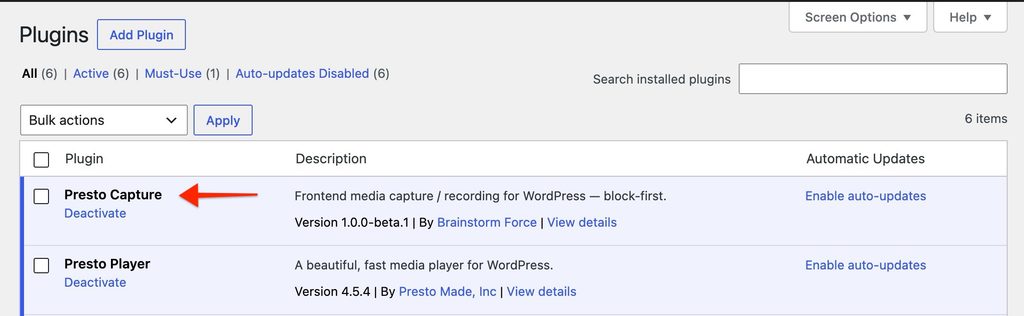
Step 3: Activate Your Licence
- Copy your licence key from your Presto Player store account.
- Go to Presto Capture > Settings.
- Click the License tab.
- Paste your key into the licence field.
- Click Activate.
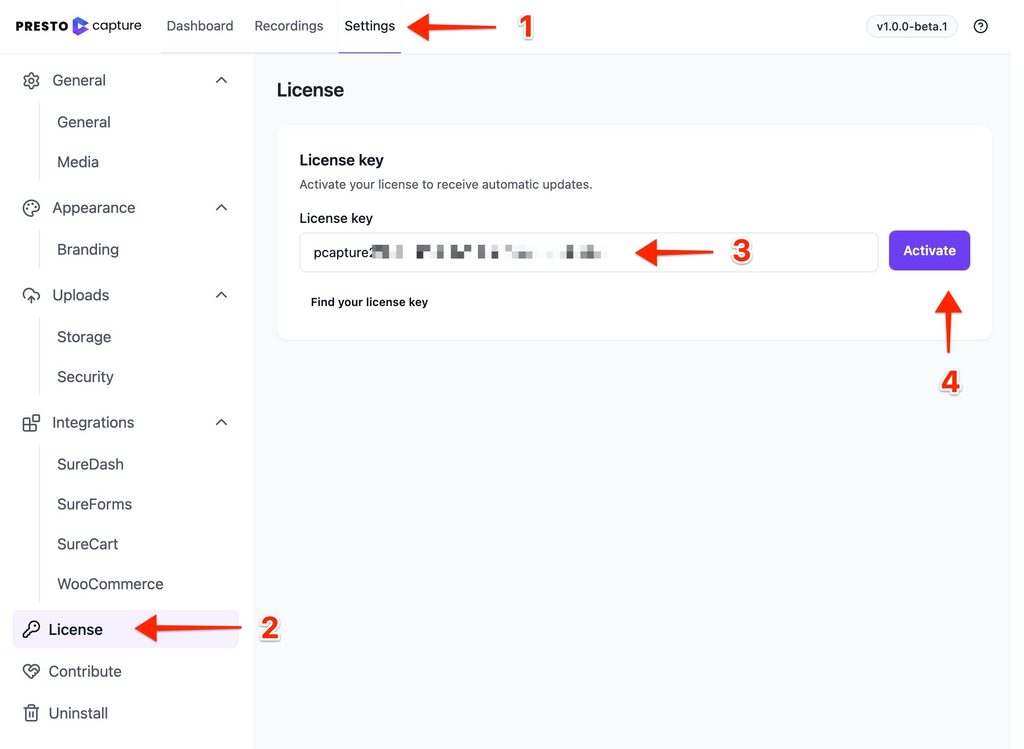
Tip: Recording works even before you add a key. The key turns on automatic updates.
Step 4: Add Your First Recorder
- Open the page or post where you want the recorder.
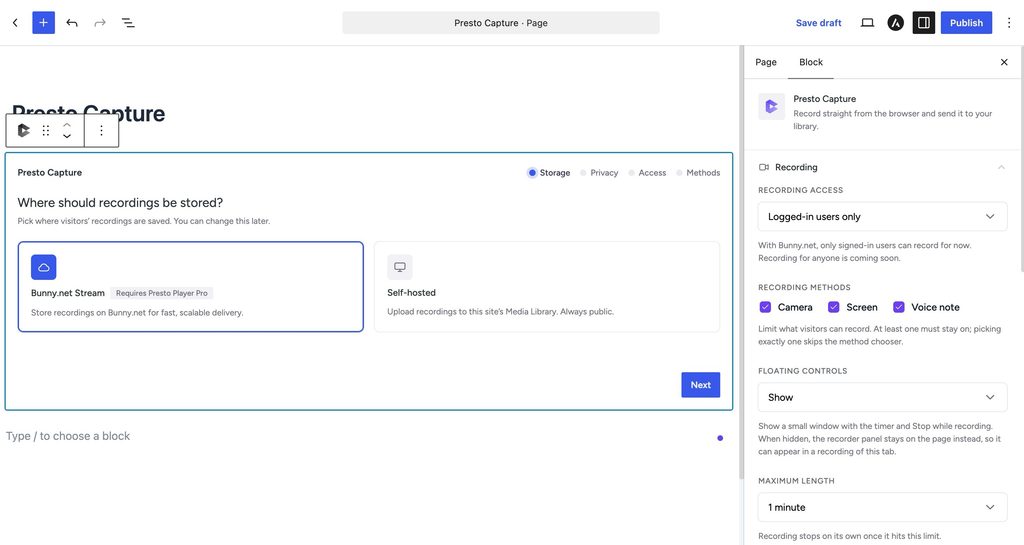
- Click the + icon to add a block.
- Search for Presto Capture.
- Click the Presto Capture block to insert it.
- Follow the setup wizard. Choose where recordings are saved, the maximum length, and who can record.
- Click Save or Publish.
Note: Using Elementor, Bricks, Beaver Builder, or the Classic Editor? Use the [ presto_capture ] shortcode instead. See the Shortcode Reference article for all options.
What You’ll See
Your page now shows a record button. The default label is Start a recording. When a visitor clicks it, a recorder panel opens in the corner of the page. They pick a method, record, review, and save.
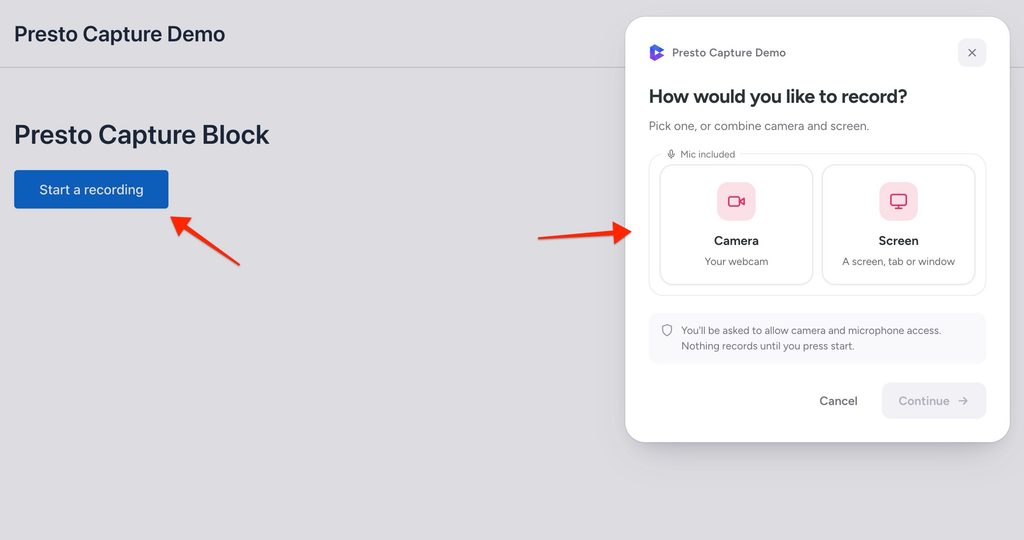
The saved video appears in Presto Capture > Recordings and in your Presto Player Media Hub.
Try a quick test recording yourself to see the full flow.
If you have any questions or need further help, feel free to reach out to our support team. We’re always happy to help!
We don't respond to the article feedback, we use it to improve our support content.