
- How to Get Started with Presto Capture
- Why Presto Capture Needs HTTPS
- Presto Capture Block Settings
- Presto Capture Shortcode Reference
- How to Choose Where Recordings Are Saved in Presto Capture
- How to Control Who Can Record in Presto Capture
- How to Brand the Recorder in Presto Capture
- Understanding the Presto Capture Admin Panel
- How to Manage Recordings in Presto Capture
- How to Activate Your Presto Capture Licence
- Troubleshooting Presto Capture
- Privacy and Recordings in Presto Capture
- Presto Capture FAQ
- How to Add a Recording Field to SureForms with Presto Capture
- How to Add Video Replies to SureDash Discussions
- How to Collect Video Reviews in WooCommerce with Presto Capture
- Presto Capture for Developers: REST API and PHP Filters
- How to Allow Camera, Microphone, and Screen Access in Presto Capture
- How to Collect Video Reviews in SureCart with Presto Capture
Presto Capture Block Settings
Each Presto Capture block has its own settings, so every recorder on your site can work a little differently. A testimonial page might allow anyone to record for 60 seconds. A coaching page might allow logged-in students only, with no time limit.
Applies to: Presto Capture 1.0.0 and above.
How to Open the Block Settings
- Open the page that has your Presto Capture block.
- Click the block to select it.
- Look at the block sidebar on the right. If you don’t see it, click the Settings icon at the top right of the editor.
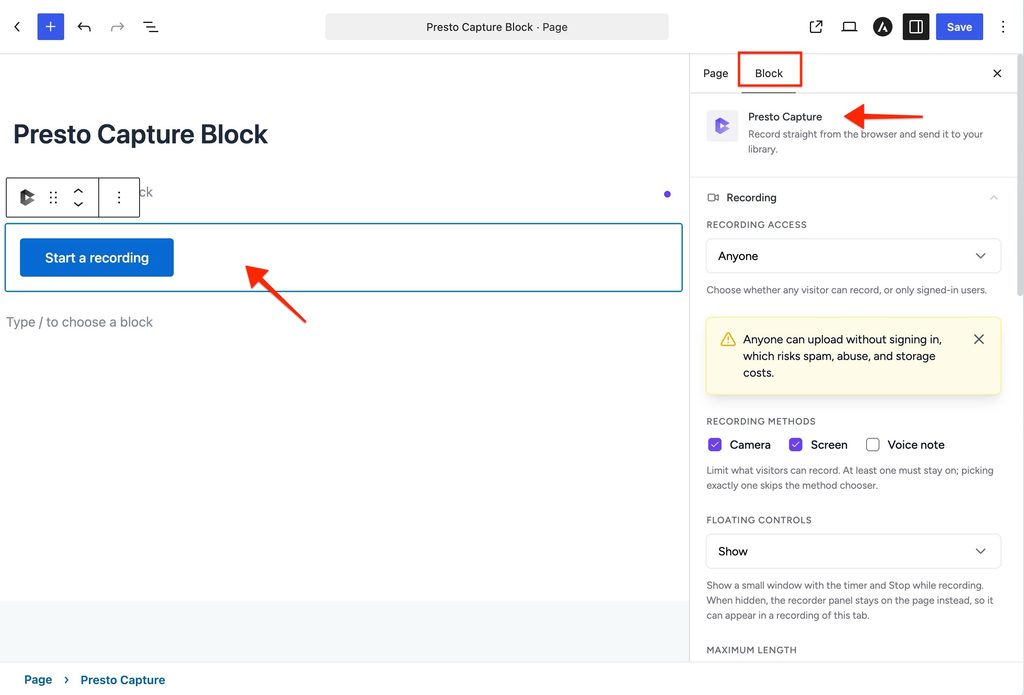
Note: New blocks start with the defaults from Presto Capture > Settings. Changing a block here only changes that block.
All Block Settings
| Setting | What it does | Options and default |
| Button label | The text on the record button. | Any text. Default: Start a recording. |
| Maximum length | How long a visitor can record. | 5 seconds or more, or Unlimited. Default: 60 seconds. |
| Destination | Where the video is saved. | Bunny.net Stream or WordPress Media Library. |
| Privacy | Who can watch the saved video. | Public or Private. |
| Bunny collection | The Bunny.net collection the video goes into. | Any collection in your Bunny library. Bunny only. |
| Media tags | Presto Player tags added to every recording from this block. | One or more tags. |
| Who can record | Who sees a working record button. | Anyone, or Logged-in users only. |
| Recording methods | What visitors can record. | Camera, Screen Share, or both. |
| Branding | Accent colour, logo, product name and font on the recorder panel. | Uses your global branding unless changed here. |
| Saved screen text | The title and subtitle shown after a successful save. | Any text. |
Tip: Media tags keep your library tidy. For example, tag one block “Testimonial” and another “Support” so you can filter them later.
Good to Know
- Screen Share includes a screen plus camera option. It shows a round webcam bubble in the corner of the screen recording.
- Phones can only record with the camera. Mobile browsers don’t allow screen recording.
- Long recordings and Media Library storage don’t mix well. The editor warns you if you pair a long maximum length with self-hosted storage.
- Saving to Bunny.net Stream needs Presto Player Pro.
Now you can set up each recorder just the way you need it.
If you have any questions or need further help, feel free to reach out to our support team. We’re always happy to help!
We don't respond to the article feedback, we use it to improve our support content.