
- How to Get Started with Presto Capture
- Why Presto Capture Needs HTTPS
- Presto Capture Block Settings
- Presto Capture Shortcode Reference
- How to Choose Where Recordings Are Saved in Presto Capture
- How to Control Who Can Record in Presto Capture
- How to Brand the Recorder in Presto Capture
- Understanding the Presto Capture Admin Panel
- How to Manage Recordings in Presto Capture
- How to Activate Your Presto Capture Licence
- Troubleshooting Presto Capture
- Privacy and Recordings in Presto Capture
- Presto Capture FAQ
- How to Add a Recording Field to SureForms with Presto Capture
- How to Add Video Replies to SureDash Discussions
- How to Collect Video Reviews in WooCommerce with Presto Capture
- Presto Capture for Developers: REST API and PHP Filters
- How to Allow Camera, Microphone, and Screen Access in Presto Capture
- How to Collect Video Reviews in SureCart with Presto Capture
How to Control Who Can Record in Presto Capture
You decide who can use each recorder on your site. Open it to everyone for testimonials and reviews, or keep it to logged-in members for coaching and community videos. Presto Capture also has built-in protection so nobody can flood your site with uploads.
Applies to: Presto Capture 1.0.0 and above.
The Two Access Options
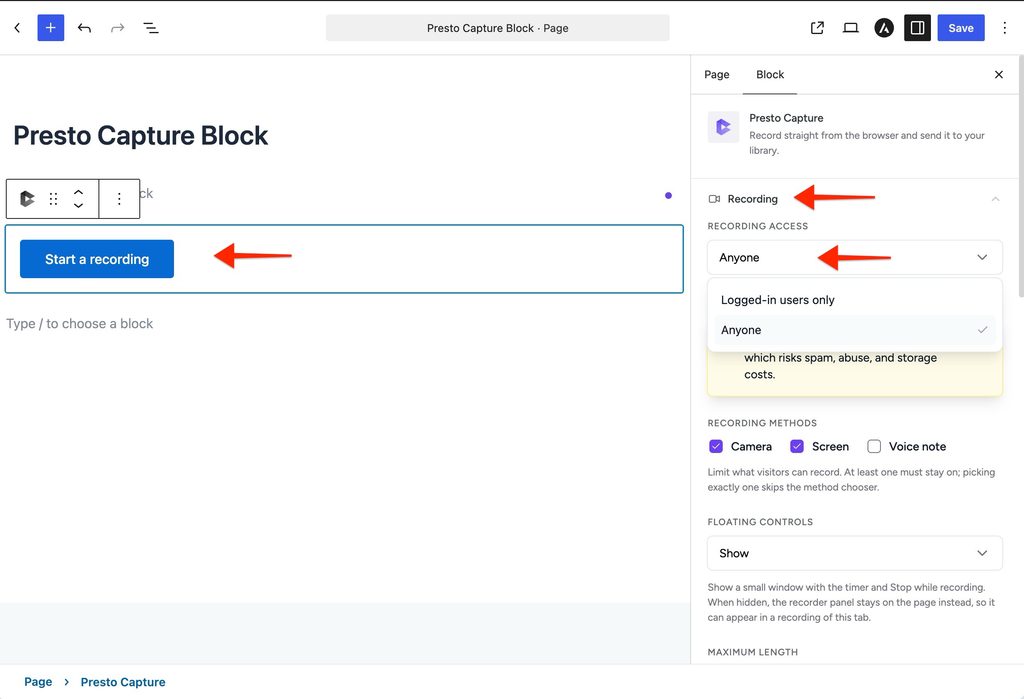
- Anyone: Every visitor can record, with no account needed. Great for testimonials, reviews and support videos.
- Logged-in users only: Only people signed in to your site can record. Great for courses, coaching and member communities.
How to Set Access for One Recorder
- Open the page with your Presto Capture block.
- Click the block to select it.
- Find the Who can record option in the block sidebar.
- Choose Anyone or Logged-in users only.
- Click Save.
Using the shortcode? Add access=”anyone” or access=”logged-in”.
How to Set the Default for New Blocks
- Go to Presto Capture > Settings.
- Choose the default access option.
- Click Save.
Built-In Protection
Presto Capture protects your site from spam and misuse in two ways:
- Signed uploads. Every upload carries a secure token tied to the recorder that created it. The token is valid for 2 hours.
- Upload limits. Each visitor can upload a set number of videos per hour.
| Visitor type | Uploads per hour |
| Logged-out visitors | 10 |
| Logged-in users | 60 |
Tip: A page with many re-records, or a form with several video questions, can reach the limit. Developers can raise both limits with a filter. See the developer note below.
Developer Note: Raising the Limits
[To confirm with the dev team: filter names and an example snippet for the anonymous and logged-in upload limits.]
Recordings from Logged-Out Visitors
Recordings from people who aren’t logged in show as Guest in Presto Capture > Recordings. There is no user account to link them to.
Your recorders open to exactly the right people, with protection already built in.
If you have any questions or need further help, feel free to reach out to our support team. We’re always happy to help!
We don't respond to the article feedback, we use it to improve our support content.