
- How to Get Started with Presto Capture
- Why Presto Capture Needs HTTPS
- Presto Capture Block Settings
- Presto Capture Shortcode Reference
- How to Choose Where Recordings Are Saved in Presto Capture
- How to Control Who Can Record in Presto Capture
- How to Brand the Recorder in Presto Capture
- Understanding the Presto Capture Admin Panel
- How to Manage Recordings in Presto Capture
- How to Activate Your Presto Capture Licence
- Troubleshooting Presto Capture
- Privacy and Recordings in Presto Capture
- Presto Capture FAQ
- How to Add a Recording Field to SureForms with Presto Capture
- How to Add Video Replies to SureDash Discussions
- How to Collect Video Reviews in WooCommerce with Presto Capture
- Presto Capture for Developers: REST API and PHP Filters
- How to Allow Camera, Microphone, and Screen Access in Presto Capture
- How to Collect Video Reviews in SureCart with Presto Capture
How to Add Video Replies to SureDash Discussions
Video replies put a record button in the SureDash discussion composer. Members can answer a post with a quick video instead of typing a long reply. Coaches can do the same, so feedback feels like a real conversation. You turn it on per space, and each space can have its own settings.
Applies to: Presto Capture 1.0.0 and above.
Before You Begin
- Presto Capture active, with your licence key added.
- SureDash installed and active, with at least one space.
- Your site running on HTTPS.
Turn On Video Replies for a Space
- Go to SureDash > Spaces.
- Open the space where you want video replies.
- Open the space settings.
- Turn on video replies.
- Click Save.
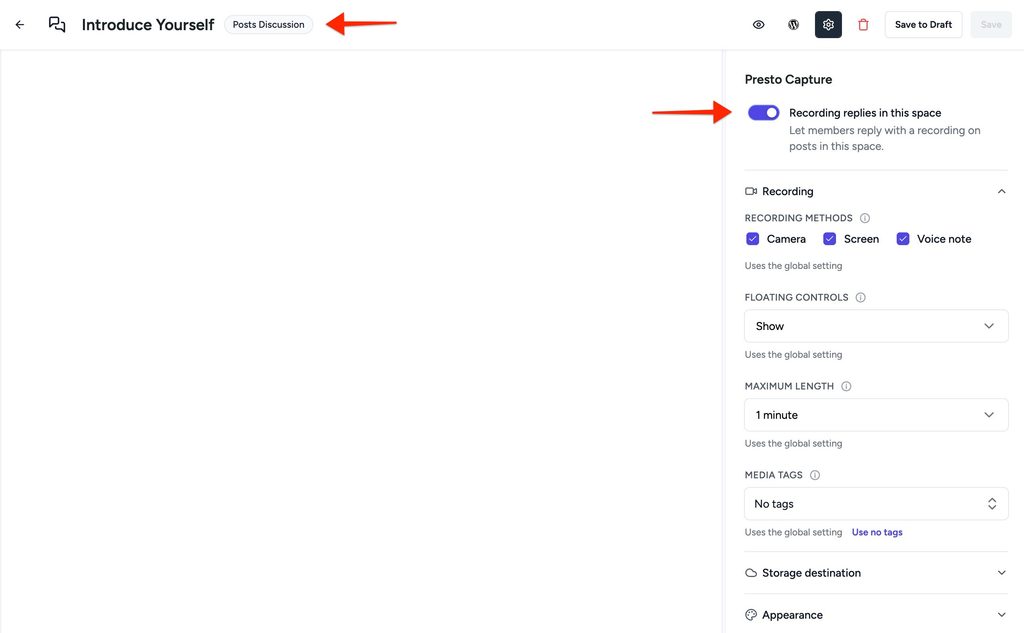
Note: Video replies are off by default. Turn them on only in the spaces where you want them.
Space Settings
Each space can use its own recording settings. Leave them as they are to use your Presto Capture defaults.
| Setting | What it does |
| Recording methods | Camera, screen, or both. |
| Maximum length | How long a video reply can be. |
| Destination | Save to Bunny.net Stream or your WordPress Media Library. |
| Privacy | Public, or private to members of this space. |
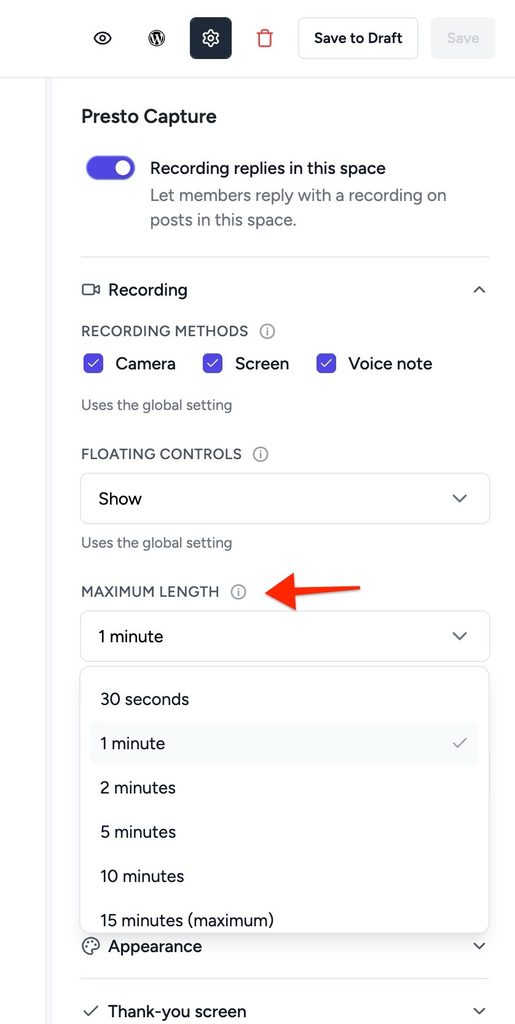
Tip: A coaching space might allow 5-minute screen recordings. A general chat space might allow 60-second camera clips only.
What Members See
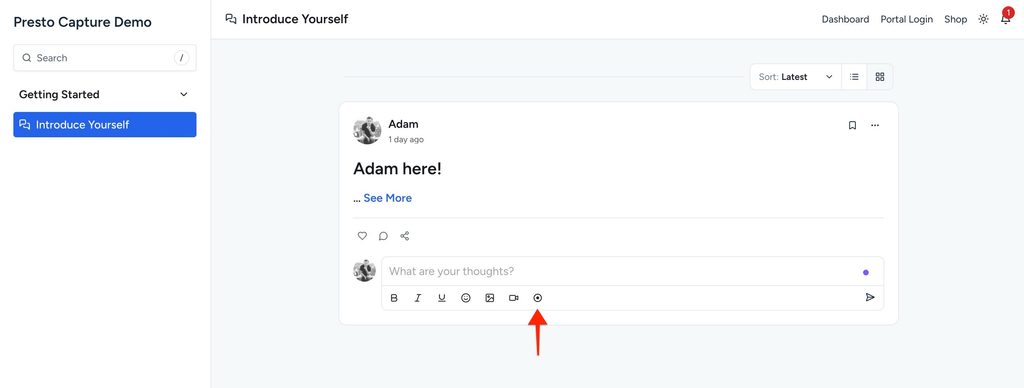
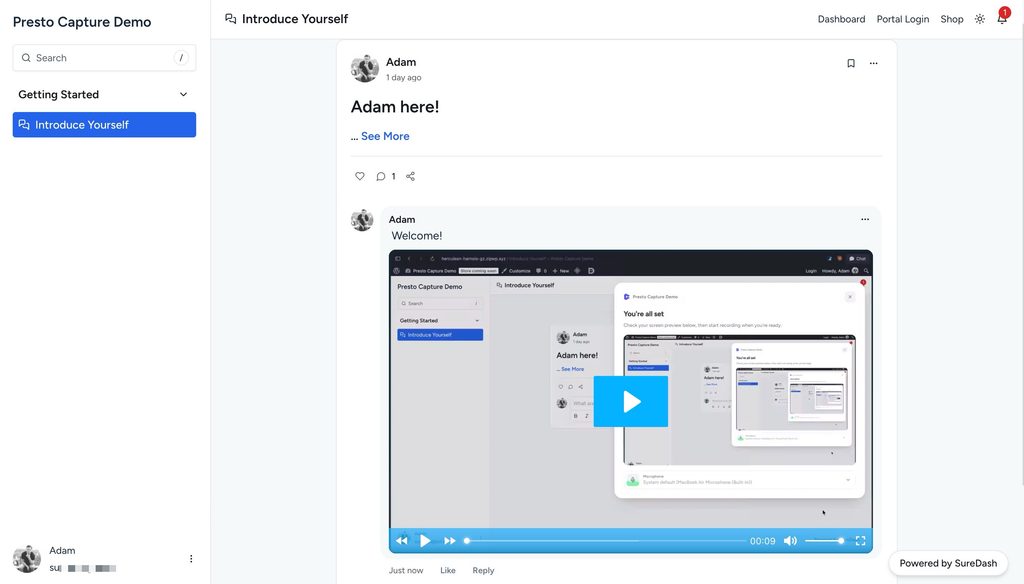
Members see a record button in the reply box under any discussion in that space. They click it, record, watch it back, and post. The video shows up in the thread like any other reply.
Private Video Replies
When privacy is set to Private, a video reply plays only for members of that space. Anyone outside the space can’t watch it, even with a direct link.
Good to Know
- Each member’s videos are easy to find. Recordings from a member are tagged so you can find all of their videos together, for example, if they ask you to remove them.
- Deleting a reply keeps the video. To remove the video too, delete it from Presto Capture > Recordings.
- Phones can record with the camera. Screen recording needs a computer.
Video replies are now live in your space. Try posting the first one yourself, so members can see how it works.
If you have any questions or need further help, feel free to reach out to our support team. We’re always happy to help!
We don't respond to the article feedback, we use it to improve our support content.