
- How to Set Rate Limits and Upload Security in Presto Capture
- How to Get Started with Presto Capture
- Why Presto Capture Needs HTTPS
- Presto Capture Block Settings
- Presto Capture Shortcode Reference
- How to Choose Where Recordings Are Saved in Presto Capture
- How to Control Who Can Record in Presto Capture
- How to Brand the Recorder in Presto Capture
- Understanding the Presto Capture Admin Panel
- How to Manage Recordings in Presto Capture
- How to Activate Your Presto Capture Licence
- Troubleshooting Presto Capture
- Privacy and Recordings in Presto Capture
- Presto Capture FAQ
- How to Add a Recording Field to SureForms with Presto Capture
- How to Add Video Replies to SureDash Discussions
- How to Collect Video Reviews in WooCommerce with Presto Capture
- Presto Capture for Developers: REST API and PHP Filters
- How to Allow Camera, Microphone, and Screen Access in Presto Capture
- How to Collect Video Reviews in SureCart with Presto Capture
- Understanding Trust Tiers in Presto Capture
- How to Approve, Reject and Block Recordings in Presto Capture
- How to Clean Up Unused Recordings in Presto Capture
- How to Protect Private Recordings on NGINX in Presto Capture
- What Happens When You Uninstall Presto Capture
How to Collect Video Reviews in WooCommerce with Presto Capture
Shoppers trust other shoppers, and a short video says more than five stars and a line of text. Presto Capture adds a record button beside the WooCommerce product review form. Customers record their review, and the video plays right under it on your product page.
Applies to: Presto Capture 1.0.0 and above.
Before You Begin
- Presto Capture active, with your licence key added.
- WooCommerce installed and active.
- Product reviews turned on in WooCommerce > Settings > Products.
- Your site running on HTTPS.
- Customers must be logged in to record a video review.
Turn On Video Reviews
Video reviews are on for every product by default. To check or change this:
- Go to Presto Capture > Settings.
- Click WooCommerce under Integrations in the left menu.
- Check that Turn on video reviews for WooCommerce products is on.
- Click Save.
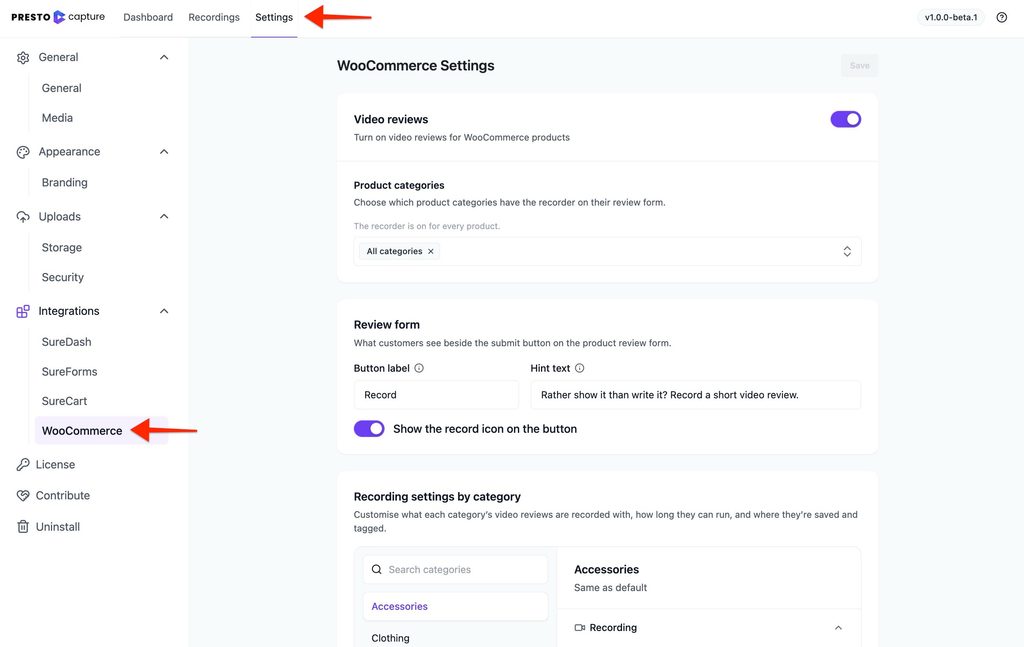
Video Review Settings
| Setting | What it does |
|---|---|
| Product categories | Show the recorder on every product, or only in the categories you pick |
| Button label | Text on the record button. Default: Record. Leave it empty for an icon-only button. |
| Hint text | The line under the buttons. Default: “Rather show it than write it? Record a short video review.” Leave it empty to hide it. |
| Show the record icon on the button | Adds the record icon next to the button label |
Under Recording settings by category, you can give each category its own settings:
| Setting | What it does |
|---|---|
| Recording methods | Camera, screen, voice note, or any mix |
| Maximum length | Up to 15 minutes |
| Storage | Bunny.net Stream or Media Library, public or private, and a Bunny collection |
| Media tags | Tags added to every video review in that category |
| Accent colour | A colour for that category’s recorder only |
Tip: Start with the categories where seeing the product in use matters most, like clothing, gadgets or kitchen tools.
What Customers See
A record button shows beside the review form on your product pages. The customer writes their review, records a video, watches it back, and submits.
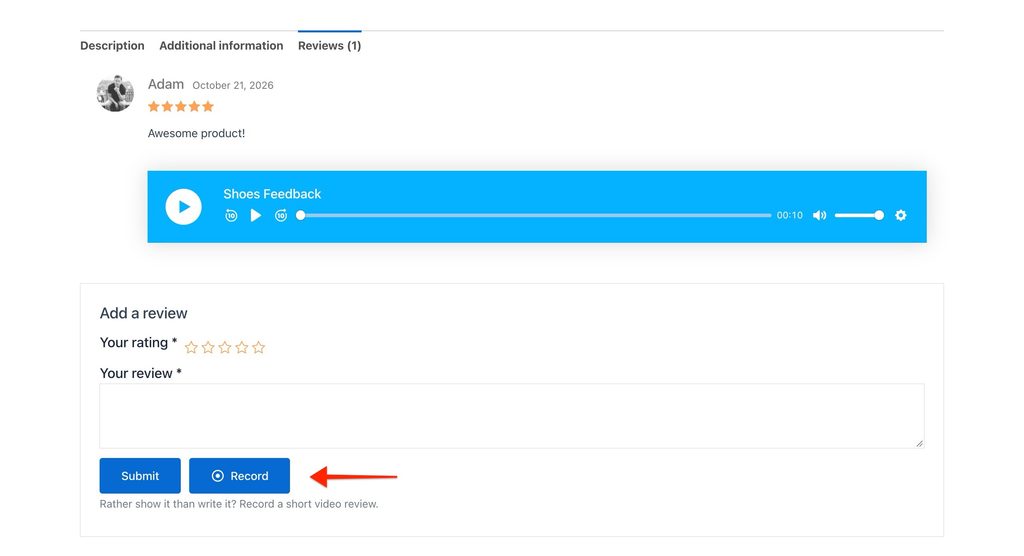
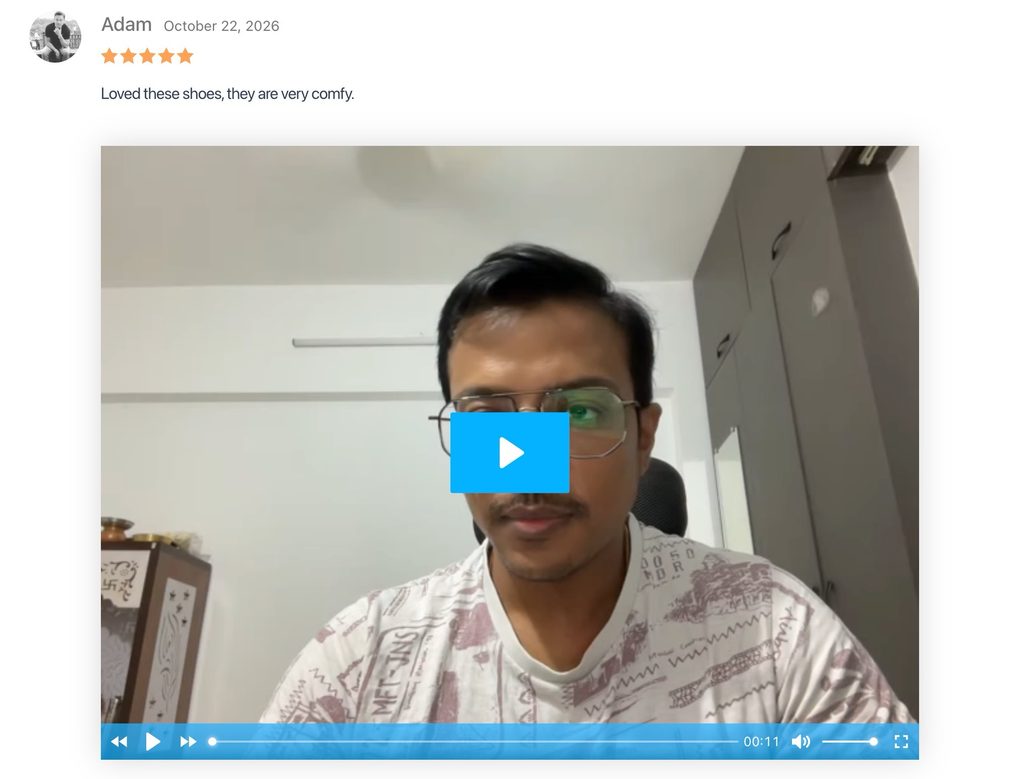
Once the review is approved, the video plays under it on the product page.
Find Video Reviews in Your Dashboard
- Go to Products > Reviews.
- Look at the Video column. Reviews with a video are marked there.
- Click to watch the video before you approve the review.
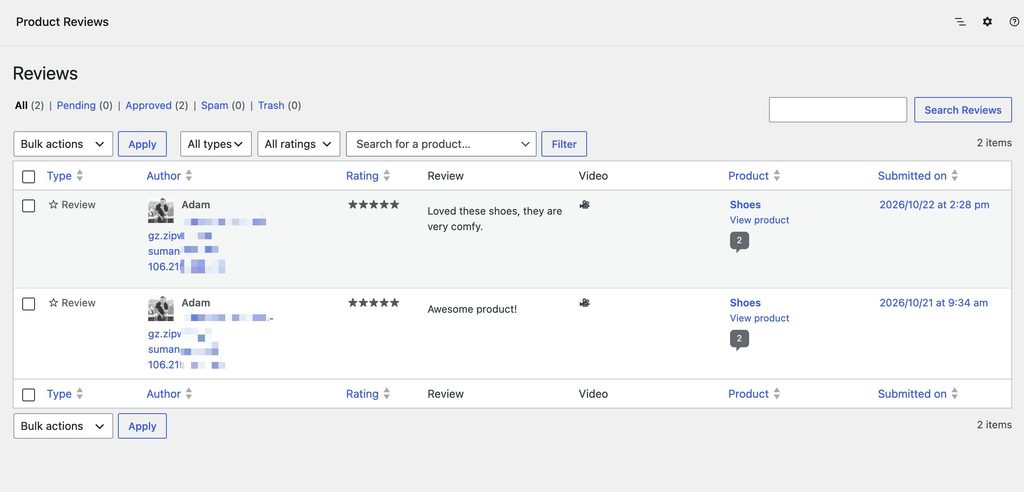
Good to Know
- Videos follow your review approval. Video reviews from customers always wait for approval, even if WooCommerce would normally approve their review on its own.
- Deleting a review keeps the video for now. It’s removed by the Cleanup setting after 30 days by default. To remove it straight away, delete it from Presto Capture > Recordings.
- Phones can record with the camera. Most shoppers will record on their phone, so camera works best for reviews.
Your product pages can now show video reviews. Ask a few happy customers to record one, so new shoppers see real examples from day one.
If you have any questions or need further help, feel free to reach out to our support team. We’re always happy to help!
We don't respond to the article feedback, we use it to improve our support content.