
TutorLMS
Presto Player integrates with TutorLMS using shortcodes. This guide walks you through the initial setup and how to add Presto Player videos to your TutorLMS courses and lessons.
Configure TutorLMS
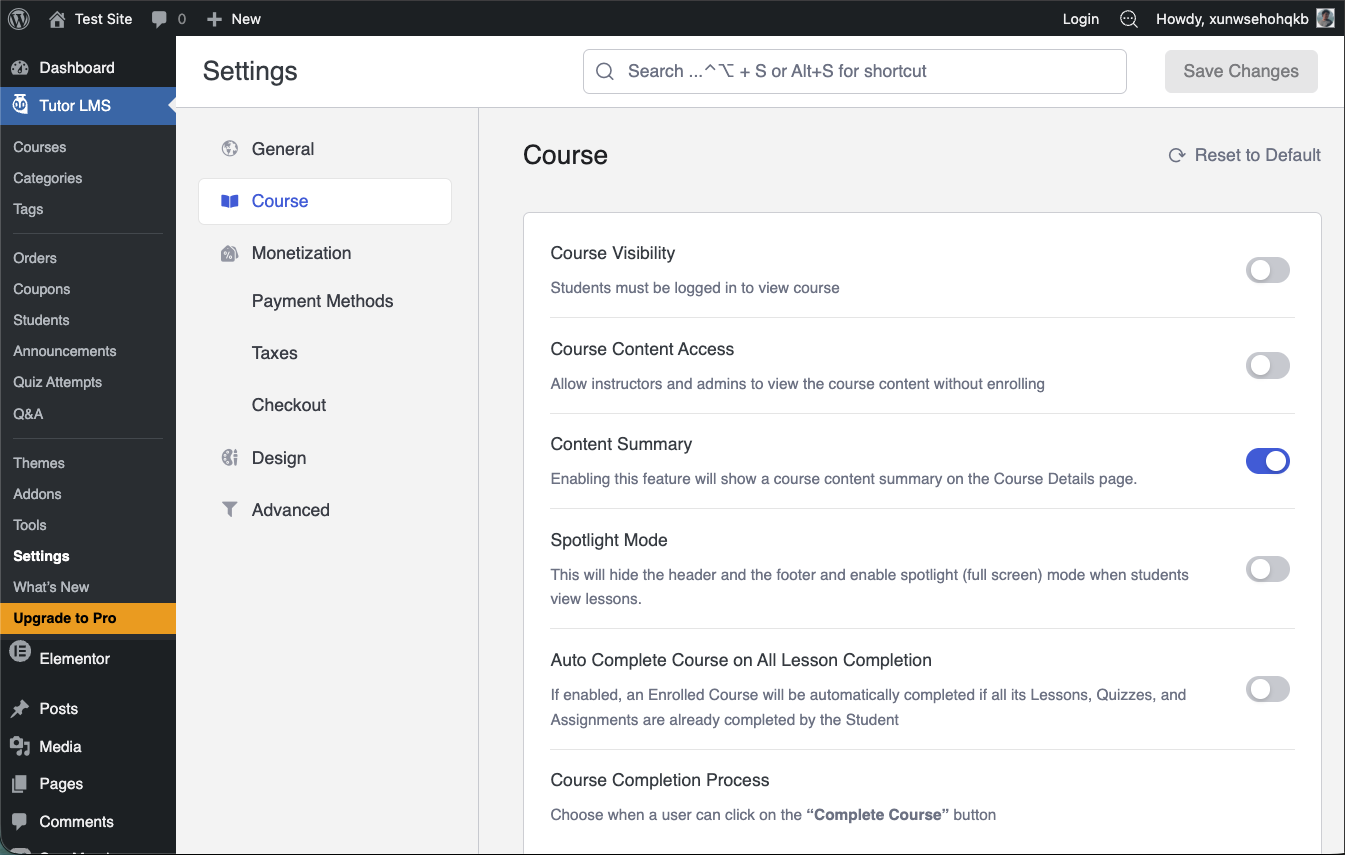
Step 1: In your WordPress dashboard, go to Tutor LMS > Settings and click the Course tab.
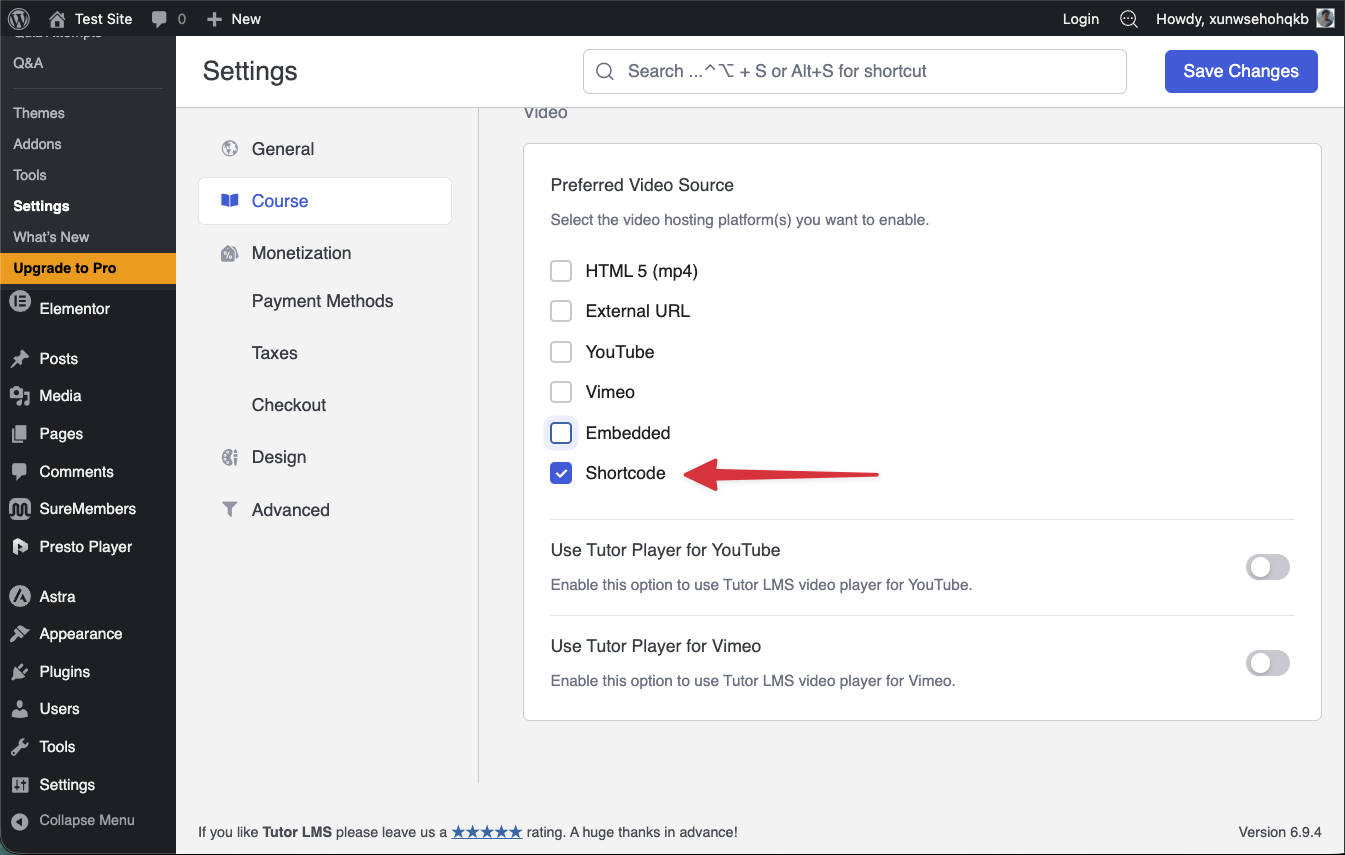
Step 2: Scroll down to Preferred Video Source and select Shortcode as the default video source.
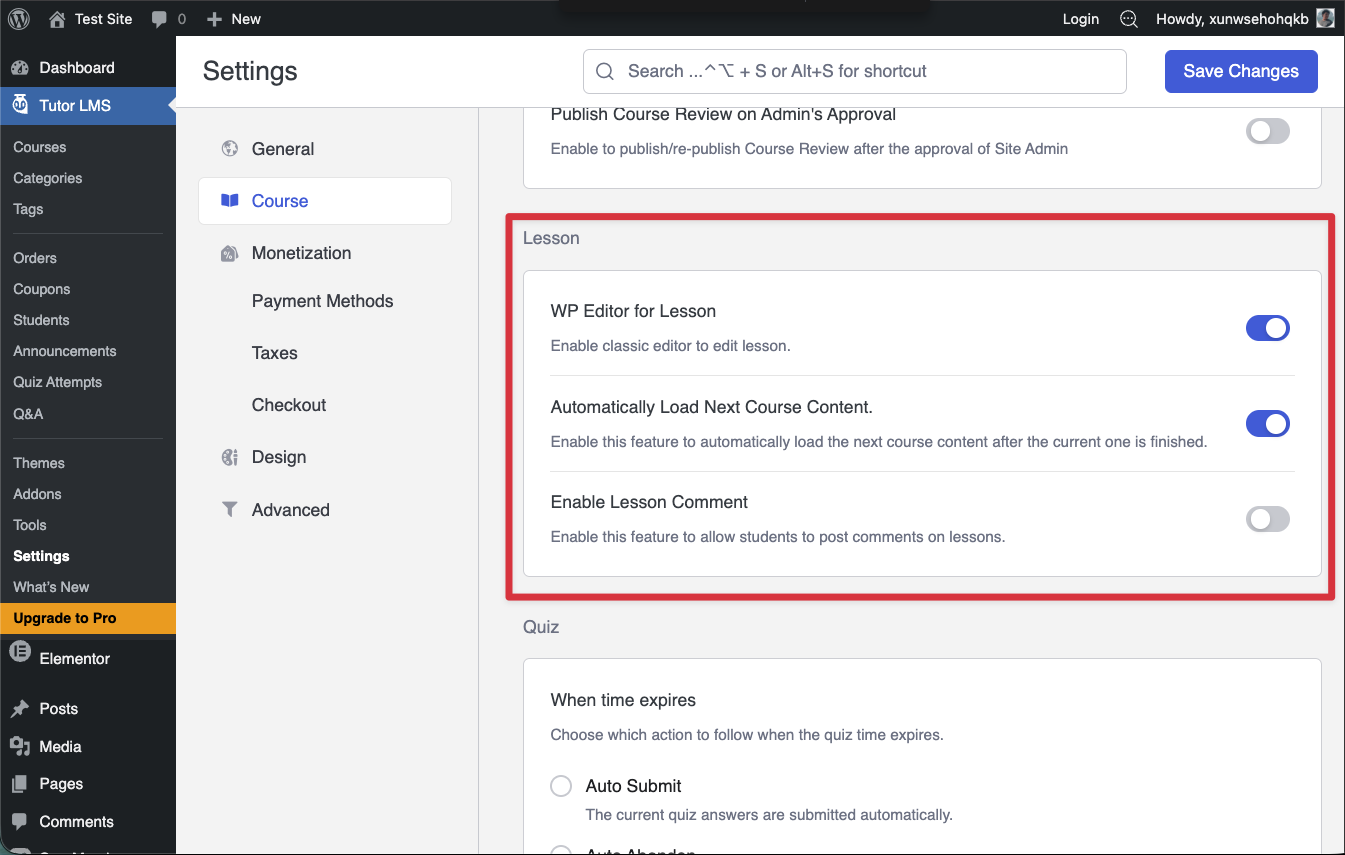
Step 3: Optionally, click the Lessons tab and enable Video Progression in the lesson settings.
Add Presto Player to a Course
Make sure Shortcode is selected as the preferred video source before following these steps.
Step 1: Add your video to the Presto Player Media Hub. Once added, you will get a shortcode for the video. If you need help with this, see this article on shortcodes.
Step 2: Copy the video shortcode from the Media Hub. Then go to Tutor LMS > Courses and open the course you want to edit.
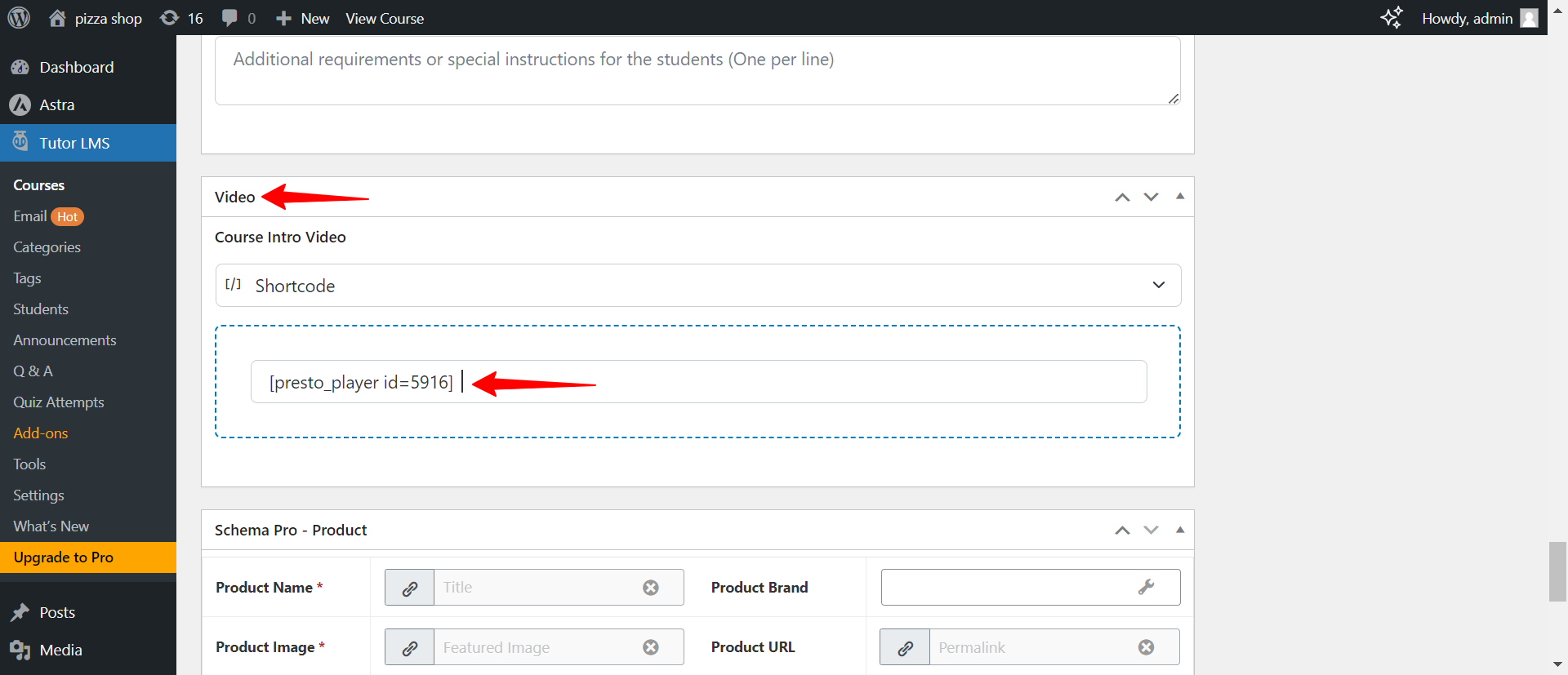
Step 3: Scroll down to the Video section. Select Shortcode from the dropdown, paste your shortcode, and click Update to save.
Add Presto Player to a Lesson
Step 1: Copy the video shortcode from the Media Hub. Then go to Tutor LMS > Courses and open the course that contains the lesson you want to edit.
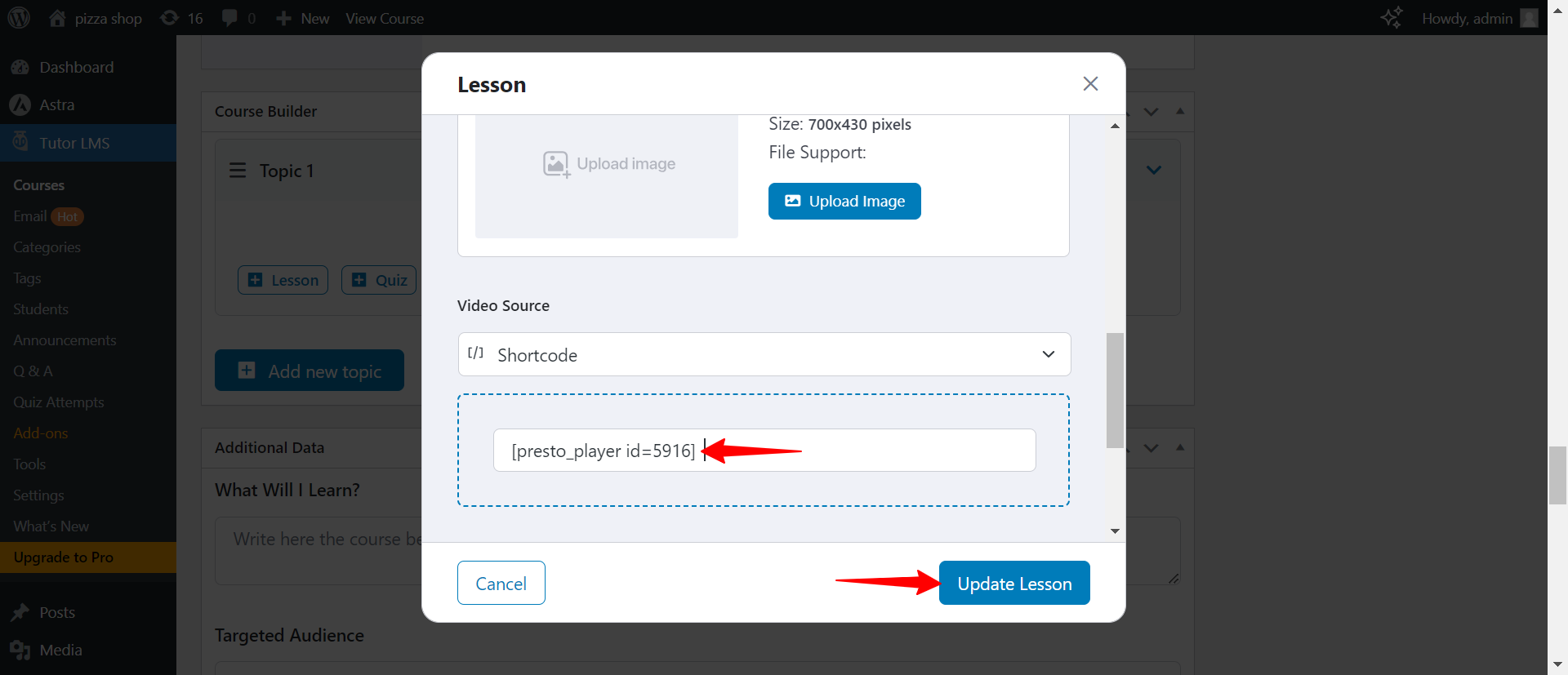
Step 2: Scroll down to the Course Builder section. Click on the topic, then click the lesson to open the lesson editor popup.
Step 3: In the lesson popup, scroll to Video Source and select Shortcode from the dropdown. Paste your shortcode, enter the video length, and click Update Lesson to save.
Conclusion
That’s all it takes to use Presto Player with TutorLMS. Once configured, you can add shortcode-based videos to any course or lesson across your site. If you run into any issues, feel free to reach out to our support team. We’re happy to help.
We don't respond to the article feedback, we use it to improve our support content.