
- How to Create a Presto Popup
- Video Presets
- Video Security
- Performance Preferences
- Video Settings
- Shortcodes
- Capture Emails
- Audio
- Video / Audio Timestamps
- Playlists
- How to Use Instant Video Pages in Presto Player
- Automatic Video Syncing
- Dynamic Watermark
- Video Presets
- Automatic Captions in Presto Player
- How to Use Video Presets in Presto Player – Layouts and Behavior
- How to Customize Video Presets – Settings and Layout Options
- How to Use Shortcodes in Presto Player
- How to Use Advanced Shortcodes and Timestamps
How to Add Timestamps to Videos – Presto Player
Timestamps, sometimes called jump links, let viewers jump to a specific time in a video or audio file instead of starting from the beginning. They are useful for long videos, tutorials, podcasts, or any content where viewers may want to skip directly to a section.
Timestamps work with both video and audio players.
How Timestamps Work
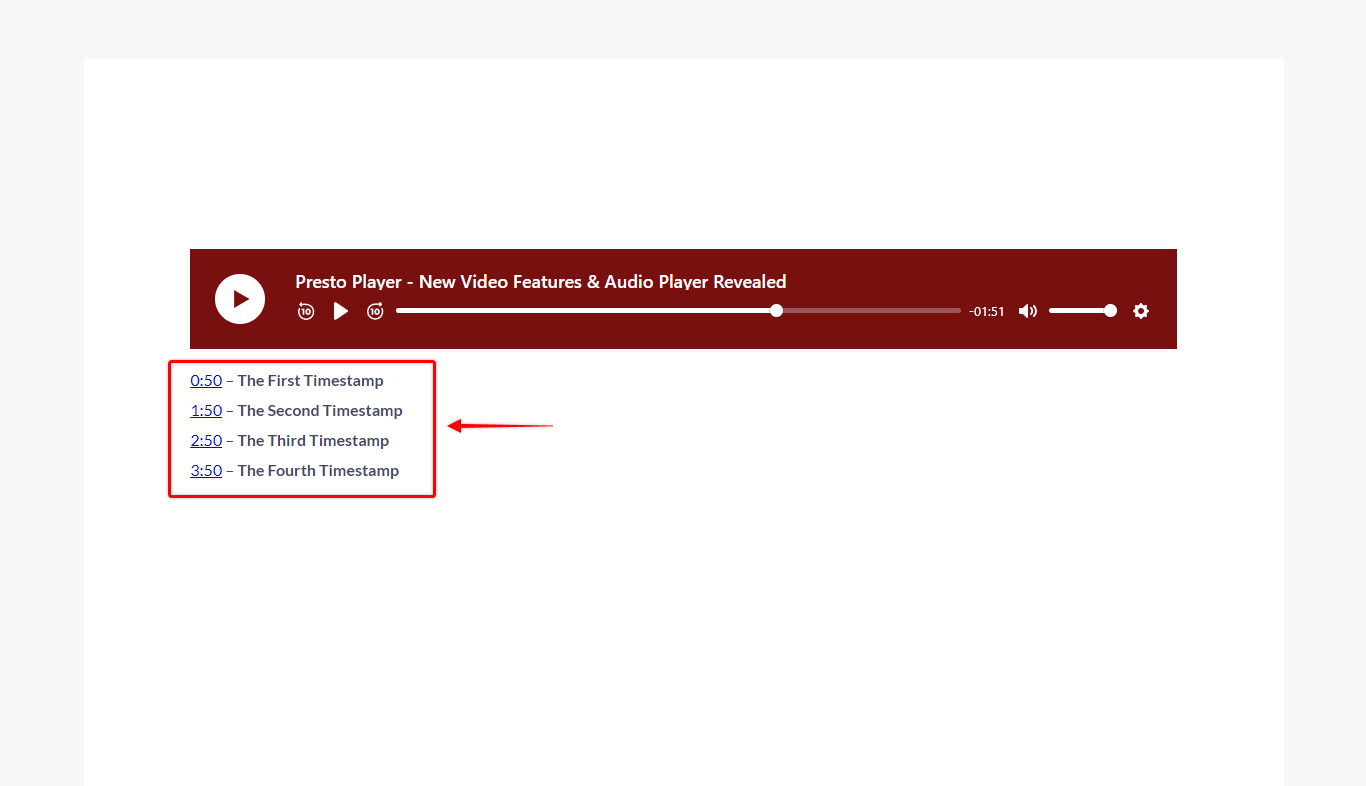
Each timestamp is a clickable text link added to your page content. When a viewer clicks a timestamp, the video or audio jumps to the time you set. You can add multiple timestamps to a page.
For best results, use timestamps on pages with a single video or audio player. If multiple players are on the same page, timestamps apply to the most recently interacted player, which can cause unexpected behavior.
How to Add Timestamps
To add timestamps using the block editor:
Step 1 – Edit your page or post.
Step 2 – Add your video or audio using the Presto Player block.
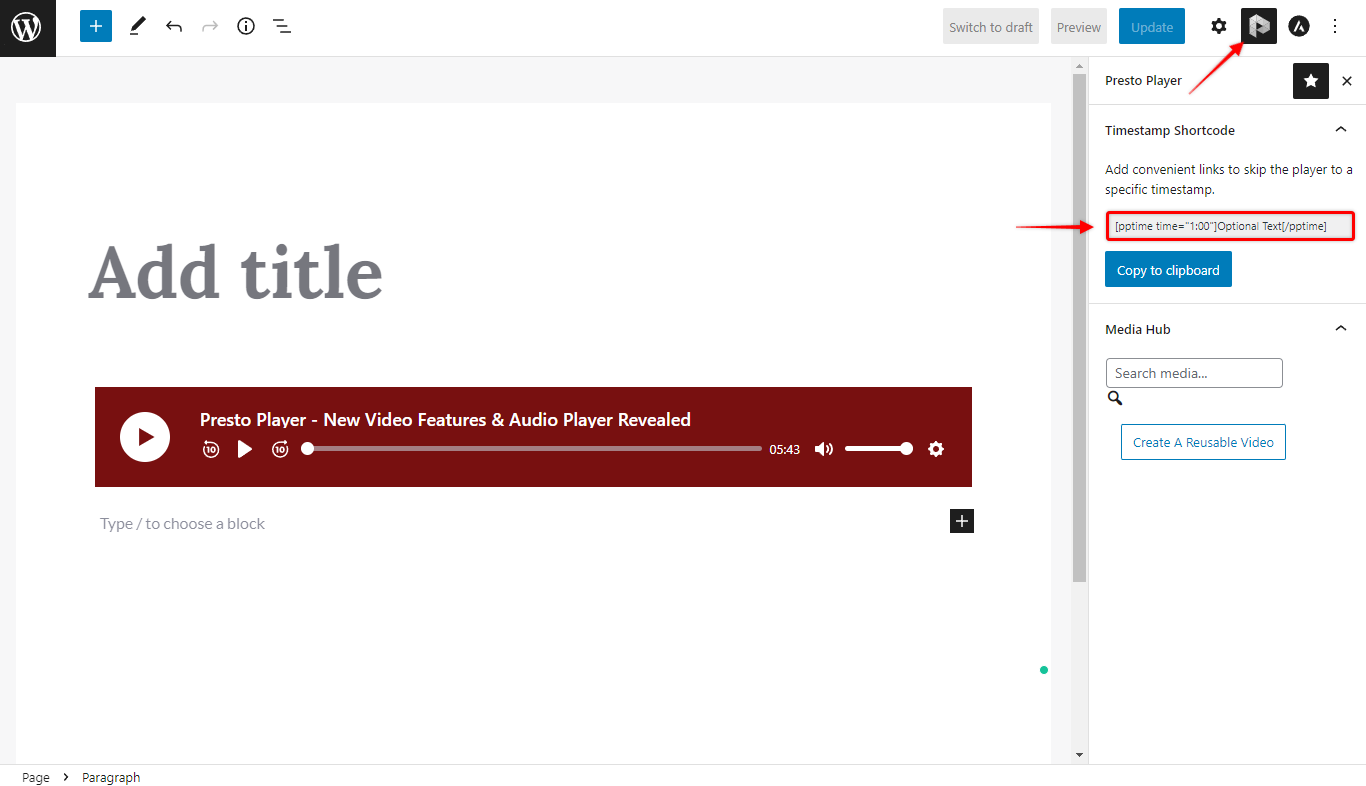
Step 3 – Click the Presto Player icon in the top-right corner to open the Presto Player panel.
Step 4 – Find the Timestamp Shortcode section and copy the shortcode.
Step 5 – Add a Paragraph block near your media.
Step 6 – Paste the shortcode into the paragraph.
Step 7 – Update the label text and change the time value to the point you want to link to, for example 0:50.
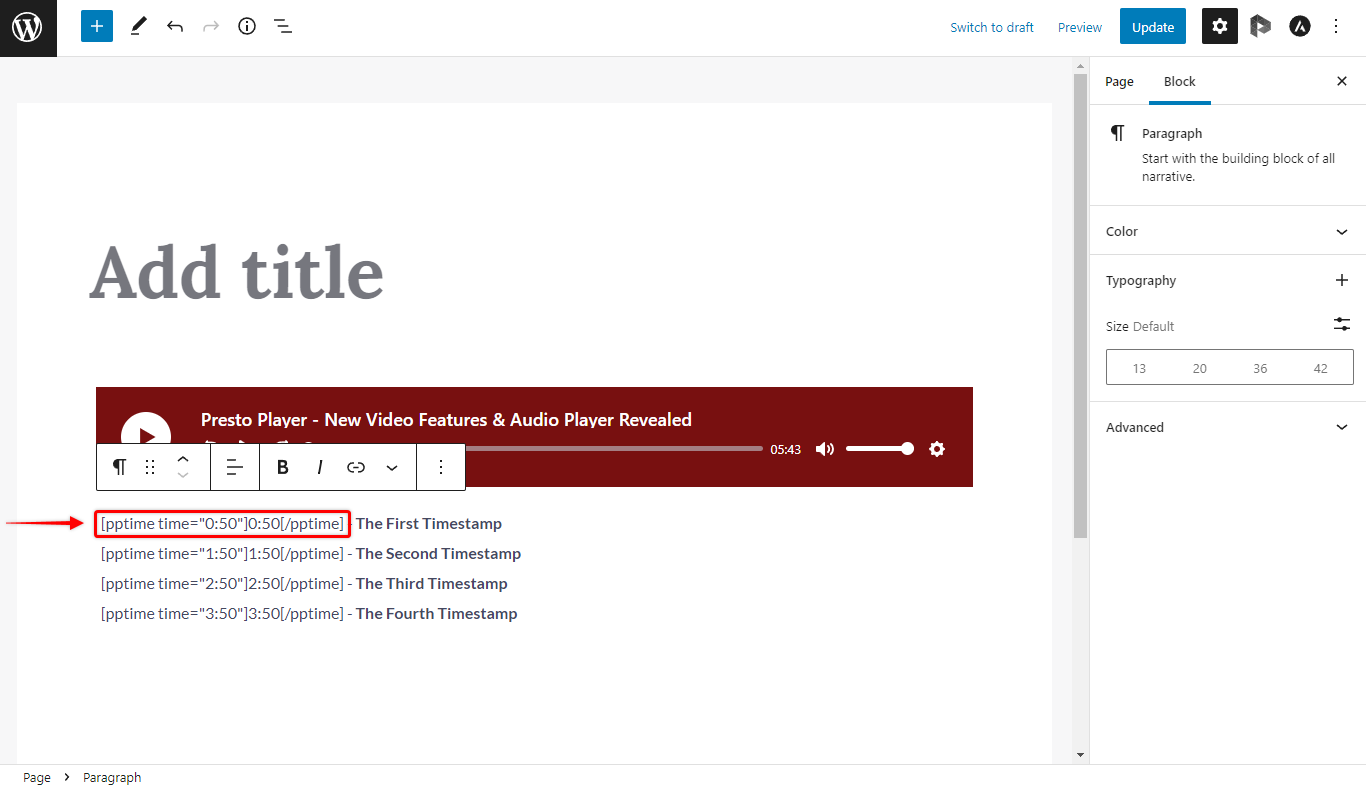
Step 8 – Repeat on new lines for additional timestamps.
Step 9 – Click Publish or Update to save your changes.
Important Notes
- Timestamps work best with one video or audio player per page.
- The media does not need to be playing for timestamps to work.
- Timestamps can be used with both videos and audio files.
Styling Timestamps
Timestamps are regular text links, so you can style them like any other text. You can:
- Change font size or color
- Place them inside tabs or accordions
- Use them inside text blocks from page builders like Elementor or Beaver Builder
When to Use Timestamps
Timestamps are helpful when you want to:
- Create a simple table of contents for a video
- Let viewers skip to key sections
- Improve usability for long-form content
Conclusion
Now your videos and audio are easier to navigate, giving viewers quick access to the sections they care about while keeping your content simple and easy to manage.
We don't respond to the article feedback, we use it to improve our support content.