
- How to Get Started with Presto Capture
- Why Presto Capture Needs HTTPS
- Presto Capture Block Settings
- Presto Capture Shortcode Reference
- How to Choose Where Recordings Are Saved in Presto Capture
- How to Control Who Can Record in Presto Capture
- How to Brand the Recorder in Presto Capture
- Understanding the Presto Capture Admin Panel
- How to Manage Recordings in Presto Capture
- How to Activate Your Presto Capture Licence
- Troubleshooting Presto Capture
- Privacy and Recordings in Presto Capture
- Presto Capture FAQ
- How to Add a Recording Field to SureForms with Presto Capture
- How to Add Video Replies to SureDash Discussions
- How to Collect Video Reviews in WooCommerce with Presto Capture
- Presto Capture for Developers: REST API and PHP Filters
- How to Allow Camera, Microphone, and Screen Access in Presto Capture
- How to Collect Video Reviews in SureCart with Presto Capture
Presto Capture Shortcode Reference
The Presto Capture shortcode lets you add a recorder anywhere a block can’t go. Use it with Elementor, Bricks, Beaver Builder, the Classic Editor, or any page builder that accepts shortcodes.
Applies to: Presto Capture 1.0.0 and above.
The Basic Shortcode
[presto_capture]Paste this on any page, and you get a recorder that uses your site defaults from Presto Capture > Settings.
How to Add the Shortcode
- Copy the shortcode [ presto_capture ].
- Open your page in your page builder or editor.
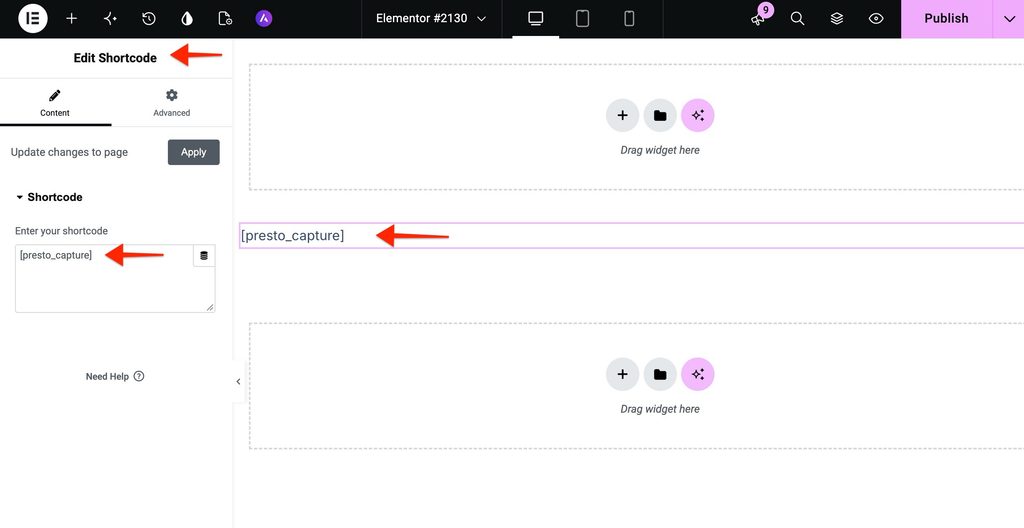
- Add a Shortcode element or block.
- Paste the shortcode into it.
- Save the page.
Tip: Need the shortcode for a recording you already have? Go to Presto Capture > Recordings and use Copy shortcode.
All Shortcode Options
Add any option inside the shortcode to change that one recorder. Any option you leave out uses your site setting.
| Option | What it sets | Values | Default |
| label | Button text | Any text | Site setting (Leave a Review) |
| duration | Maximum length in seconds | 5 or more. Use 0 for unlimited. | Site setting (60) |
| destination | Where the video is saved | bunny, self-hosted | Site setting (bunny) |
| privacy | Who can watch it | public, private | Site setting (public) |
| access | Who can record | anyone, logged-in | Site setting (anyone) |
| methods | What visitors can record | both, camera, screen | Site setting (both) |
| collection_id, collection_name | Bunny collection to save into | Collection ID or name | None |
| media_tags | Presto Player tags to add | Comma-separated tag names | Site default tags |
| accent_color | Panel accent colour | Hex colour, like #1e40af | Site setting |
| brand_name | Name in the panel header | Any text | Site setting |
| logo | Logo in the panel header | Media Library attachment ID | Site setting |
| font | Panel font | Font family name | Site setting |
| show_brand | Show or hide the brand header | true, false | Site setting |
| saved_title, saved_subtitle | Text after a successful save | Any text | Default copy |
Examples
A testimonial recorder, camera only, 90 seconds:
[presto_capture label="Record a Testimonial" methods="camera" duration="90" media_tags="Testimonial"]A private support recorder for logged-in users, screen only, saved to your Media Library:
[presto_capture label="Show Us the Problem" methods="screen" access="logged-in" privacy="private" destination="self-hosted"]A recorder with your own thank-you message:
[presto_capture saved_title="Thank you!" saved_subtitle="We got your video and will watch it soon."]With these options, one shortcode can fit any page on your site.
If you have any questions or need further help, feel free to reach out to our support team. We’re always happy to help!
We don't respond to the article feedback, we use it to improve our support content.