
- How to Get Started with Presto Capture
- Why Presto Capture Needs HTTPS
- Presto Capture Block Settings
- Presto Capture Shortcode Reference
- How to Choose Where Recordings Are Saved in Presto Capture
- How to Control Who Can Record in Presto Capture
- How to Brand the Recorder in Presto Capture
- Understanding the Presto Capture Admin Panel
- How to Manage Recordings in Presto Capture
- How to Activate Your Presto Capture Licence
- Troubleshooting Presto Capture
- Privacy and Recordings in Presto Capture
- Presto Capture FAQ
- How to Add a Recording Field to SureForms with Presto Capture
- How to Add Video Replies to SureDash Discussions
- How to Collect Video Reviews in WooCommerce with Presto Capture
- Presto Capture for Developers: REST API and PHP Filters
- How to Allow Camera, Microphone, and Screen Access in Presto Capture
- How to Collect Video Reviews in SureCart with Presto Capture
Troubleshooting Presto Capture
Most Presto Capture problems come from a few common causes, and each one has a quick fix. Find the problem you’re seeing below and follow the steps. Every error in the recorder also shows a plain message telling you what went wrong.
Applies to: Presto Capture 1.0.0 and above.
Saves Fail for Logged-Out Visitors, Only Sometimes
Why it happens: A full-page cache is serving an old upload token. The recorder opens and records fine, then the save fails. You can’t see it as an admin, because logged-in visits skip the cache.
How to fix it:
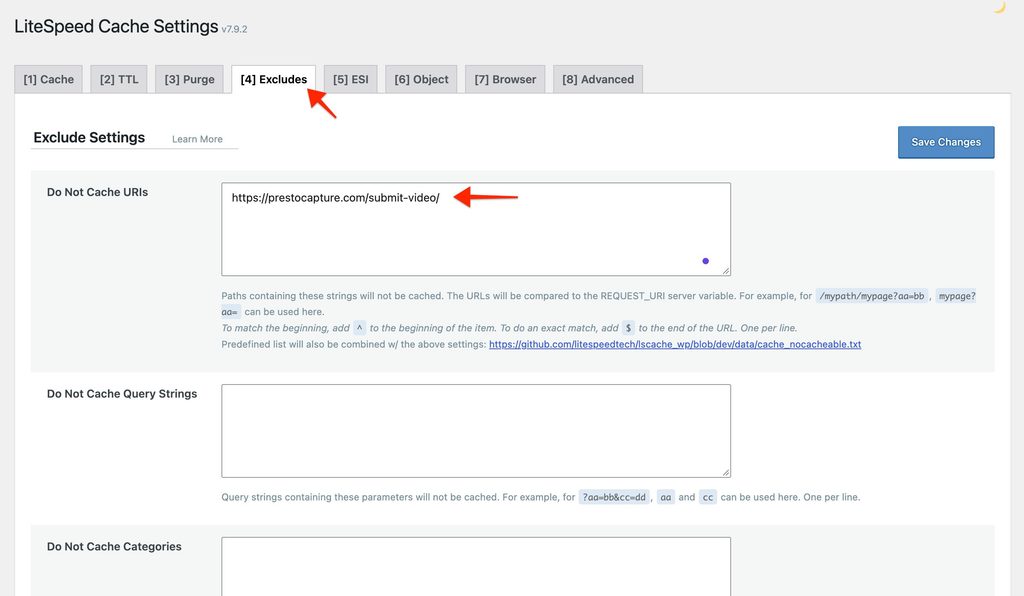
- Open your caching plugin or host cache settings. For example, WP Rocket, LiteSpeed Cache, Cloudflare APO or your host’s edge cache.
- Find the option to exclude pages from the cache.
- Add the address of every page that has a recorder.
- Save and clear the cache.
Note: Recorders set to logged-in users only are not affected.
The Record Button Is Disabled
Why it happens: The page is loading over plain HTTP. Browsers only allow camera and screen access on HTTPS.
How to fix it: Move your site to HTTPS. See the article Why Presto Capture Needs HTTPS.
Bunny.net Destination Won’t Save
Why it happens: Saving to Bunny.net Stream needs Presto Player Pro with a Bunny.net Stream library connected.
How to fix it:
- Check that Presto Player Pro is active.
- Connect your Bunny.net Stream library in Presto Player’s settings.
- Try the recording again.
Media Library Upload Is Refused
Why it happens: The video is bigger than your server’s upload limit, or bigger than the ceiling in Presto Capture Settings.
How to fix it:
- Lower the maximum length on the block, or
- Raise the self-hosted upload ceiling in Presto Capture > Settings, or
- Ask your host to raise the server upload limit, or
- Switch that recorder to Bunny.net Stream.
A Private Recording Was Saved as Public
Why it happens: Your Presto Player version can’t move the file to its protected folder. Presto Capture saves it as public and tells you so.
How to fix it: Update Presto Player to the latest version, then record again.
No Screen Share Option on Phones
Why it happens: Mobile browsers don’t allow screen recording. Only the Camera option shows on phones.
How to fix it: This is expected. Visitors who need to record their screen should use a computer.
“Upload Limit Reached” Message
Why it happens: Logged-out visitors can upload 10 videos per hour. Logged-in users can upload 60. Lots of re-records, or a form with several video questions, can reach the limit.
How to fix it: Wait an hour, or ask your developer to raise the limit. See How to Control Who Can Record in Presto Capture.
Changed a Setting but the Page Didn’t Change
Why it happens: Settings only apply to new blocks. Blocks already on your pages keep their own settings.
How to fix it: Open the page, select the block, and change the setting in the block sidebar.
Recordings Show as “Guest”
Why it happens: The visitor wasn’t logged in, so there is no account to link the video to. This is expected.
An Editor Can’t Change Settings
Why it happens: Only Administrators can change Presto Capture Settings. Editors can see the Dashboard and Recordings.
Deleted a Form Entry or Comment but the Video Is Still There
Why it happens: Deleting an entry or a comment never deletes the video. This keeps you from losing videos by accident.
How to fix it: Delete the video from Presto Capture > Recordings.
These fixes cover the issues we see most often. If something else is going on, we’re here for you.
If you have any questions or need further help, feel free to reach out to our support team. We’re always happy to help!
We don't respond to the article feedback, we use it to improve our support content.