
- How to Get Started with Presto Capture
- Why Presto Capture Needs HTTPS
- Presto Capture Block Settings
- Presto Capture Shortcode Reference
- How to Choose Where Recordings Are Saved in Presto Capture
- How to Control Who Can Record in Presto Capture
- How to Brand the Recorder in Presto Capture
- Understanding the Presto Capture Admin Panel
- How to Manage Recordings in Presto Capture
- How to Activate Your Presto Capture Licence
- Troubleshooting Presto Capture
- Privacy and Recordings in Presto Capture
- Presto Capture FAQ
- How to Add a Recording Field to SureForms with Presto Capture
- How to Add Video Replies to SureDash Discussions
- How to Collect Video Reviews in WooCommerce with Presto Capture
- Presto Capture for Developers: REST API and PHP Filters
- How to Allow Camera, Microphone, and Screen Access in Presto Capture
- How to Collect Video Reviews in SureCart with Presto Capture
How to Collect Video Reviews in WooCommerce with Presto Capture
Shoppers trust other shoppers, and a short video says more than five stars and a line of text. Presto Capture adds a record button beside the WooCommerce product review form. Customers record their review, and the video plays right under it on your product page.
Applies to: Presto Capture 1.0.0 and above.
Before You Begin
- Presto Capture active, with your licence key added.
- WooCommerce installed and active.
- Product reviews turned on in WooCommerce > Settings > Products.
- Your site running on HTTPS.
Turn On Video Reviews
- Go to Presto Capture > Settings.
- Open the WooCommerce settings.
- Turn on video reviews.
- Click Save.
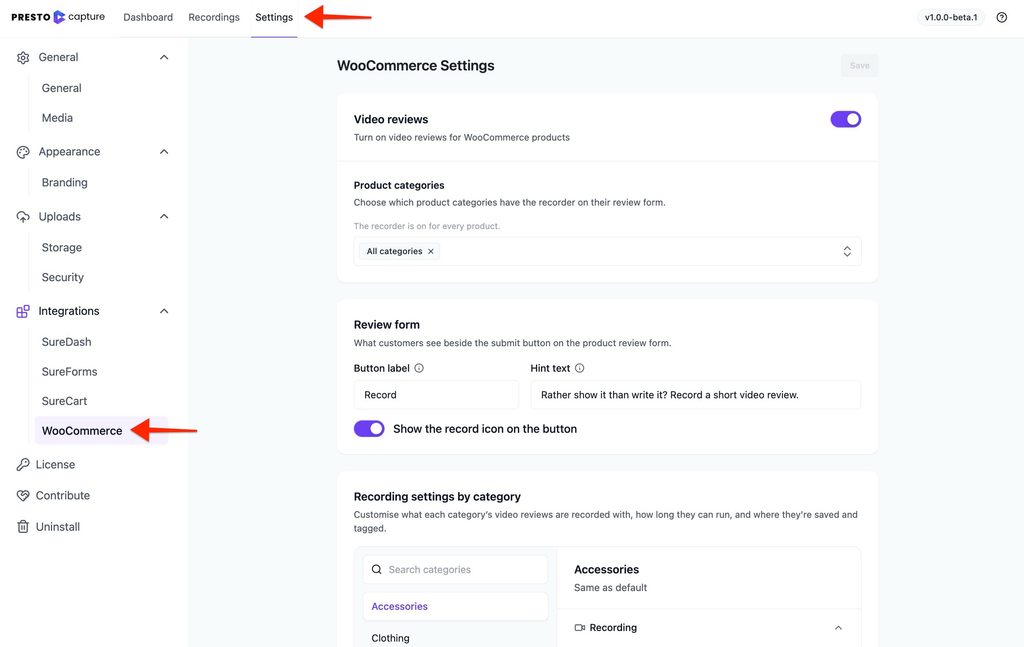
Video Review Settings
| Setting | What it does |
| Button label | The text on the record button. |
| Hint text | A short line under the button, for example “Show us how you use it”. |
| Who can record | Anyone, or logged-in customers only. |
| Product categories | Show the record button only on products in the categories you pick. |
| Recording methods | Camera, screen, or both. |
| Maximum length | How long a video review can be. |
| Destination | Save to Bunny.net Stream or your WordPress Media Library. |
| Bunny collection | The Bunny collection that video reviews go into. |
| Media tags | Presto Player tags added to every video review. |
Tip: Start with the categories where seeing the product in use matters most, like clothing, gadgets or kitchen tools.
What Customers See
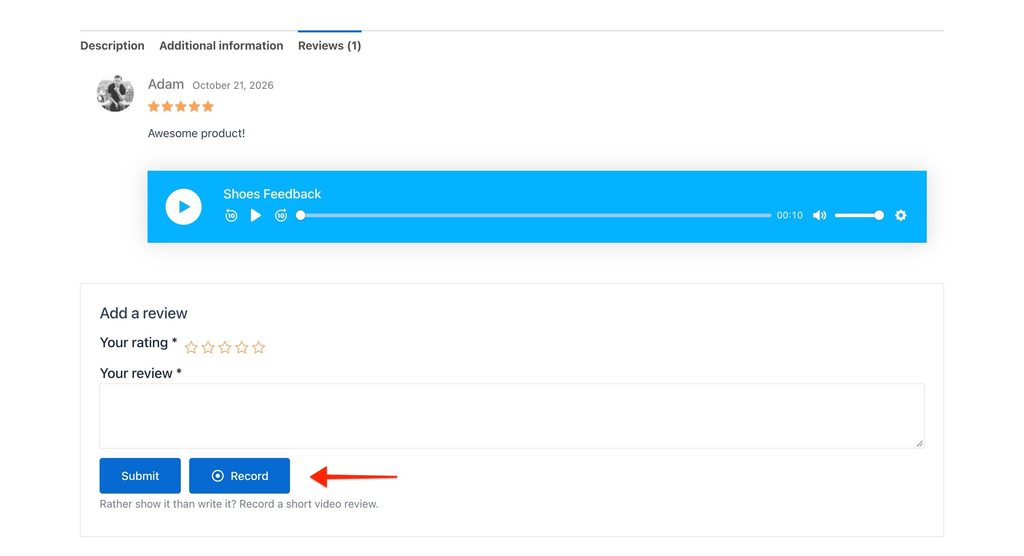
A record button shows beside the review form on your product pages. The customer writes their review, records a video, watches it back, and submits.
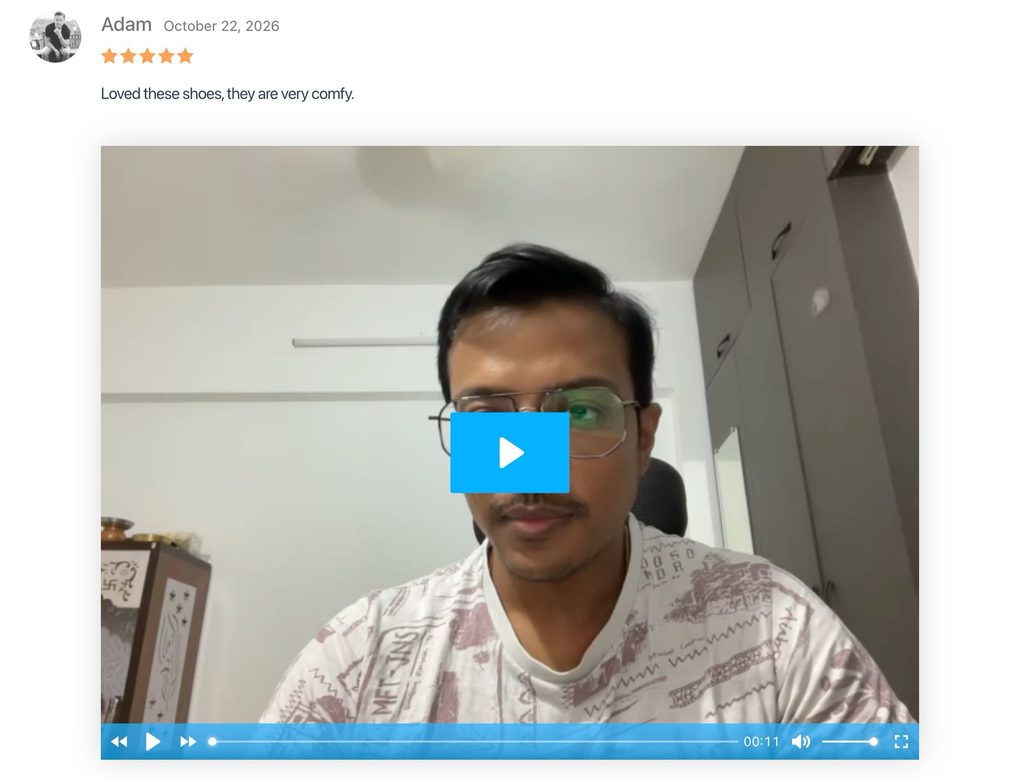
Once the review is approved, the video plays under it on the product page.
Find Video Reviews in Your Dashboard
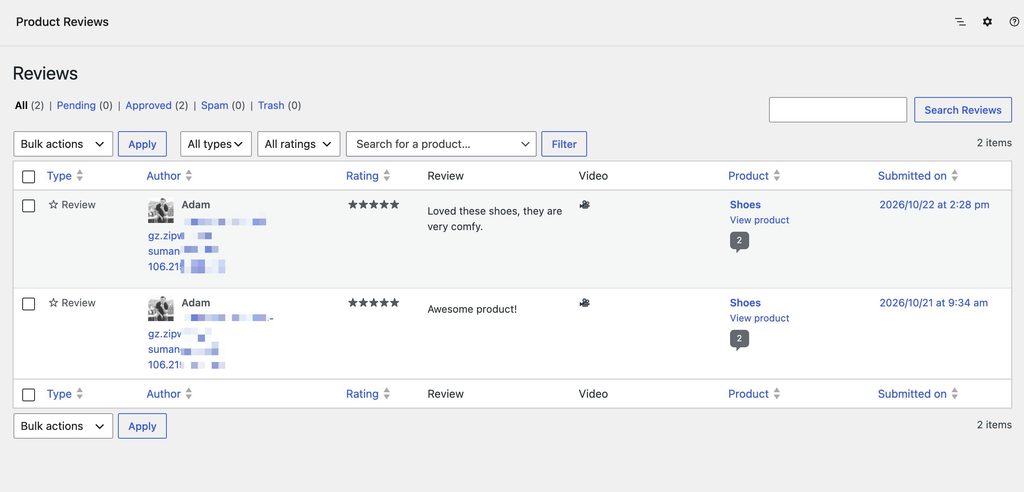
- Go to Products > Reviews.
- Look at the Video column. Reviews with a video are marked there.
- Click to watch the video before you approve the review.
Good to Know
- Videos follow your review approval. If you hold reviews for approval, the video only shows once you approve the review.
- Deleting a review keeps the video. To remove the video too, delete it from Presto Capture > Recordings.
- Phones can record with the camera. Most shoppers will record on their phone, so camera works best for reviews.
- Caching plugins. If anyone can record, exclude your product pages from full-page caching, or saves may fail for logged-out shoppers. See Troubleshooting Presto Capture.
Your product pages can now show video reviews. Ask a few happy customers to record one, so new shoppers see real examples from day one.
If you have any questions or need further help, feel free to reach out to our support team. We’re always happy to help!
We don't respond to the article feedback, we use it to improve our support content.