
- How to Get Started with Presto Capture
- Why Presto Capture Needs HTTPS
- Presto Capture Block Settings
- Presto Capture Shortcode Reference
- How to Choose Where Recordings Are Saved in Presto Capture
- How to Control Who Can Record in Presto Capture
- How to Brand the Recorder in Presto Capture
- Understanding the Presto Capture Admin Panel
- How to Manage Recordings in Presto Capture
- How to Activate Your Presto Capture Licence
- Troubleshooting Presto Capture
- Privacy and Recordings in Presto Capture
- Presto Capture FAQ
- How to Add a Recording Field to SureForms with Presto Capture
- How to Add Video Replies to SureDash Discussions
- How to Collect Video Reviews in WooCommerce with Presto Capture
- Presto Capture for Developers: REST API and PHP Filters
- How to Allow Camera, Microphone, and Screen Access in Presto Capture
- How to Collect Video Reviews in SureCart with Presto Capture
How to Allow Camera, Microphone, and Screen Access in Presto Capture
Presto Capture records right in the browser. To do that, two things need to say yes: your browser needs to allow the website, and your computer needs to allow the browser. If either one says no, the recorder shows a message and a Having trouble? link that brings you to this page.
Most fixes take less than a minute. Find the message you’re seeing below and follow the steps.
Applies to: Presto Capture 1.0.0 and above.
Find Your Message
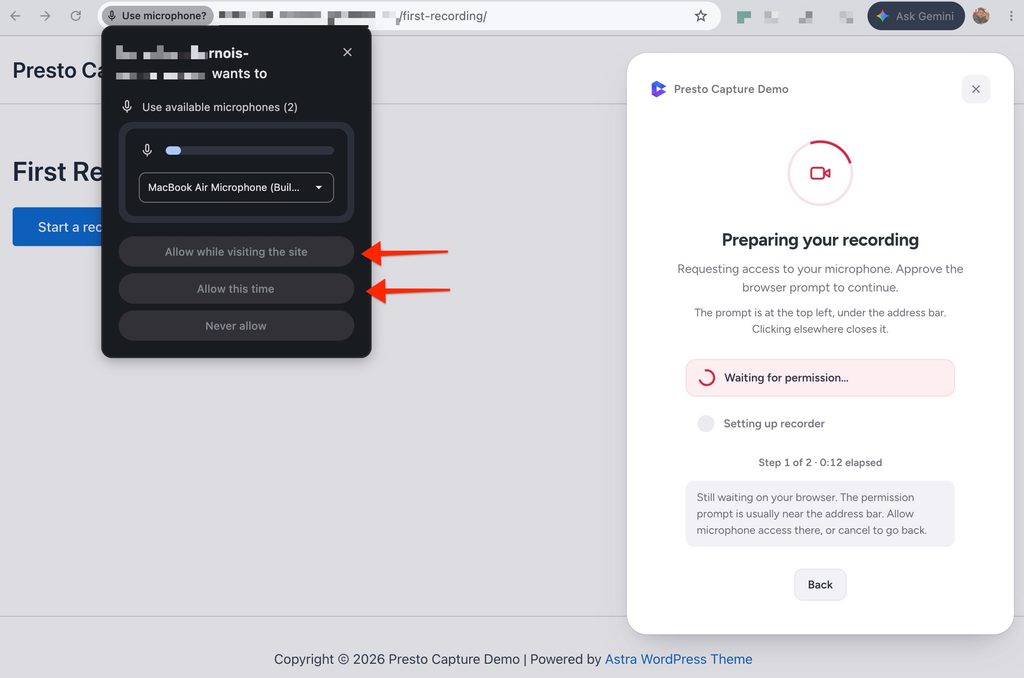
- Still waiting for permission: The browser is asking, but nobody has answered yet. See Answer the Browser Prompt.
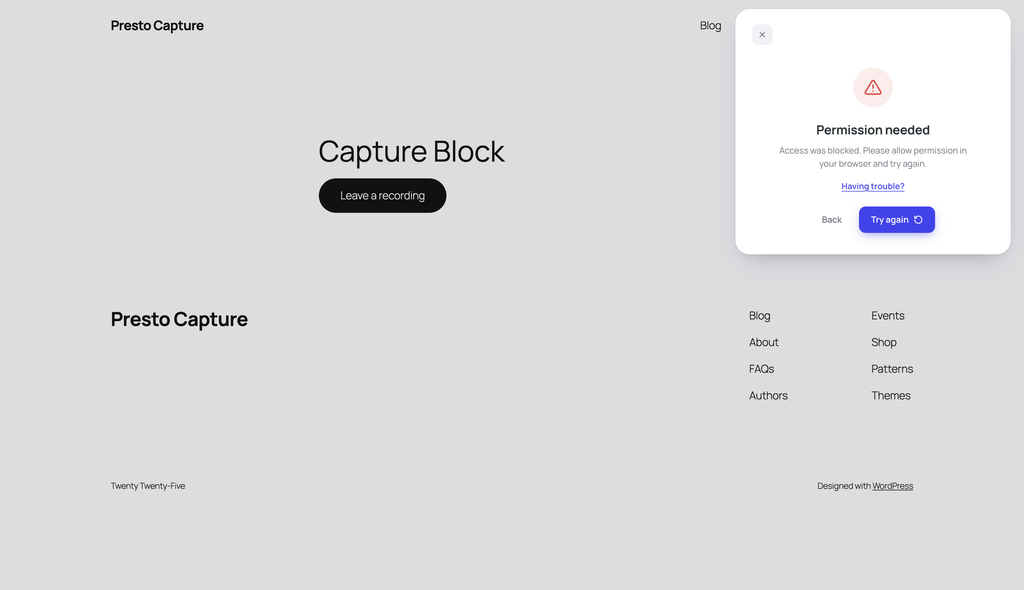
- Permission needed: The browser blocked this website. See Allow the Website in Your Browser.
- Your Mac is blocking access: macOS blocked your browser. See Allow Your Browser on a Mac.
- Windows is blocking access: Windows blocked your browser. See Allow Your Browser on Windows.
Answer the Browser Prompt
Message: Still waiting for permission
Why it happens: The browser asked for access, but nobody chose Allow yet. The prompt is small and easy to miss, especially if you switched to another tab or window.
How to fix it:
- Look at the top of your browser window, near the address bar.
- Chrome and Edge: just below the address bar, on the left.
- Firefox: a panel that drops down from the left of the address bar.
- Safari: a box under the address bar, in the middle.
- Click Allow. In Chrome you may see Allow while visiting the site or Allow this time. Either one works.
- Reload the page and click the record button again if you can’t find the prompt. A fresh prompt will appear.
Tip: When recording your screen, the browser shows a picker instead of a prompt. Choose a screen, window or tab, then click Share.
Allow the Website in Your Browser
Message: Permission needed
Why it happens: Someone clicked Block on the browser prompt, now or on an earlier visit. The browser remembers that choice for this website and blocks access without asking again.
How to fix it: Change the website’s permission back to Allow, then reload the page. Pick your browser below.
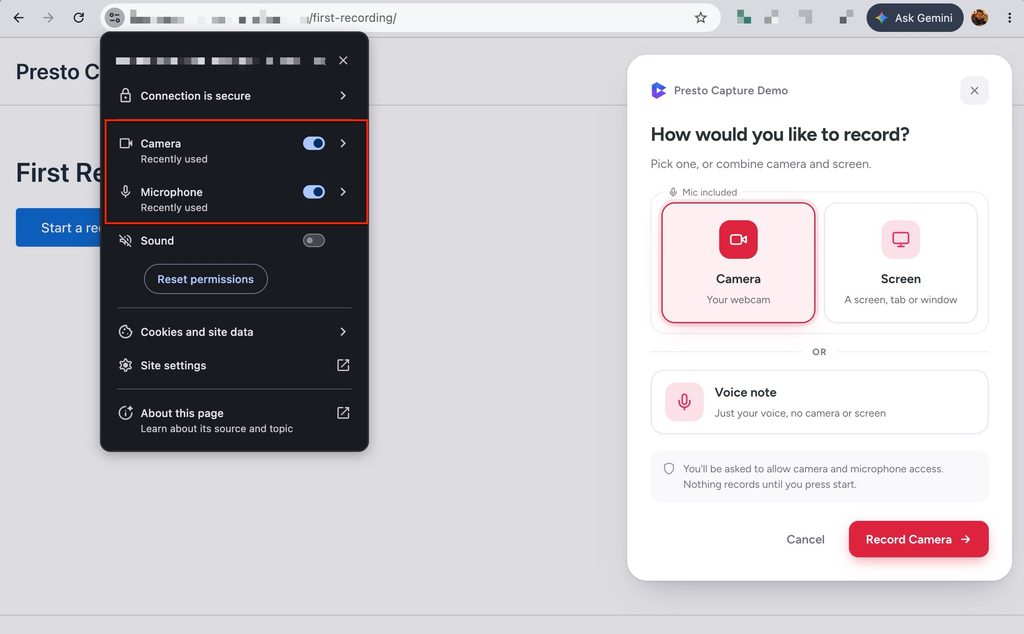
Chrome
- Click the View site information icon on the left of the address bar.
- Turn on Camera and Microphone.
- Click Site settings and set Camera and Microphone to Allow, if you don’t see them in the panel.
- Reload the page and try again.
Edge
- Click the View site information (lock) icon on the left of the address bar.
- Click Permissions for this site.
- Set Camera and Microphone to Allow.
- Reload the page and try again.
Firefox
- Click the crossed-out camera or microphone icon in the address bar.
- Click the X next to Blocked to clear it.
- Reload the page and click Allow when Firefox asks.
Safari (Mac)
- Click Safari > Settings for [this website] in the menu bar, with the page open.
- Set Camera, Microphone and Screen Sharing to Allow or Ask.
- Reload the page and try again.
Note: Screen sharing works differently. Chrome, Edge and Firefox don’t save a screen sharing permission, so they ask every time. If screen sharing is still blocked after you allowed it, the block is coming from your computer. See the Mac or Windows section below.
Allow Your Browser on a Mac
Message: Your Mac is blocking access
Why it happens: macOS has its own privacy settings, separate from the browser. Even when the browser allows the website, macOS can stop the browser itself from using the camera, microphone or screen.
How to fix it:
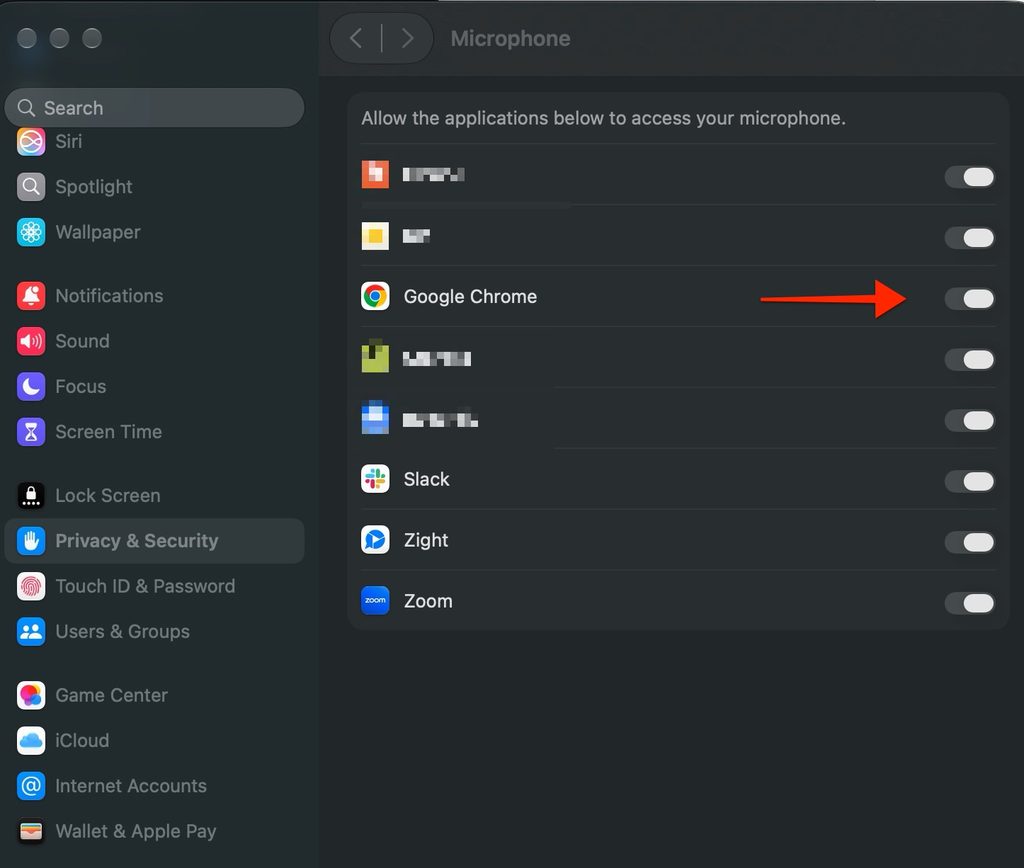
- Go to Apple menu > System Settings > Privacy & Security.
- Click Camera and turn on your browser (for example, Google Chrome).
- Go back, click Microphone and turn on your browser.
- Go back, click Screen & System Audio Recording and turn on your browser, if you’re recording your screen. On older macOS versions this is called Screen Recording.
- Quit your browser completely (Cmd + Q) and open it again. macOS only applies the change after a restart. If macOS offers Quit & Reopen, click it.
- Go back to the page and try again.
Note: On macOS Monterey and older, go to System Preferences > Security & Privacy > Privacy. You may need to click the lock icon and enter your Mac password to make changes.
Allow Your Browser on Windows
Message: Windows is blocking access
Why it happens: Windows has its own privacy settings that can stop every app, including your browser, from using the camera or microphone.
How to fix it:
- Go to Start > Settings > Privacy & security > Camera.
- Turn on Camera access, Let apps access your camera and Let desktop apps access your camera.
- Go back to Privacy & security, click Microphone and turn on the same three options.
- Close your browser completely and open it again.
- Go back to the page and try again.
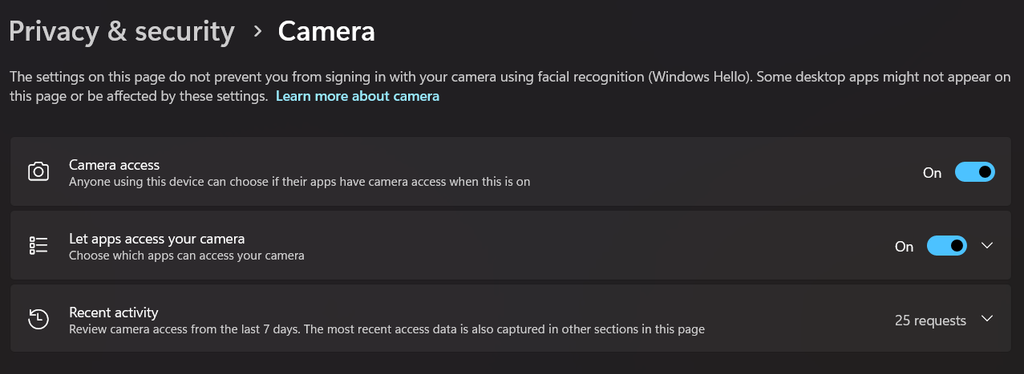
Note: On Windows 10, go to Settings > Privacy, then Camera and Microphone in the left menu.
Recording on a Phone or Tablet
On phones and tablets, the recorder offers the camera only. Screen recording needs a computer.
iPhone and iPad
- Tap the page menu icon in the Safari address bar, then tap Website Settings.
- Set Camera and Microphone to Allow or Ask.
- Open Settings > Apps > Safari (or Settings > Safari on older iOS) and set Camera and Microphone to Ask or Allow, if it’s still blocked.
- Open Settings > Apps > Chrome and turn on Camera and Microphone, if you’re using Chrome.
- Reload the page and try again.
Android
- Tap the icon on the left of the Chrome address bar, then tap Permissions.
- Allow Camera and Microphone.
- Open your phone’s Settings > Apps > Chrome > Permissions and allow Camera and Microphone if it’s still blocked.
- Reload the page and try again.
Still Not Working?
Try these quick checks:
- Close other apps that may be using your camera or microphone, such as Zoom, Teams, Google Meet, or FaceTime.
- Check the address. The page must start with
https://. See Why Presto Capture Needs HTTPS. - Update your browser to the latest version.
- Try another browser, such as Chrome or Edge, to see if the problem is with one browser only.
- Ask your IT team if you’re on a work or school computer. They may block the camera, microphone, or screen recording, and can allow it for your browser.
For other recorder errors, see the Troubleshooting Presto Capture article.
If you have any questions or need further help, feel free to reach out to our support team. We’re always happy to help!
We don't respond to the article feedback, we use it to improve our support content.