
- How to Set Rate Limits and Upload Security in Presto Capture
- How to Get Started with Presto Capture
- Why Presto Capture Needs HTTPS
- Presto Capture Block Settings
- Presto Capture Shortcode Reference
- How to Choose Where Recordings Are Saved in Presto Capture
- How to Control Who Can Record in Presto Capture
- How to Brand the Recorder in Presto Capture
- Understanding the Presto Capture Admin Panel
- How to Manage Recordings in Presto Capture
- How to Activate Your Presto Capture Licence
- Troubleshooting Presto Capture
- Privacy and Recordings in Presto Capture
- Presto Capture FAQ
- How to Add a Recording Field to SureForms with Presto Capture
- How to Add Video Replies to SureDash Discussions
- How to Collect Video Reviews in WooCommerce with Presto Capture
- Presto Capture for Developers: REST API and PHP Filters
- How to Allow Camera, Microphone, and Screen Access in Presto Capture
- How to Collect Video Reviews in SureCart with Presto Capture
- Understanding Trust Tiers in Presto Capture
- How to Approve, Reject and Block Recordings in Presto Capture
- How to Clean Up Unused Recordings in Presto Capture
- How to Protect Private Recordings on NGINX in Presto Capture
- What Happens When You Uninstall Presto Capture
How to Clean Up Unused Recordings in Presto Capture
Integrations upload a recording before its review, reply, or form entry is posted. If someone records and then walks away, that recording is left with nothing to belong to. Presto Capture can delete these unused recordings for you, so they don’t fill up your Media Hub or your storage.
Applies to: Presto Capture 1.0.0 and above.
What Counts as Unused
- A recording whose review, reply, or form entry was never posted.
- A recording whose review, reply, or entry was later trashed, marked as spam, or deleted.
Recordings waiting for your approval are never treated as unused.
Turn On Automatic Cleanup
- Go to Presto Capture > Settings > General.
- Find the Cleanup section.
- Turn on Auto-delete unused recordings.
- Choose how long to wait in Delete after, from 1 to 365 days. The default is 30 days.
- Click Save.
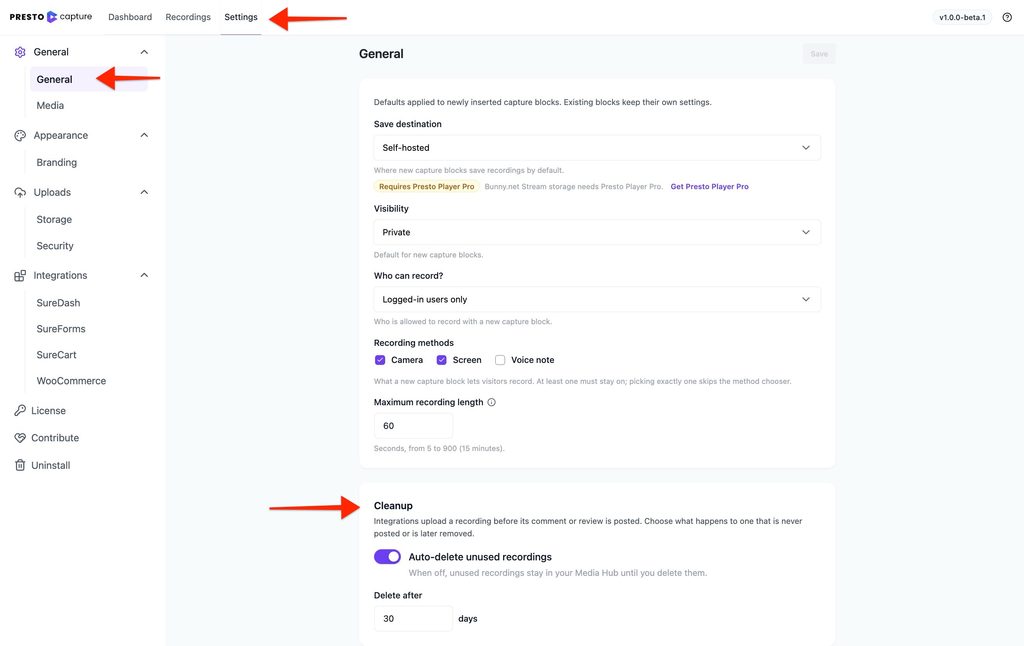
Presto Capture checks on a schedule and deletes any unused recording older than the time you picked.
Keep Every Recording Instead
- Turn off Auto-delete unused recordings.
- Click Save.
Unused recordings then stay in your Media Hub until you delete them yourself.
Good to Know
- Deleted means deleted. Cleanup removes the recording and its file, including the video in your Bunny.net library.
- SureForms has its own setting. To delete a recording when its form entry is deleted, turn on Delete the recording when its entry is deleted in the SureForms integration settings.
Unused recordings now clear themselves out, and your library holds only the videos you need.
If you have any questions or need further help, feel free to reach out to our support team. We’re always happy to help!
We don't respond to the article feedback, we use it to improve our support content.